Wholesale customers often pay on credit terms rather than upfront at checkout. Instead of entering card details, they expect to place an order and receive an invoice to settle within an agreed period, such as net 30 or net 60.
WooCommerce does not include an invoice payment option by default. Invoice Gateway for WooCommerce is a free plugin built by the Wholesale Suite team that adds a dedicated invoice payment method to your store, with built-in options to restrict it to wholesale customers only and block customers with outstanding invoices from placing new orders. For more advanced credit management, Wholesale Payments adds payment terms, dollar credit limits, and Stripe-powered invoicing.
Prerequisites
- WooCommerce installed and active.
- Invoice Gateway for WooCommerce installed and activated. This free plugin is available from WordPress.org.
- Optional: WooCommerce Wholesale Prices Premium if you want to restrict payment gateways per wholesale role using the WWPP gateway mapping.
Step 1: Install Invoice Gateway for WooCommerce
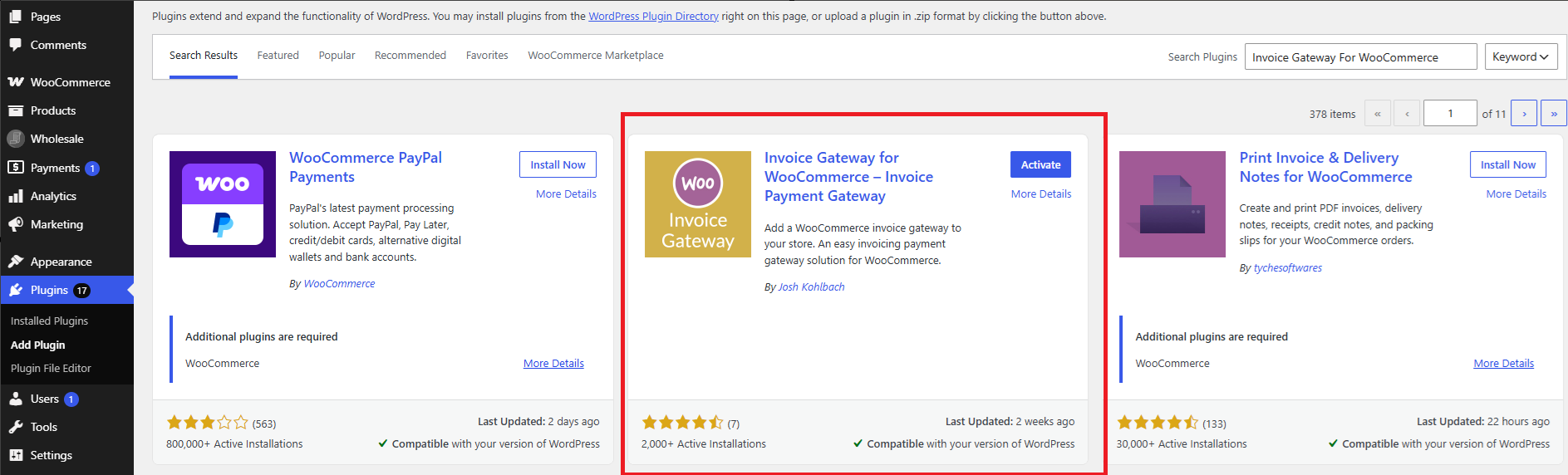
- In your WordPress dashboard, go to Plugins → Add New Plugin.
- Search for Invoice Gateway for WooCommerce.
- Click Install Now, then Activate.
Step 2: Enable the invoice payment gateway
After activation, the invoice payment method is registered in WooCommerce but must be enabled before customers see it at checkout.
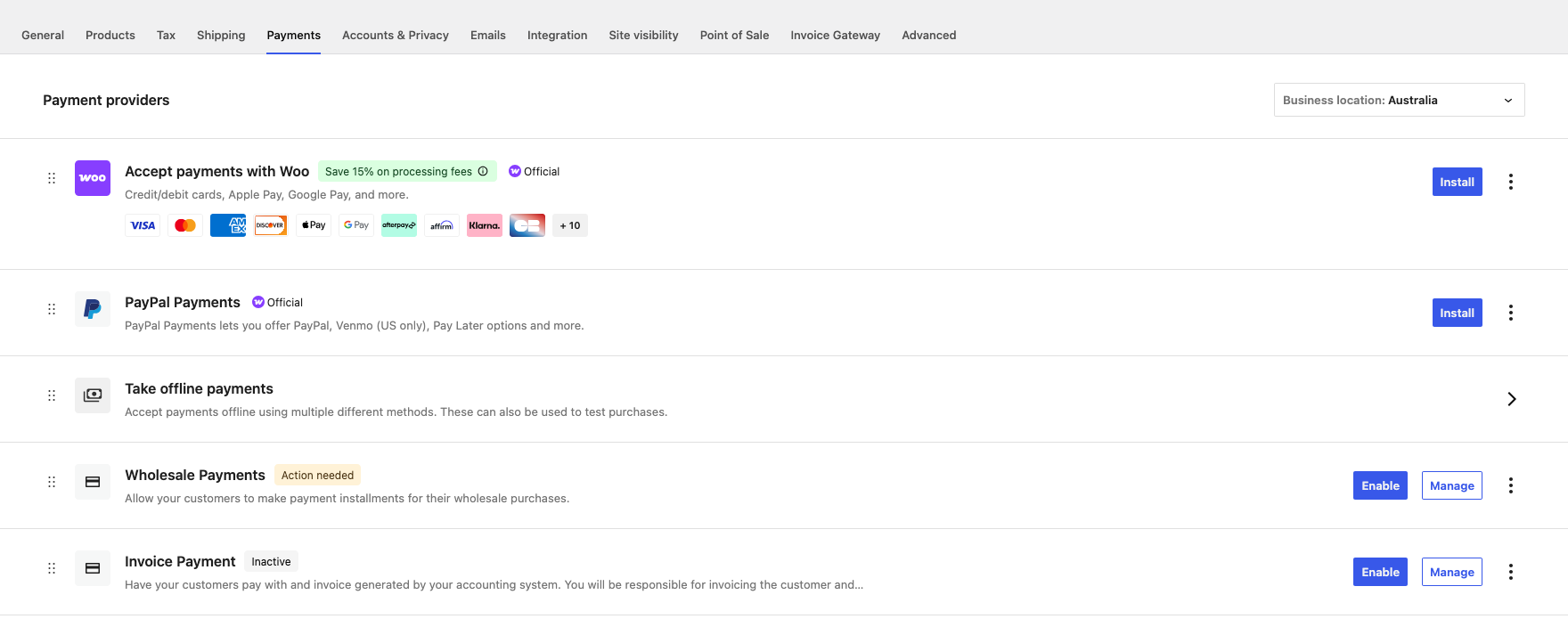
- Go to WooCommerce → Settings → Payments.
- Find Invoice Payment in the list and click Enable.
- Click Manage to configure the gateway title, description, and instructions shown to customers at checkout and on the thank-you page.
- Click Save changes.
For every Invoice Gateway setting, including purchase order numbers, the default order status and payment terms, see How to set up Invoice Gateway for WooCommerce.
Step 3: Restrict the invoice gateway to wholesale customers
By default, an enabled gateway is visible to all customers. To limit the invoice option to wholesale customers only, use one of the two approaches below.
Option A: Use the built-in Invoice Gateway restrictions
Invoice Gateway for WooCommerce includes a built-in restrictions section that lets you limit the gateway to specific user roles without any additional plugins.
- Go to WooCommerce → Settings → Invoice Gateway → Restrictions.
- Tick Enable Restrictions. This is the master toggle and must be on before any of the rules below take effect.
- In the Allowed Roles field, select your wholesale customer role or roles. When at least one role is selected, guests are blocked automatically.
- Click Save changes.
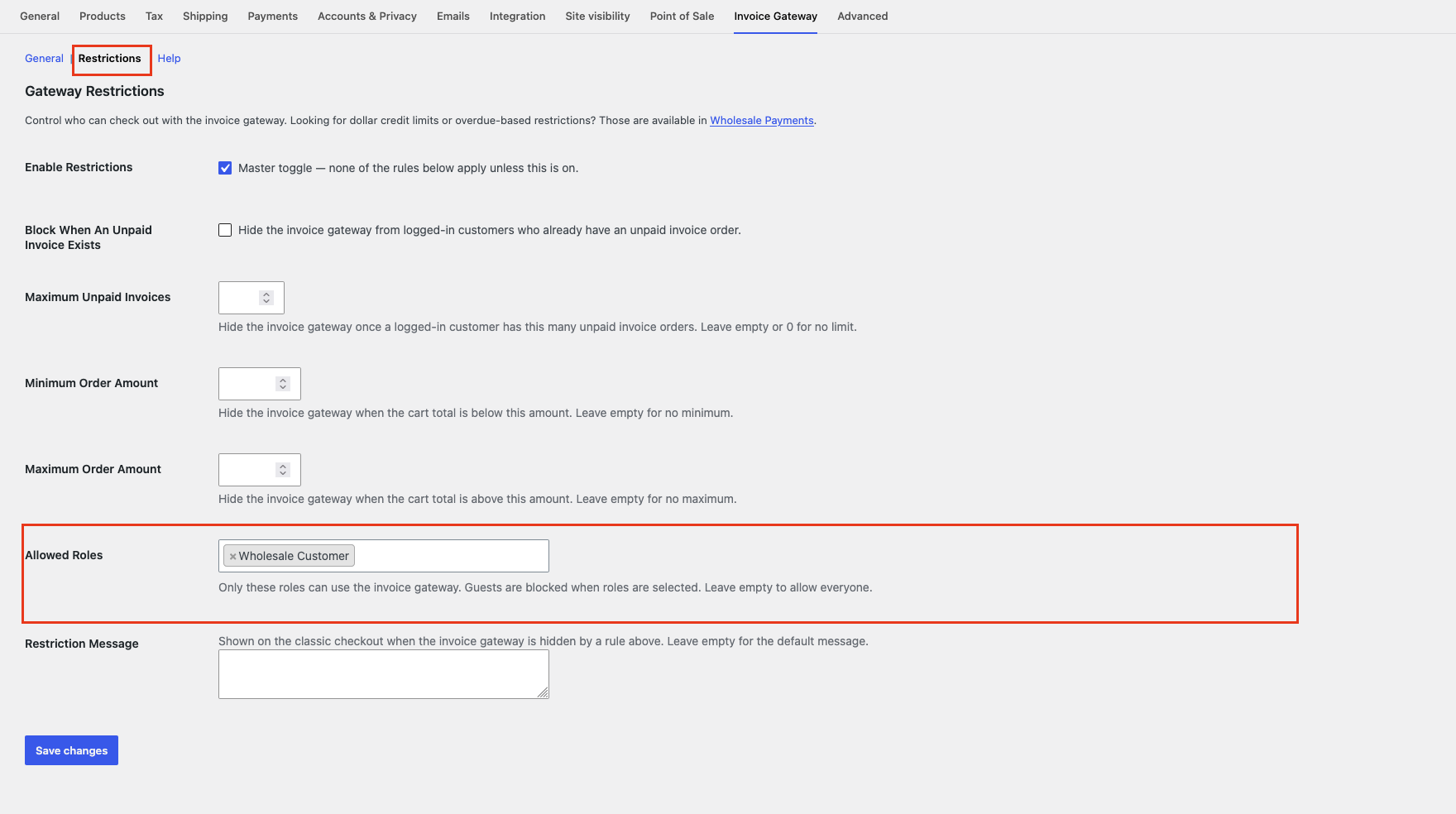
The Restrictions section also includes these optional rules:
- Block When An Unpaid Invoice Exists: hides the gateway from customers who already have at least one unpaid invoice order.
- Maximum Unpaid Invoices: hides the gateway once a customer reaches a set number of unpaid invoice orders. Leave blank or set to 0 for no limit.
- Minimum Order Amount: hides the gateway when the cart total falls below this amount.
- Maximum Order Amount: hides the gateway when the cart total exceeds this amount.
- Restriction Message: the message shown on the classic checkout when the gateway is hidden by one of the rules above. Leave blank to use the default message.
Option B: Use the WooCommerce Wholesale Prices Premium gateway mapping
If you use WooCommerce Wholesale Prices Premium, you can map specific payment gateways to specific wholesale roles. Only the gateways assigned to a role are shown to customers in that role at checkout. Roles with no mapping see all enabled gateways.
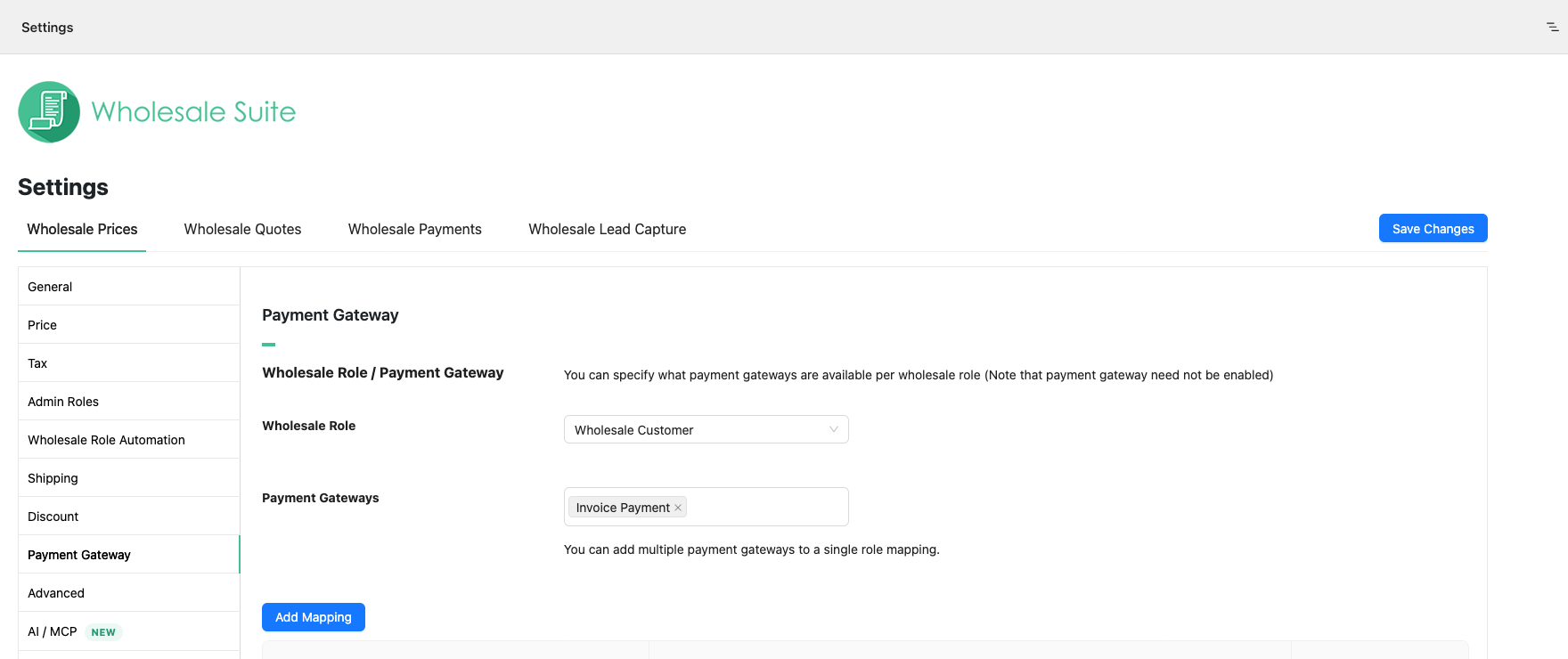
- Go to Wholesale → Settings → Wholesale Prices → Payment Gateway.
- In the Wholesale Role / Payment Gateway section, select the wholesale role from the Wholesale Role dropdown.
- In the Payment Gateways field, select Invoice Payment along with any other gateways this role should see. You can add multiple gateways to a single role mapping.
- Click Add Mapping. The mapping appears in the table below.
For a full walkthrough of payment gateway mapping, see How to restrict wholesale customers to use particular payment gateways.
Enabling purchase order numbers
Many B2B buyers need their own purchase order (PO) number on every order so their accounts team can match your invoice to an approved purchase. Invoice Gateway for WooCommerce can add a PO number field to the Invoice Payment method at checkout and save the number on the order.
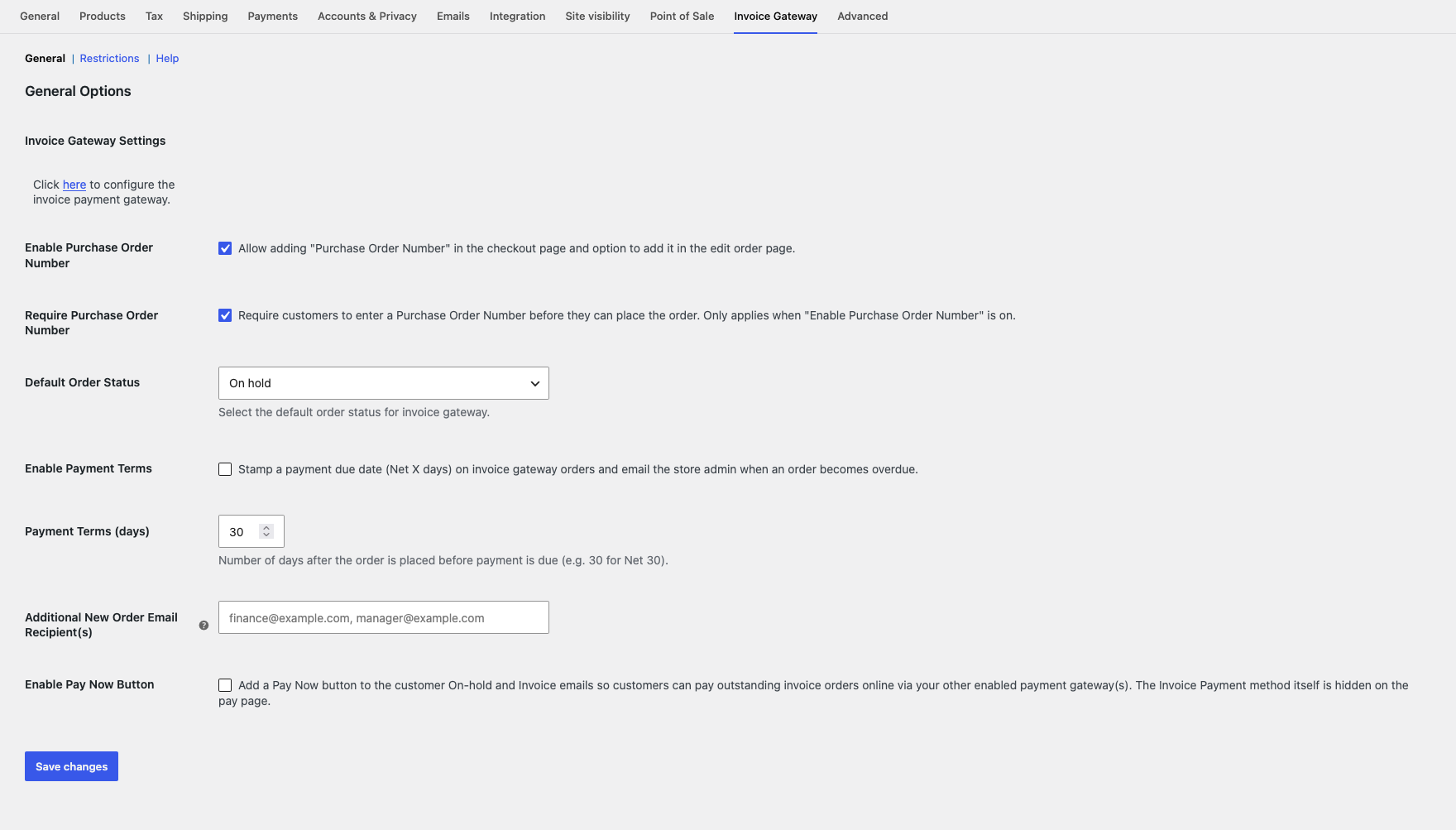
- Go to WooCommerce → Settings → Invoice Gateway and stay on the General sub-tab.
- Under General Options, tick Enable Purchase Order Number.
- Optionally, tick Require Purchase Order Number to make the field mandatory. This only applies when Enable Purchase Order Number is on.
- Click Save changes.
What customers see at checkout
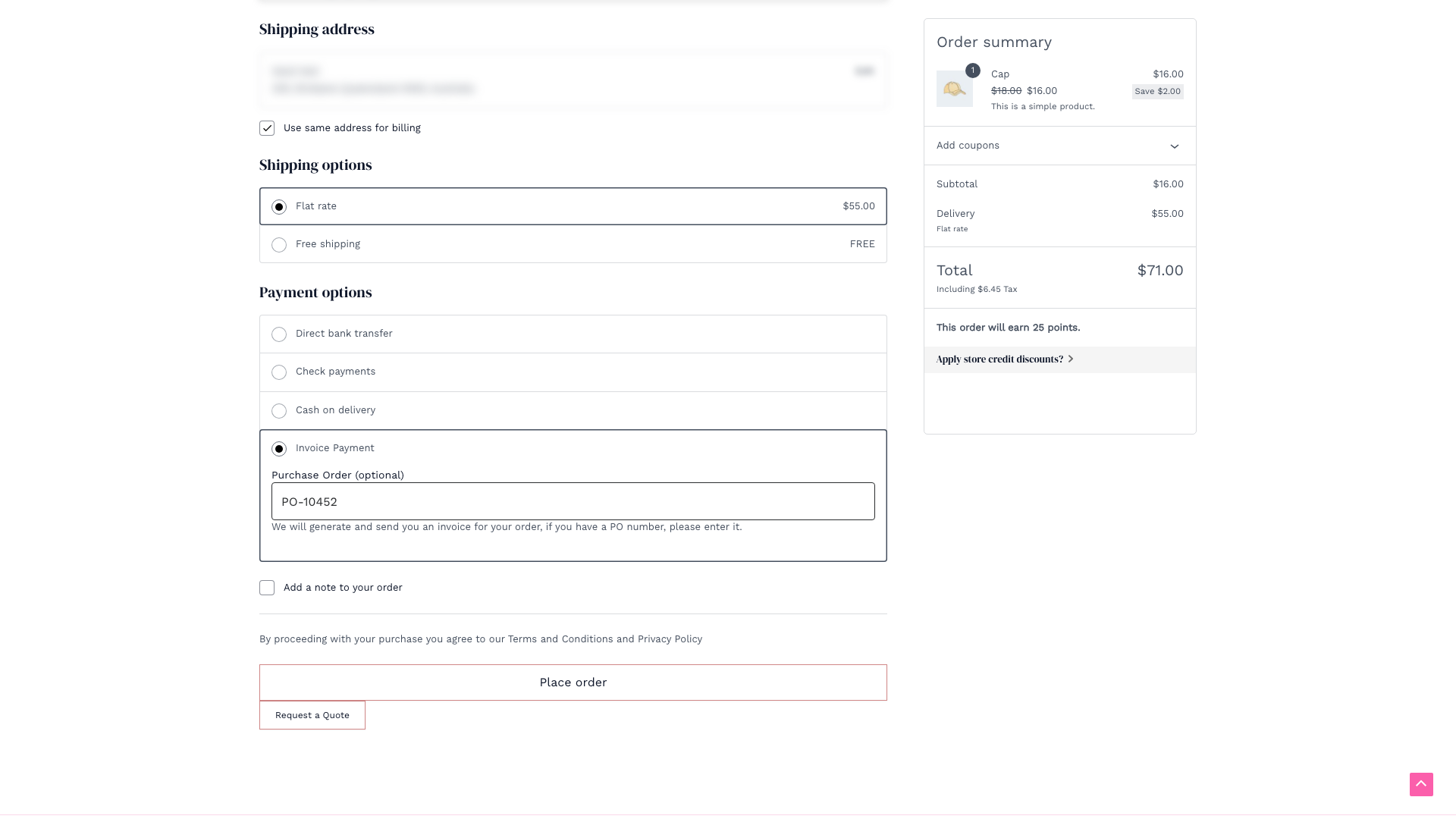
When a customer selects Invoice Payment, the PO number field appears below it on both the classic checkout and the block checkout. It replaces the gateway’s Description text and shows:
- A heading of Purchase Order (optional), or Purchase Order (required) when Require Purchase Order Number is on
- A text field with the placeholder PO Number
- The help text “We will generate and send you an invoice for your order, if you have a PO number, please enter it.”
What happens if the field is left empty
If Require Purchase Order Number is on, the customer can’t place the order until they enter a PO number. They see the message “Please enter a Purchase Order Number to continue.”
If Require Purchase Order Number is off, the order goes through as normal and no PO number is saved. You can add one to the order yourself later.
Where to find the PO number
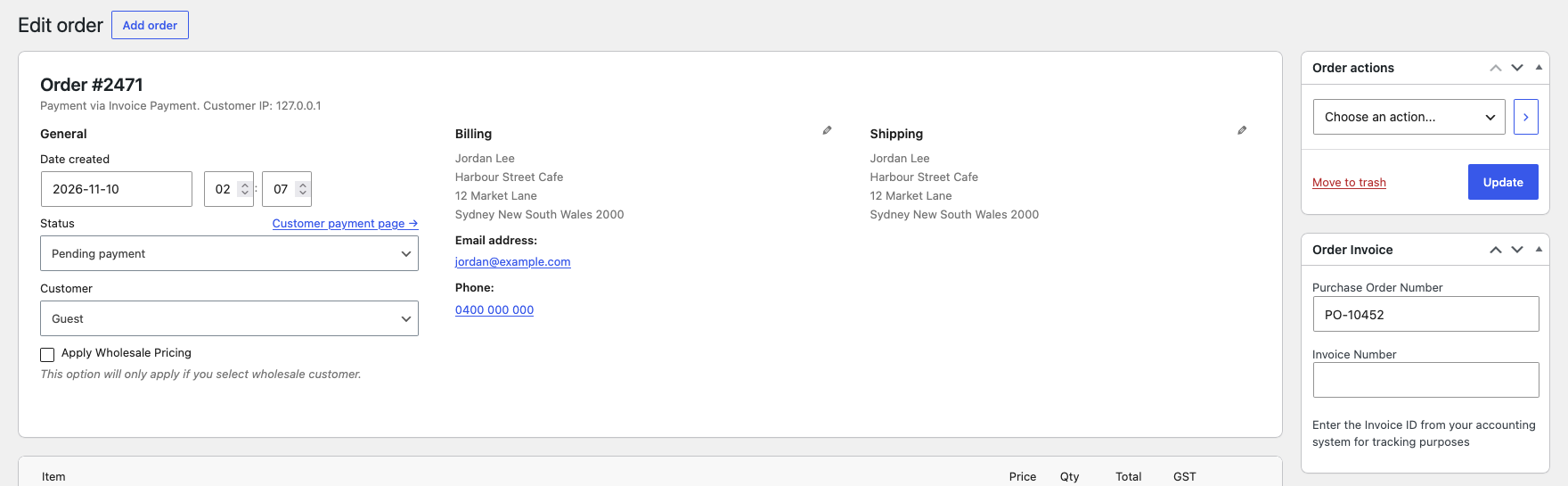
Open the order in WooCommerce → Orders. The PO number is in the Purchase Order Number field of the Order Invoice box on the edit order screen. You can add or change it there, for example when a customer sends their PO number after ordering.
The PO number is also included in the admin New Order email, where “PO: 10452” (for example) is added to the end of the subject line, and in the customer’s Completed order email.
Change the field text with filters
If you want different wording, you can change the field text with these filters. Add the code to your child theme’s functions.php file or a code snippets plugin.
igfw_purchase_order_number_title: the field headingigfw_purchase_order_number_placeholder: the placeholder text inside the fieldigfw_purchase_order_number_desc: the help text below the fieldigfw_purchase_order_number_required_error: the message shown when a required PO number is missingigfw_purchase_order_number_email_subject_label: the format of the PO number in the New Order email subject (default%1$s — PO: %2$s, where %1$s is the original subject and %2$s is the PO number)
For example, this renames the field and changes its placeholder:
// Rename the PO number field and change its placeholder.
add_filter( 'igfw_purchase_order_number_title', function () {
    return 'Your PO reference';
} );

add_filter( 'igfw_purchase_order_number_placeholder', function () {
    return 'e.g. PO-10452';
} );
The default heading changes between “(optional)” and “(required)” depending on the Require setting. A title filter replaces both, so include “required” in your own wording if the field is mandatory.
Alternative: Wholesale Payments for advanced invoicing
Wholesale Payments is a premium plugin that extends invoice management beyond what Invoice Gateway for WooCommerce provides. It adds support for payment terms (Net X days stamped on orders), deferred payment schedules, dollar credit limits, overdue payment reminders to customers, and automatic Stripe-powered invoicing. For setup and configuration, see the Wholesale Payments getting started guide.
Troubleshooting
The invoice payment option is not showing for wholesale customers at checkout
Check that the gateway is enabled at WooCommerce → Settings → Payments. If you’re using Option A, also check that Enable Restrictions is turned on at WooCommerce → Settings → Invoice Gateway → Restrictions and that your wholesale role appears under Allowed Roles. If Block When An Unpaid Invoice Exists or Maximum Unpaid Invoices is set, the gateway may be hidden because the customer already has outstanding invoice orders.
If those settings look right, check these less obvious causes. None of them shows a notice at checkout.
- Accept for virtual orders is off and the cart doesn’t need shipping. When every product in the cart is virtual, the gateway is hidden unless Accept for virtual orders is ticked. Go to WooCommerce → Settings → Payments, click Manage next to Invoice Payment, and tick it.
- Enable for shipping methods doesn’t include the customer’s shipping method. If you’ve selected any methods in Enable for shipping methods on the same Invoice Payment settings screen, the gateway only shows when the customer’s chosen shipping method is one of them. Add the missing method, or clear the field to allow all shipping methods.
- A page cache or CDN is serving an older checkout. Clear your caching plugin, host cache and CDN, then retest the checkout in a private browser window.
- The WWPP payment gateway mapping leaves out Invoice Payment. If you use Option B, a wholesale role with a mapping only sees the gateways in that mapping. Go to Wholesale → Settings → Wholesale Prices → Payment Gateway and add Invoice Payment to the role’s mapping.
For more checks, see the troubleshooting section of How to set up Invoice Gateway for WooCommerce.
Frequently asked questions
Does Invoice Gateway for WooCommerce work without Wholesale Suite?
Yes. The plugin is free and works as a standalone WooCommerce payment gateway. Wholesale Suite is not required. WooCommerce Wholesale Prices Premium is only needed if you want to use the WWPP payment gateway mapping approach described in Option B above.
What order status do invoice orders receive?
By default, invoice orders are placed into On hold status. You can change this via the Default Order Status setting at WooCommerce → Settings → Invoice Gateway. Once you confirm payment has been received, mark the order as Completed in the same way as any other WooCommerce order.
Can I record an invoice number on the order?
Yes. After generating an invoice in your accounting system, you can log the invoice number directly on the order in WooCommerce. When you mark the order as Completed, the invoice number is included in the customer’s Completed order email. Both the invoice number and the purchase order number are in the Order Invoice box on the edit order screen.
Will retail customers see the invoice payment option?
By default, any enabled gateway is visible to all customers. To limit it to wholesale customers only, enable the built-in restrictions (Option A) and set Allowed Roles to your wholesale role. Alternatively, use the WWPP payment gateway mapping (Option B) to assign the Invoice Payment gateway to specific wholesale roles.
What is the difference between the Invoice Gateway restrictions and the WWPP payment gateway mapping?
The Invoice Gateway built-in restrictions (Option A) control gateway visibility based on user role, unpaid invoice count, and cart amount. They are included in the free plugin and work without any Wholesale Suite product. The WWPP payment gateway mapping (Option B) is part of WooCommerce Wholesale Prices Premium and lets you assign different sets of payment gateways to different wholesale roles. For a simple “wholesale customers only” setup, Option A is sufficient. Option B is more appropriate when different wholesale tiers need access to different gateways.
Does the invoice gateway work with the WooCommerce block checkout?
Yes. Invoice Gateway for WooCommerce is compatible with both the classic WooCommerce checkout and the block-based checkout.
Can customers pay outstanding invoice orders online?
Yes. Tick Enable Pay Now Button in WooCommerce → Settings → Invoice Gateway. This adds a Pay Now button to On-hold and Invoice customer emails so customers can pay outstanding orders online through your other enabled payment gateways. The Invoice Payment method itself is hidden on the order-pay page for invoice orders, as long as another payment method is enabled.
What if I need dollar credit limits or overdue payment reminders to customers?
Dollar credit limits and overdue payment reminders to customers are not part of Invoice Gateway for WooCommerce. Both are available in Wholesale Payments. Invoice Gateway’s payment terms only email you, the store admin, when an order becomes overdue.
Does the invoice gateway work with the Wholesale Order Form?
Yes. Invoice Payment is a standard WooCommerce payment gateway and works with any compatible checkout flow, including WooCommerce Wholesale Order Form.
Does Invoice Gateway for WooCommerce support payment terms?
Yes, in a basic form. Tick Enable Payment Terms and set Payment Terms (days) in WooCommerce → Settings → Invoice Gateway to stamp a payment due date on invoice orders and receive an email notification when an order becomes overdue. For more sophisticated payment terms management, see Wholesale Payments.
Need help?
If you have a question or run into any issues, we’re here to help.
- Premium users: Open a support ticket
- Free users: Visit our community forum