
If you have enabled the invoice payment option and now want to limit which customers can use it, the Invoice Gateway for WooCommerce includes a built-in set of restriction rules. You can limit invoice checkout to particular user roles, block customers who have outstanding unpaid invoices, or enforce minimum and maximum cart amounts.
This article covers every restriction condition available in the Gateway Restrictions settings, where to find them, and what customers see at checkout when a rule hides the invoice payment option.
For the wider picture, see how to let wholesale customers pay via invoice. For dollar credit limits and overdue-based rules, which this free gateway does not cover, see how to restrict wholesale customers with overdue invoices in Wholesale Payments.
Requirements
- WooCommerce installed and active.
- Invoice Gateway for WooCommerce installed and activated. This free plugin is available from WordPress.org.
Opening the restrictions settings
All restriction settings are on a single page within the Invoice Gateway configuration.
- Go to WooCommerce → Settings → Invoice Gateway → Restrictions.
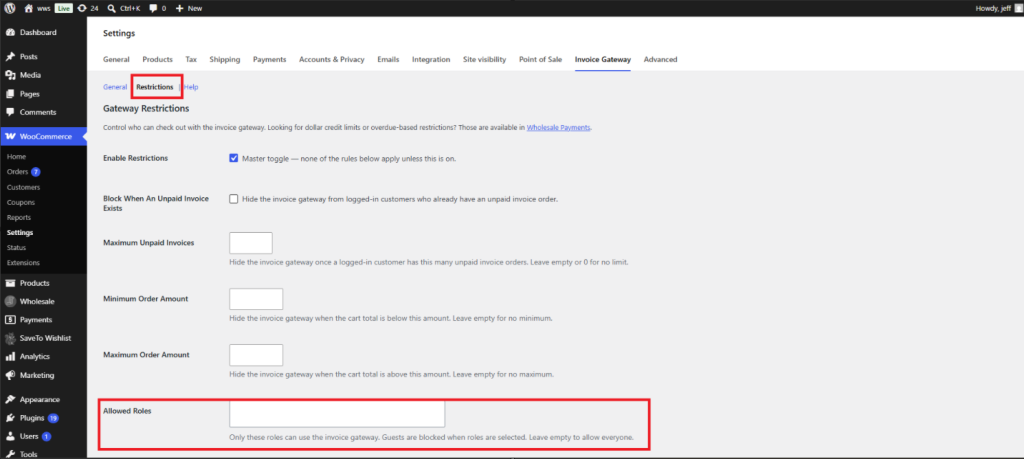
Available restriction conditions
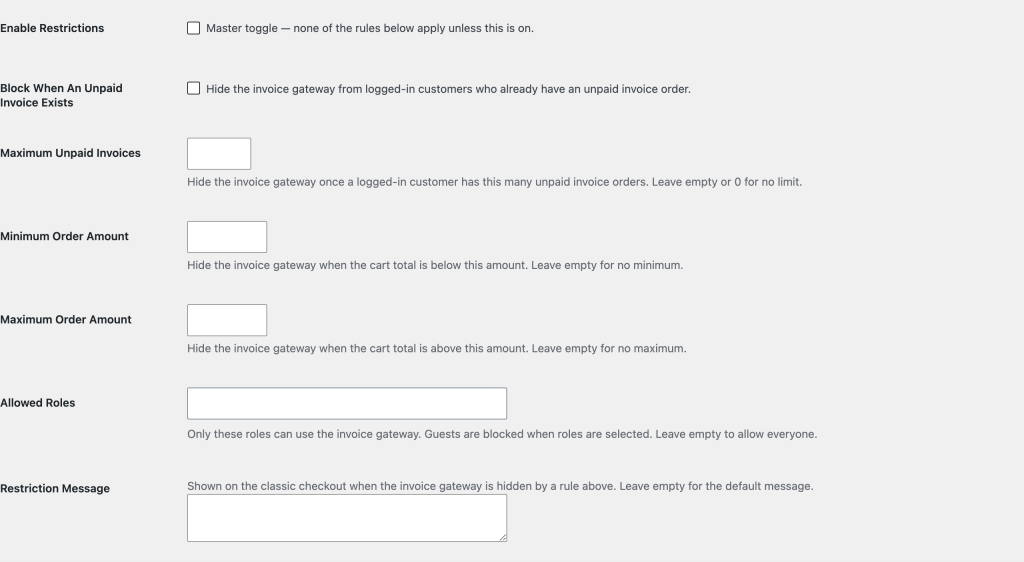
The Gateway Restrictions section contains a master toggle, five conditions, and the message shown to a blocked customer. The conditions can be combined: if any single condition is not met at checkout, the invoice gateway is hidden from that customer.
Enable Restrictions
Enable Restrictions is the master switch for all rules in this section. None of the conditions below it take effect unless Enable Restrictions is checked.
- Check Enable Restrictions.
- Configure the individual conditions you need (covered in the sections below).
- Click Save changes.
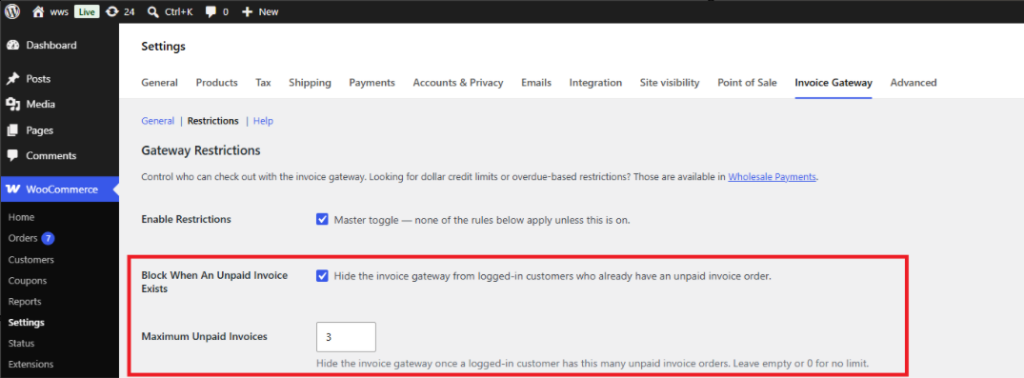
Block When An Unpaid Invoice Exists
Check Block When An Unpaid Invoice Exists to hide the invoice gateway from any logged-in customer who already has at least one unpaid invoice order. This prevents customers from placing new invoice orders while a previous one remains outstanding.
This condition applies to logged-in customers only. Guest accounts have no order history, so this check does not apply to them.
Maximum Unpaid Invoices
The Maximum Unpaid Invoices field lets you set a count limit instead of an absolute block. Enter a number to hide the gateway once a logged-in customer reaches that many unpaid invoice orders outstanding. Leave the field blank or set it to 0 for no limit.
Like Block When An Unpaid Invoice Exists, this condition applies to logged-in customers only.
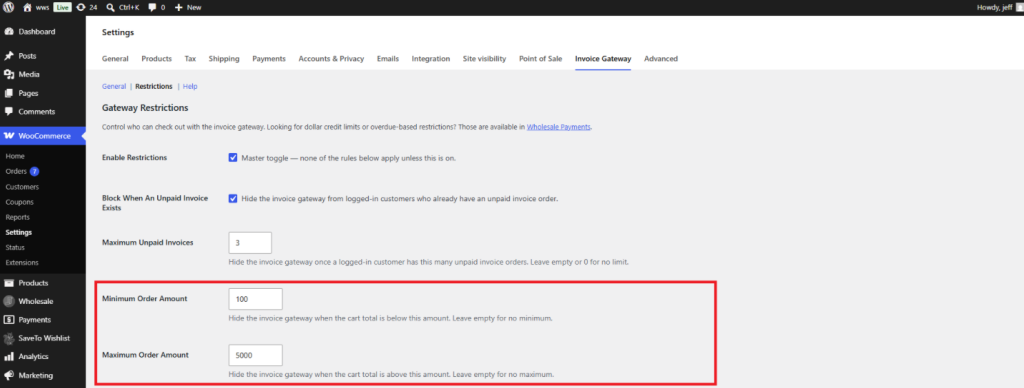
Minimum Order Amount
Enter a value in the Minimum Order Amount field to hide the invoice gateway when the cart total falls below it. Leave the field blank for no minimum.
Maximum Order Amount
Enter a value in the Maximum Order Amount field to hide the invoice gateway when the cart total exceeds it. Leave the field blank for no maximum.
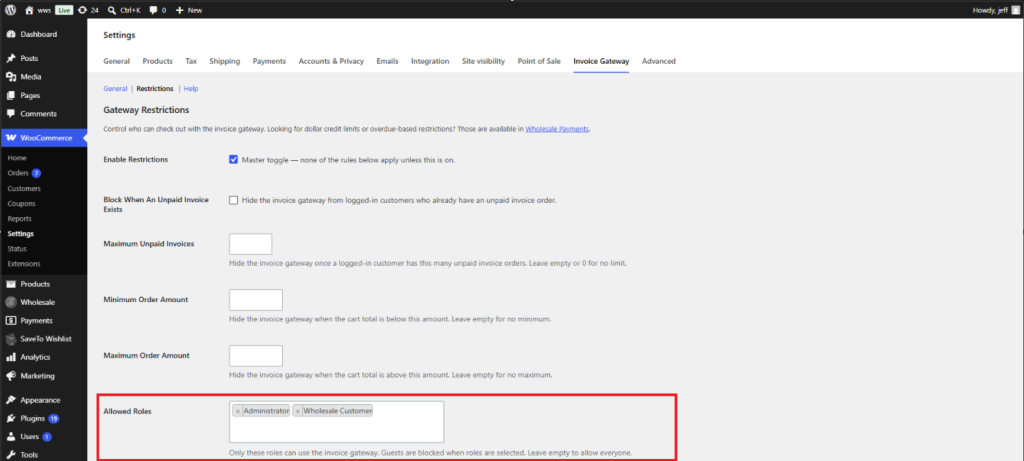
Allowed Roles
The Allowed Roles field limits the invoice gateway to specific user roles. Select one or more roles from the dropdown. When at least one role is selected, only logged-in users with a matching role can see the gateway at checkout, and guests are blocked automatically. Leave the field empty to allow all roles to use the gateway.
Restriction Message
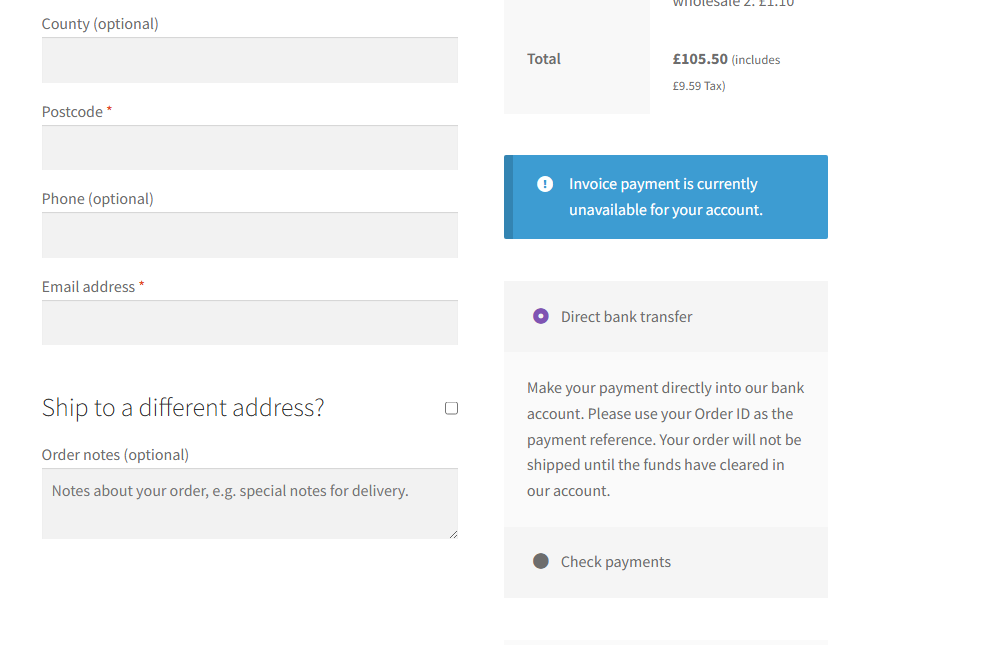
Restriction Message is the last field in the Gateway Restrictions section, below Allowed Roles. It sets the notice shown on the classic checkout when any condition above hides the invoice gateway. Leave it blank and customers see the default, “Invoice payment is currently unavailable for your account.”
What customers see at checkout
How the restriction is presented to customers depends on which checkout is in use.
Classic checkout: When a restriction condition is met, a notice appears in the payment section and the invoice payment option is removed from the list. The notice uses your custom Restriction Message if one is set, or the default text if the field is left blank.
Block-based checkout: The invoice gateway is silently removed from the available payment methods. No notice is displayed.
Troubleshooting
Why is the invoice gateway still showing for my administrator account?
Confirm that the restricted users or the Allowed Roles do not have the admin role set.
I enabled Enable Restrictions but nothing changed.
Confirm you clicked Save changes after enabling the toggle. The conditions only take effect after the settings are saved. Also check that at least one individual condition (such as Allowed Roles) is configured, as the master toggle alone does not restrict access.
The gateway is hidden from a customer who should be allowed to use it.
Check the Block When An Unpaid Invoice Exists and Maximum Unpaid Invoices settings. If either is active, the gateway may be hidden because the customer has outstanding invoice orders. You can verify this by reviewing the customer’s order history in WooCommerce → Orders. Also check the Minimum Order Amount and Maximum Order Amount values to confirm the customer’s cart total falls within the allowed range.
The restriction notice is not appearing at checkout.
The Restriction Message only appears on the classic WooCommerce checkout. If you are using the block-based checkout, the gateway is silently removed from the payment list and no notice is displayed. This is expected behavior.
Frequently asked questions
Does Enable Restrictions need to be on even if I only want to restrict by role?
Yes. Enable Restrictions is the master toggle for all conditions, including Allowed Roles. None of the individual conditions take effect unless the toggle is checked and saved.
If I leave Allowed Roles empty, does that mean no one can use the invoice gateway?
No. An empty Allowed Roles field means all roles, including guests, are permitted. Role gating only activates when at least one role is selected.
Are guests automatically blocked when Allowed Roles is configured?
Yes. When at least one role is selected in Allowed Roles, guest customers (not logged in) are blocked automatically, even if there is no specific rule targeting guests.
Does the order amount check use the subtotal or the cart total?
The check uses the cart total: the amount shown at checkout after taxes and any discounts have been applied. On the order-pay page (when a customer pays for an existing order), it uses the total of that order rather than the cart.
What counts as an unpaid invoice order?
The plugin counts an order as unpaid when it was placed through the invoice gateway and its status is either Pending or the status set in the Default Order Status setting (On-hold by default). The set of statuses counted as unpaid can be adjusted by developers using the igfw_unpaid_invoice_statuses filter.
Can I enable both Block When An Unpaid Invoice Exists and Maximum Unpaid Invoices at the same time?
Yes. If both are enabled, the gateway is hidden as soon as either condition is met. Because Block When An Unpaid Invoice Exists triggers from the very first unpaid order, it effectively makes Maximum Unpaid Invoices redundant when both are active.
Can I combine multiple restriction conditions?
Yes. All enabled conditions are evaluated together. If any single condition is not met, the invoice gateway is hidden. For example, you can restrict to a specific wholesale role and also require a minimum order amount: both conditions must be satisfied for the gateway to appear.
Does the Restriction Message appear on the block-based checkout?
No. The Restriction Message is only shown on the classic WooCommerce checkout. On the block-based checkout, the invoice gateway is silently removed from the payment options without any visible notice.
What if I need credit limits or overdue-based restrictions?
Dollar credit limits and overdue-based restrictions are not part of Invoice Gateway for WooCommerce. These features are available in Wholesale Payments.
Help & support
We have a dedicated support team for Wholesale Suite who knows our products, WooCommerce, and the industry very well. You’re welcome to make use of their expertise at any time, worldwide.
If you are an existing customer please go to the support ticket request form and send us a message.
If you are a free plugin user, please send us a support request on the forum. We actively monitor the WordPress.org support forums for the free plugin and help our users there as best as we can.

