
Offering payment terms is great for sales, but you don’t want a single buyer running up more debt than you’re comfortable carrying. Credit limits in Wholesale Payments cap how much a customer can owe at once, and restrict new payment-plan orders once they hit that cap. This guide shows you how to set them.
Before you start
- Wholesale Payments active and connected to Stripe. How to set up Stripe for wholesale payments
- Your wholesale roles set up, if you want different limits per role. How to create payment plans for wholesale customers
Set a credit limit
- Go to Wholesale → Settings → Wholesale Payments.
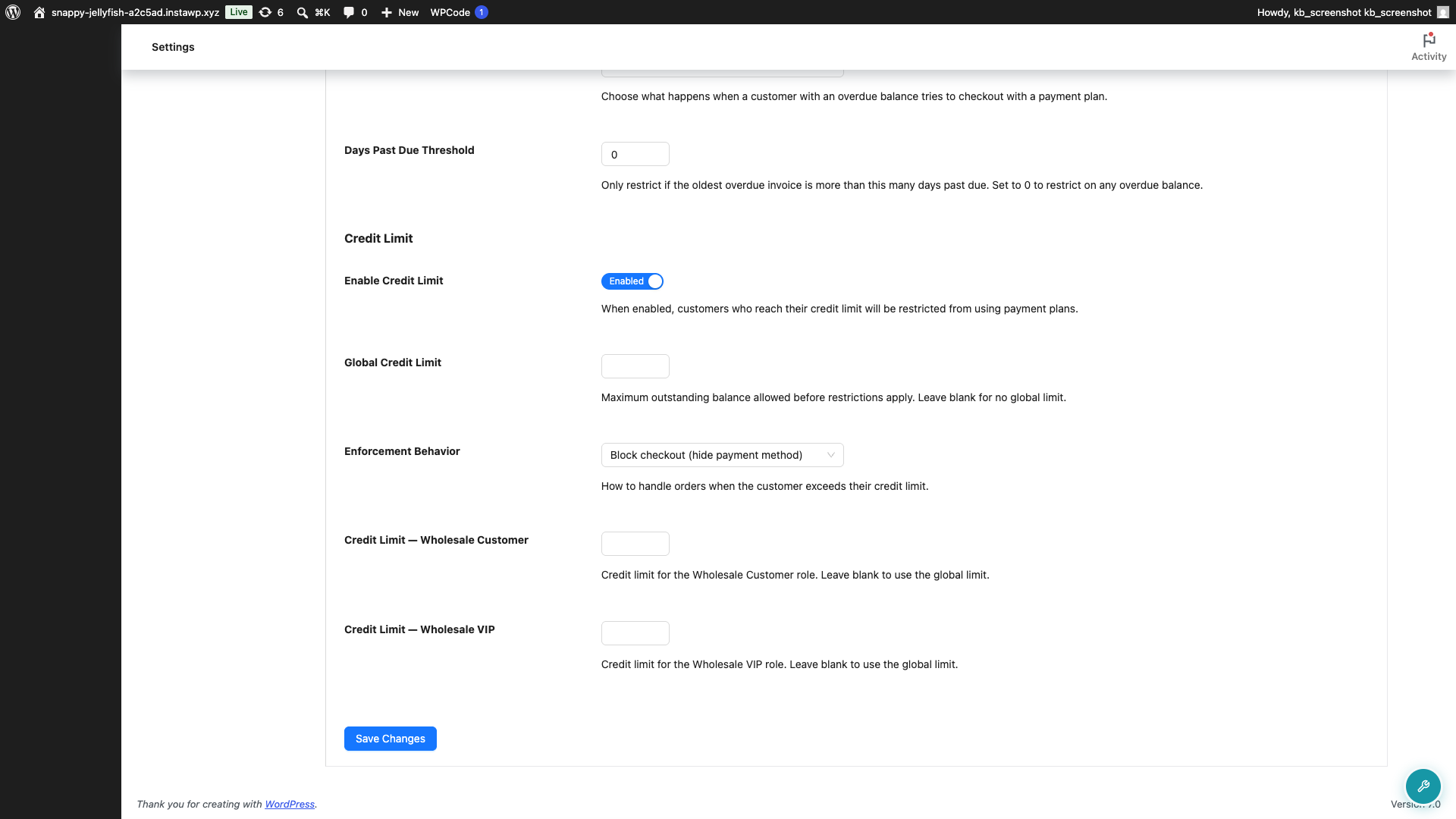
- Open the Checkout tab and find the Credit Limit section.
- Turn on Enable Credit Limit.
- Enter a Global Credit Limit, the maximum outstanding balance any customer can carry. Leave it blank for no global cap.
- Choose an Enforcement Behavior: Block checkout (hide payment method), or Allow checkout but place order on hold.
- To override the global cap for a role, set a per-role amount in the Credit Limit — [role name] field.
- Click Save Changes.
Set a limit for one customer
You may want to give one customer a higher or lower cap than their role allows. A limit set on their own profile ignores both the role limit and the global one.
- Make sure Enable Credit Limit is turned on. The per-customer field stays hidden until it’s on.
- Go to Users and open the customer you want to change.
- Scroll to Wholesale Payments Credit Limit and enter an amount in the Credit Limit field.
- Click Update User.
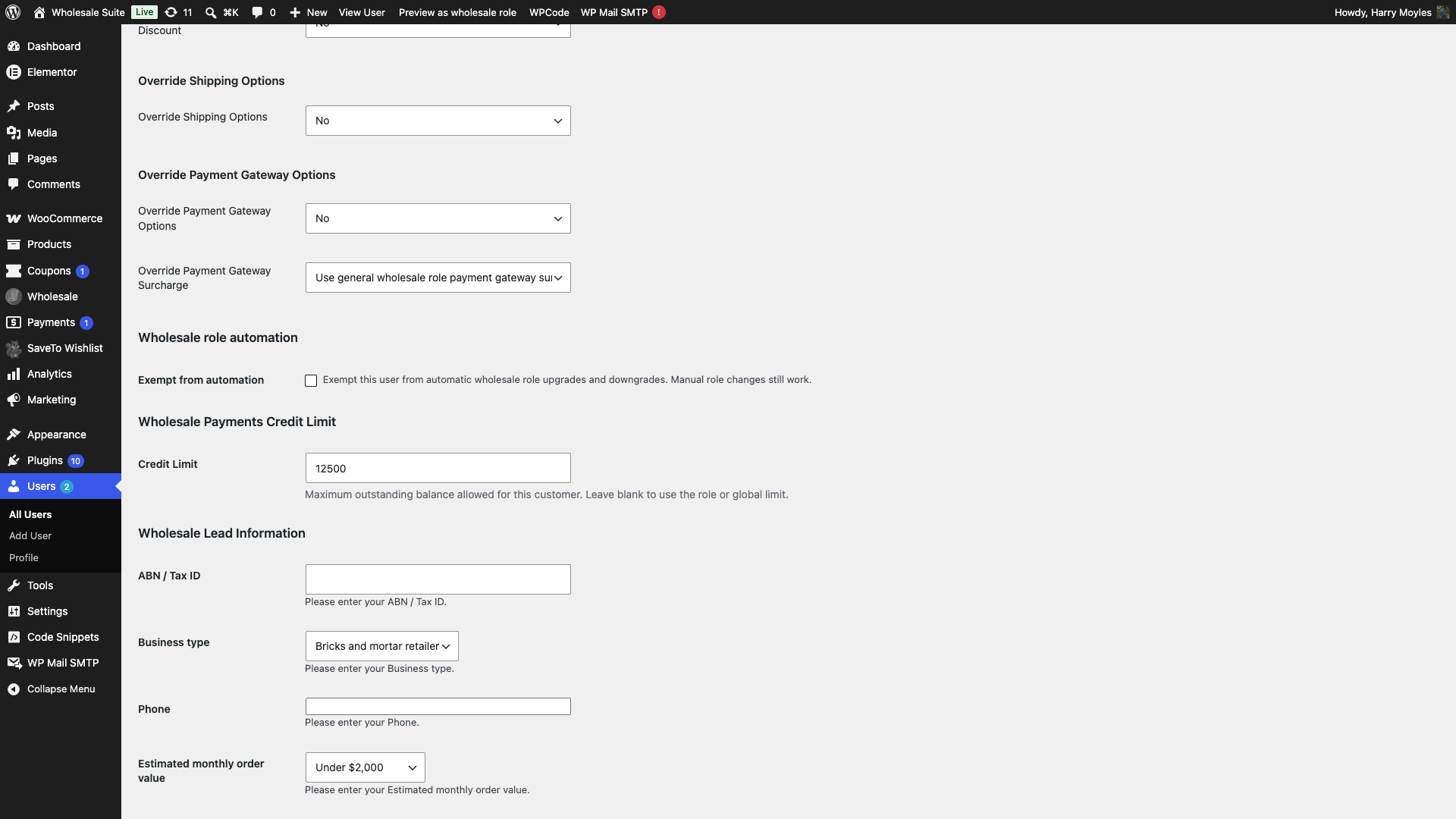
Leave the field blank to take the customer off their own cap and put them back on the role or global limit. Blank and 0 are not the same thing. A blank field means no cap of their own, while 0 is a real limit of zero, which stops them using payment plans at all.
Which limit applies
When more than one limit could apply, Wholesale Payments uses the most specific one it finds and stops there:
- The customer’s own Credit Limit on their user profile.
- The Credit Limit — [role name] amount for their wholesale role.
- The Global Credit Limit.
A blank field is skipped rather than treated as zero, so it falls through to the next level down. If all three are blank, the customer has no cap.
How the two behaviors work
Block checkout (hide payment method) removes the Wholesale Payments option for a customer who is at or over their limit, so they can’t place a new payment-plan order until their balance comes down.
Allow checkout but place order on hold lets the order through but holds it for your review, so you can decide case by case.
Troubleshooting
A customer can’t select Wholesale Payments at checkout
They have reached their credit limit and Enforcement Behavior is set to Block checkout (hide payment method). Check what they currently owe against the limit that actually applies to them, working through the order in Which limit applies. Raise that limit, or take a payment against their outstanding invoices, and the option comes back.
Orders are going straight to On hold
That is Enforcement Behavior set to Allow checkout but place order on hold, doing its job. The customer is at or over their limit, so the order is parked for you to approve. Switch to Block checkout (hide payment method) if you would rather stop these orders before they are placed.
A customer is blocked even though you never set a limit for them
Check for a 0 in the Credit Limit field on their profile. A zero is a real limit, not an empty one, so it blocks every payment-plan order. Clear the field to put them back on the role or global limit. If their profile is genuinely empty, check the role limit and then the Global Credit Limit.
Frequently asked questions
What counts toward the limit?
A customer’s outstanding balance, the total they currently owe across unpaid invoices.
Do per-role limits replace the global one?
Yes. A per-role amount overrides the Global Credit Limit for customers in that role. Roles without their own amount use the global cap. A limit set on an individual customer’s profile beats both.
Can I give one customer a different limit?
Yes. Open their profile under Users and set an amount in the Wholesale Payments Credit Limit section. That amount applies to them alone and overrides their role limit and the global cap.
Does a credit limit block all payment?
It restricts the Wholesale Payments option once the limit is reached. The customer can still pay in full with another method.
Need help?
If you have a question or run into any issues, we’re here to help.
- Premium users: Open a support ticket
- Free users: Visit our community forum

