Wholesale customers often need to load their order into their own point-of-sale or inventory system. Retyping every product, SKU, and quantity by hand is slow and easy to get wrong. WooCommerce Wholesale Prices Premium lets your customers download any of their orders as a CSV file straight from their My Account page. This guide shows where your customers find the download, what the file contains, and how to fix the common problems.
Before you start
- WooCommerce Wholesale Prices Premium version 2.1.5 or later
- The free WooCommerce Wholesale Prices plugin, active on the same site
- A customer account that is logged in and has at least one order
There is no setting to turn on. Once you update to version 2.1.5, the download shows for every logged-in customer, not only wholesale customers. Each customer can only download their own orders.
Step 1: Download a CSV from the Orders list
This is the fastest way for a customer to grab the file for any past order.
- Log in to the store as the customer.
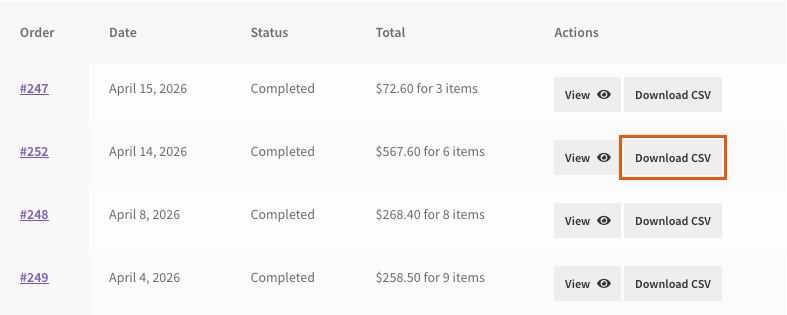
- Go to My Account > Orders.
- Find the order in the list.
- In the Actions column, click Download CSV.
The browser downloads a file named after the order number, for example order-1234.csv.
Step 2: Download a CSV from the order details page
Customers who are already looking at an order can download it from the same page.
- Go to My Account > Orders.
- Click View next to the order.
- Scroll below the order details table.
- Click Download Order CSV.
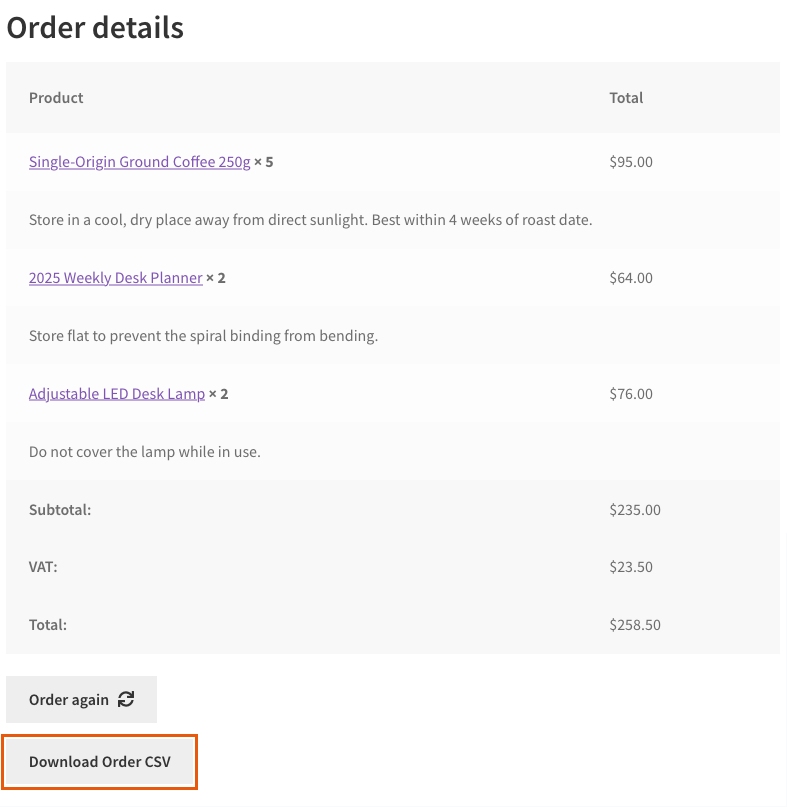
The button only shows on the View Order page in My Account. It does not show on the order received page that customers see right after checkout.
What the CSV file contains
The file has one header row, then one row for each product in the order. Shipping, fees, and coupon lines are not included.
| Column | What it contains |
|---|---|
| Product Name | The product name as it shows on the order. Extra item details, such as variation attributes or add-on choices, follow in parentheses so lines for similar products stay easy to tell apart. |
| Price | The price paid for one unit, before coupon discounts. It is the line subtotal on the View Order page divided by the quantity, and it includes or excludes tax the same way that page does. |
| SKU | The product SKU. |
| Quantity | The quantity ordered, minus any quantity you refunded. |
| Weight | The product weight. The header shows your store’s weight unit, for example Weight (kg). |
| Dimensions L x W x H | Length, width, and height, separated by “x”, for example 30 x 20 x 10. The header shows your store’s dimension unit, for example Dimensions L x W x H (cm). |
| GTIN | The value from the product’s GTIN, UPC, EAN, or ISBN field on the Inventory tab. Older WooCommerce versions don’t have this field, so the column stays empty. |

SKU, weight, dimensions, and GTIN come from the product as it is now, not as it was on the order date. The product name, price, and quantity come from the order itself.
Hide the CSV download
There is no admin setting to switch the download off. If you don’t want customers to see it, a developer can add this snippet to your child theme’s functions.php file or to a code snippets plugin:
add_filter( 'wwpp_show_order_csv_download', '__return_false' );This removes the Download CSV and Download Order CSV buttons for every customer. A developer can also use the filter to show the download only to some customers, for example only to your wholesale roles.
Troubleshooting
The Download CSV button doesn’t show
Update WooCommerce Wholesale Prices Premium to version 2.1.5 or later, and check that the free WooCommerce Wholesale Prices plugin is active. If both are fine, ask your developer if a snippet uses the wwpp_show_order_csv_download filter to hide the button.
The customer sees “Sorry, you cannot download this order.”
Ask the customer to reload My Account > Orders and click the button again. Each download link only works for the logged-in account that owns the order, so a link that was copied from another account, shared by email, or saved for a long time shows this message.
The customer sees “Sorry, the order CSV could not be generated. Please try again.”
Ask the customer to click the download button again. If the message comes back, another plugin or your theme is probably sending output to the browser before the file starts. Deactivate your other plugins one at a time to find it, or open a support ticket so we can help.
The SKU, weight, dimensions, or GTIN column is empty
Open the product in Products and fill in the missing field. If you can’t find the GTIN, UPC, EAN, or ISBN field on the Inventory tab, update WooCommerce, because older versions don’t have it. If the product was deleted after the order was placed, these columns stay empty, but the name, price, and quantity still show.
A value in the file starts with an apostrophe (‘)
This is expected. When a text value starts with =, +, -, or @, the plugin adds an apostrophe in front of it. This stops spreadsheet apps from reading the value as a formula.
Price multiplied by quantity doesn’t match the line total
Use the order totals on the View Order page when you need the exact amount. There are two causes. The price column is rounded to your store’s number of decimals for one unit, so a line of 10.00 for 3 units shows a price of 3.33. The Quantity column also leaves out refunded units, so after a refund the numbers no longer match the original line.
Frequently asked questions
Can only wholesale customers download the CSV?
No. Every logged-in customer can download a CSV of their own orders. To limit it to some customers, a developer can use the wwpp_show_order_csv_download filter.
Can I add or change the columns in the file?
Yes, with a developer’s help. The wwpp_order_csv_headers filter changes the header row, and the wwpp_order_csv_row filter changes each product row.
Need help?
If you have a question or run into any issues, we’re here to help.
- Premium users: Open a support ticket
- Free users: Visit our community forum