If you enter product prices with tax included and give wholesale customers a percentage off, the price they see depends on which tax rate gets taken out of that price. This guide explains how WooCommerce Wholesale Prices Premium works out a percentage discount from a tax-inclusive price. It also shows what changes when you map a wholesale role to its own tax class, with a worked example you can check against your store.
What “prices entered with tax” means
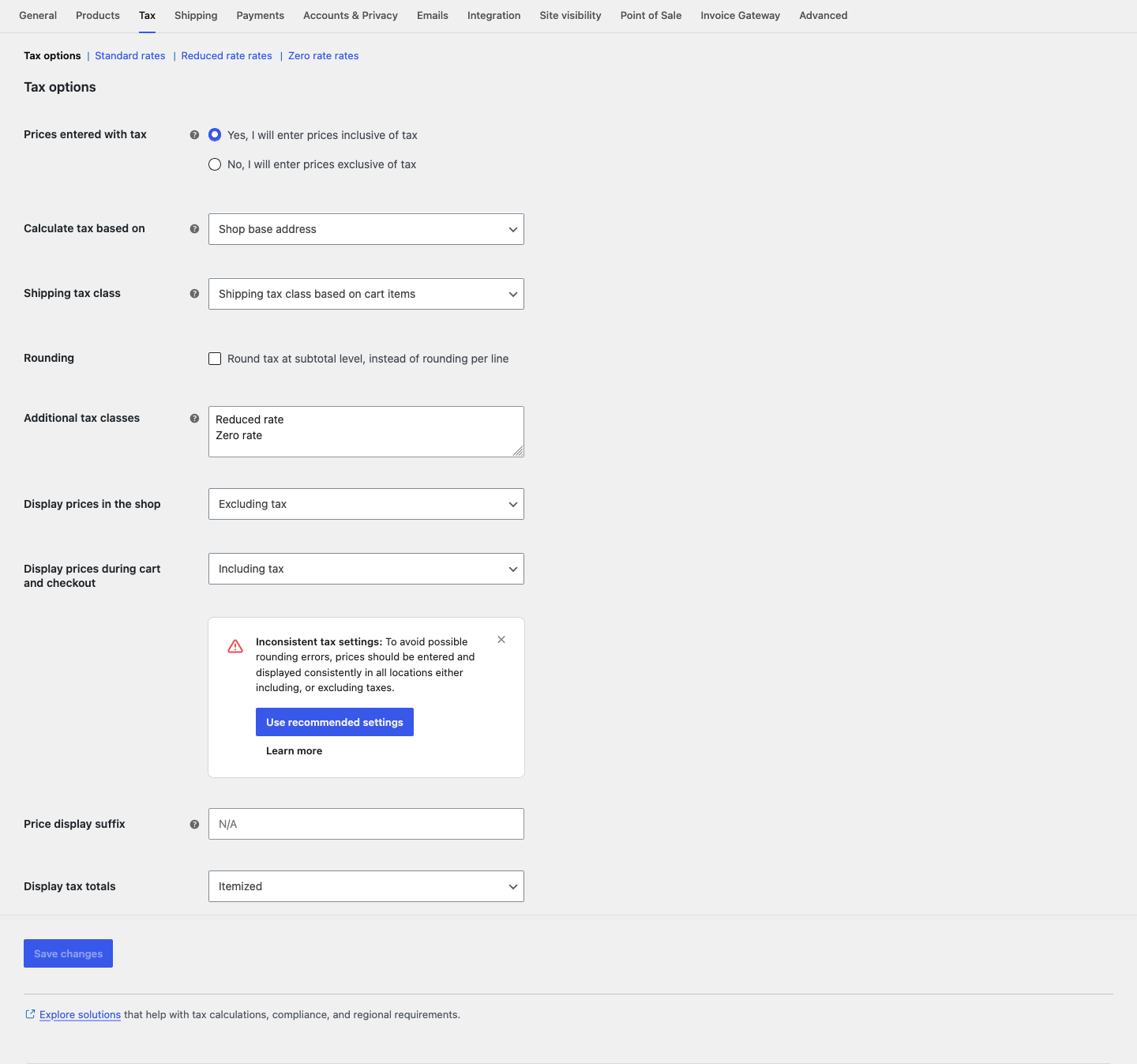
In WooCommerce > Settings > Tax, the Prices entered with tax setting tells WooCommerce whether the prices you type already include tax. When you pick Yes, I will enter prices inclusive of tax, every regular price you save on a product contains tax.
For example, with a 24% standard rate, a regular price of €124.00 is €100.00 before tax plus €24.00 tax. To split the price this way, WooCommerce uses the tax rate for your store’s base country. That’s the country in your store address under WooCommerce > Settings > General. It does the same for wholesale prices, because a wholesale price worked out from an inclusive price is also inclusive.
How a percentage discount is calculated from an inclusive price
WooCommerce Wholesale Prices Premium and WooCommerce work out the wholesale price in this order:
- The plugin takes the product’s regular price as you entered it, tax included.
- It takes the percentage off that price. The result is the wholesale price, and it still includes tax.
- WooCommerce removes the tax inside the wholesale price, using the base-country rate of the product’s tax class.
- WooCommerce shows that net price, or adds tax back at the rate the customer pays, based on your display settings.
Taking 10% off before or after removing tax gives the same net price. So the part that changes your numbers is step 3: which tax rate WooCommerce removes.
This applies to every percentage discount type: a role-wide General Discount, a category discount, and a product-level price with Discount Type set to Percentage. Fixed wholesale prices skip step 2, but they go through steps 3 and 4 the same way.
If a product is on sale, the role-wide, category and quantity-based percentages start from the sale price instead. To always start from the regular price, turn on Always Use Regular Price in Wholesale > Settings > Wholesale Prices > Price.
What a mapped wholesale tax class changes
In Wholesale > Settings > Wholesale Prices > Tax, the Wholesale Role / Tax Class Mapping section lets you pair a Wholesale Role with a Tax Class. Customers with that role then pay tax at the rates of that class instead of the product’s own class. A common setup is a 0% class for business customers who handle VAT themselves.
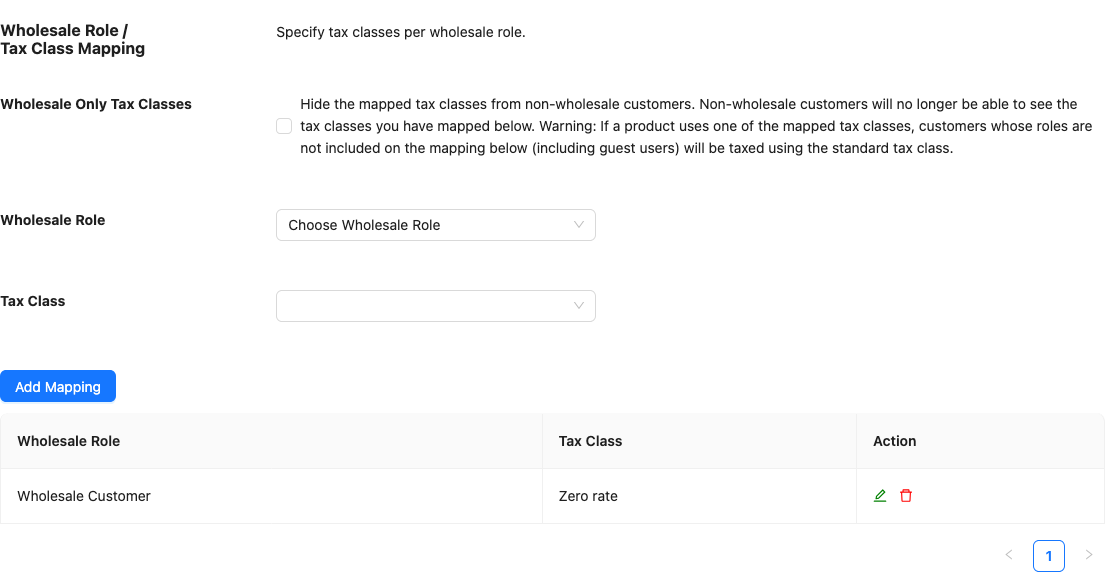
In version 2.1.1 and later, the plugin uses the mapped class in step 3 as well as step 4. That holds on shop and product pages and in the cart. So the wholesale price is treated as including the mapped class’s rate, not the product’s standard rate.
Before version 2.1.1, step 3 used the product’s own tax class and step 4 used the mapped class. With a 0% mapped class, WooCommerce took the standard rate out and added nothing back, so wholesale customers saw a lower price than the one you calculated.
Give the mapped class a rate for your base country
Step 3 needs a tax rate row for your store’s base country in the mapped class. A row set to 0% counts. In version 2.1.4 and later, if the mapped class has no row for your base country, the plugin falls back to the product’s own tax class for step 3. For a 0% mapped class, that means the standard rate is taken out again.
To add the row:
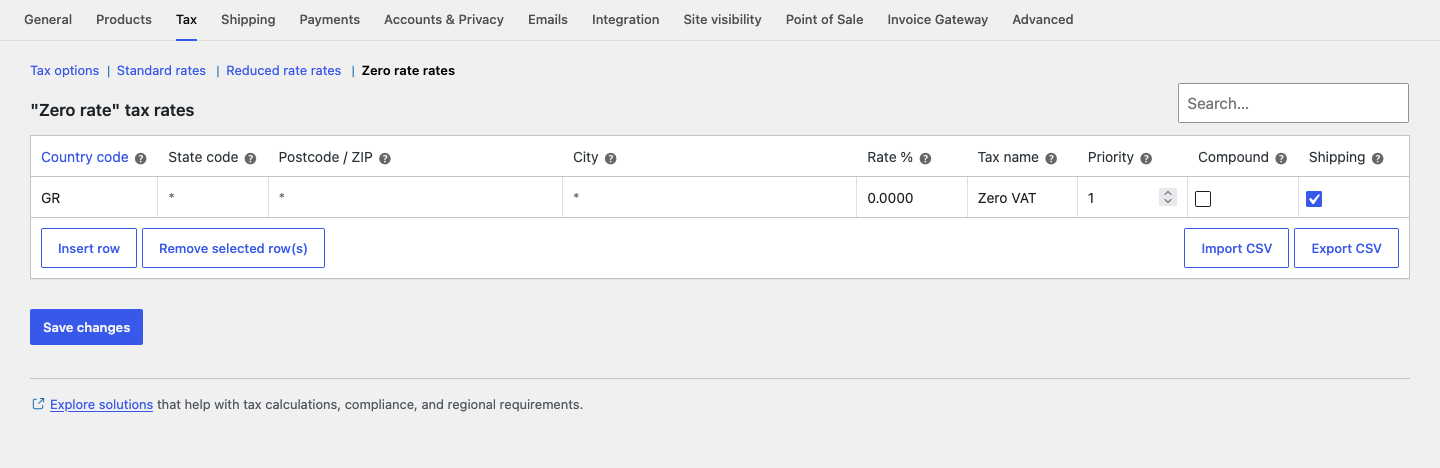
- Go to WooCommerce > Settings > Tax.
- Click the rates link for the tax class you mapped to the wholesale role, for example Zero rate rates.
- Click Insert row.
- Enter your base country in Country code.
- Enter the rate in Rate %, for example
0. - Click Save changes.
Worked example: 10% off with a 0% wholesale tax class
Here is the setup used in this example:
| Setting | Value |
|---|---|
| Prices entered with tax | Yes, I will enter prices inclusive of tax |
| Standard rate for the base country | 24% |
| Wholesale tax class | Zero rate, with a 0% row for the base country |
| Wholesale role | Wholesale Customer, not tax exempt, mapped to Zero rate |
| General Discount for the role | 10% |
| Product regular price | €124.00 |
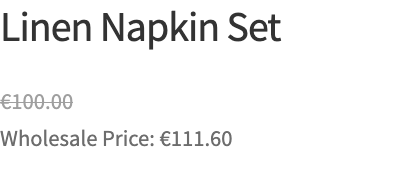
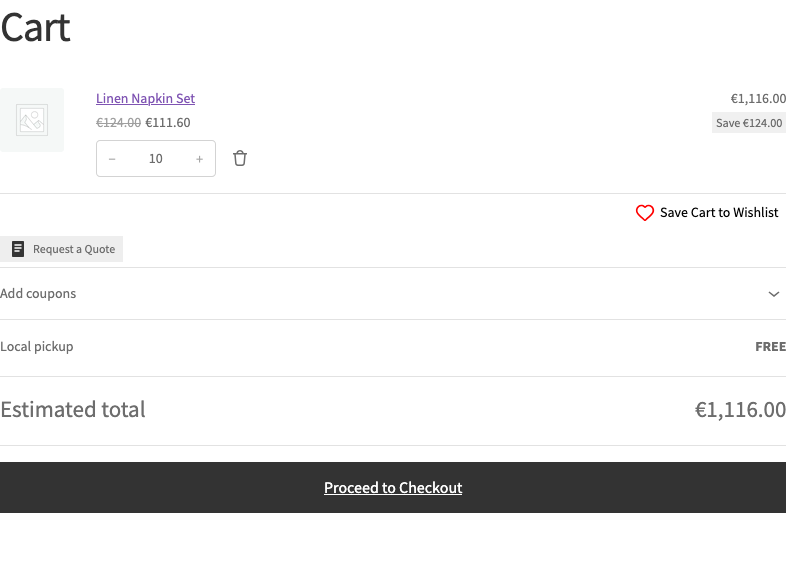
Step 2 gives the same result in every version: 10% off €124.00 is a tax-inclusive wholesale price of €111.60. The difference is in step 3:
| Before version 2.1.1 | Version 2.1.1 and later | |
|---|---|---|
| Rate removed from €111.60 | 24% (product’s standard class) | 0% (mapped class) |
| Price on shop and product pages | €90.00 (€111.60 ÷ 1.24) | €111.60 (€111.60 ÷ 1.00) |
| Cart line price | €90.00 | €111.60 |
| Tax added in the cart | €0.00 | €0.00 |
Because the mapped rate is 0%, the result is the same whether the role sees prices including or excluding tax.
The same rule applies to a mapped class with a rate above 0%. If Wholesale Customer were mapped to a 10% class, €111.60 would be treated as €101.45 before tax plus €10.15 tax.
What wholesale customers see in the shop and cart
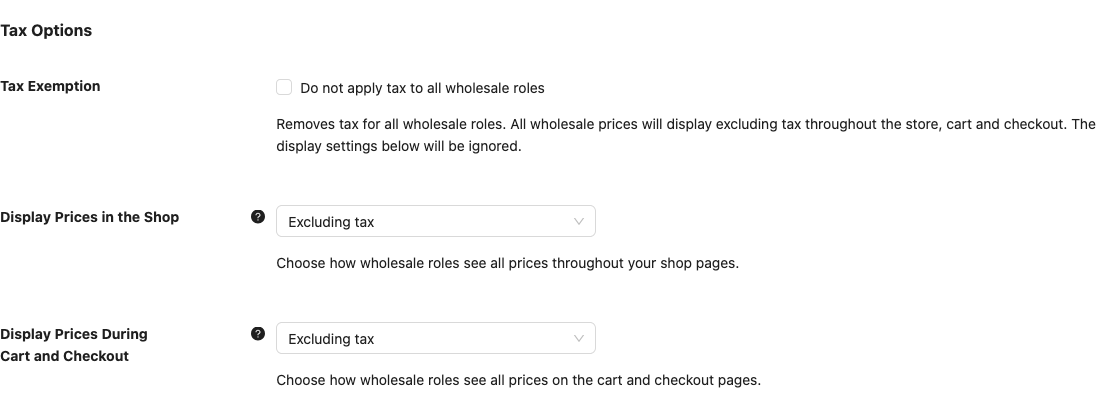
Two settings in the Tax Options section of Wholesale > Settings > Wholesale Prices > Tax control what a non-exempt wholesale role sees. Display Prices in the Shop covers shop pages, and Display Prices During Cart and Checkout covers the cart and checkout. Each can be Including tax, Excluding tax, or –Use woocommerce default–.
Whichever option you pick, the plugin uses the mapped class rate for both removing and adding tax, as long as the mapped class has a rate row for your base country. For more on these settings, see how to display wholesale prices including or excluding tax and how to keep retail prices showing including tax.
In the cart, the plugin only swaps the rate used in step 3 for items that get the wholesale price. If an item falls back to the retail price, for example because a minimum order requirement is not met, WooCommerce removes tax from it at the product’s own rate. Customers without a wholesale role are not affected.
Tax-exempt roles work differently and always see prices excluding tax. See how to make a wholesale role tax exempt.
Related articles
- How to display wholesale prices including or excluding tax
- How to keep retail prices showing including tax when wholesale price is set to show excluding tax
- How to make a wholesale role tax exempt
- Getting started with WooCommerce Wholesale Prices Premium
Frequently asked questions
Why is my wholesale price lower than the price I worked out?
Check that you run version 2.1.1 or later. Then check that the mapped tax class has a rate row for your store’s base country. In version 2.1.4 and later, without that row, the plugin takes the product’s standard rate out of the price.
Do I need to re-enter my prices after updating to version 2.1.1?
No. WooCommerce works out the tax each time it shows the price, so your saved prices and discounts stay the same.
Does this change prices for retail customers?
No. The mapped class only applies to logged-in customers with a mapped wholesale role.
Need help?
If you have a question or run into any issues, we’re here to help.
- Premium users: Open a support ticket
- Free users: Visit our community forum