

Your wholesale customers usually know what they want, but they do not always order it on the first visit. They browse your catalog, mentally note a few products, then get pulled away and forget. For a long time, there was no clean way for them to flag those products for later directly on the order form. The new SaveTo Wishlist integration finally changes that.
This update brings the free SaveTo Wishlist button straight onto the Wholesale Order Form, so buyers can save products for later without ever leaving the page where they place their bulk orders. Below, we will cover what the SaveTo Wishlist integration does, who it helps, and exactly how to switch it on.
Why Letting Wholesale Customers Save Products For Later Matters
In ecommerce, shoppers rarely buy everything they like in a single sitting, and wholesale is no exception. According to the Baymard Institute, the average online shopping cart abandonment rate is roughly 70 percent across 50 studies, meaning a large share of buying intent never becomes a completed order on the first attempt. A wishlist is one of the simplest tools for capturing that intent and giving buyers an easy path back to the products they were weighing up.
For wholesale and B2B stores, the argument is even stronger. Research from McKinsey found that buyers now divide their preferences roughly evenly across in-person, remote, and digital self-service channels, a pattern it calls the rule of thirds. Wholesale buyers increasingly want to research, save, and reorder on their own schedule, without waiting on a sales rep. The SaveTo Wishlist integration directly supports that self-service behavior, letting customers earmark products in one visit and come back to order them later.
There are everyday wins as well. A buyer planning a seasonal restock can save candidate products across several sessions before committing. Purchasing managers can shortlist items for a colleague to review and approve. Best of all, none of this pulls them away from the order form, so the bulk ordering flow stays fast and uninterrupted.
What The SaveTo Wishlist Integration Adds To Your Order Form
Before this release, your wholesale customers could browse products on the Wholesale Order Form, set quantities, and bulk-add items to their cart, but they had no built-in way to save a product for later on that page. The free SaveTo Wishlist plugin already worked on standard shop and product pages, yet its Add to Wishlist button did not appear on the order form. The only workaround was the order form’s built-in Favorites heart.
The SaveTo Wishlist integration closes that gap. It introduces a brand-new Wishlist column that you can drop into your order form, alongside familiar columns like Price, Quantity, and Add to Cart. Every product row then gets its own Save to Wishlist button that works just as it would on a normal shop page.
How The SaveTo Wishlist Integration Works On The Order Form
Once the SaveTo Wishlist integration is active and the Wishlist column is in place, here is what your customers will experience.
A dedicated wishlist column with a save button
The integration adds a Wishlist column to your order form, and every product row carries its own Save to Wishlist button. When a customer clicks it, that product is added to their wishlist. Reload the page, and the same row switches to a Remove from Wishlist state, so it is always obvious what has already been saved.
A bookmark button, kept separate from the favorites heart
Wholesale Order Form already includes a built-in Favourites heart, and the wishlist button is deliberately different from it. It uses a bookmark-style icon paired with a text label, which means the two are never mistaken for one another. Both can stay active together, giving customers two separate ways to flag products they care about.
It follows your existing wishlist styling
You do not need to restyle anything for the order form. The button pulls its placement, style, and colors from your existing settings under SaveTo Wishlist > Settings > Button Placements and Styles > Product Page, and it respects the Frontend Styling mode you have chosen. Whatever you have configured for your product page wishlist buttons carries over to the order form automatically.
Guest shoppers and the guest wishlist setting
Guest behavior matches how SaveTo Wishlist works everywhere else on your site. By default, guest wishlists are enabled, so logged-out visitors see the Save to Wishlist button on the order form. If your store has disabled guest wishlists in the SaveTo Wishlist settings, logged-out visitors will not see the button, keeping the behavior consistent across the site.
A note on variable products
There is one known limitation worth flagging. For a product with variations, the button saves the parent product to the wishlist rather than the specific variation selected in the order form. This mirrors how the built-in Favorites feature already behaves, and the team has flagged it as a possible future improvement.
How To Turn On The SaveTo Wishlist Integration Step By Step
Turning on the SaveTo Wishlist integration takes only a few minutes and requires no code. The feature is opt-in, which means nothing changes on your order form until you add the Wishlist column alongside the other essential order form elements.
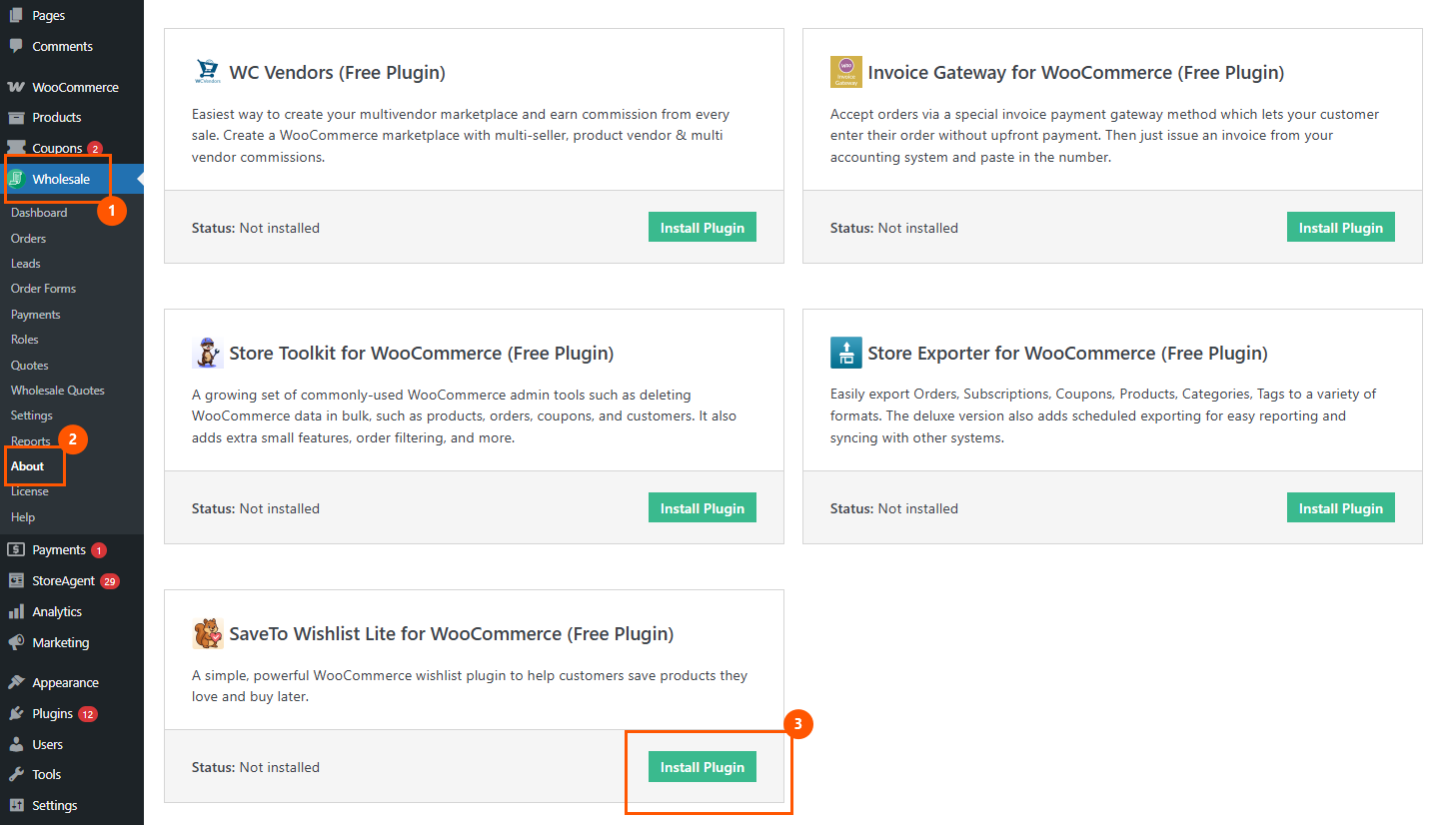
Step 1: Install the free SaveTo Wishlist Lite plugin
- In your WordPress admin, go to Plugins > Add New.
- Search for SaveTo Wishlist Lite for WooCommerce, the free plugin with the slug
saveto-wishlist-lite-for-woocommerce. - Click Install Now, then Activate. SaveTo Wishlist Pro is optional. Lite is all you need for the button to work; Pro only adds the multiple wishlists dropdown.
Tip: You can also install it directly from WooCommerce > Wholesale > Wholesale Prices About page, which includes a one-click Install Plugin button for SaveTo Wishlist Lite.
Step 2: Add the wishlist column to your order form
- Go to Wholesale > Order Forms and edit the order form used on your Wholesale Ordering page.
- In the form editor, find the Wishlist element in the palette of available columns. This element only appears once SaveTo Wishlist Lite is active.
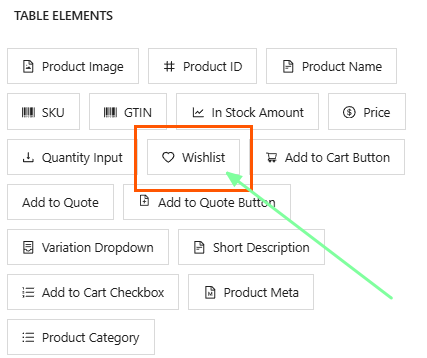
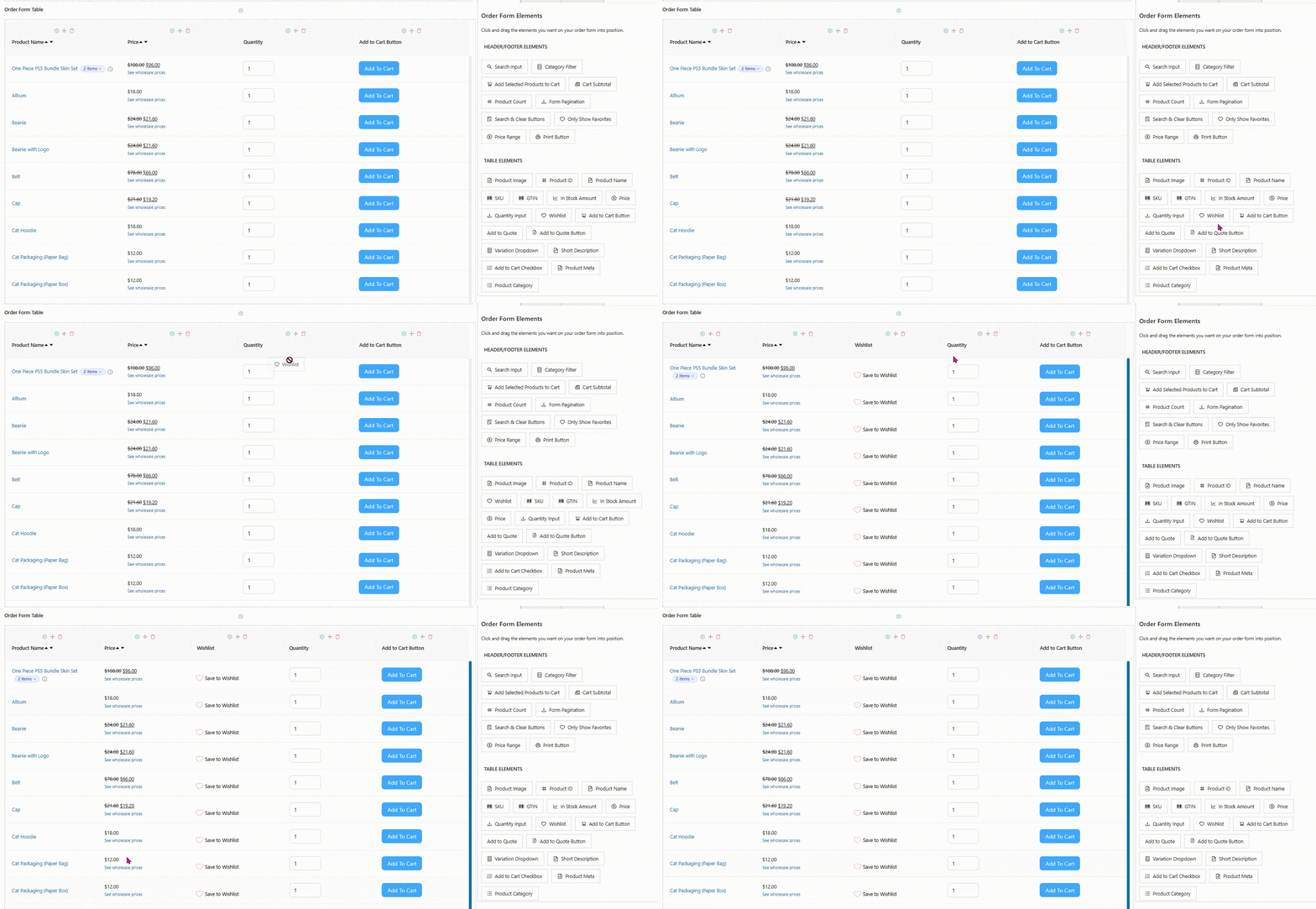
- Drag the Wishlist element into your form’s table, in whatever position you prefer. You can reposition or remove it later, just like any other column.
- Click Save on the form.
Step 3: Verify everything is working
- Log in as a wholesale customer, or use a test wholesale account, and open the Wholesale Ordering page.
- Confirm that a Save to Wishlist button now appears on every product row.
- Click it on one product to add it, then reload the page. That row should now show Remove from Wishlist.
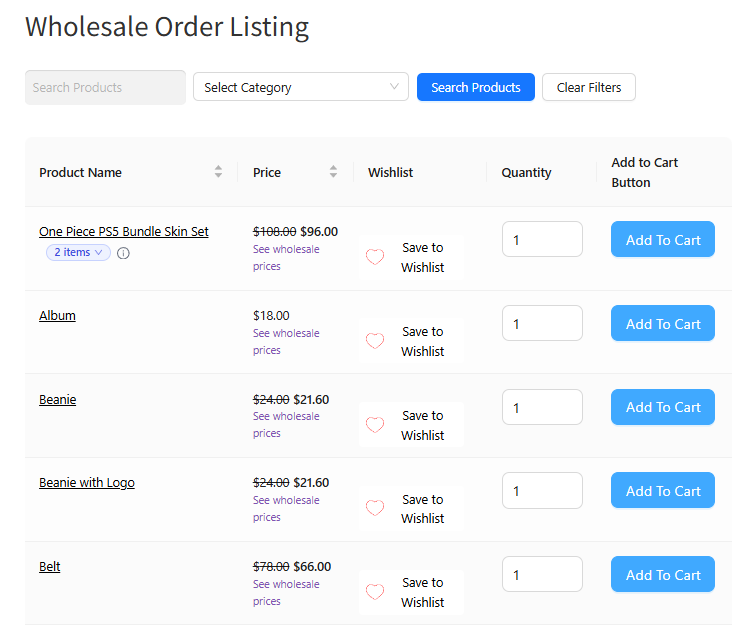
That is the entire setup. With the column saved, your SaveTo Wishlist integration is live for every wholesale customer who visits the order form. For more on building and refining the form itself, our getting started guide and our walkthrough on creating order forms that convert are useful next reads.
Tips And Things To Know Before You Go Live
A few quick pointers before you roll out the SaveTo Wishlist integration to your customers:
- Back up your site first. This is standard good practice before any plugin update or change.
- Update the WooCommerce Wholesale Order Form to the release that includes this feature, then install and activate SaveTo Wishlist Lite.
- Remember that Lite is the only requirement. Pro is optional and simply adds the multiple wishlists dropdown.
- Decide whether guests should see the button, using the SaveTo Wishlist guest wishlist setting.
- If you want to fine-tune the button’s appearance, review your SaveTo Wishlist Product Page button styles before going live.
- If you decide you do not want the feature, do nothing. The button never appears unless you add the Wishlist column yourself, and the order form is completely unaffected when SaveTo Wishlist is not installed.
Conclusion
The SaveTo Wishlist integration is a genuinely useful addition to the Wholesale Order Form because it removes a small but persistent friction point: customers see a product they want but have nowhere to put it for later. By bringing the familiar Save to Wishlist button to the order form, you let wholesale buyers shop the way they already shop everywhere else, and you keep their intent captured rather than lost.
Best of all, it stays fully under your control. The SaveTo Wishlist integration is opt-in; it leaves your existing Favorites heart untouched, and it has no effect at all if you never add the Wishlist column or never install the Wishlist plugin. If you do want it, the setup is quick, code-free, and built on settings you have likely already configured.
For stores that want their wholesale experience to feel modern and self-service-friendly, this is an easy win to turn on.
Here is what we covered in this article:
- What the SaveTo Wishlist integration adds to your order form
- Why letting wholesale customers save products for later matters
- How the SaveTo Wishlist integration works on the order form
- How to turn on the SaveTo Wishlist integration step by step
- Tips and things to know before you go live
Frequently Asked Questions
Do I need SaveTo Wishlist Pro to use the SaveTo Wishlist integration?
No. The free SaveTo Wishlist Lite plugin is all you need for the Save to Wishlist button to appear on your order form. Pro is optional and only adds the multiple wishlists Choose list dropdown.
Will the wishlist button replace the Wholesale Order Form Favourites heart?
No. The two features are separate and can both be active at once. The wishlist button uses a distinct bookmark icon with a text label, while the Favourites heart stays exactly as it was.
Does the SaveTo Wishlist integration work for guest shoppers?
Yes, as long as guest wishlists are enabled in your SaveTo Wishlist settings, which is the default. If you disable guest wishlists, logged-out visitors will not see the button, matching how SaveTo Wishlist behaves on the rest of your site.
What happens with variable products?
For products with variations, the button saves the parent product to the wishlist rather than the specific selected variation. This matches the existing Favourites behavior and is noted as a possible future improvement.
How do I add the wishlist button to my order form?
Install and activate SaveTo Wishlist Lite, then go to Wholesale > Order Forms, edit your form, drag the Wishlist element into the table, and click Save. The Save to Wishlist button then appears on every product row.