Wholesale Suite saves some wholesale data in a cache so your shop pages load faster for wholesale customers. This article shows you how to set the three cache options, what each cache holds, and when to clear it by hand after a price or role change.
The cache keeps itself up to date in most cases, so you rarely need to clear it. Read the section on automatic clearing before you click a clear button.
Prerequisites
- WooCommerce Wholesale Prices Premium is installed and active.
- You can open the Wholesale > Settings page in your WordPress admin.
Step 1: Open the Cache tab
- In your WordPress admin, go to Wholesale > Settings.
- Click the Wholesale Prices tab.
- Click the Cache sub-tab.
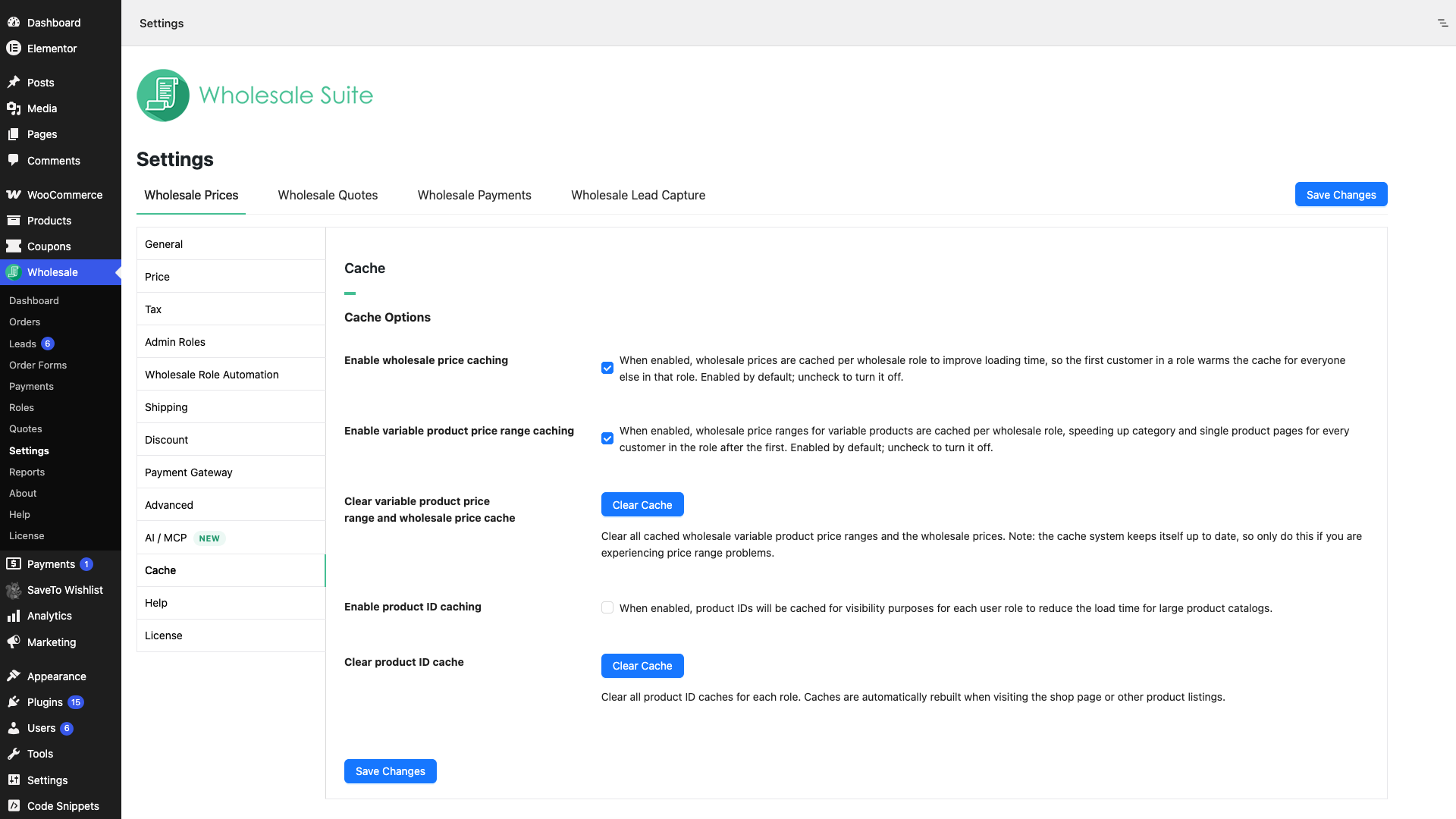
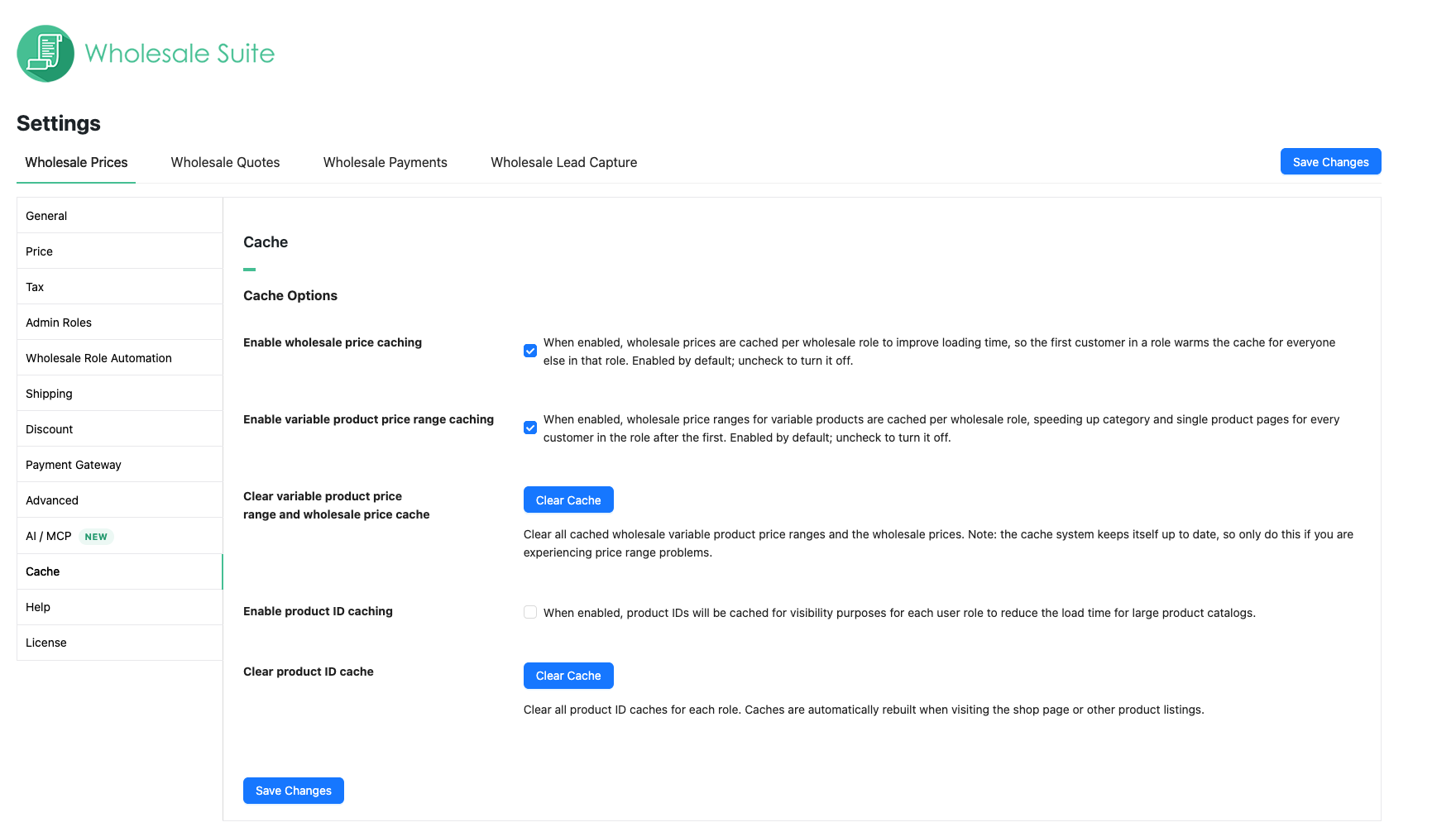
The Cache Options section shows three checkboxes and two Clear Cache buttons.
Step 2: Choose your cache settings
Each checkbox turns one cache on or off. This table shows what each one does.
| Setting | Default | What it stores |
|---|---|---|
| Enable wholesale price caching | On | The wholesale price of each simple product and variation, saved once for each wholesale role. The first customer in a role builds the cache. Every other customer in that role reuses it. |
| Enable variable product price range caching | On | The wholesale price range shown for each variable product, saved once for each wholesale role. It speeds up category pages and single product pages. |
| Enable product ID caching | Off | The list of product IDs that each user role can see. Wholesale Prices Premium uses it for product visibility, so large catalogs load faster. |
- Tick or untick Enable wholesale price caching.
- Tick or untick Enable variable product price range caching.
- Tick or untick Enable product ID caching.
- Click Save Changes.
When to turn caching on
- Keep the two price caches on for most stores. They save time on shop pages, category pages, and product pages.
- Turn on product ID caching if you have a large catalog and shop pages load slowly.
- Turn a cache off while you troubleshoot a price that looks wrong. Turn it back on when you’re done.
Wholesale Prices Premium doesn’t use the shared price caches in two cases. It works out the price live instead.
- The customer has a per-user override. See How to Override Wholesale Settings for Individual Wholesale Users.
- Your store shows prices including tax, and it calculates tax from the customer address instead of the shop base address. The price can then differ between two customers in the same role.
Step 3: Clear a cache by hand
Use the two buttons below the checkboxes only when a price or product list looks out of date.
Clear the price caches
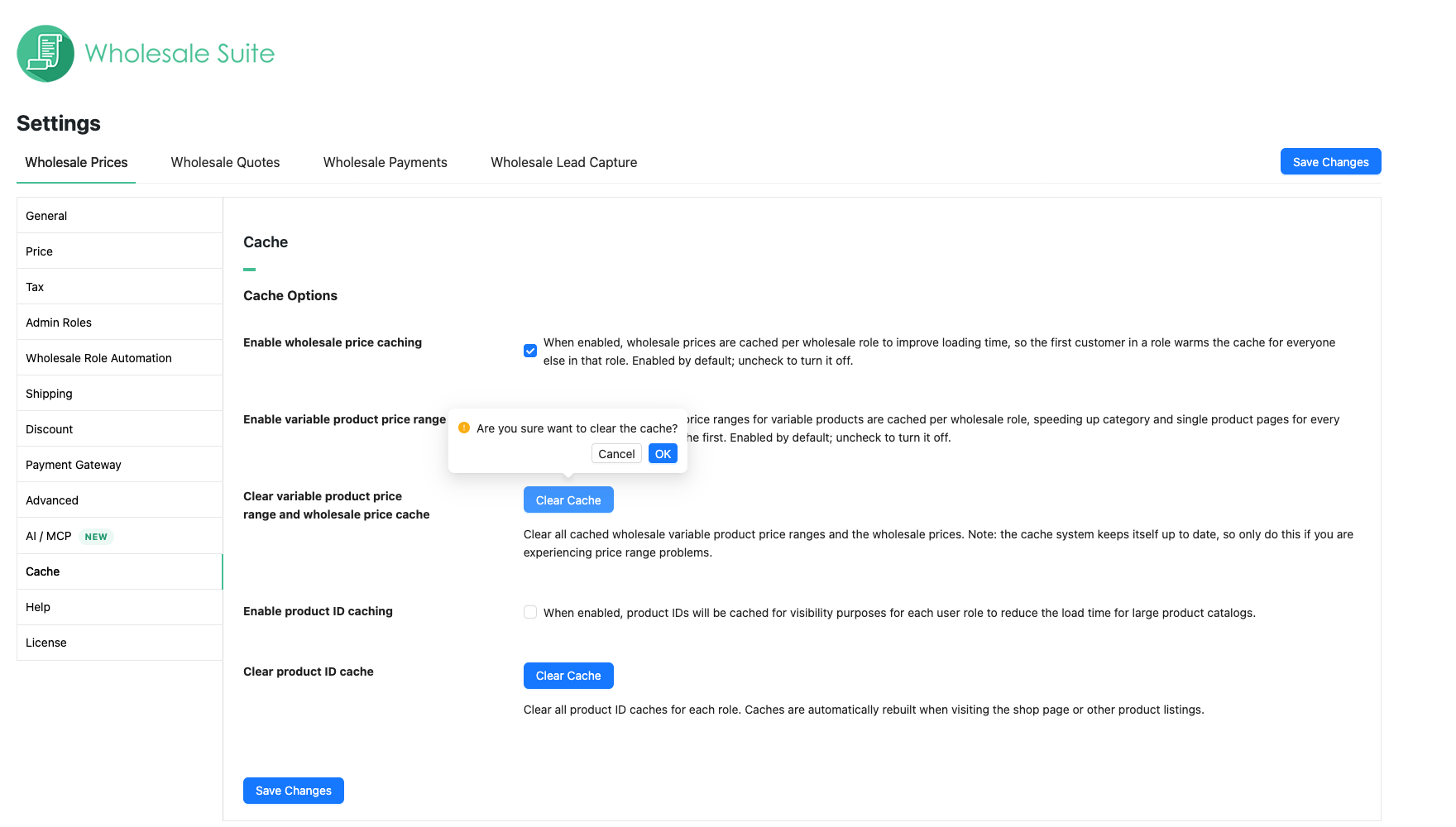
- In the Clear variable product price range and wholesale price cache row, click Clear Cache.
- Click OK in the confirmation prompt.
This clears the saved wholesale prices and the saved variable product price ranges for all wholesale roles. Both build again as customers visit your shop. The first page load after a clear can be a little slower.
Clear the product ID cache
- In the Clear product ID cache row, click Clear Cache.
- Click OK in the confirmation prompt.
This clears the saved product ID lists for every role and for logged-out visitors. It also clears the lists of users who have a per-user override. The lists build again when someone opens the shop page or another product listing.
What clears the cache automatically
You don’t need to clear the cache after most edits. Wholesale Prices Premium refreshes it for you.
Price caches
| What you change | What happens |
|---|---|
| Save, update, or import a product or variation | Wholesale Prices Premium stops using the old cached price for that product. If you edit a variation, it does the same for the parent variable product, so the price range updates. |
| Save changes on the Wholesale Prices settings | Wholesale Prices Premium stops using all cached wholesale prices and price ranges. |
| Add, edit, or delete a wholesale role discount | Wholesale Prices Premium stops using all cached wholesale prices and price ranges. |
| Add, edit, or delete a product category | Wholesale Prices Premium stops using all cached wholesale prices and price ranges. |
| Change tax exemption or tax class settings for a wholesale role | Wholesale Prices Premium stops using the cached prices for that role. |
After one of these changes, the first visit to a shop page can load a little slower while the cache builds again. This is normal.
Product ID cache
When Enable product ID caching is on, Wholesale Prices Premium clears the product ID lists in these cases:
- You update a product.
- You add, edit, or delete a product category.
- You save a user profile. It clears only that user’s own list.
- You add, edit, or delete a wholesale role discount.
- You save a change to Enable product ID caching or to Only Show Wholesale Products To Wholesale Customers (under Wholesale Prices > General). That second setting hides products without a wholesale price from wholesale customers.
The lists also expire by themselves after one week.
When to clear the cache by hand
Clear the cache by hand when a price or product list stays out of date after you save a change. These are the usual cases.
- A price looks old after you changed it outside the normal product editor. For example, you edited the database directly, or a tool changed prices without saving the product. Click Clear Cache on the price cache row.
- A variable product shows the wrong price range. Click Clear Cache on the price cache row.
- A product is missing from, or still shows in, the shop for a role after a visibility change. Click Clear Cache on the product ID row.
After you change a customer’s role
Wholesale Prices Premium saves the price caches and the product ID lists separately for each wholesale role. When you move a customer to another role, they read the cache of their assigned role. You don’t need to clear anything.
If the customer still sees the wrong price after a role change, check for a per-user override on their profile. See How to auto-upgrade and downgrade wholesale roles if the role doesn’t change as you expect.
Troubleshooting
A wholesale price is still old after I clear the cache.
Check that the price is saved on the product for the correct wholesale role. Then check for a per-user override on the customer’s profile, because an override replaces the role price. If your site also uses a page cache, a caching plugin, or a host cache, clear that cache too. Wholesale Suite can’t clear it for you.
Shop pages are slow after I clear the cache.
Wait for a few visits. The cache builds again as customers open products, and no other action is needed.
Wholesale products are missing from the shop after a product import.
Clear the product ID cache. If the products are still missing, see How To Fix Broken Product Visibility After Product Importing.
Frequently asked questions
Should I clear the cache every time I change a price?
No. The cache refreshes after you save a product, a category, or the Wholesale Prices settings. Clear it by hand only when something looks out of date.
Is it safe to turn caching off?
Yes. Wholesale Prices Premium works out prices and product lists live instead. Pages can load more slowly, mostly on large catalogs.
Does clearing the cache delete my wholesale prices?
No. It removes only the saved copies. The prices you set on products, categories, and roles stay as they are.
Need help?
If you have a question or run into any issues, we’re here to help.
- Premium users: Open a support ticket
- Free users: Visit our community forum