Not sure what to set up next in your wholesale store? The setup checklist on your Wholesale dashboard lists the next steps for each Wholesale Suite plugin you use, ticks them off as you finish them, and emails you at key moments. This article shows what the checklist contains, how the progress bar and insights work, how to hide or turn off the checklist, and which emails you receive. Each plugin in Wholesale Suite adds its own section.
Prerequisites
You need the following:
- WooCommerce installed and active.
- WooCommerce Wholesale Prices version 2.3.1 or higher. This plugin shows the checklist. The Don’t show this again option needs version 2.3.1.
- A user account that can manage WooCommerce.
Every other section is optional. A plugin adds its section when it is active and on this version or higher:
- WooCommerce Wholesale Prices Premium 2.1.4
- WooCommerce Wholesale Order Form 3.1.3
- WooCommerce Wholesale Lead Capture 2.0.7
- WooCommerce Wholesale Payments 1.0.8
- WooCommerce Wholesale Quotes 1.0.3
Open the checklist
- Go to Wholesale > Dashboard in your WordPress admin.
- Find the card titled Get Started with Wholesale Prices at the top of the dashboard.
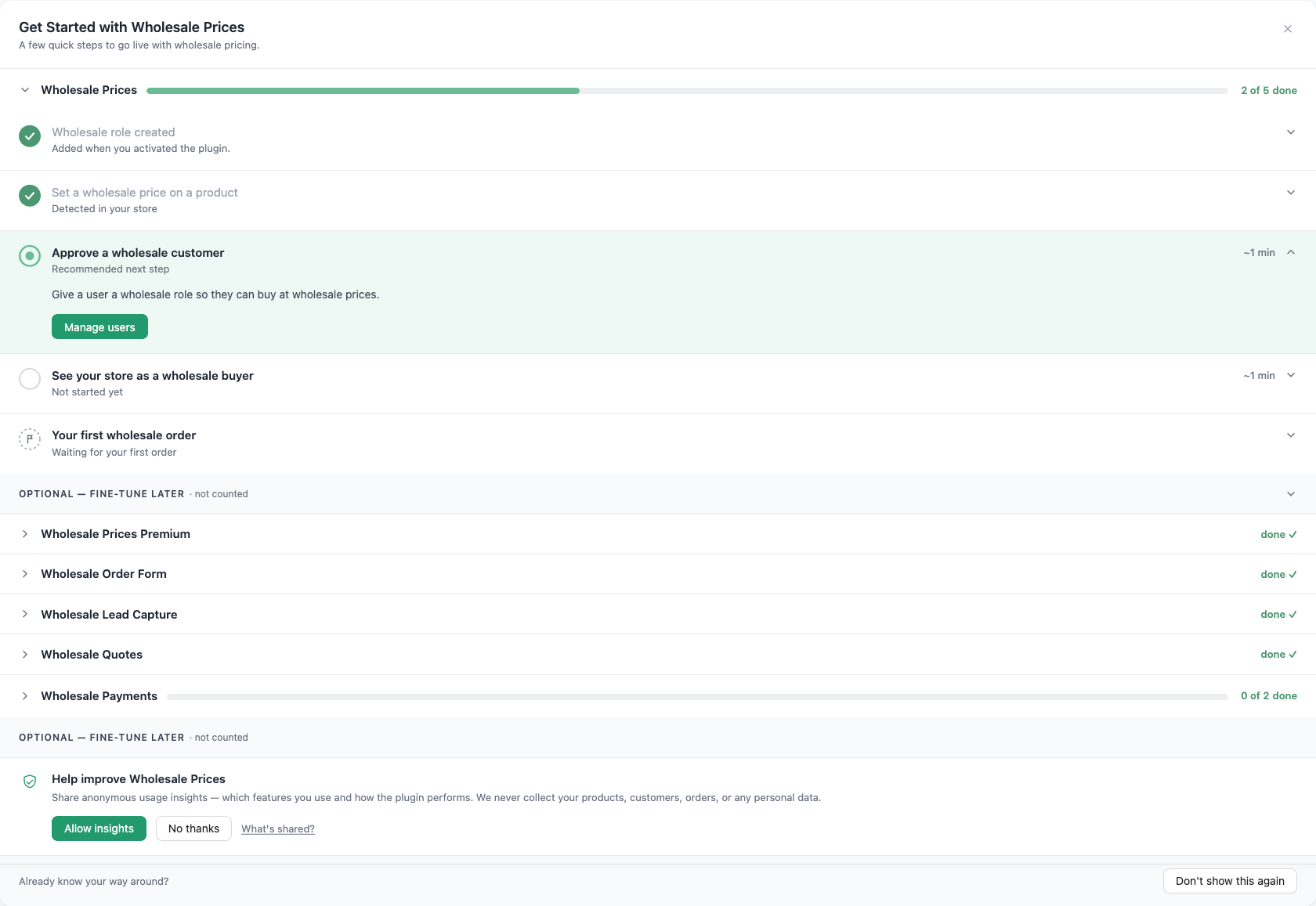
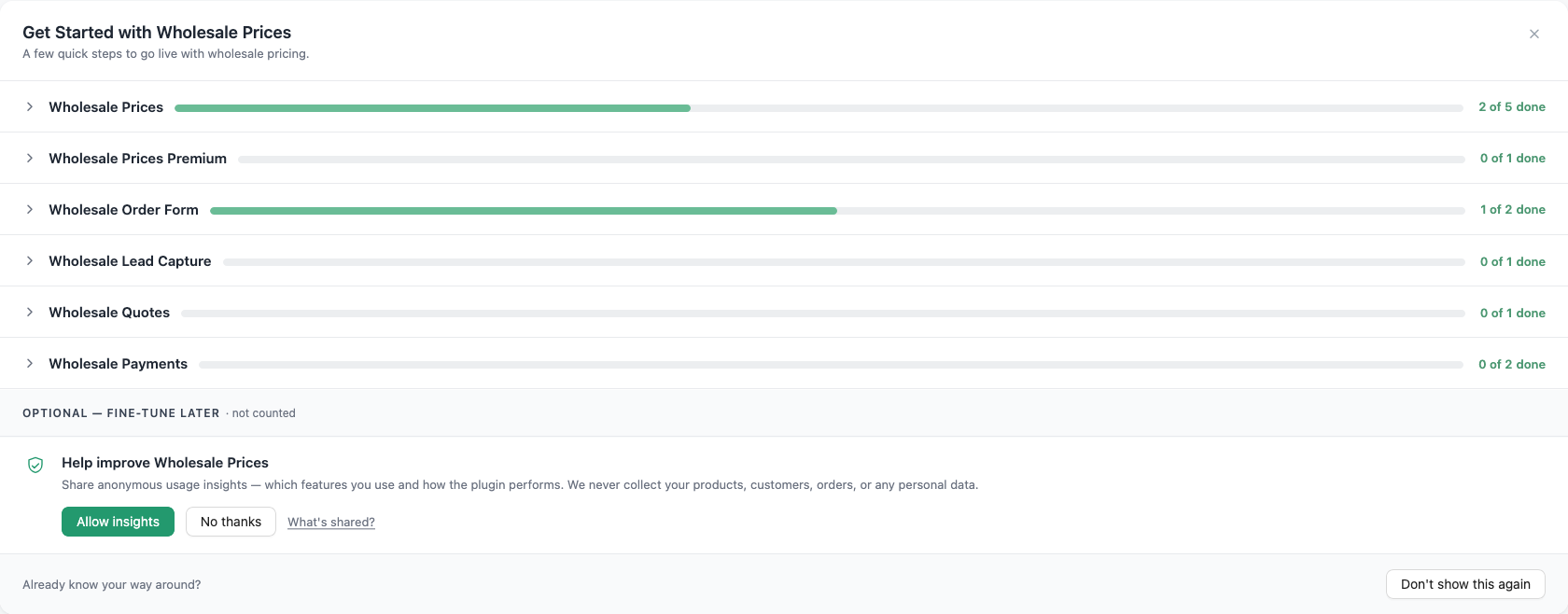
The subtitle under the card title reads “A few quick steps to go live with wholesale pricing.” The card needs only the free WooCommerce Wholesale Prices plugin. If you have no other Wholesale Suite plugin active, the card shows one flat list. If you have more than one, each plugin gets its own section that you can open and close. Wholesale Suite saves which sections you left open for your user account. For the rest of the dashboard, see Overview of the Wholesale Suite Dashboard.
How the checklist works
Step states
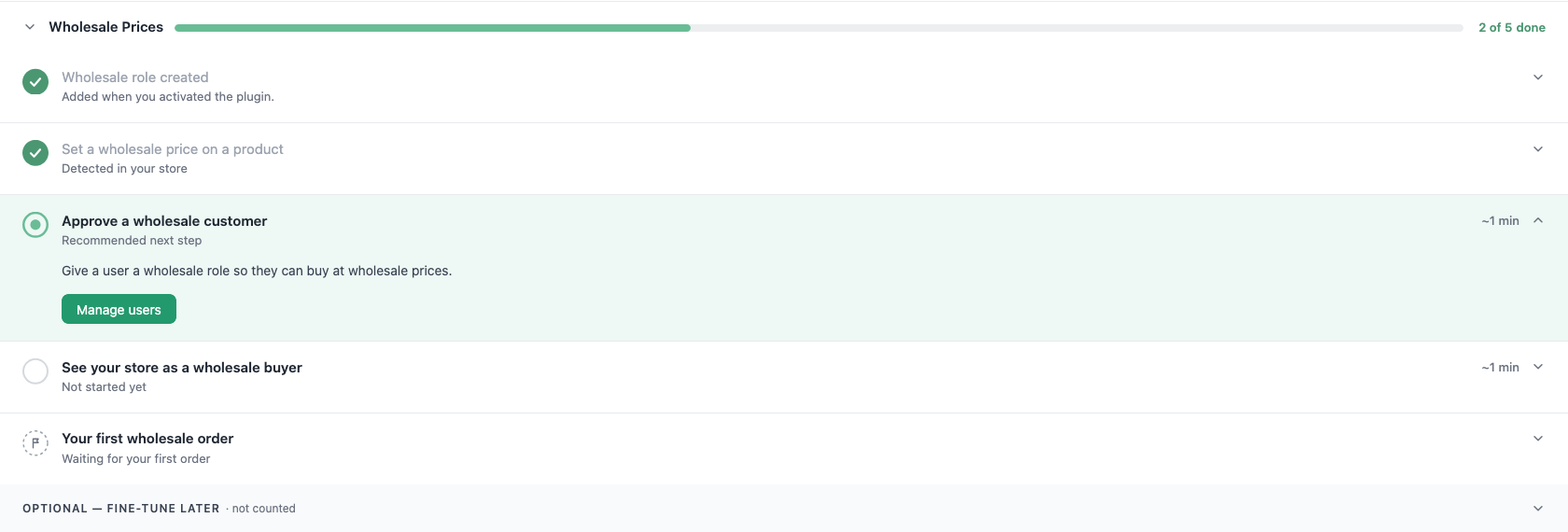
Each step is a row with a status icon, a title, and a short status line. Click a row to open its details, which hold a description and a button for the action. The step you should do next is highlighted and opens by itself. Its status line reads Recommended next step or Recommended first step, depending on the plugin.
A step can be in one of four states:
- Done: a green tick. The step is complete.
- Recommended: a green ring. This is the step to do next.
- Waiting: a dashed icon. The step waits on a customer, not on you. It shows the note “We’ll tick this off automatically when it happens.” with a link to the related screen.
- Not started: an empty circle with the status line Not started yet.
Some rows also show a time estimate at the right of the title, such as “~1 min”. Two steps in the Wholesale Prices section show one. Approve a wholesale customer shows it until a wholesale customer exists. See your store as a wholesale buyer always shows it.
Most steps tick on their own. The dashboard checks your store for the matching setting, product, user or order. After you save a change, the step normally ticks the next time you load the dashboard. In some cases it takes up to one minute.
One step is manual. In the Wholesale Prices section, See your store as a wholesale buyer has a Mark as done button next to its action button. Click it when you have checked your store.
Optional steps
Some steps sit in a folded group that starts with the word Optional, followed by the note not counted. Click the group heading to open it. These steps are suggestions. They do not count toward the progress bar.

Progress bar
Each section has its own progress bar and a label such as 2 of 5 done. The bar only counts steps that are not optional. It shows the number of finished steps divided by the number of counted steps, rounded to a whole percent.
When every counted step in a section is done, the section shows a congratulations message once. The message starts with “Nice work” and tells you the section “is all set”. After that, the section folds into a short row with a done label and a tick. With a single flat list, the card shows the text “is all set” and “every step is done” instead.

When every section is finished and the congratulations have played, the card is gone the next time you load the dashboard. If a section was already finished when your store first loaded the checklist, no congratulations play for it.
Setup insights
Until you answer, the bottom of the card shows a question titled Help improve Wholesale Prices. It asks if you want to share anonymous usage insights, such as which features you use and how the plugin performs. It also says: “We never collect your products, customers, orders, or any personal data.”

- Click Allow insights to share usage insights, or click No thanks to decline.
The What’s shared? link opens the Wholesale Suite knowledge base. For the full list of what usage tracking collects, see Usage tracking: what is tracked and why.
Wholesale Suite saves your answer straight away and the question disappears. It does not count toward the progress bar. If you allow insights, the weekly usage check-in includes your checklist progress, such as which steps are done.
What each plugin adds
Each plugin adds one section. The tables below list the steps in the order the plugin shows them. The Counted column tells you if the step counts toward the progress bar.
Wholesale Prices
This section comes from the free WooCommerce Wholesale Prices plugin. It always appears.
| Step | Button | Counted | Ticks when |
|---|---|---|---|
| Wholesale role created | None | Yes | Always done. A “Wholesale Customer” role is created when you activate the plugin. |
| Set a wholesale price on a product | Edit a product | Yes | Any product has a wholesale price saved. |
| Approve a wholesale customer | Manage users | Yes | Any user has a wholesale role. |
| See your store as a wholesale buyer | Open your store | Yes | You click Mark as done, or a wholesale order exists. |
| Your first wholesale order | View orders | Yes | An order is marked as a wholesale order. You cannot tick this step yourself. |
Under the Optional group, the section also suggests a step for each Wholesale Suite plugin that is not active: Explore the Wholesale Order Form, Explore Wholesale Prices Premium, Explore Wholesale Lead Capture and Explore Wholesale Payments. Each has a Learn more button.
Wholesale Prices Premium
This section needs WooCommerce Wholesale Prices Premium. It has one counted step and five optional steps.
| Step | Button | Counted | Ticks when |
|---|---|---|---|
| Set wholesale pricing | Set a wholesale discount | Yes | Any product has a wholesale price, or you save a Premium pricing rule such as a store-wide discount for a wholesale role or a quantity-based discount. |
| Add another wholesale role | Manage roles | No | You have a wholesale role besides the main one. |
| Set minimum order requirements | Set requirements | No | You saved a minimum order requirement for a wholesale role. |
| Set tax handling for wholesale | Set tax options | No | You saved a tax exemption or tax class setting for a wholesale role. |
| Set payment & shipping per role | Set payment & shipping | No | You saved a payment gateway or shipping method setting for a wholesale role. |
| Explore wholesale Reports | Open Reports | No | It never ticks. It links to the Wholesale reports page. |
Wholesale Order Form
This section needs WooCommerce Wholesale Order Form. Both steps are counted.
| Step | Button | Counted | Ticks when |
|---|---|---|---|
| Create your first order form | Create an order form | Yes | Any order form exists. A saved draft counts. If you only have a draft, the step reads Finish your draft order form and the button reads Open the form builder. After a form is published, the button reads Manage order forms. |
| Put the form on a published page | Add to a page | Yes | A published page contains the order form shortcode. |
Wholesale Lead Capture
This section needs WooCommerce Wholesale Lead Capture. It has one counted step and one optional step.
| Step | Button | Counted | Ticks when |
|---|---|---|---|
| First application received | View leads | No | Someone applies through your registration form. The step waits on your customers. |
| First lead approved | Review leads | Yes | You approve a lead by hand, or auto-approval approves one. The step shows as the next step once a lead is waiting. |
For how to review leads, see How to approve and manage leads from the Wholesale Leads dashboard.
Wholesale Payments
This section needs WooCommerce Wholesale Payments and a Stripe account. It has two counted steps and one optional step.
| Step | Button | Counted | Ticks when |
|---|---|---|---|
| Connect Stripe | Connect Stripe | Yes | A Stripe account is connected. If you started and did not finish, the step reads Resume connecting Stripe. After you connect, the button reads Manage Stripe connection. |
| Create and enable a payment plan | Create a payment plan | Yes | At least one published payment plan is enabled. |
| Collect your first payment | View invoices | No | A wholesale customer makes a payment with your live Stripe account. Test mode payments are ignored. |
For the full setup, see How to set up Stripe for wholesale payments and How to Create Payment Plans for Wholesale Customers?.
Wholesale Quotes
This section needs WooCommerce Wholesale Quotes. It has one counted step and one optional step. Draft quotes and quotes from administrator accounts do not count, so your own test quotes do not tick these steps.
| Step | Button | Counted | Ticks when |
|---|---|---|---|
| Receive your first quote request | View quotes | No | A customer submits a quote request. The step waits on your customers. |
| First quote approved or converted | Review quotes | Yes | A customer’s quote reaches the approved, converted or completed status. |
Hide the checklist or turn it off
You have two choices. Hiding keeps a short bar on the dashboard. Turning it off removes the checklist from the dashboard. Both choices apply to your whole store, not only to your user account.
Hide the checklist for later
- Go to Wholesale > Dashboard.
- Click the close (x) button in the card header.

The card is replaced by a bar that starts with “Setup checklist hidden” and shows how many steps you finished. Click Open setup checklist to bring the card back.
Turn the checklist off
- Go to Wholesale > Dashboard.
- Scroll to the bottom of the checklist card, to the text “Already know your way around?”
- Click Don’t show this again.

The card is replaced by a notice that reads “Setup checklist turned off.” The notice has an Undo button and a close (x) button.

Undo turning the checklist off
- Click Undo in the notice.
The checklist returns with the same progress and the same open steps as before. It also returns to the hidden or shown state it had before you turned it off.
You can only undo from the notice. If you click the close button on the notice, or you reload or leave the page, the checklist stays off and the dashboard shows nothing in its place. The dashboard has no button that turns it on again.
Turning the checklist off also removes the Finish setup action from the Wholesale Prices Getting Started note in WooCommerce. It does not stop the onboarding emails. To stop an email, disable it in WooCommerce, as the next section shows.
Onboarding emails
Each plugin sends short emails to your site’s admin email address when you reach a setup step. These are WooCommerce emails. Wholesale Suite sends each email once.
When the emails send
Wholesale Suite checks for the step when you save a product, an order form or a similar item, and when you load any admin page. Wholesale Payments also checks when a payment arrives from Stripe. Wholesale Lead Capture checks when you approve a lead. If an email’s step is already done the first time the plugin loads in your admin area, Wholesale Suite marks the email as skipped and never sends it. A store that is already set up does not get these emails.
| Email name in WooCommerce | Plugin | Sent when | Default subject |
|---|---|---|---|
| Wholesale onboarding: first price set | WooCommerce Wholesale Prices | The step Set a wholesale price on a product is done for the first time. | You just set your first wholesale price |
| Wholesale onboarding: setup complete | WooCommerce Wholesale Prices | Every counted step in the Wholesale Prices section is done, including the first wholesale order. | Your wholesale store is fully set up |
| Wholesale Premium onboarding: first pricing rule set | WooCommerce Wholesale Prices Premium | A Premium pricing rule exists for the first time and the Premium license is activated. A wholesale price on a single product does not trigger it. | Your wholesale pricing is live |
| Wholesale Premium onboarding: setup complete | WooCommerce Wholesale Prices Premium | The step Set wholesale pricing is done. | Your wholesale pricing is set up |
| Wholesale Order Form onboarding: first form published | WooCommerce Wholesale Order Form | Your first order form has the Published status. | Your wholesale order form is published |
| Wholesale Order Form onboarding: setup complete | WooCommerce Wholesale Order Form | An order form exists and a published page contains the order form shortcode. | Your wholesale order form is live |
| Wholesale Payments onboarding: Stripe connected | WooCommerce Wholesale Payments | A Stripe account is connected for the first time. | Your Stripe account is connected |
| Wholesale Payments onboarding: first payment collected | WooCommerce Wholesale Payments | A wholesale customer makes the first live payment. Test mode payments do not trigger it. | You collected your first wholesale payment |
| Wholesale Lead Capture onboarding: pipeline open | WooCommerce Wholesale Lead Capture | You approve your first lead, or auto-approval approves it. | Your wholesale pipeline is open |
| Wholesale Quotes onboarding: loop complete | WooCommerce Wholesale Quotes | A customer’s quote is approved or converted for the first time. Quotes from administrator accounts do not count. | Your wholesale quoting loop is working |
Wholesale Quotes has no separate email for the first quote request. Instead, the first real quote request adds a short note to the New Quote Notification (Admin) email. The note says the quoting flow is live and tells you to approve the quote or convert it to an order. For that email, see How to set up the wholesale quote email notifications.
Edit or disable an onboarding email
- Go to WooCommerce > Settings > Emails.
- Click Manage next to the onboarding email you want to change.
- Clear Enable this email to stop the email, or change the fields below it.
- Click Save changes.
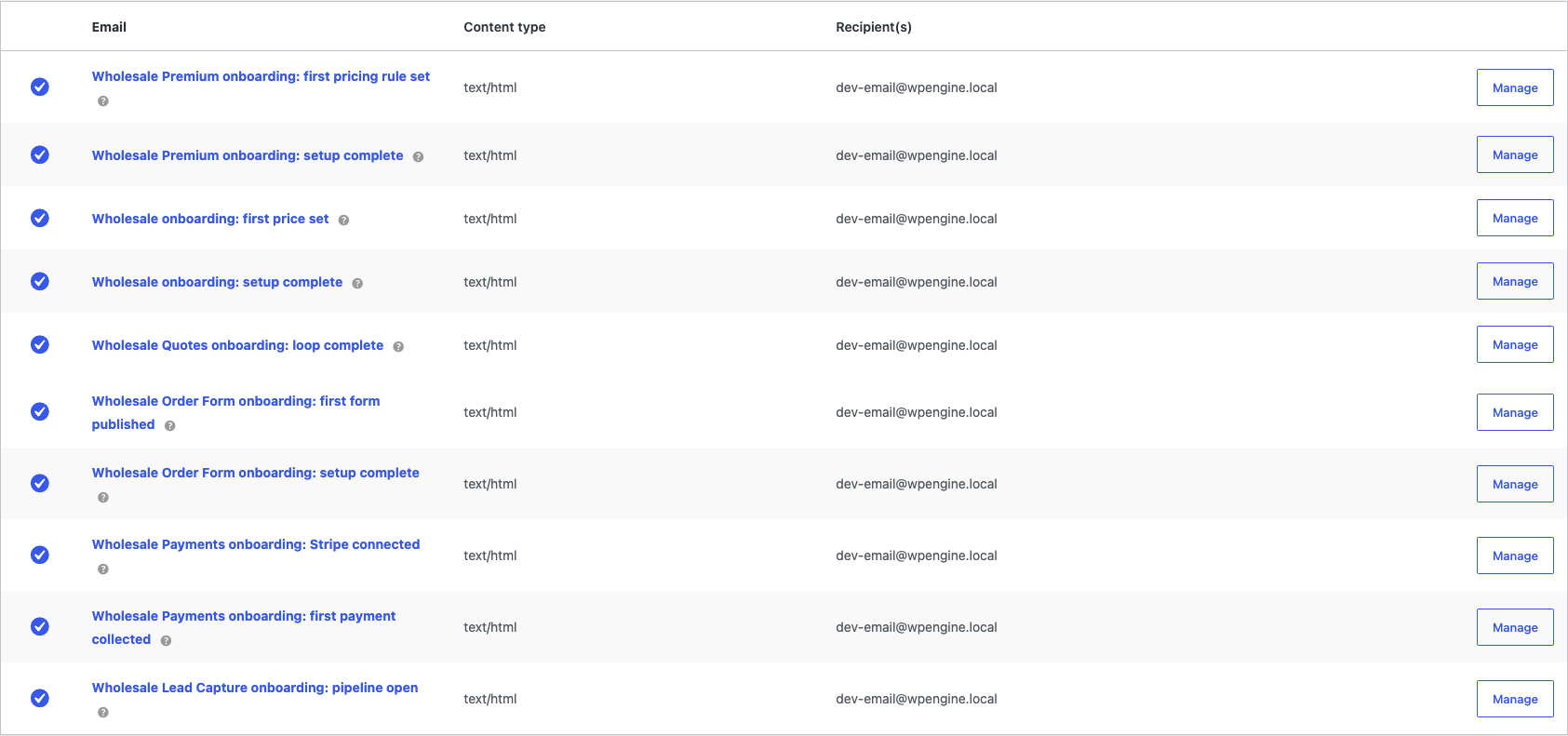
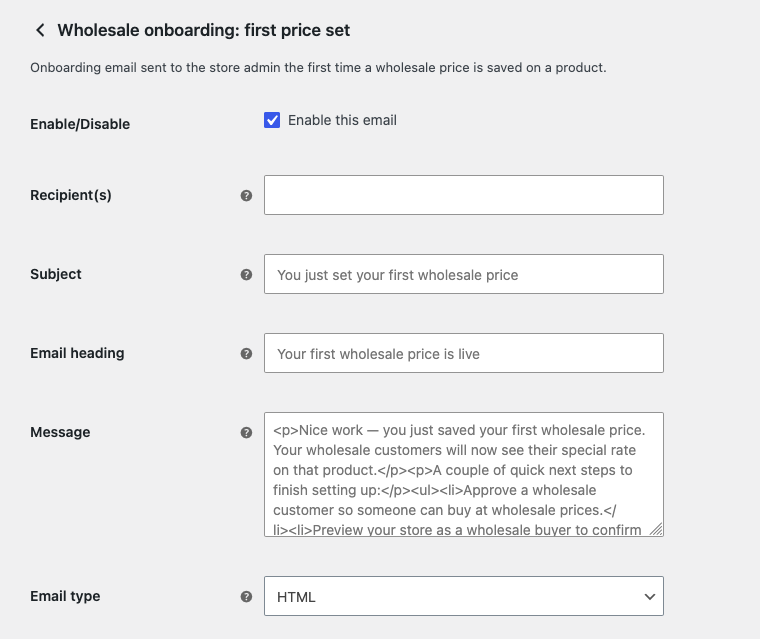
You can change the Recipient(s), Subject, Email heading, Message and Email type fields. Separate several recipients with commas. If you leave Recipient(s) empty, the email goes to your site’s admin email address. The Subject and Email heading fields accept the placeholders {site_title} and {site_address}. Each email is on by default. For delivery problems, see How To Troubleshoot Emails Not Sending.
Lifecycle emails from Wholesale Prices Premium
WooCommerce Wholesale Prices Premium also sends lifecycle emails that report on how your wholesale business is doing. These are not WooCommerce emails, so they do not appear in the WooCommerce email list. Two of them run:
- First Order Report: a congratulations email with the headline “Achievement UNLOCKED: Your FIRST Wholesale Order!” and four tips for the next level. A daily check sends it once, when it finds a wholesale order with the status On hold, Processing or Completed.
- Regular Email Updates: a monthly summary of wholesale orders, wholesale revenue and wholesale leads for the month, with a comparison to the month before, your top wholesale customers, and a tip about setting minimum order requirements. It goes out about once a month.
Control the lifecycle emails
- Go to Wholesale > Settings and open the Wholesale Prices tab.
- Open the Advanced tab.
- Select or clear Email Digests.
- Change Recipient if the emails should go to another address.
- Click Save Changes.
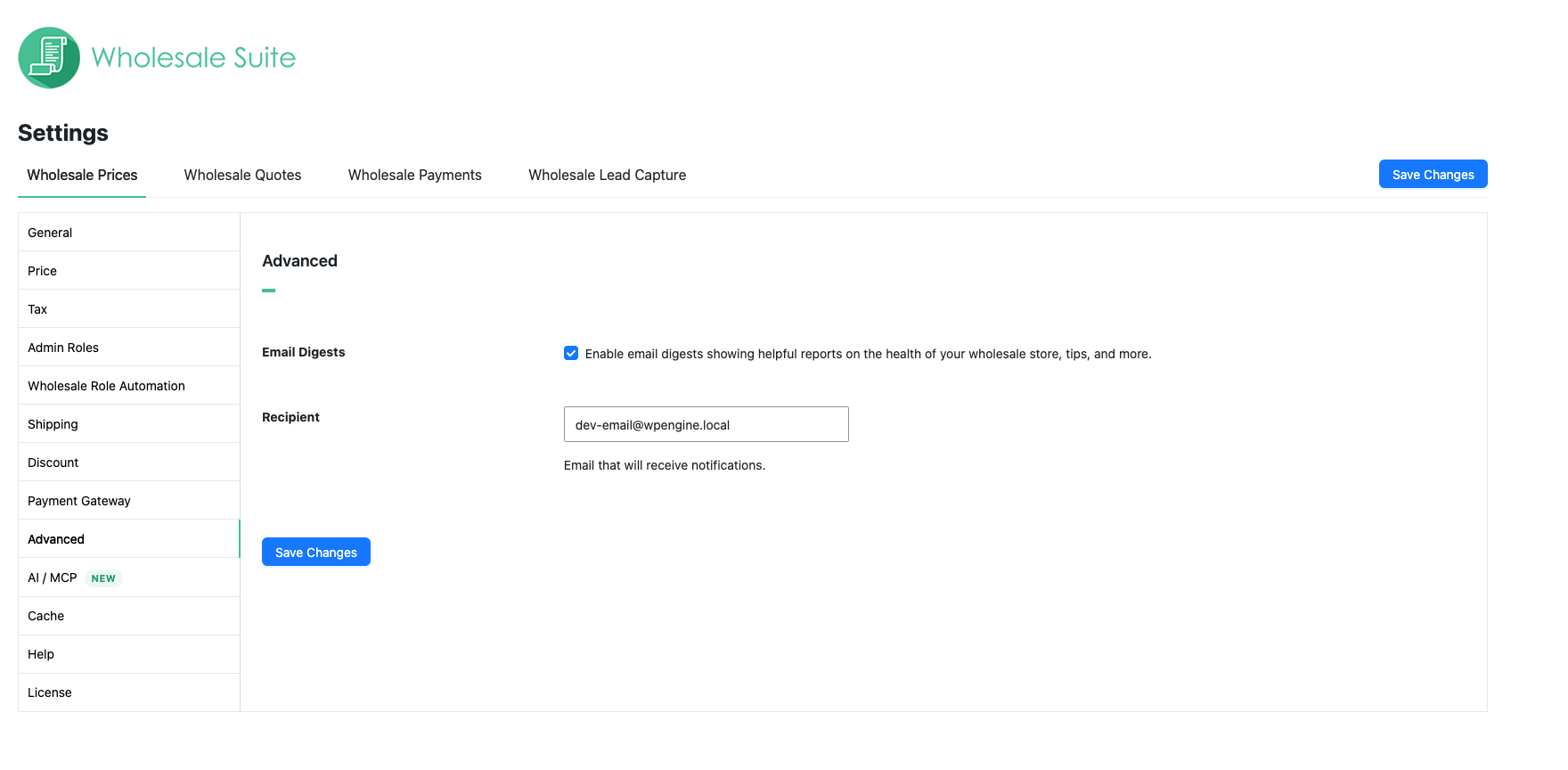
Email Digests is on by default. Its label reads “Enable email digests showing helpful reports on the health of your wholesale store, tips, and more.” The Recipient field starts with your site’s admin email address.
WooCommerce task list
Each plugin also adds one task to WooCommerce’s Things to do next list. Each task opens the Wholesale dashboard.
| Plugin | Task name | Time shown |
|---|---|---|
| WooCommerce Wholesale Prices | Set up wholesale pricing | 5 minutes |
| WooCommerce Wholesale Prices Premium | Set up wholesale pricing (Premium) | 5 minutes |
| WooCommerce Wholesale Order Form | Set up your wholesale order form | 5 minutes |
| WooCommerce Wholesale Payments | Set up wholesale payments | 5 minutes |
| WooCommerce Wholesale Lead Capture | Open your wholesale lead pipeline | 2 minutes |
| WooCommerce Wholesale Quotes | Set up wholesale quotes | 2 minutes |
A task completes when every counted step in that plugin’s section is done. Hiding or turning off the checklist also marks the tasks as complete.
Troubleshooting
The checklist does not show on the dashboard
- Check if you turned the checklist off. If you did, it stays off, as the section on turning it off explains.
- Check if every section is finished. The card is gone once all sections are done and their congratulations have played.
- Check the Wholesale menu. If it shows Dashboard (Disabled), a custom code snippet has switched off the Wholesale dashboard. Ask your developer to remove it.
A step does not tick
- Wait one minute and reload Wholesale > Dashboard.
- Check the item is live. For example, the order form must be on a page with the Published status, and a payment plan must be published and enabled.
- For See your store as a wholesale buyer, click Mark as done.
Steps that wait on your customers, such as the first order, the first application and the first payment, tick only when a customer takes that action.
You did not get an onboarding email
- Go to WooCommerce > Settings > Emails and check that the email is enabled and has the right recipient.
- Remember that each email sends once, and a step that was already done at first load never sends an email.
- If the email should have sent, follow How To Troubleshoot Emails Not Sending.
Frequently asked questions
Does turning the checklist off stop the onboarding emails?
No. The emails run on their own. Disable each one in WooCommerce > Settings > Emails to stop it.
Who sees the checklist?
Users who can manage WooCommerce see it on the Wholesale dashboard. Your wholesale customers never see it.
Can I send the onboarding emails to someone else?
Yes. Enter another address in the Recipient(s) field of each email. For the lifecycle emails, use the Recipient field on the Advanced tab.
What’s next
- Overview of the Wholesale Suite Dashboard
- Getting started with the free WooCommerce Wholesale Prices plugin
- Getting started with WooCommerce Wholesale Prices Premium
- Getting started with WooCommerce Wholesale Order Form
- Getting started with WooCommerce Wholesale Payments
- Getting started with WooCommerce Wholesale Lead Capture
- Getting Started with WooCommerce Wholesale Quotes
Need help?
If you have a question or run into any issues, we’re here to help.
- Premium users: Open a support ticket
- Free users: Visit our community forum