
If wholesale customers in your store need to see a different price suffix than retail customers, for example “Ex. Tax” for wholesale buyers while retail shoppers see “Inc. GST”, you may be wondering whether Wholesale Suite lets you set this separately from your store’s regular WooCommerce price suffix.
WooCommerce Wholesale Prices Premium includes two dedicated price suffix settings for wholesale roles: one for the wholesale price itself, and one for the regular price a wholesale customer sees. Both live in your wholesale settings, and the {price_including_tax} and {price_excluding_tax} placeholders let you show the tax-adjusted amount inline.
This feature is only available in WooCommerce Wholesale Prices Premium. If you are using the free WooCommerce Wholesale Prices plugin, these settings are not available.
Requirements
- WooCommerce installed and active, with Enable taxes turned on under WooCommerce → Settings → General.
- WooCommerce Wholesale Prices Premium installed and activated. This feature is not available in the free WooCommerce Wholesale Prices plugin.
- At least one wholesale role configured under Wholesale → Roles.
Set a custom suffix for the wholesale price
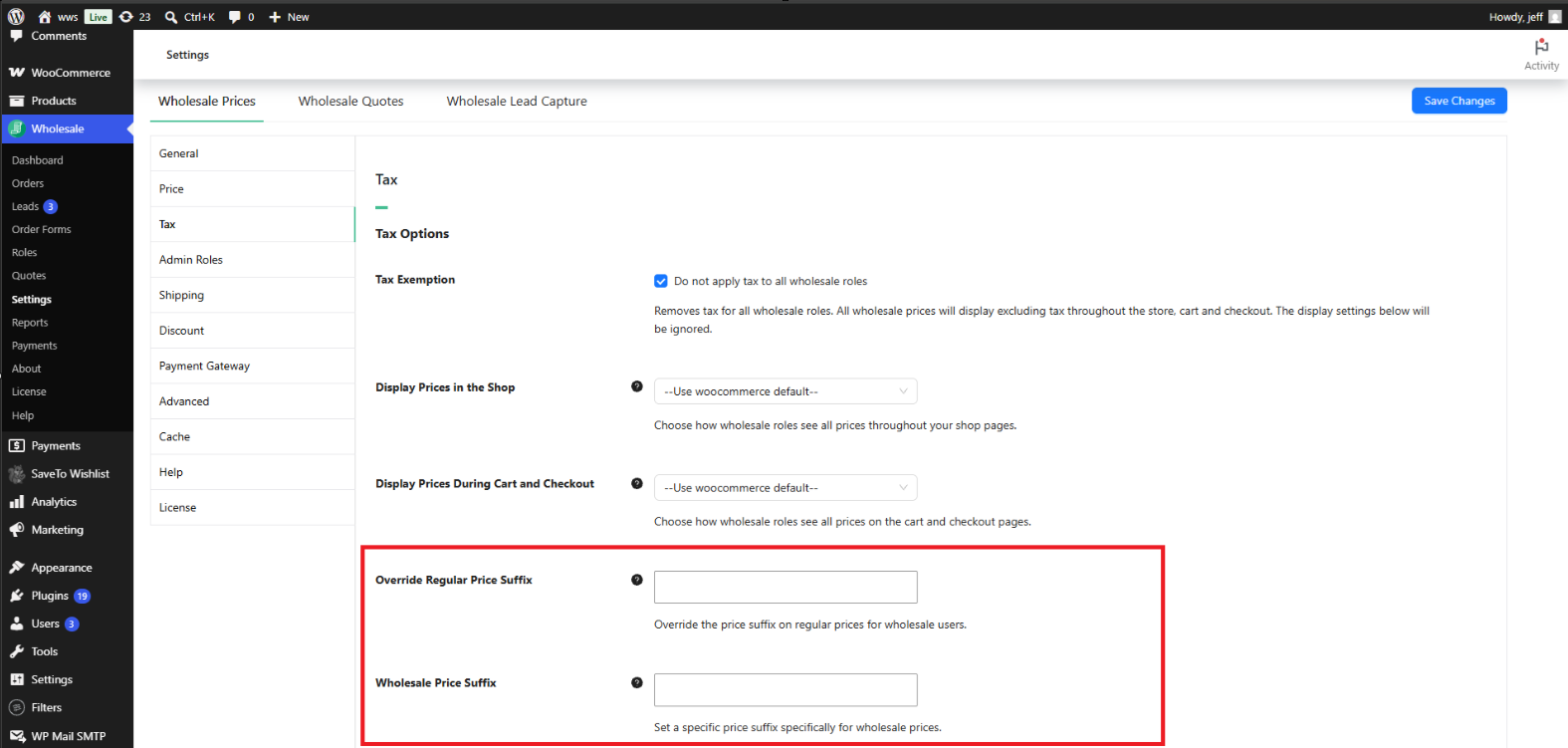
The Wholesale Price Suffix setting controls the text that appears after the wholesale price for a logged-in wholesale customer.
- Go to Wholesale → Settings.
- Click the Wholesale Prices tab.
- Click the Tax tab.
- Under Tax Options, find the Wholesale Price Suffix field.
- Enter the text you want to display, then click Save Changes.
Leave this field blank to use your store’s own Price display suffix setting, found under WooCommerce → Settings → Tax. Setting a value here overrides that suffix specifically for wholesale roles, without affecting how retail customers see prices.
Set a custom suffix for the regular price
A wholesale customer can still see a product’s regular (non-wholesale) price in some cases, for example a crossed-out original price next to a sale price, or the price on a product that has no wholesale price set. The Override Regular Price Suffix setting controls the suffix shown after that regular price, specifically for users logged in with a wholesale role.
- Go to Wholesale → Settings → Wholesale Prices → Tax.
- Under Tax Options, find the Override Regular Price Suffix field.
- Enter the text you want to display, then click Save Changes.
Leave this field blank to use the same store-wide Price display suffix setting under WooCommerce → Settings → Tax. This setting only affects the suffix shown to wholesale customers; retail customers and guests continue to see the suffix defined by that store-wide setting.
Use the price placeholders in a suffix
Both suffix fields accept two placeholders: {price_including_tax} and {price_excluding_tax}. When either placeholder is present in the suffix text, Wholesale Suite replaces it with the product’s actual calculated price for that tax treatment, formatted as a currency amount.
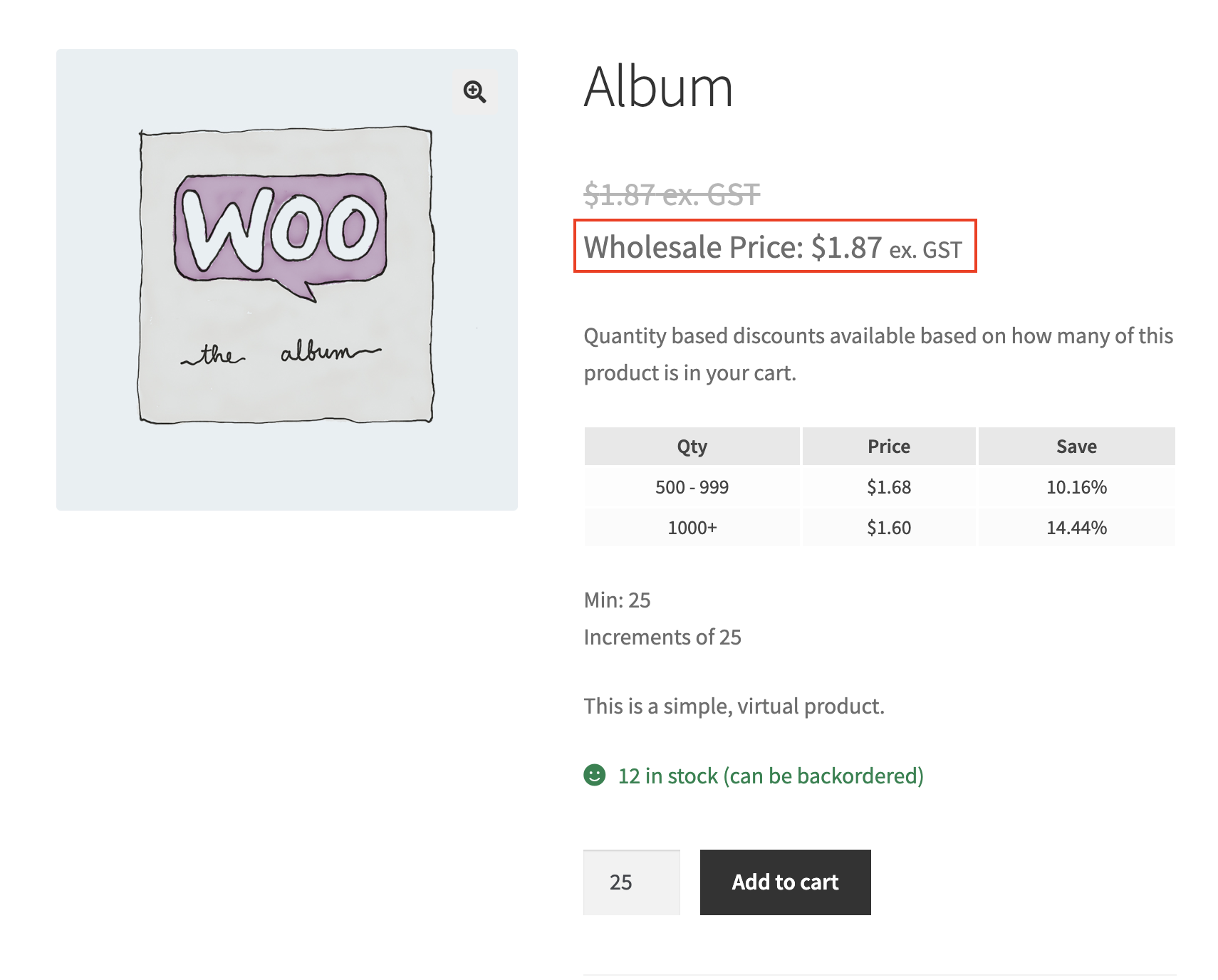
For example, entering Ex. Tax ({price_excluding_tax}) in the Wholesale Price Suffix field displays as something like “Ex. Tax ($45.00)” next to the wholesale price, using that product’s own excluding-tax amount.
How it looks on the front end
Once saved, the custom suffix appears next to the price for any customer logged in with a wholesale role.
Troubleshooting
I set a custom Wholesale Price Suffix, but the product still shows the default WooCommerce suffix. What should I check?
Confirm you are logged in as a user assigned to a wholesale role. Both suffix settings only apply to wholesale roles; retail customers and guests always see the suffix from WooCommerce → Settings → Tax → Price display suffix. Also confirm Enable taxes is turned on under WooCommerce → Settings → General, since WooCommerce only displays a price suffix when tax calculation is enabled.
Why does the suffix on the crossed-out original price look different from the suffix on the wholesale price?
These are two independent settings. The wholesale price itself uses Wholesale Price Suffix, while a regular (non-wholesale) price shown to a wholesale customer, such as a sale item’s original price, uses Override Regular Price Suffix. Set both under Wholesale → Settings → Wholesale Prices → Tax → Tax Options if you want the same text in both places.
I changed a suffix setting but the shop page has not updated. What should I check?
Clear any page or object cache on your site, including caching plugins and host-level caching, then reload the shop page while logged in as the wholesale customer. Also confirm you clicked Save Changes after entering the suffix text.
Does this affect administrator or shop manager accounts?
No, unless that account is also assigned a wholesale role. Both suffix settings only apply to users with a wholesale role attached to their account. An administrator or shop manager account without a wholesale role continues to see the store-wide Price display suffix.
Frequently asked questions
Does this feature require WooCommerce Wholesale Prices Premium?
Yes. Both the Wholesale Price Suffix and Override Regular Price Suffix settings are part of WooCommerce Wholesale Prices Premium. They are not available in the free WooCommerce Wholesale Prices plugin.
What happens if I leave both suffix fields blank?
Wholesale customers see the same Price display suffix text defined under WooCommerce → Settings → Tax, the same suffix retail customers see.
Does this change how retail customers or guests see prices?
No. These settings only affect users logged in with a wholesale role. Retail customers and guests continue to see the suffix defined under WooCommerce → Settings → Tax.
Can I set a different suffix for each wholesale role?
No. The Wholesale Price Suffix and Override Regular Price Suffix settings apply to all wholesale roles at once. There is no per-role suffix option.
Does this change the actual wholesale price, or just how it is displayed?
Only how it is displayed. The underlying wholesale price and any tax calculated on it remain the same. These settings only control the text shown after the price.
Can I combine plain text with the {price_including_tax} or {price_excluding_tax} placeholder?
Yes. Any text entered alongside a placeholder stays as-is, and only the placeholder itself is replaced with the calculated price. For example, Inc. Tax ({price_including_tax}) keeps the “Inc. Tax” label and substitutes the actual including-tax amount.
Do I need to configure anything in Wholesale Order Form separately?
No. WooCommerce Wholesale Order Form uses WooCommerce’s standard price display, so it picks up the same Wholesale Price Suffix and Override Regular Price Suffix settings from WooCommerce Wholesale Prices Premium automatically.
What happens if I have not set up any wholesale roles yet?
These settings will not do anything until at least one wholesale role exists and a customer is logged in with that role. Set up your wholesale roles under Wholesale → Roles first.
Help & support
We have a dedicated support team for Wholesale Suite who knows our products, WooCommerce, and the industry very well. You’re welcome to make use of their expertise at any time, worldwide.
If you are an existing customer please go to the support ticket request form and send us a message.
If you are a free plugin user, please send us a support request on the forum. We actively monitor the WordPress.org support forums for the free plugin and help our users there as best as we can.

