Setting wholesale prices product by product gets slow once your catalog grows. WooCommerce Wholesale Prices Premium adds store-wide and category discounts, more wholesale roles, visibility rules, shipping and payment mapping, minimum orders and wholesale tax options on top of the free plugin.
This guide walks you through each of these, starting with a store-wide discount you can set in one step. When you finish, your wholesale customers see the right prices, products and checkout options for their role.
Prefer video? Watch the walkthrough below. It was recorded before the settings screen was redesigned, so some screens differ from the screenshots in this guide.
Requirements
- WooCommerce installed and active
- WooCommerce Wholesale Prices (free) installed and active. Premium needs it to run.
- WooCommerce Wholesale Prices Premium installed, activated and licensed
- An Administrator account. A Shop Manager can change Wholesale → Settings, but only an Administrator can open Wholesale → Roles.
Step 1: Set a store-wide wholesale discount
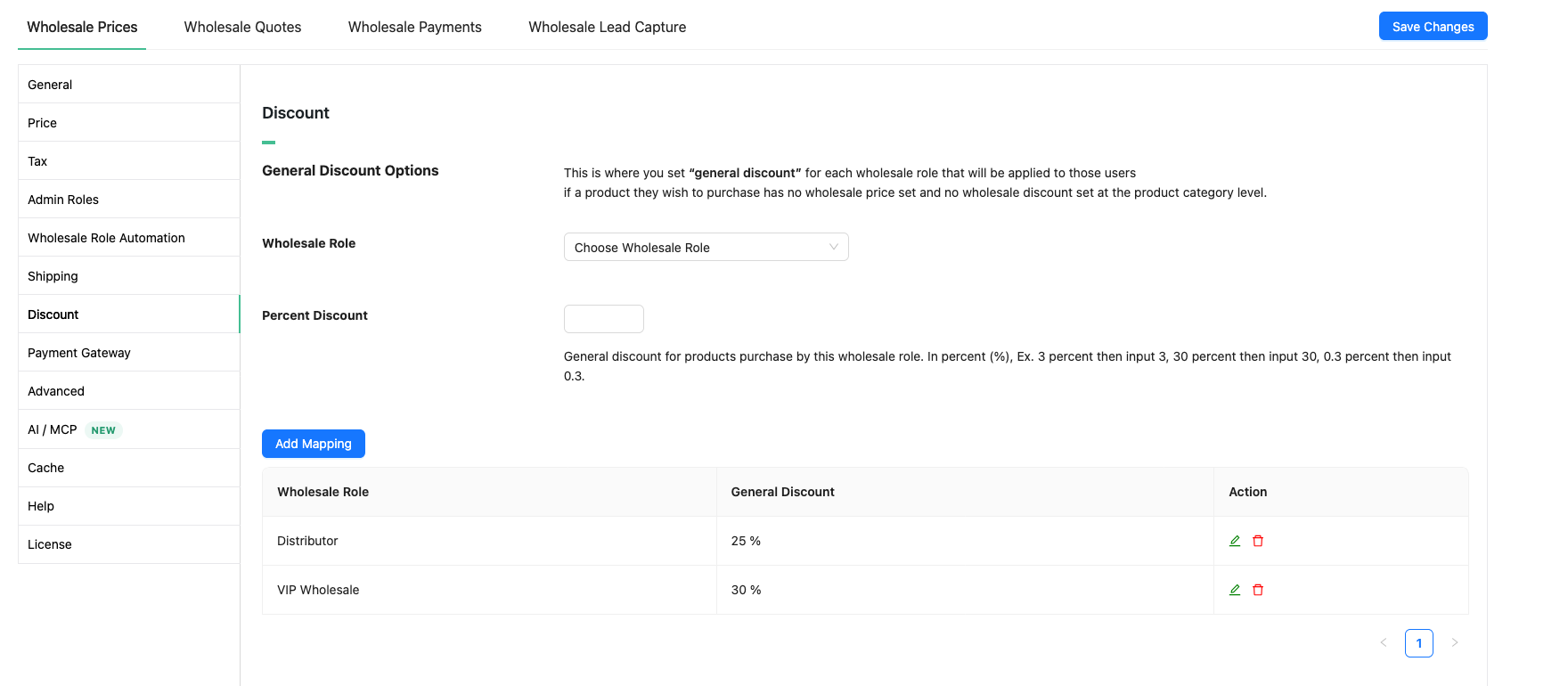
The fastest way to give wholesale customers their prices is a percentage discount for each wholesale role. It applies across your whole catalog, so you don’t need to edit each product.
- Go to Wholesale → Settings.
- Click the Wholesale Prices tab, then the Discount sub-tab.
- Under General Discount Options, pick a role in Wholesale Role.
- Enter the discount in Percent Discount. For 25% off, enter 25.
- Click Add Mapping. The role and its discount appear in the table below.
This general discount applies only when a product has no wholesale price of its own and no category discount. Step 3 explains this order.
Right after you activate Premium, a Set a wholesale discount in one step notice shows on Wholesale Suite and WooCommerce admin screens. Its Set a wholesale discount button opens this same Discount sub-tab. The notice goes away when you dismiss it or once any wholesale pricing is set. It needs Wholesale Prices Premium 2.1.2 or later.
Step 2: Add more wholesale roles
Each wholesale role can have its own prices, minimum orders, shipping and payment options. Stores often add roles to separate local and overseas buyers, or to set up tiers such as Bronze, Silver and Gold.
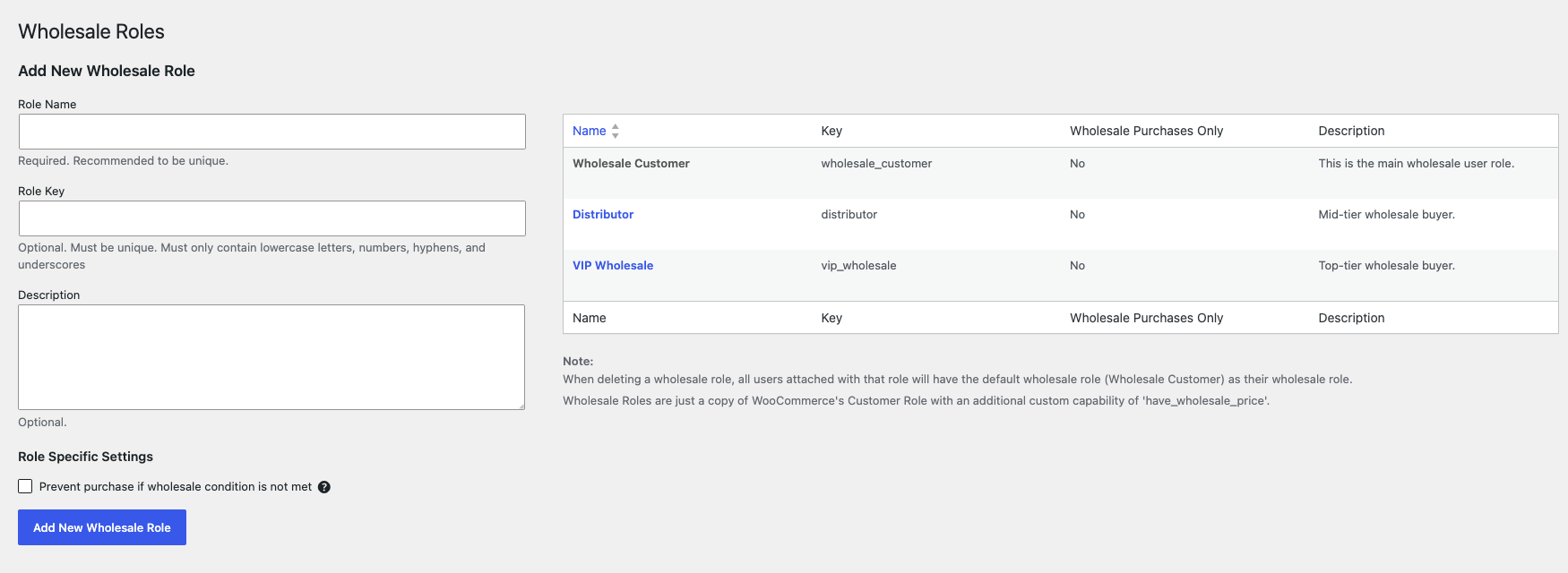
- Go to Wholesale → Roles.
- Under Add New Wholesale Role, enter a Role Name, for example Distributor.
- Optionally, enter a Role Key and a Description.
- Click Add New Wholesale Role. The role appears in the roles table.
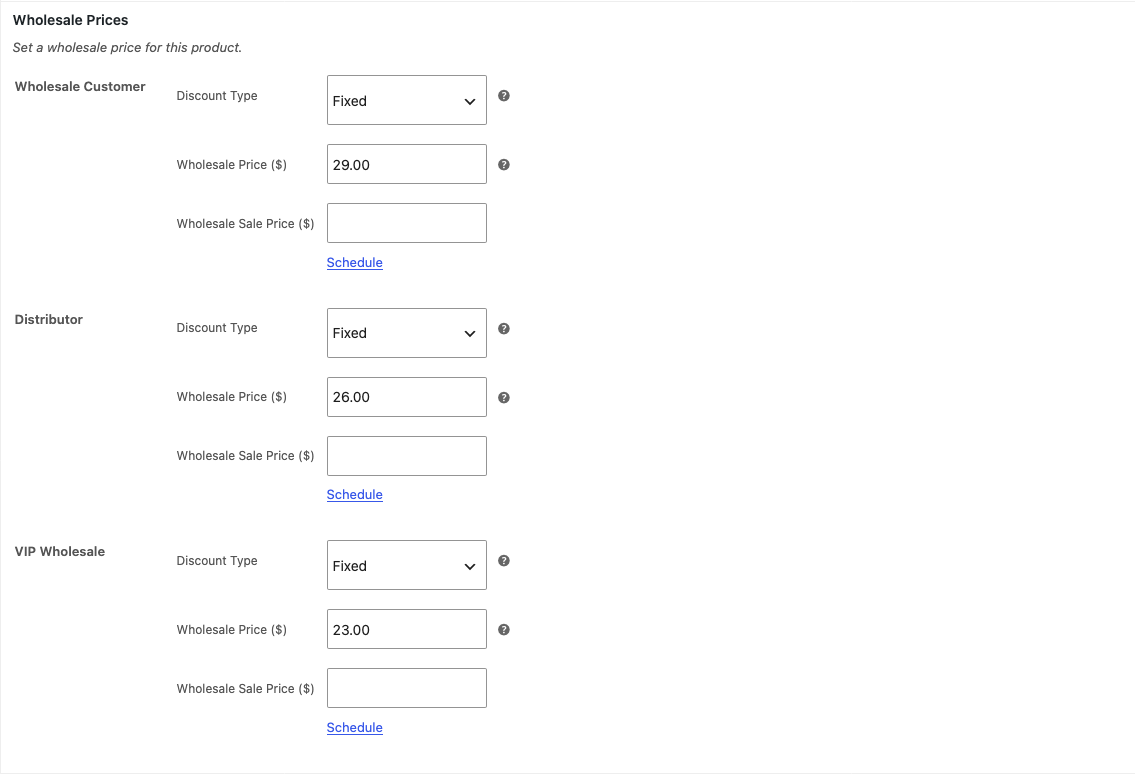
Each role gets its own price fields on every product. Open a product. Under Wholesale Prices in the product data, enter a Wholesale Price ($) for each role.
Plan your roles before you set prices. For more detail, see how to add more wholesale roles.
Step 3: Learn how wholesale pricing levels work
The free plugin sets a wholesale price on each product. Premium adds a percentage discount per product category and the store-wide discount from Step 1. It also adds quantity-based pricing, where the price drops as the customer buys more.
When more than one price applies to a product, the most specific one wins. The plugin checks them in this order and uses the first one it finds:
- The product’s own wholesale price
- A category percentage discount
- The store-wide percentage discount
For example, say you set a 20% store-wide discount and a fixed wholesale price on one product. That product uses its fixed price, and every other product gets 20% off.
For the full rules, including quantity-based pricing, see the wholesale pricing guide.
Step 4: Control which products wholesale customers see
You can hide retail products from wholesale customers, and keep wholesale-only products or variations away from other customers.
Show only wholesale products to wholesale customers
- Go to Wholesale → Settings.
- Click the Wholesale Prices tab, then the General sub-tab.
- Under Wholesale Products, tick Only Show Wholesale Products To Wholesale Customers.
- Click Save Changes.
Wholesale customers then see only products that have a wholesale price. A price from a category or store-wide discount counts. Retail customers are not affected.

Restrict a product to some wholesale roles
- Open the product in Products → All Products.
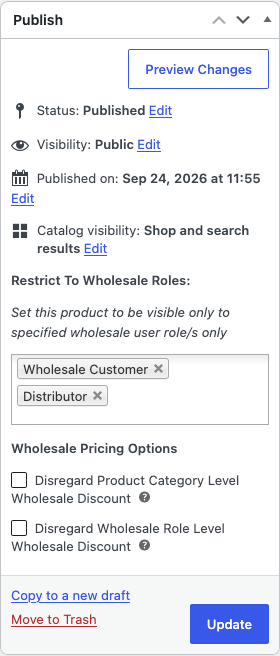
- In the Publish box, find Restrict To Wholesale Roles.
- Select one or more roles.
- Click Update.
Only customers with a selected role can see the product. Use this to sell some products only to some groups, for example only to overseas distributors.
Make a variation wholesale-only
- Open a variable product.
- Click Variations in the product data.
- Expand the variation.
- In Wholesale Exclusive Variation, select one or more roles.
- Click Update.
Only customers with a selected role can buy that variation. Leave the field empty to make the variation available to everyone.

For more options, see the product visibility guide.
Step 5: Map shipping methods and payment gateways
A mapping links a shipping method or payment gateway to a wholesale role, so that customers with the role see only the options you choose.
Shipping methods
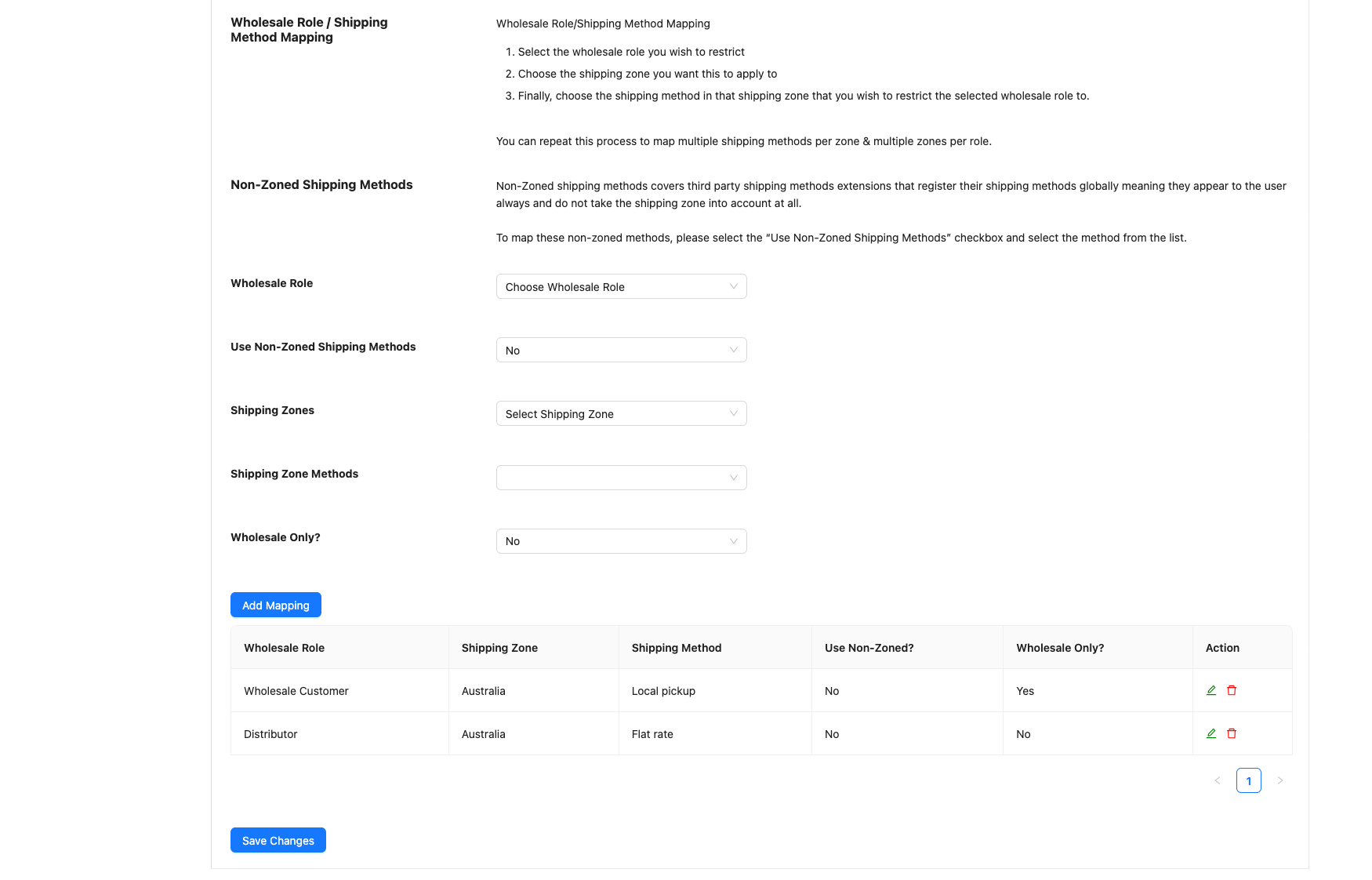
Shipping mapping works with your WooCommerce shipping zones, so you can set shipping per area and per role. For example, offer Local pickup in your local zone to wholesale customers only.
- Go to Wholesale → Settings.
- Click the Wholesale Prices tab, then the Shipping sub-tab.
- Under Wholesale Role / Shipping Method Mapping, choose a Wholesale Role.
- In Shipping Zones, choose a zone.
- In Shipping Zone Methods, choose the method.
- To hide the method from retail customers, set Wholesale Only? to Yes.
- Click Add Mapping.
Repeat for each role and zone. The mapping shows in the table below the form.
For the full setup, see how to restrict wholesale customers to particular shipping methods.
Payment gateways
- Go to Wholesale → Settings.
- Click the Wholesale Prices tab, then the Payment Gateway sub-tab.
- Under Wholesale Role / Payment Gateway, choose a Wholesale Role.
- In Payment Gateways, select one or more gateways.
- Click Add Mapping.
The gateway does not need to be enabled in WooCommerce. A mapped gateway shows at checkout for that role even when it is turned off for everyone else. For example, map Direct bank transfer to your wholesale roles to offer it only to them.
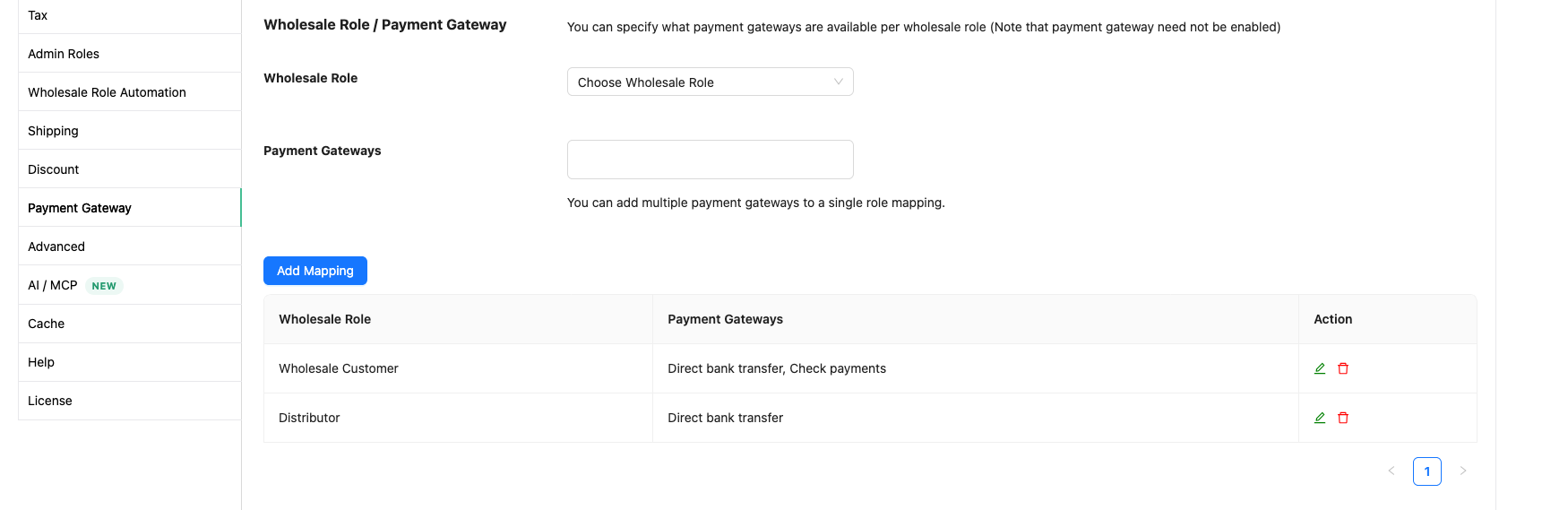
To add a fee for a gateway, use Wholesale Role / Payment Gateway Surcharge on the same screen. For more, see how to restrict wholesale customers to particular payment gateways.
Step 6: Set minimum order requirements
Minimum order requirements hold back wholesale prices until the cart reaches a set quantity, a set subtotal, or both.
- Go to Wholesale → Settings.
- Click the Wholesale Prices tab, then the General sub-tab.
- Under Order Requirements, enter a Default Minimum Order Quantity, a Default Minimum Order Subtotal, or both.
- If you set both, choose Require Quantity AND Subtotal or Require Quantity OR Subtotal.
- Click Save Changes.
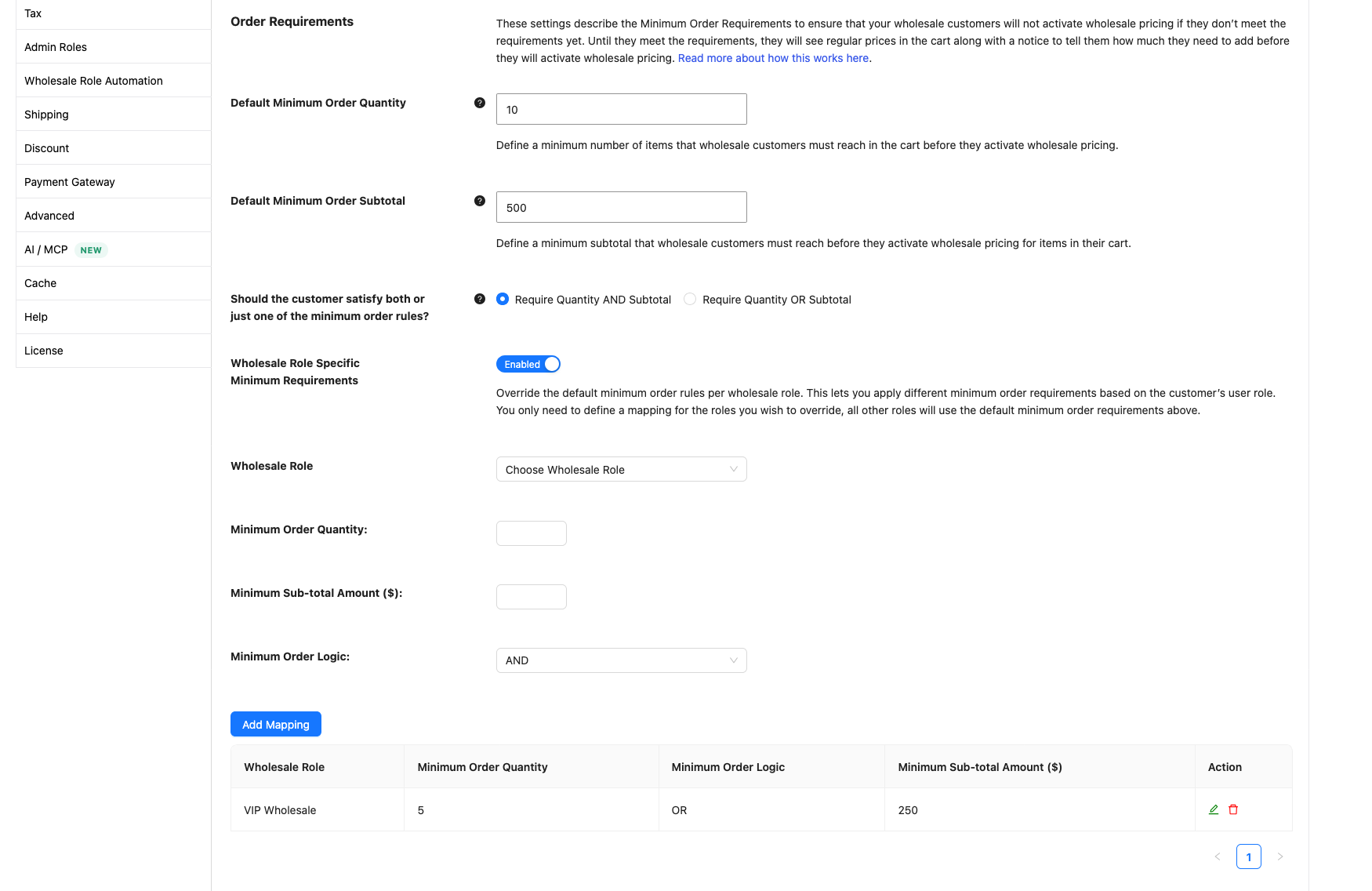
To give a role its own minimums:
- Set Wholesale Role Specific Minimum Requirements to Enabled.
- Choose a Wholesale Role.
- Enter a Minimum Order Quantity and a Minimum Sub-total Amount ($).
- Choose the Minimum Order Logic.
- Click Add Mapping.
Roles without a mapping use the defaults.
Until the cart meets the minimum, customers can still add products. The cart shows retail prices and a notice that says what the customer still needs:
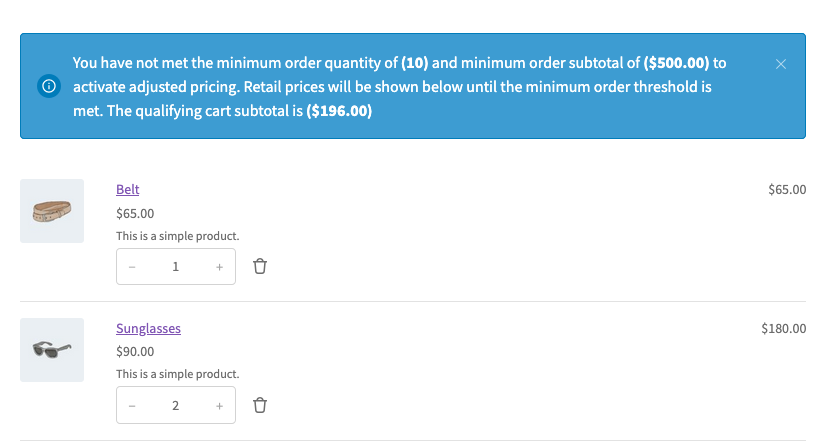
This lets a wholesale customer place a small order at retail prices when they need to. For the reasons, see why the cart shows retail prices until the minimums are met. To block checkout until the minimum is met, see how to prevent purchase if wholesale conditions are not met.
Step 7: Set up wholesale tax
The wholesale tax settings control how WooCommerce tax applies to your wholesale roles: how prices display, and which roles pay tax. They don’t set tax rates. Set up your tax rates and tax classes in WooCommerce first, as shown in Setting up taxes in WooCommerce.
Check your local rules for how wholesale prices and tax must be shown.
- Go to Wholesale → Settings.
- Click the Wholesale Prices tab, then the Tax sub-tab.
- Under Tax Options, set Display Prices in the Shop to Including tax or Excluding tax.
- Set Display Prices During Cart and Checkout to Including tax or Excluding tax.
- Optionally, enter a Wholesale Price Suffix, for example excl. GST.
- Click Save Changes.
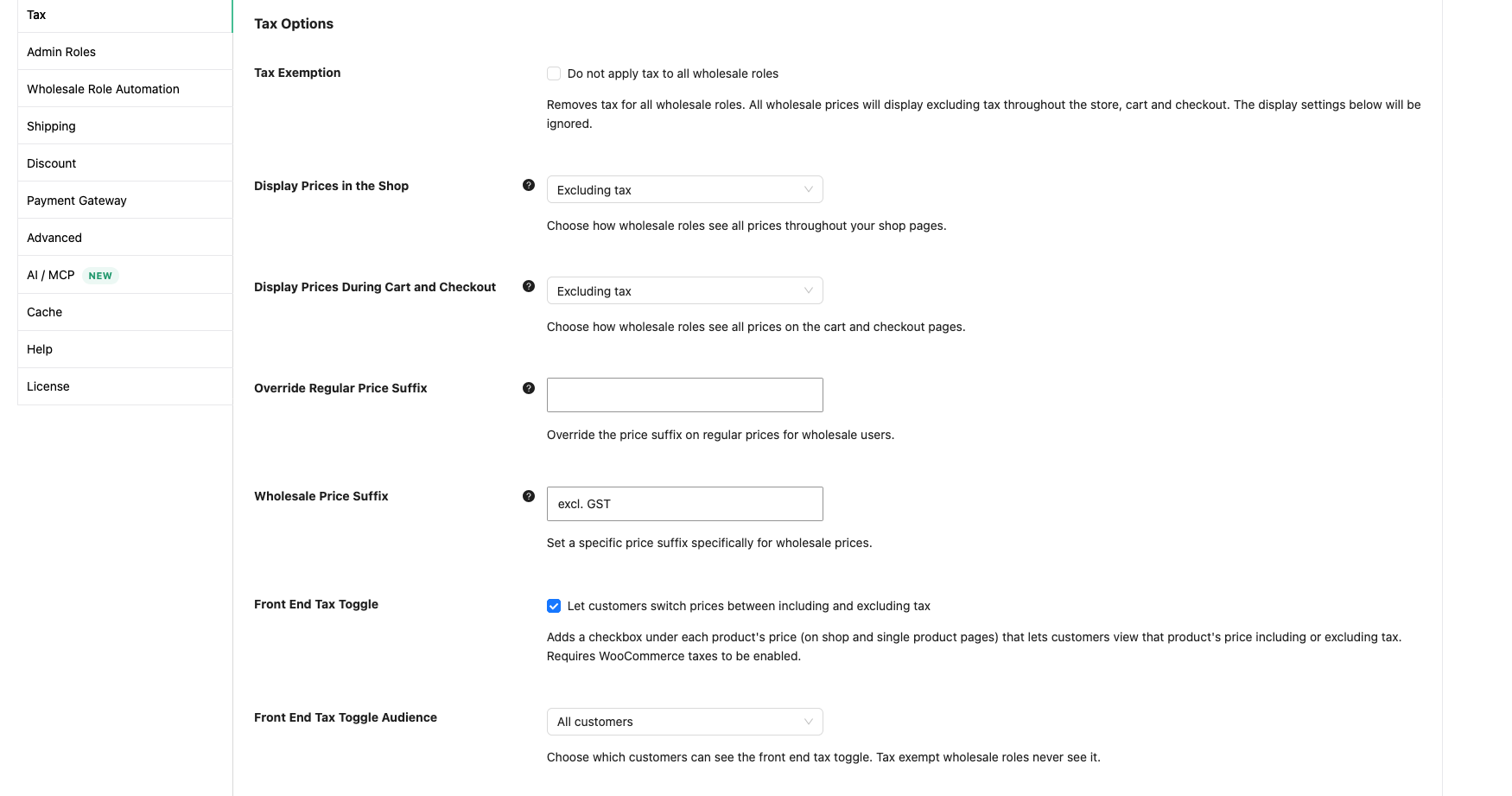
The same screen has more tax options:
- Tax Exemption: tick Do not apply tax to all wholesale roles to remove tax for every wholesale role. The two display settings above are then ignored, and wholesale prices show excluding tax.
- Front End Tax Toggle: lets customers switch product prices between including and excluding tax. It needs Wholesale Prices Premium 2.1.4 or later, and WooCommerce taxes must be turned on.
- Wholesale Role / Tax Class Mapping: sets which tax classes each wholesale role uses.
Exempt only some roles from tax
Use Wholesale Role / Tax Exemption Mapping on the same screen. A mapping overrides the general Tax Exemption option for that role.
- Choose a Wholesale Role.
- Set Tax Exempted? to Yes.
- Click Add Mapping.
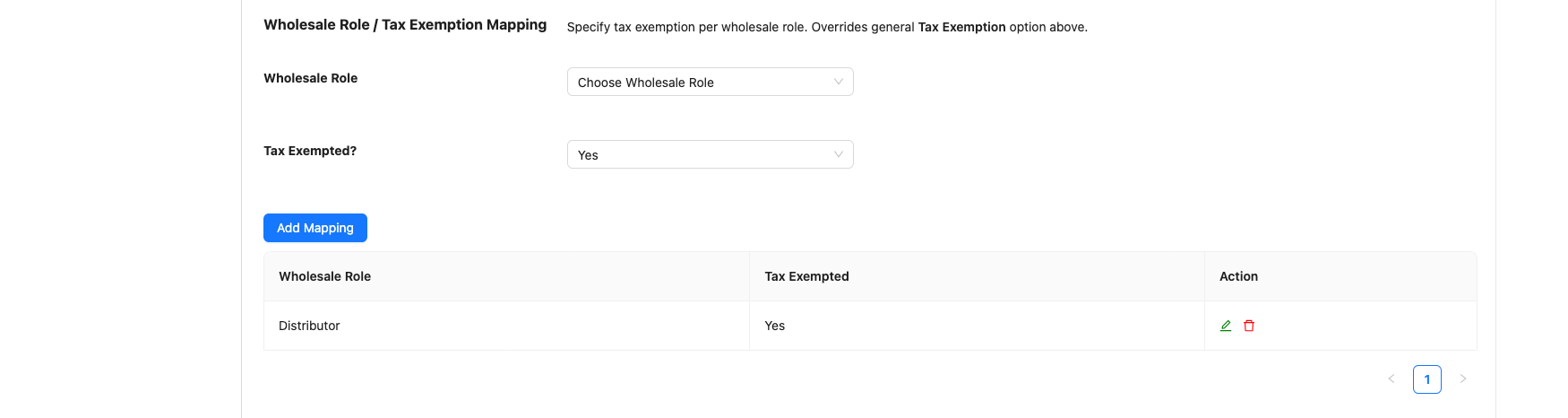
For more, see how to make a wholesale role tax exempt.
Step 8: Track your setup in the checklist
The setup checklist needs Wholesale Prices 2.3.0 or later and Wholesale Prices Premium 2.1.4 or later.
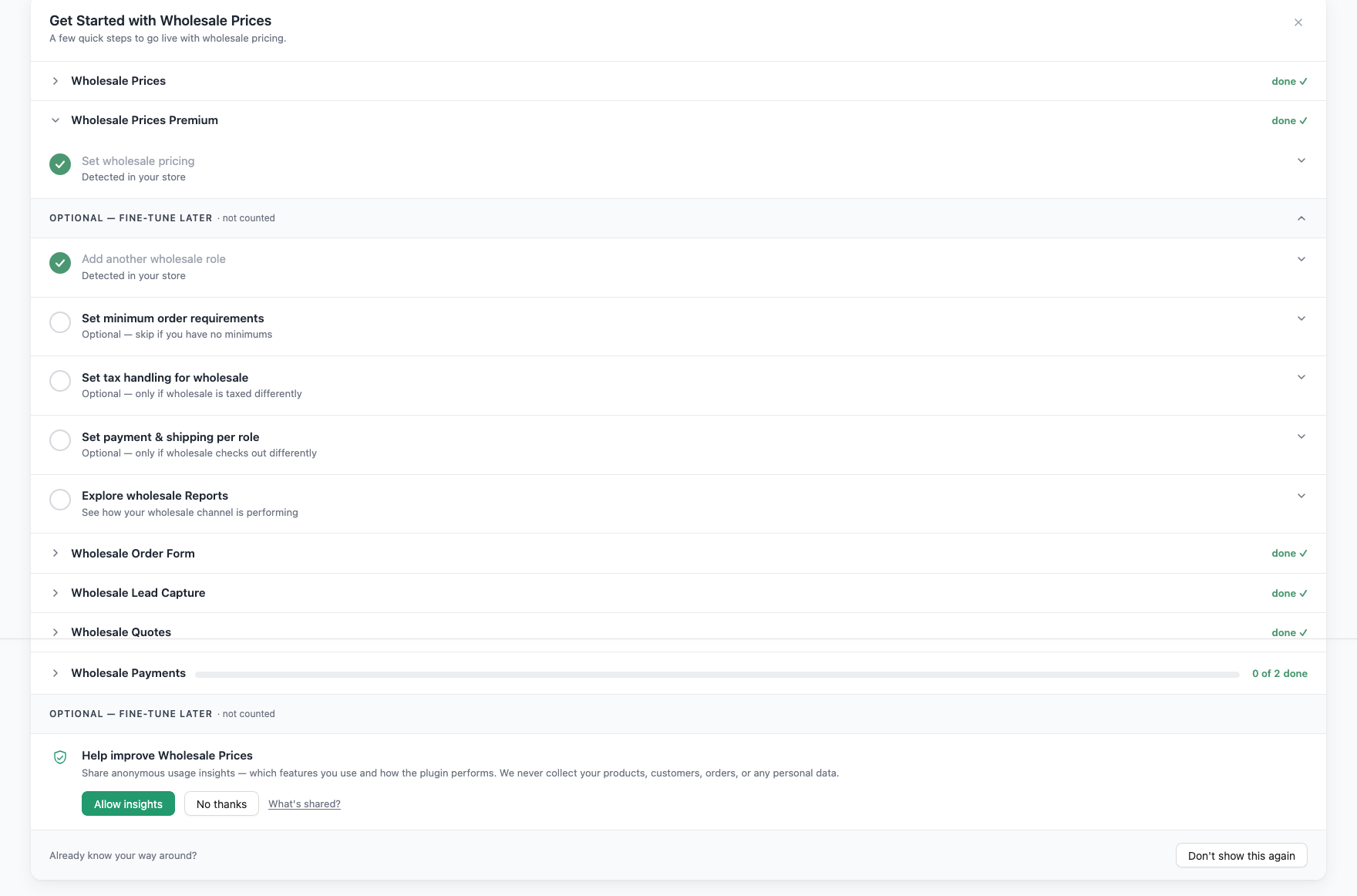
The Wholesale → Dashboard page shows a Get Started with Wholesale Prices checklist, with one section for each Wholesale Suite plugin you have active. The Wholesale Prices Premium section ticks its items for you as you set things up.
One item counts toward finishing the section:
- Set wholesale pricing: ticks when you set a wholesale price on a product, or a store-wide or category discount for a wholesale role. Its Set a wholesale discount link opens the Discount sub-tab from Step 1.
The optional group, marked not counted, lists more Premium features to try: Add another wholesale role, Set minimum order requirements, Set tax handling for wholesale, Set payment & shipping per role and Explore wholesale Reports. Each item links to the matching screen.
Premium also emails the store admin twice: Your wholesale pricing is live when you save your first Premium pricing rule, and Your wholesale pricing is set up when the section is complete. To turn these off, disable Wholesale Premium onboarding: first pricing rule set and Wholesale Premium onboarding: setup complete under WooCommerce → Settings → Emails.
Other Wholesale Suite plugins add their own sections. For example, Wholesale Order Form 3.1.3 or later adds Create your first order form and Put the form on a published page. To hide the checklist for good, click Don’t show this again at the bottom of it.
What’s next
- WooCommerce Wholesale Order Form: give wholesale customers a fast, searchable order form for bulk orders.
- WooCommerce Wholesale Lead Capture: add a wholesale registration form, a login page and lead approval. See the Lead Capture getting started guide.
- Go deeper on pricing in the wholesale pricing guide.
Frequently asked questions
What is WooCommerce Wholesale Prices Premium and what does it do?
WooCommerce Wholesale Prices Premium is the paid add-on plugin for the free WooCommerce Wholesale Prices plugin. It adds more wholesale user roles, percentage-based and quantity-based pricing, product visibility controls, wholesale shipping and payment gateway mapping, minimum order requirements, and wholesale tax settings.
Can I set different wholesale pricing levels for different types of wholesale customers in WooCommerce?
Yes. WooCommerce Wholesale Prices Premium lets you create multiple wholesale user roles such as Bronze, Silver, Gold and Platinum, so you can assign different wholesale pricing, minimum order requirements, shipping methods, and payment gateways to each group. For example, you can give local and international buyers their own roles.
How does wholesale pricing work in WooCommerce Wholesale Prices Premium?
The plugin uses the first price it finds: the product’s own wholesale price, then a category percentage discount, then the store-wide percentage discount. This means you can set a store-wide wholesale discount and still override prices for specific products or categories.
Can I restrict which products wholesale customers see in my WooCommerce store?
Yes. WooCommerce Wholesale Prices Premium includes product visibility controls. You can enable the Only Show Wholesale Products To Wholesale Customers setting so wholesale customers only see products with wholesale pricing assigned. You can also restrict individual products or product variations to specific wholesale roles, so some products are only for some customer groups.
Does WooCommerce Wholesale Prices Premium support wholesale-specific shipping and payment gateways?
Yes. The plugin’s shipping method mapping and payment gateway mapping features let you assign specific shipping methods and payment options to individual wholesale user roles. For example, you can offer the Local pickup shipping method only to local wholesale customers, or offer Direct bank transfer only to wholesale buyers.
Need help?
If you have a question or run into any issues, we’re here to help.
- Premium users: Open a support ticket
- Free users: Visit our community forum