Wholesale orders can get cluttered, especially when your catalog has similar product names, close variations, or multiple pack options. That is why WooCommerce GTIN matters. A product identifier gives buyers one more way to confirm they are choosing the exact item they need. Instead of relying solely on product titles, they can match the code on the order form to the barcode, catalog reference, or purchasing list they already use on their side.
This new update adds that option directly to the Wholesale Order Form. With WooCommerce GTIN shown in the table, buyers can verify products more easily while ordering, and your team gets cleaner order details to work with after the sale.
WooCommerce GTIN
Before we go deeper into the feature, it helps to clear up one basic question. What exactly is a GTIN? A GTIN stands for Global Trade Item Number. It is a product identifier used to tell one item apart from another. So instead of relying only on the product name, you get a code that helps confirm the exact product being referenced.
That is why WooCommerce GTIN matters in product-heavy stores. If you sell items with similar names, similar packaging, or multiple versions, a clear identifier can make things less confusing. It gives buyers and store teams one more way to check that they are looking at the right product.
You might also see different identifier formats depending on the type of item or where it is sold. For example:
- UPC is common in the United States and Canada
- EAN is common in many international markets
- ISBN is used for books
- GTIN is the broader term that covers these product codes
So when people talk about WooCommerce GTIN, they are often also referring to UPC, EAN, or ISBN values associated with products in WooCommerce.
Why do wholesale stores use it?
Wholesale stores deal with a different kind of buying flow. Buyers are often moving faster, ordering larger quantities, and working from internal product sheets or barcode systems. So they are not just reading product titles for fun. They are trying to match what they need with what they see on screen as quickly as possible.
That is where WooCommerce GTIN becomes practical. It helps buyers verify the item before they add it to their order. It can also help your team later, whether they are reviewing orders, picking items, or answering product questions. (Anything that removes guesswork is a win, honestly.)
It also helps with a few common wholesale pain points:
- Faster picking because the item is easier to confirm
- Fewer order mistakes because buyers have one more reference point
- Cleaner communication between your store and the buyer’s internal team
- Better matching for products already tracked through barcode-based systems
So even though a GTIN looks like a small extra detail, it can make ordering feel more accurate and less stressful. And once you start showing WooCommerce GTIN directly in the order form, that small detail becomes much easier for buyers to use.
How To Show GTIN, UPC, EAN, Or ISBN On The Wholesale Order Form
📝 Before proceeding with these steps, make sure your Wholesale Order Form plugin is updated to the latest version.
Step 1: Add a GTIN value to the product
The process starts with the product itself. If a product already has a GTIN, UPC, EAN, or ISBN saved in WooCommerce, that value becomes available for the order form to use.
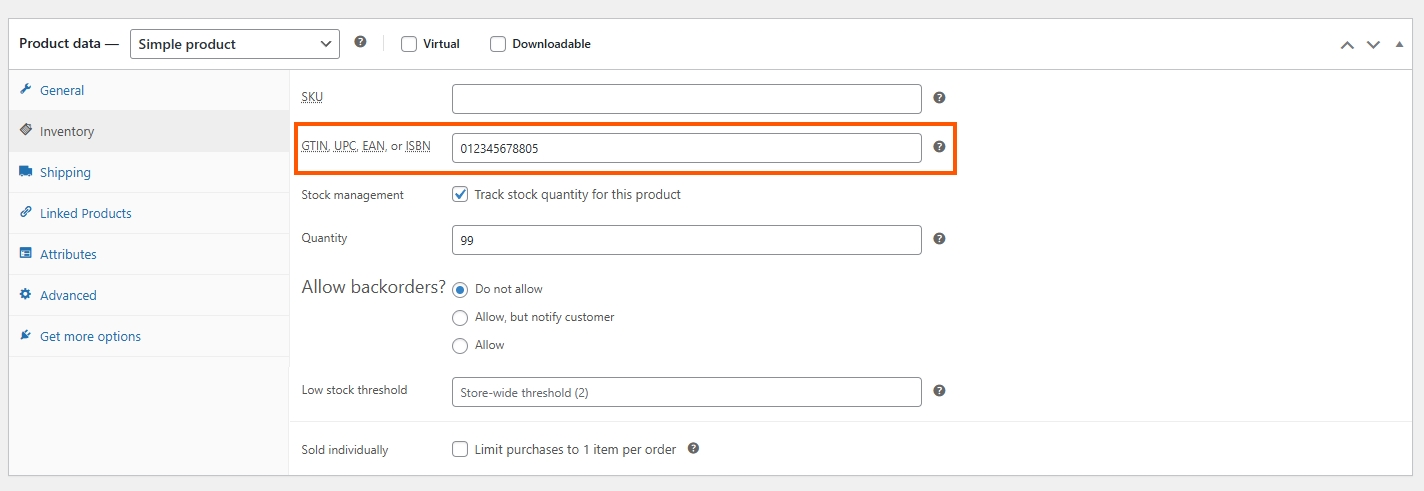
Your product needs a valid identifier in its product data. That way, the order form has something to display. If the product does not have one yet, the field stays empty until a value is added.
Step 2: Pull that value into the order form
Once the product has a saved value, the Wholesale Order Form can pull it into the table via the GTIN column.
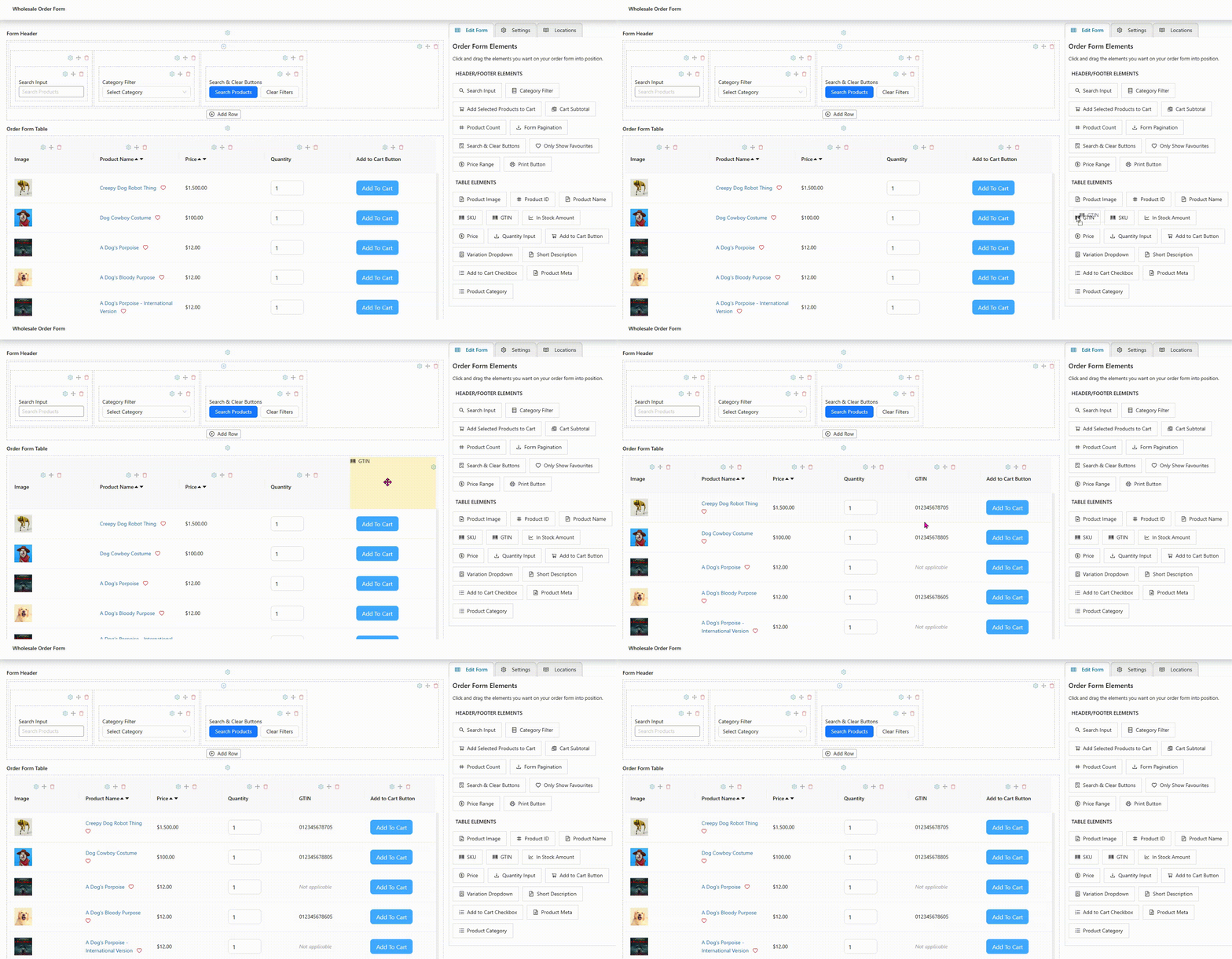
This is the part where WooCommerce GTIN becomes useful in the frontend. Instead of keeping that identifier hidden in the product data, the order form can now display it alongside the other product details. That means buyers do not have to leave the page just to verify what they are ordering.
Once done, click Update Form.
Step 3: Show the GTIN beside the product details
After the GTIN column is added, buyers can see the identifier directly in the order form while they browse products.
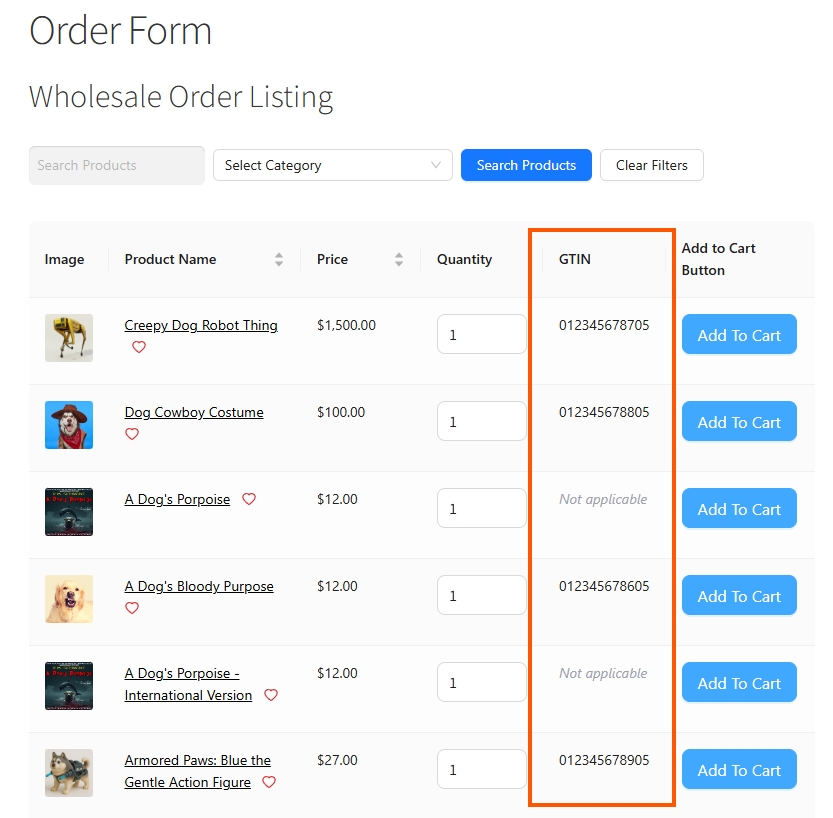
So if the table already shows things like product name, SKU, price, stock status, and add-to-cart controls, the WooCommerce GTIN value now sits naturally in that same row. This makes product verification easier because the buyer can compare the product title and code simultaneously.
📝 Not every product will always have a GTIN, and that is okay. When no value exists, the order form can display a fallback, such as “Not applicable,” instead of leaving the field blank.
Common Use Cases For WooCommerce GTIN On The Order Form
This feature becomes more useful when you consider the kinds of stores that handle detailed product catalogs every day.
Wholesale buyers ordering variants
Some wholesale stores sell products with very similar names, especially when variations are involved. A buyer might see two items with the same base product name, but one has a different size, pack quantity, or version. That is where WooCommerce GTIN helps. Instead of relying only on the title, the buyer can use the GTIN, UPC, EAN, or ISBN value as a second check before placing the order.
This is helpful for buyers who already work from printed purchase sheets, barcode lists, or internal stock references. (Basically, if they already think in product codes, this fits how they already work.)
Stores selling barcode-based products
Some stores sell products that are already tied to barcode-style identifiers in daily operations. That can include packaged goods, books, retail-ready items, or catalog-based inventory. In these setups, showing WooCommerce GTIN in the order form makes the buying process feel more accurate.
Internal ops and purchasing
This feature also helps after the order is placed. If your team handles picking, packing, or inventory review, a visible WooCommerce GTIN can make product matching easier. The same goes for stores where the purchasing team and fulfillment team are not the same people.
Other Features You Should Know
Another helpful update is the new Print Button for the Wholesale Order Form. This gives buyers a quick way to print the order form or save it as a PDF using their browser’s built-in print option. That is useful when they need a physical copy for review, internal approval, or live order discussions with a team. (And honestly, some buyers still prefer something they can print and mark up.)
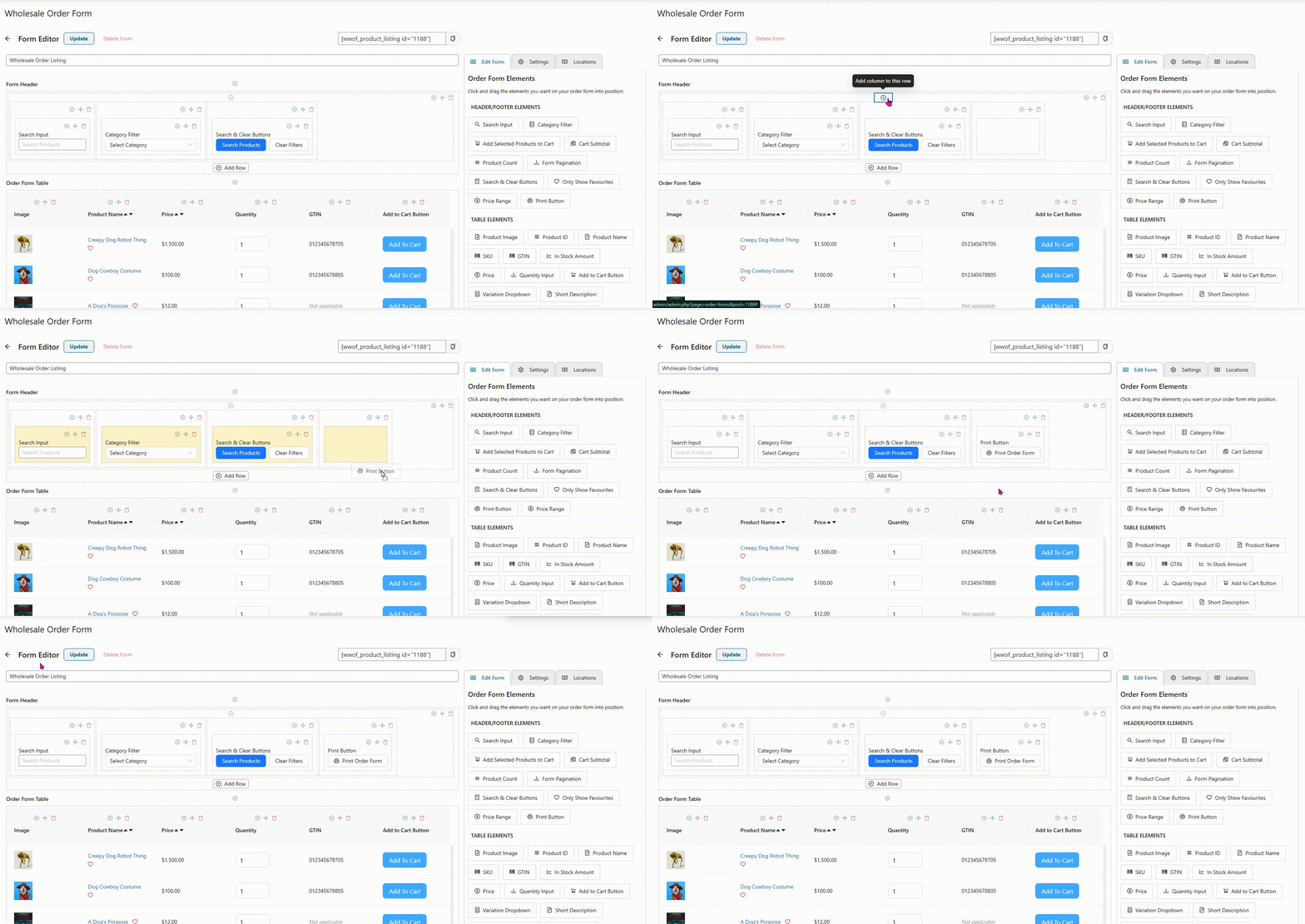
The button can be added to the form header or footer, and you can also change the button text or show a printer icon if you want. When someone clicks it, the print view hides interactive elements such as search, filters, quantity inputs, add-to-cart controls, the admin bar, and pagination. So the printed version stays clean and easier to read.
Takeaways
When buyers are working through long product tables, similar product names, and multiple variations, having WooCommerce GTIN right there in the form gives them one more way to confirm they are choosing the correct item. (And sometimes that small double-check is all it takes to prevent a very annoying mistake later.)
It keeps product identifiers in the exact place where buyers make decisions. That means less second-guessing, fewer mix-ups, and cleaner order details for your team to work with after checkout. So if your store already uses product codes like UPC, EAN, or ISBN, adding WooCommerce GTIN to the Wholesale Order Form is an easy way to make the buying process feel more accurate.