Running a WooCommerce wholesale store means watching your best customers grow, and that growth deserves to be rewarded. Until now, moving a customer up to a better wholesale tier, or moving them back down when their orders slowed, meant editing user profiles by hand, one account at a time. The new wholesale role automation feature in Wholesale Suite changes that completely.
Wholesale role automation lets you write simple rules that promote or demote customers between wholesale roles based on how much they spend or how often they order. Your store monitors every order, applies your rules automatically, logs each change, and emails the customer when their role updates. Set it up once, and it runs quietly in the background.
In this guide, we will walk through what wholesale role automation is, why it matters for your store, and exactly how to set it up inside Wholesale Suite. You will also see how the system works behind the scenes, how to track every change in the audit log, and how to shield specific customers from automated moves.
Why Wholesale Role Automation Matters For Your Wholesale Store
Manually grading wholesale customers does not scale. As your store grows, keeping track of who has earned a higher tier and who has quietly dropped off becomes a full-time job. Wholesale role automation removes that burden by accurately and consistently handling tier changes for you every single day. It is one piece of a bigger picture, and our guide to automating the rest of your wholesale workflow covers approvals, onboarding emails, and webhook-driven tasks.
Rewarding your existing buyers is one of the smartest moves a wholesale business can make. Research highlighted in the Harvard Business Review found that increasing customer retention by just 5 percent can lift profits by 25 to 95 percent. The original finding from Bain & Company shows why keeping your best customers engaged pays off far more than constantly chasing new ones. A tier system that recognizes loyalty automatically is a practical way to act on that data.
Reward your biggest spenders
One of the original use cases for this feature is promoting a regular retail customer into wholesale once they qualify. Instead of asking shoppers to apply or manually upgrading them yourself, you can set a rule that watches for a spending threshold and grants wholesale access the moment it is reached. This is a hands-off way to build B2B customer loyalty and turn frequent buyers into long-term wholesale partners.
Automate tier progression
The other core use case is moving customers between wholesale tiers as their spending grows or shrinks. A bronze customer who meets a higher threshold can be automatically bumped to silver or gold, which pairs perfectly with a three tier pricing strategy. If a customer falls below the threshold, you can either let them drift back down a tier or leave their role untouched, depending on how you want to handle B2B customer retention.
How To Set Up Wholesale Role Automation In Wholesale Suite
Setting up wholesale role automation takes only a few minutes once your roles are in place. The steps below walk through creating your first rule from start to finish.
Step 1: Create your wholesale roles first
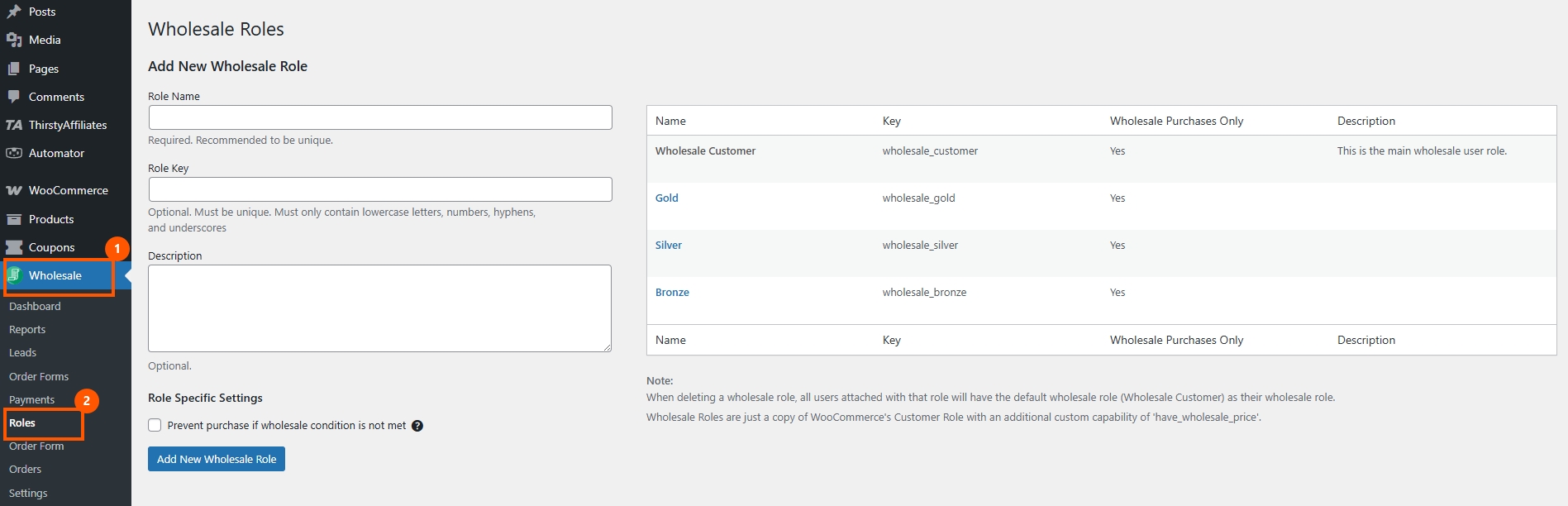
Automation moves customers between roles, so those roles need to exist before you build any rules. Head to Wholesale, then Roles, and add the tiers you want to use, such as Bronze, Silver, and Gold. If you are new to this, our guide on the best way to use WooCommerce customer roles covers the setup in detail.
Step 2: Open the Wholesale Role Automation settings
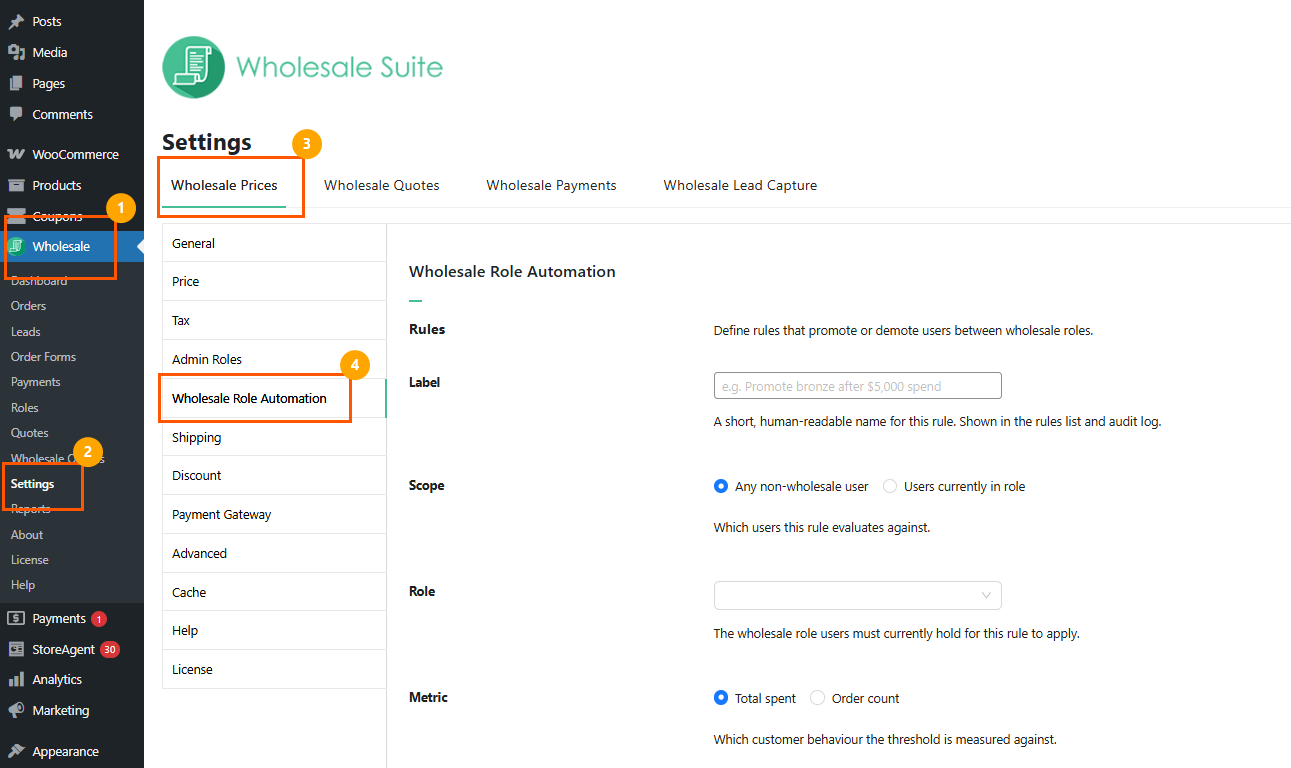
In your dashboard, go to Wholesale > Settings > Wholesale Prices, then click Wholesale Role Automation in the left menu.
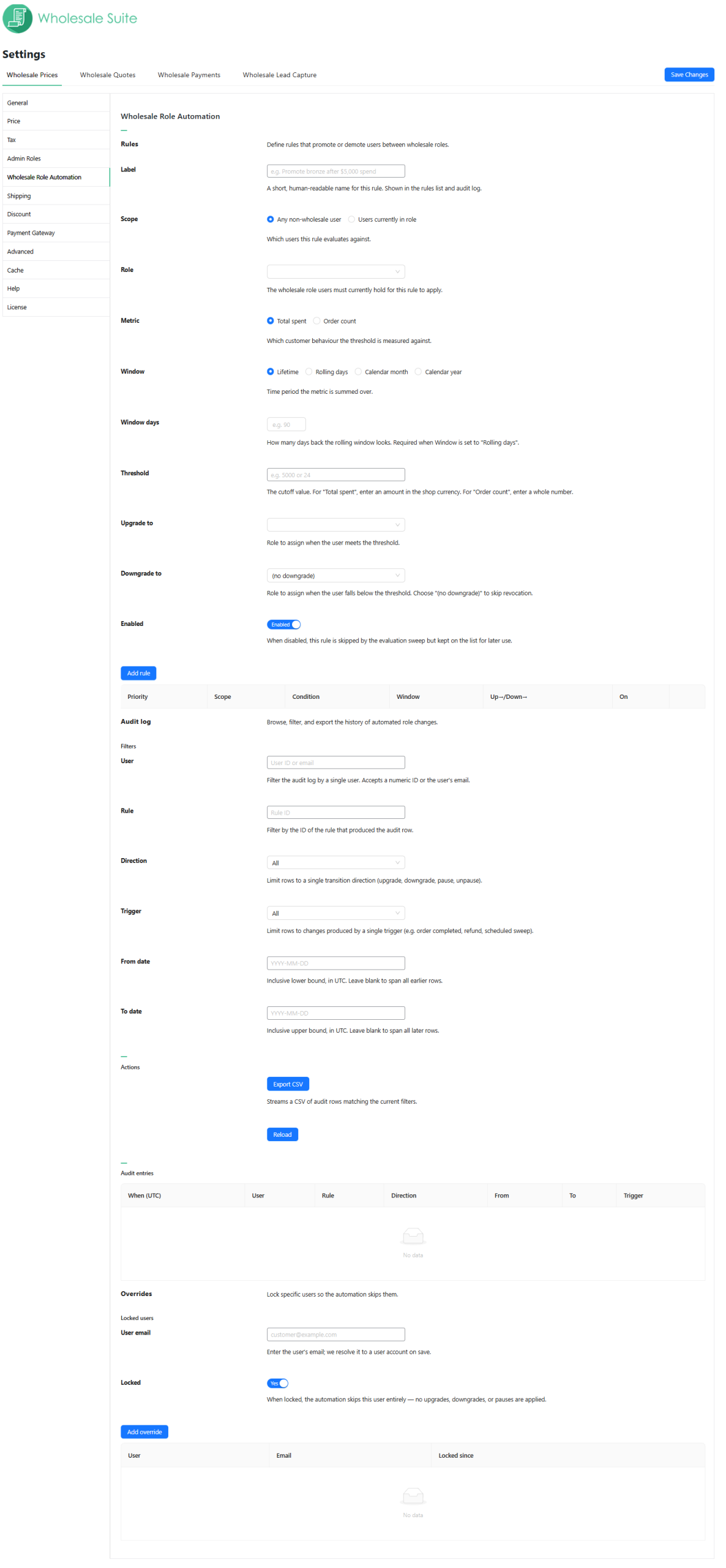
Step 3: Build your first rule
The rule builder gives you a clear set of fields. Here is what each one does:
- Label: A short, human-readable name that you can recognize later in the list and in the audit log, such as “Promote bronze after $3,000 spend.” This is for your reference only.
- Scope: Who the rule evaluates. Choose “Any non-wholesale user” to catch retail customers and promote them into wholesale, or “Users currently in role” to look only at people already in a specific wholesale role for tier moves and downgrades.
- Role: Used only when Scope is set to “Users currently in role.” This is the wholesale role a customer must currently hold for the rule to apply.
- Metric: What you measure. Pick “Total spent” for a dollar value or “Order count” for a number of orders.
- Window: The time period over which the metric is summed. Your options are Lifetime, Rolling days, Calendar month, and Calendar year.
- Window days: Required only when Window is set to “Rolling days.” Enter how many days back the moving window should look, for example, 90.
- Threshold: The cutoff that triggers the rule. For “Total spent,” enter an amount in your store currency. For “Order count,” enter a whole number.
- Upgrade to: The role the customer moves into upon meeting or exceeding the threshold.
- Downgrade to: The role they move back to if they fall below the threshold. Leave this as “(no downgrade)” if you only ever want to promote customers.
- Enabled: An on/off toggle. When a rule is disabled, it remains in your list but is skipped during evaluation, allowing you to pause a rule without deleting it.
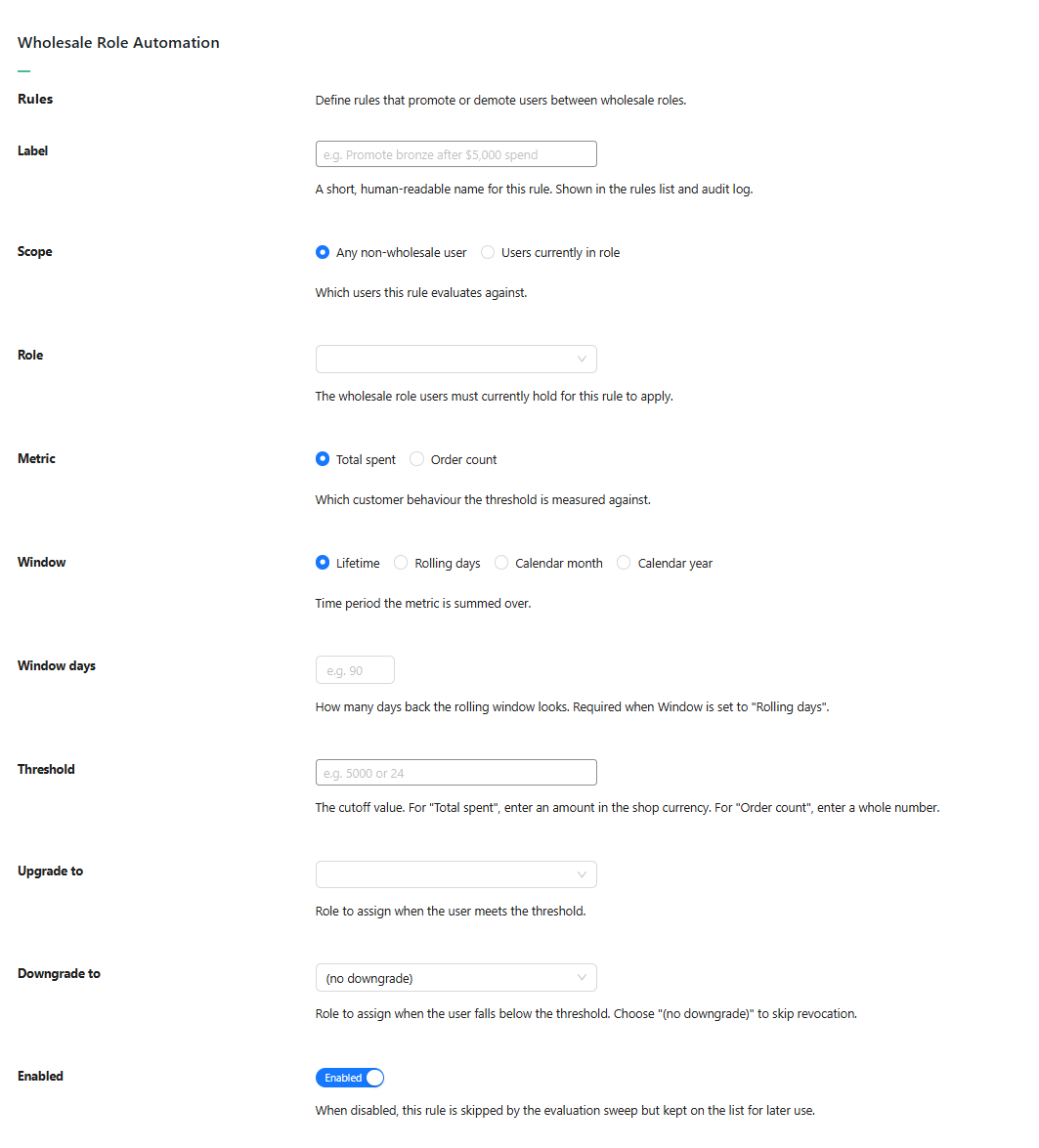
Once your fields are filled in, click Add rule to save it into the table below.
Step 4: Review your rules and set priority
Saved rules appear in a table with columns for Priority, Scope, Condition, Window, the up- and down-role moves, and the On status. Priority matters here. If a customer qualifies for more than one rule at the same time, the system applies only one rule per evaluation cycle, decided by priority order. That design prevents your rules from conflicting or bouncing a customer back and forth in a single pass.

Tracking Every Change With The Audit Log
The second block on the settings page is the Audit log, where every automated role change is recorded and searchable. This gives you a complete history of who moved, when, and why, which is invaluable when a customer asks about their pricing or when you want to confirm a rule is working.
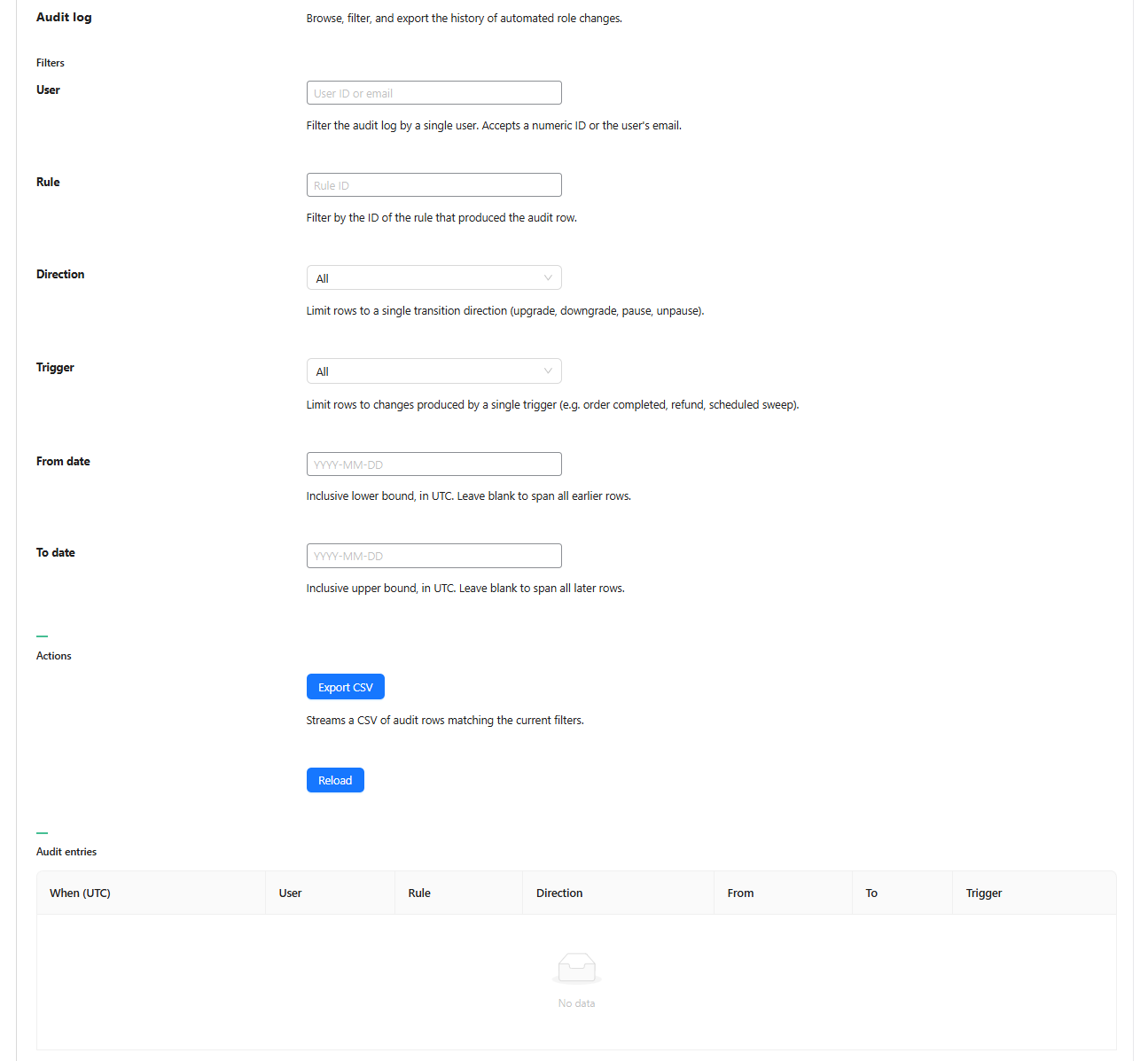
You can filter the log by several criteria. Filter by User using a numeric ID or email, by Rule using the rule’s ID, or by Direction to limit rows to a single transition type such as upgrade, downgrade, pause, or unpause. You can also filter by Trigger to see what caused a change, and set a From date and To date to narrow the range, with all dates shown in UTC.
Each audit entry shows the change time in UTC, user, rule, direction, old role, new role, and the trigger. Two buttons sit below the filters: Export CSV downloads everything matching your current filters, and Reload refreshes the table.
Protecting Specific Customers With Overrides
The third block, Overrides, lets you lock specific customers so the automation skips them entirely. This is perfect for hand-negotiated, special-deal customers whose pricing you never want an automated rule to disturb.
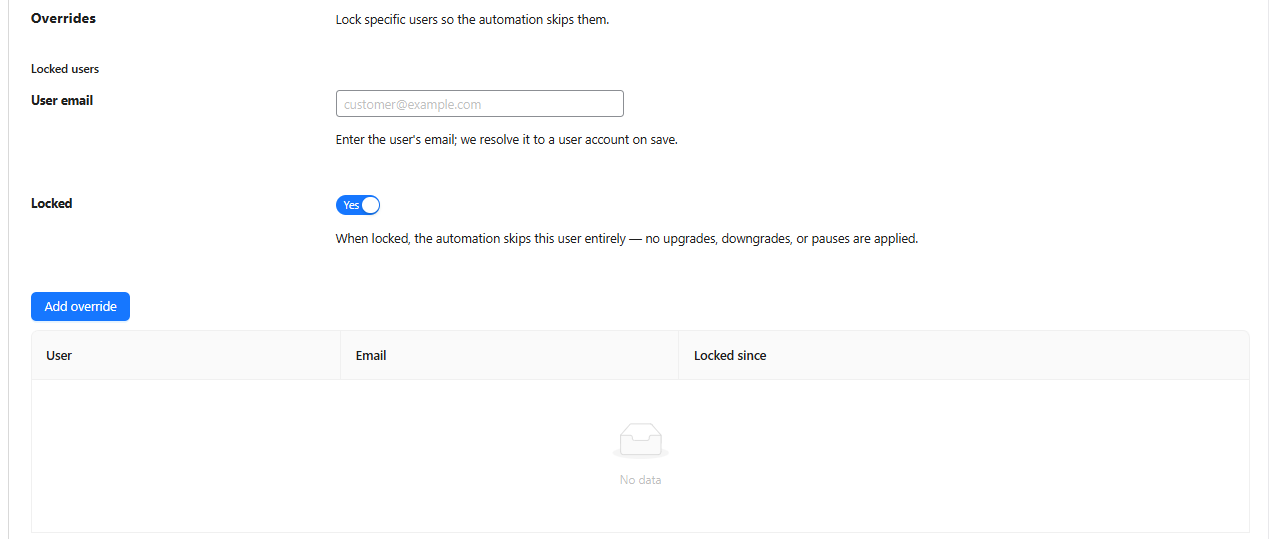
To lock a customer, enter their email in the User email field, set the Locked toggle to Yes, then click Add override. The email is resolved to the matching account on save. Once locked, that customer receives no upgrades, no downgrades, and no pauses from any rule.
Locked customers appear in a table showing the User, their Email, and the date they were locked. You can also set the same lock directly from a user’s profile screen in WordPress, under Users, by editing the account. That flexibility means you can protect a VIP from wherever you’re working.
How Wholesale Role Automation Works Behind The Scenes
You do not see the engine that drives wholesale role automation, but understanding it helps you trust the results. The system reacts to order events and also runs a scheduled check, so nobody falls through the cracks.
The moment an order is completed, refunded, or cancelled, the affected customer is re-checked against your rules. On top of that, a daily background sweep rechecks everyone, catching anyone whose rolling-window total has dropped or who has crossed a threshold without a fresh order event. For each customer, the system calculates their spend or order total for the rule’s window, compares it to the threshold, and decides whether to upgrade, downgrade, or do nothing. Locked and paused users are always skipped.
When a change occurs, it is logged before any email is sent, so the trail never misses a record even if email delivery fails. The customer then receives a WooCommerce email, with separate wording for an upgrade versus a downgrade, plus a one-time notice on their My Account page the next time they log in.
In multi-currency stores, order totals are converted back to your base currency before measuring, so your thresholds apply the same way for every customer, no matter which currency they paid in.
📝 One important note: the feature only applies to events that occur after you turn it on. Switching it on does not retroactively re-grade existing customers based on their old orders, so your first promotions will start flowing as new orders come in.
Best Practices For Wholesale Role Automation
To get the most out of wholesale role automation, it helps to start simple and build from there. A few practical habits will keep your tier system clean and predictable.
- Start with one rule: Create a single promotion rule, place a test order on a staging site, and confirm the upgrade lands in the audit log before adding more.
- Set priority intentionally: Because only one rule applies per cycle, order your rules so the most important promotion or downgrade wins when a customer qualifies for several at once.
- Decide your downgrade policy early: If you never want to demote customers, leave Downgrade to set to “(no downgrade).” This is a kinder approach for relationship-driven wholesale stores.
- Lock your VIPs: Add any hand-negotiated accounts to the Overrides list so a rule never overrides a custom deal you made.
- Pair it with loyalty thinking: Tier progression works hand in hand with broader retention tactics, so it is worth reviewing how rewarding loyal customers and using loyalty programs to drive repeat sales can complement your automated tiers.
Conclusion
Wholesale role automation takes one of the most tedious parts of running a wholesale store, manually grading customers, and turns it into a set-and-forget system. By writing a few clear rules around spending or order counts, you can promote your best buyers, manage tier progression, and even handle downgrades without lifting a finger. The audit log keeps you accountable with a full history, while the Overrides block protects the special relationships that should never be automated.
The feature is thoughtfully built, from logging changes before emails go out to normalizing multi-currency totals, so the results stay reliable as your store scales. Whether you want to reward big spenders by promoting them into wholesale or fine-tune the tiers your existing customers sit in, wholesale role automation gives you a consistent, hands-off way to do it. Set up your roles, build your first rule, and let Wholesale Suite handle the rest.
Here is what we covered in this article:
- Why wholesale role automation matters for your wholesale store
- How to set up wholesale role automation in Wholesale Suite
- Tracking every change with the audit log
- Protecting specific customers with overrides
- How wholesale role automation works behind the scenes
- Best practices for wholesale role automation
Frequently Asked Questions
Where do I find wholesale role automation in Wholesale Suite?
You will find wholesale role automation in your WordPress dashboard under Wholesale, then Settings, then the Wholesale Prices tab, then Wholesale Role Automation. It is part of WooCommerce Wholesale Prices Premium.
Does wholesale role automation grade my existing customers based on past orders?
No. The feature only acts on order events that happen after you enable it. Turning it on does not retroactively re-grade existing customers off their old orders, so promotions and downgrades begin as new orders come in.
Can I stop the automation from changing a specific customer?
Yes. Use the Overrides block to lock a customer by email, or set the lock from their user profile in WordPress. A locked customer is skipped entirely, with no upgrades, downgrades, or pauses applied.
What happens if a customer’s spending drops below the threshold?
It depends on your rule. If you set a Downgrade to role, the customer moves back to that role. If you leave it as “(no downgrade),” their role stays the same, and they are only ever promoted.
Will customers know when their wholesale role changes?
Yes. When a role changes, the customer receives a WooCommerce email with separate wording for upgrades and downgrades, plus a one-time notice on their My Account page the next time they log in.