If your shop uses WooCommerce blocks, you need to check the catalog, cart and checkout as a wholesale customer. This guide covers the wholesale behavior supported across those pages and helps you plan a complete test. WooCommerce Wholesale Prices provides wholesale pricing, with additional rules from the Premium add-on.
What you’ll need
- WooCommerce with the Cart and Checkout blocks on the corresponding pages.
- WooCommerce Wholesale Prices, installed and active.
- WooCommerce Wholesale Prices Premium for role-based product visibility, quantity rules and gateway restrictions.
- A wholesale test account and products with wholesale prices.
For block-based shop templates, use a block theme. Keep WooCommerce Wholesale Prices Premium at version 2.1.1 or later for the catalog behavior described below.
Check which pages use blocks
- Go to Pages → All Pages.
- Open your Cart page in the editor.
- Confirm it contains the Cart block.
- Open your Checkout page.
- Confirm it contains the Checkout block.
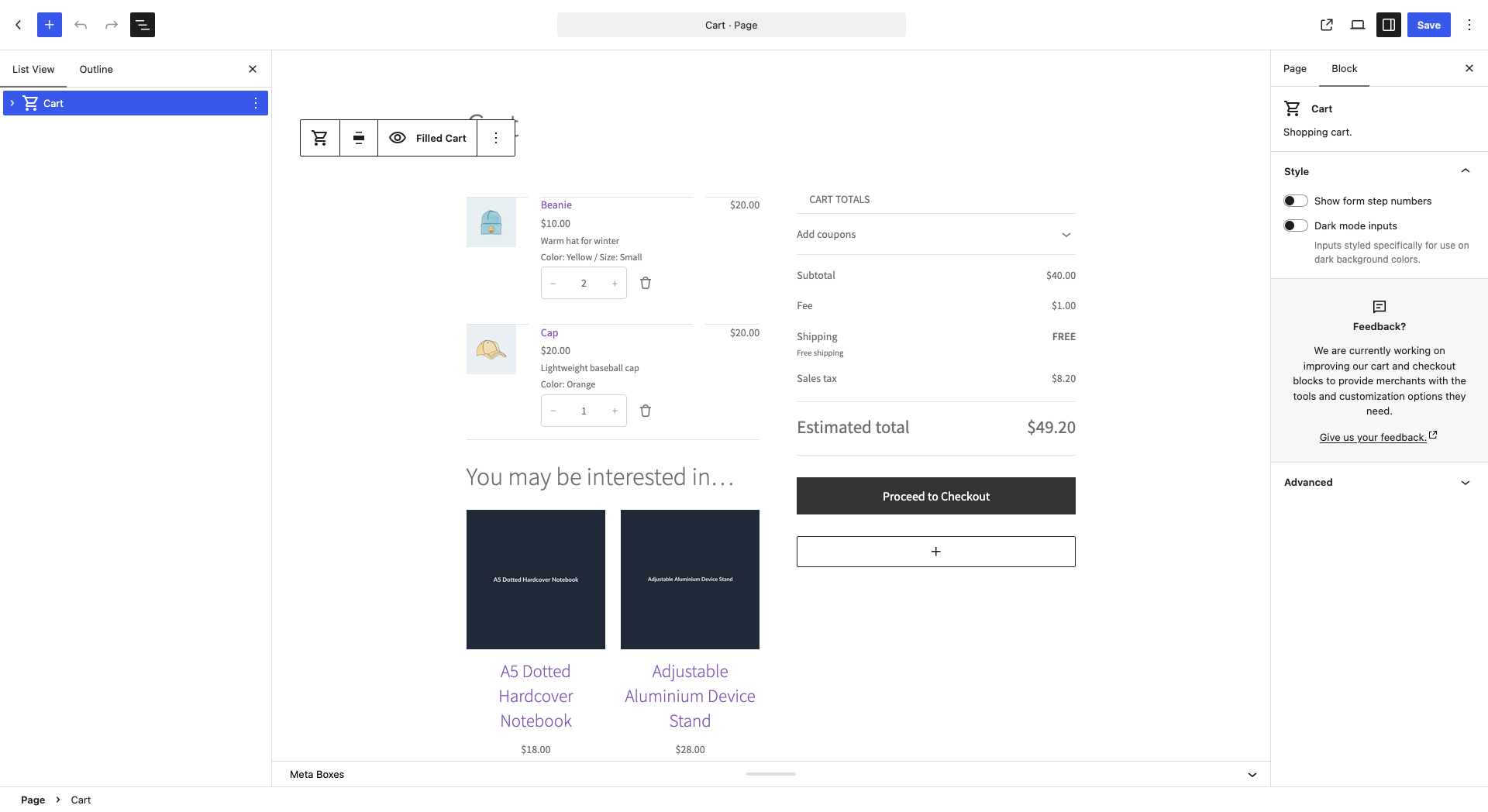
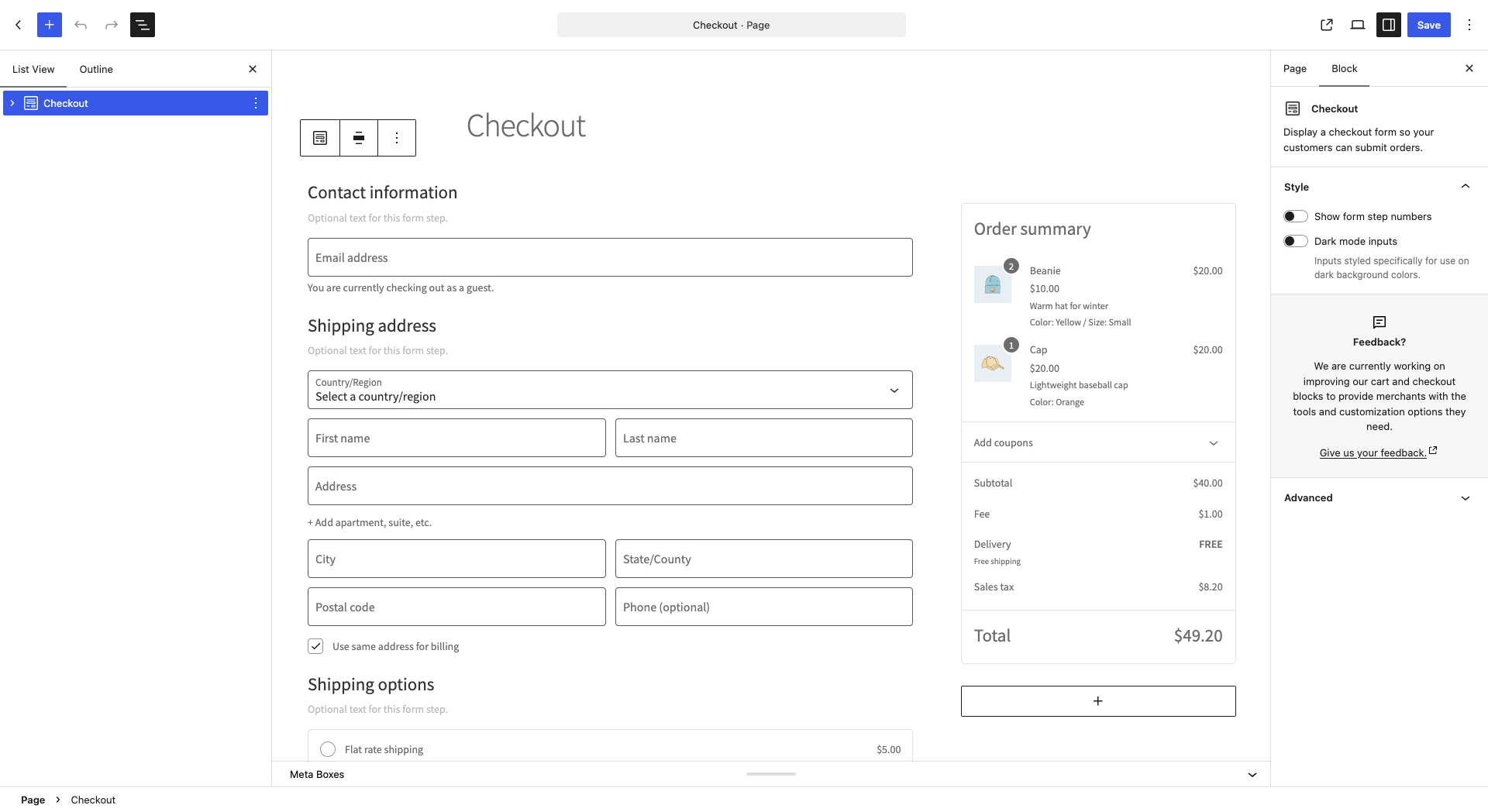
This article covers block pages. If your pages use the cart and checkout shortcodes, follow the guides for those pages instead. You do not need to replace working pages solely to use wholesale pricing.
Understand shop and catalog blocks
For supported block-based product queries, Premium applies product visibility rules for the customer’s wholesale role. Administrators and shop managers bypass that wholesale filtering from version 2.1.1; their view is therefore not a reliable test of what a wholesale customer can see.
Product collections and handpicked product blocks that already specify their own product list retain that selection. Check each block with a wholesale account rather than assuming every custom collection follows the same filtering path. For visibility setup, see the product visibility guide.
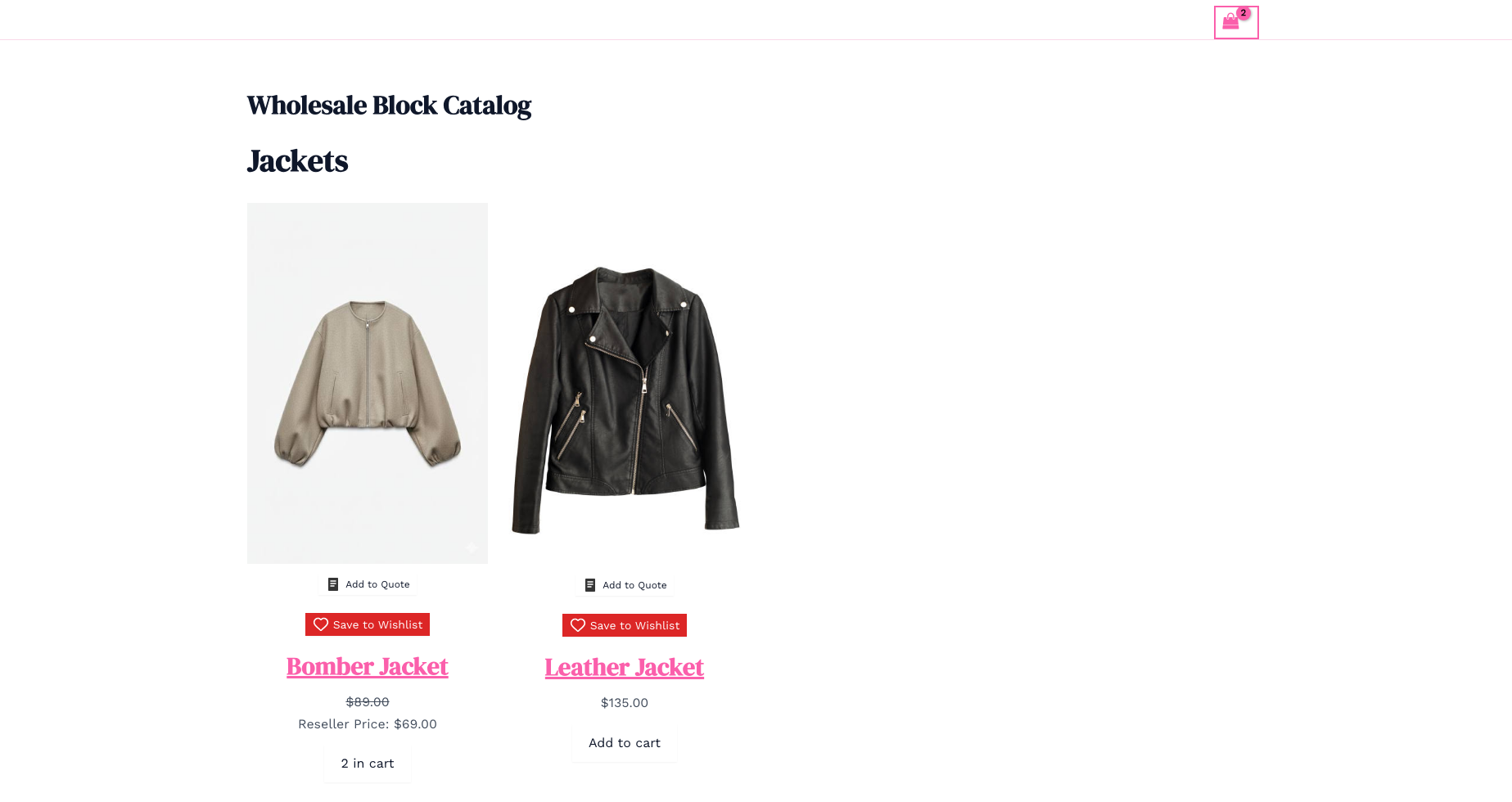
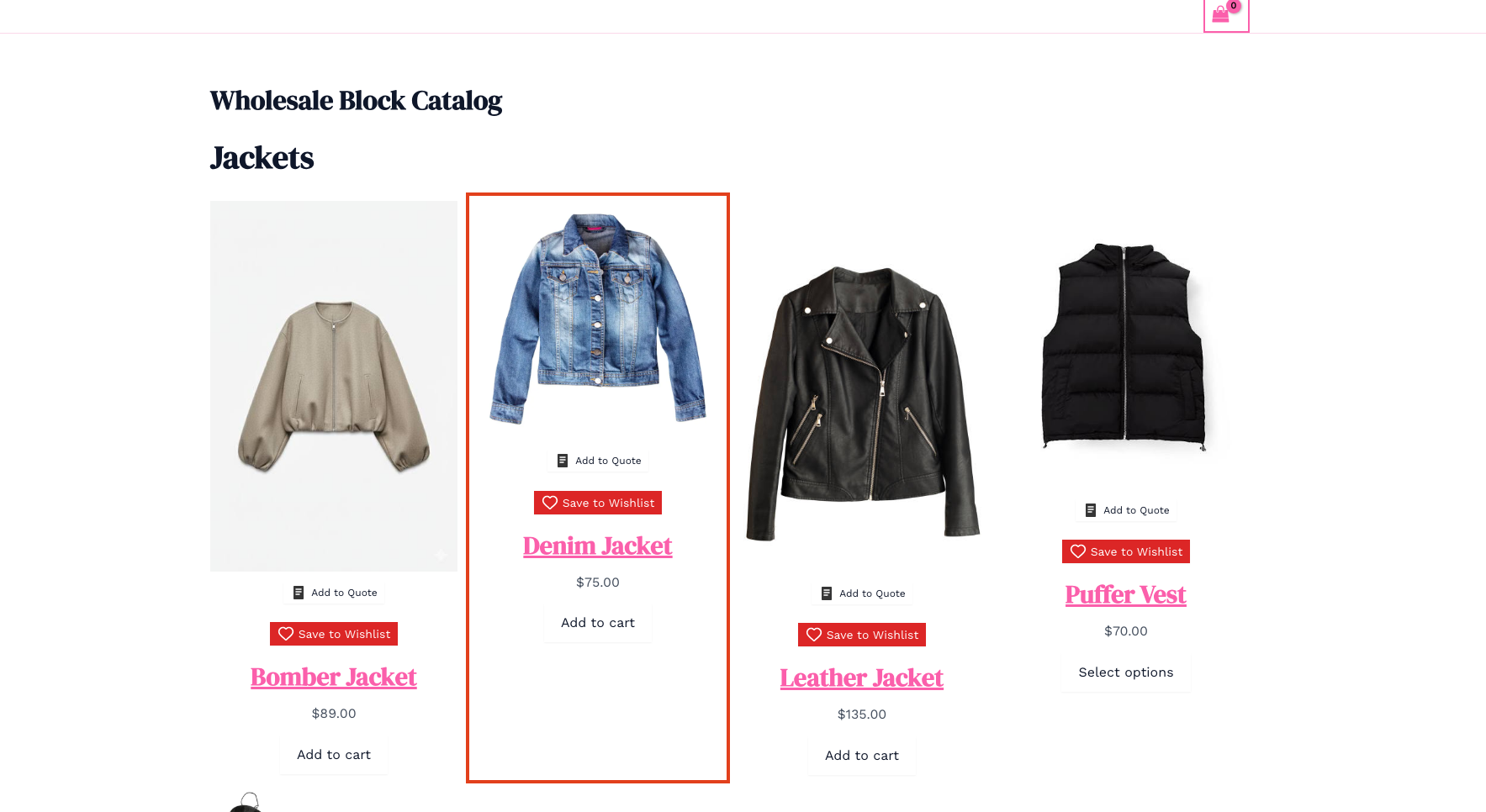
Version 2.1.1 and later also avoid building an unnecessary full-catalog visibility list when no wholesale filtering is needed. If a large catalog shows no products on a block-based shop page, update Premium before reviewing the block’s own filters.
Check prices and quantities in the Cart block
Wholesale Prices supplies wholesale item prices to the block cart. Hide Retail Price controls whether the crossed-out regular price is shown beside an applicable wholesale price. See the display guide.
Premium supplies per-product minimum quantities and quantity steps to the block cart. These differ from a minimum total order requirement. Set up your rules using the minimum requirements guide.
- Sign in as your wholesale test customer.
- Add a wholesale-priced product.
- Open the Cart page.
- Change the quantity to test your minimum and quantity-step rules.
- Check the item prices and totals.
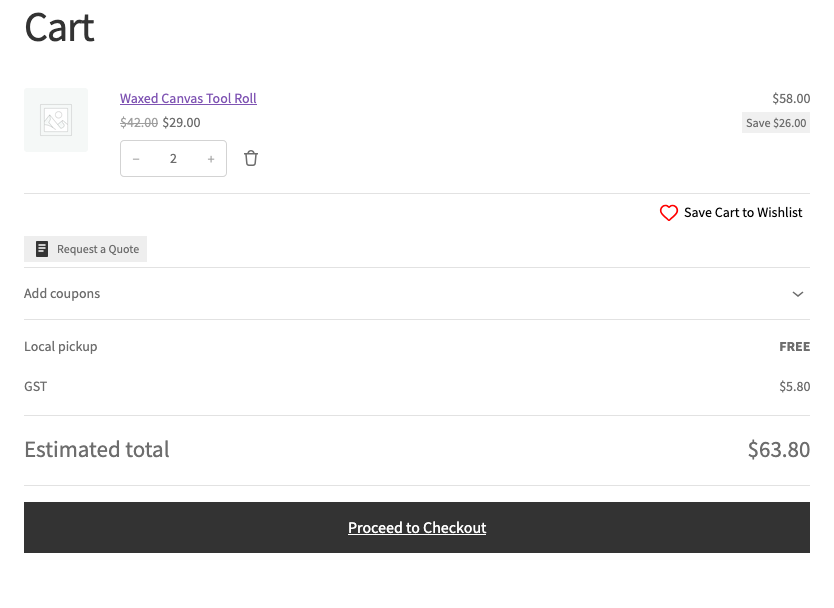
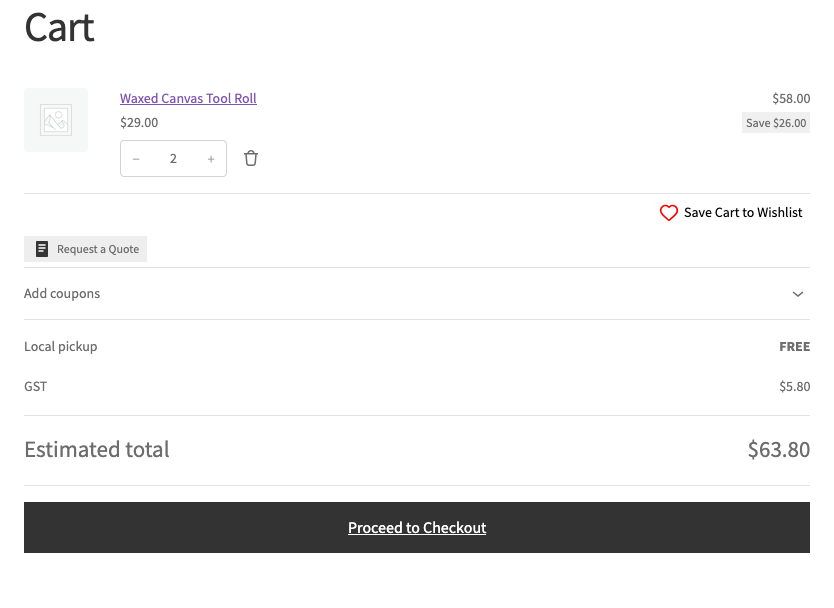
When Disable Coupons For Wholesale Users applies, the plugin removes coupons for wholesale customers in the block cart as well. Test the customer’s login and coupon flow before launch.
Check minimum-order notices and checkout access
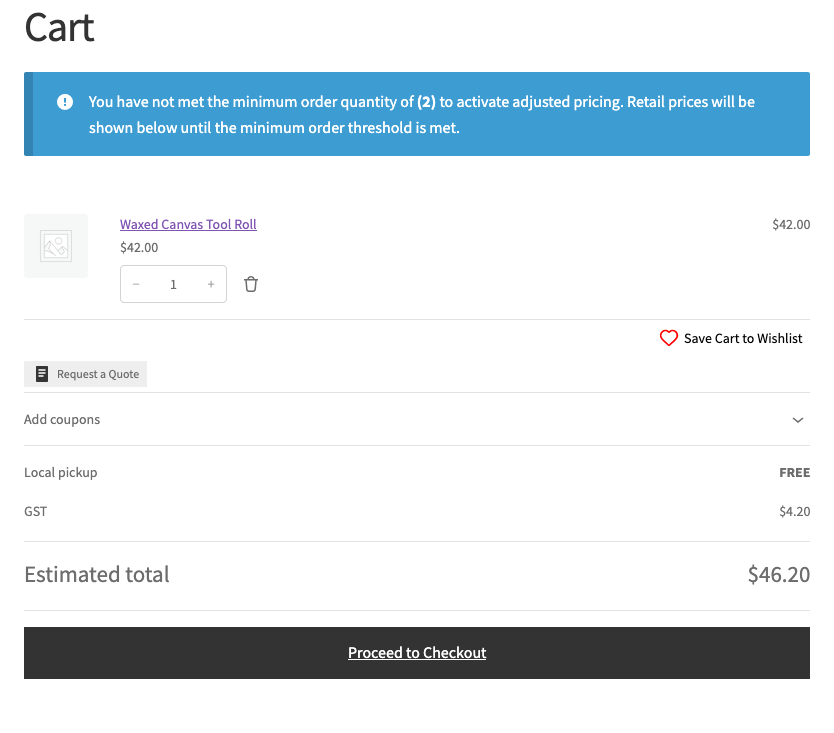
When a cart is below a wholesale minimum, Premium shows a notice explaining the requirement and uses retail pricing until the rule is met. For example, with Default Minimum Order Quantity set to 2 under Wholesale → Settings → Wholesale Prices → General → Order Requirements, a cart with one eligible simple product shows the requirement. Increasing it to two activates the wholesale price and clears the notice.
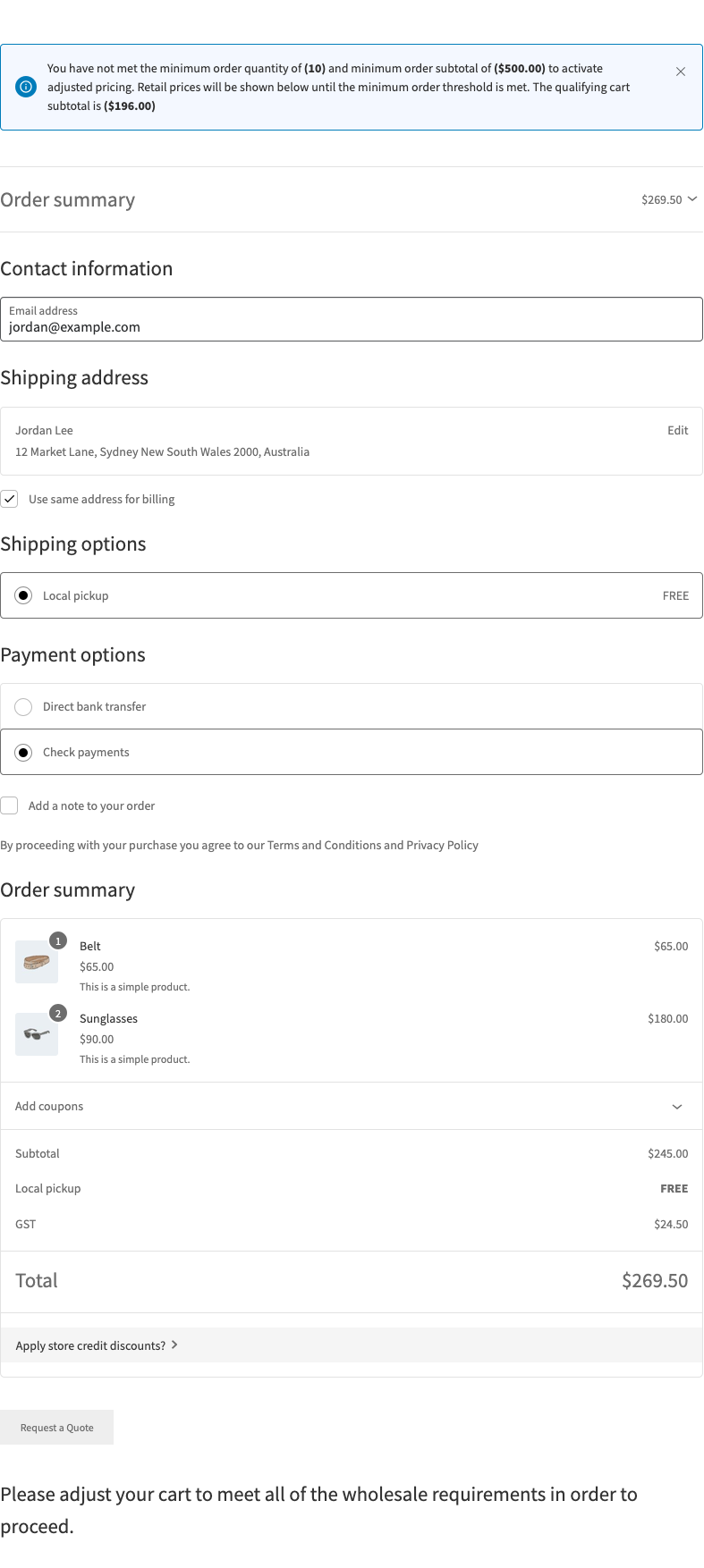
A minimum rule activates wholesale pricing; it does not always prevent a retail purchase. If the customer’s wholesale role has Prevent purchase if wholesale condition is not met enabled under Wholesale → Roles, Premium also hides the checkout action while the requirement is unmet. The customer is asked to adjust the cart before proceeding. When that role restriction is off, checkout can remain available at retail prices.
- Sign in with your wholesale test account.
- Set the cart below your configured minimum.
- Check the requirement notice and retail item prices.
- Open the Checkout page directly.
- Use the checkout link in the cart.
- Increase the cart quantity or subtotal to reach the minimum.
- Confirm that the notice clears.
- Confirm that wholesale prices apply and the checkout action is available.
Show wholesale savings in the blocks
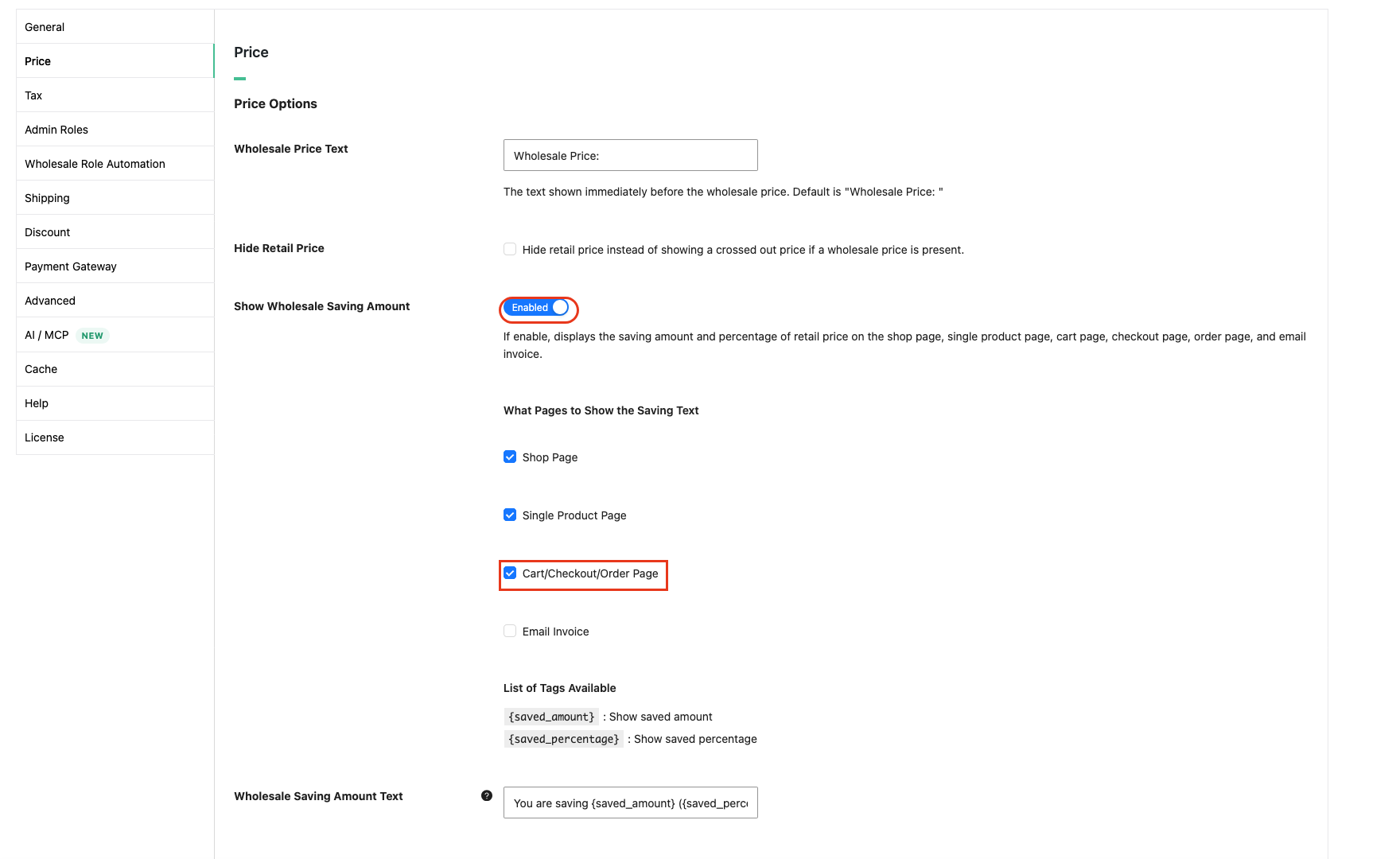
- Go to Wholesale → Settings → Wholesale Prices → Price.
- Enable Show Wholesale Saving Amount.
- Under What Pages to Show the Saving Text, enable Cart/Checkout/Order Page.
- Click Save Changes.
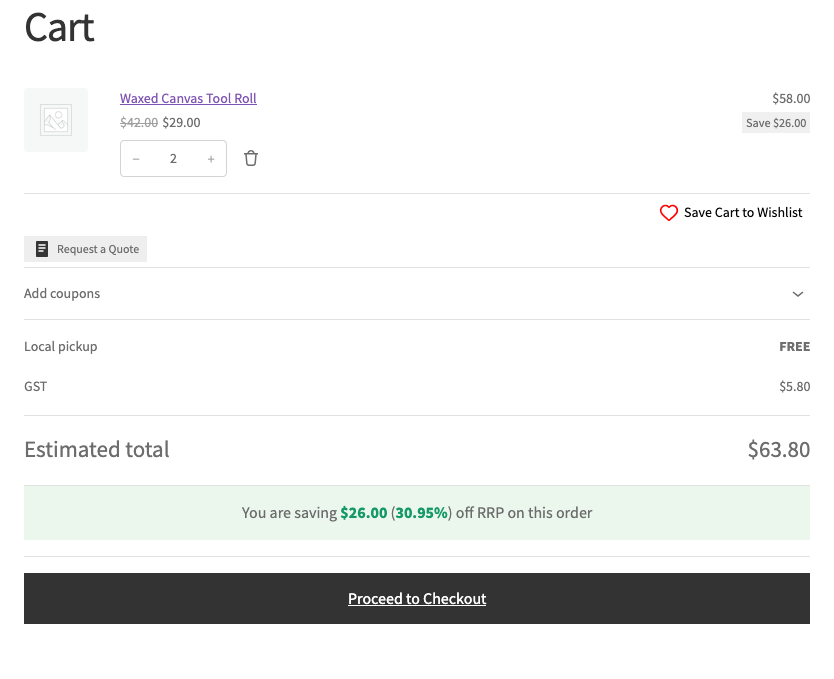
- Open the Cart and Checkout pages as a wholesale customer whose cart meets the wholesale minimums.
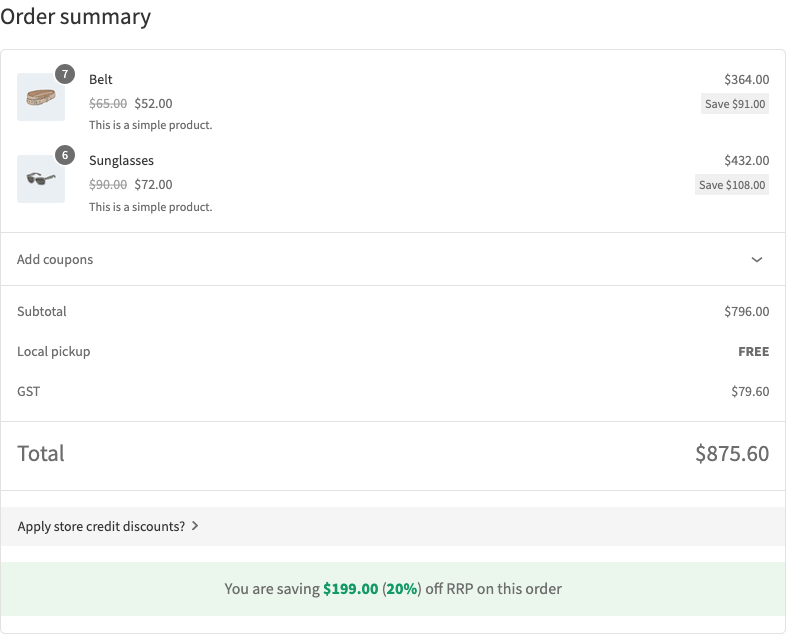
Premium adds the wholesale savings display to the Cart and Checkout blocks automatically when those settings apply. You do not need to insert a separate savings block in the page editor. The amount appears only when the comparison produces a saving; an unmet minimum that leaves the cart at retail prices does not produce a wholesale saving.
The wholesale savings message shows in the Cart and Checkout blocks from Premium 2.1.2 and later. If it does not appear, update Premium, then check both pages with a wholesale customer account whose cart meets the minimum.
Check payment methods in the Checkout block
Premium applies wholesale role payment gateway restrictions in the block checkout. Configure those restrictions using the payment gateway guide.
- Continue to the Checkout page with your wholesale test account.
- Check the available payment methods.
- Compare the order summary with the cart.
- Place a test order using your gateway’s test mode.
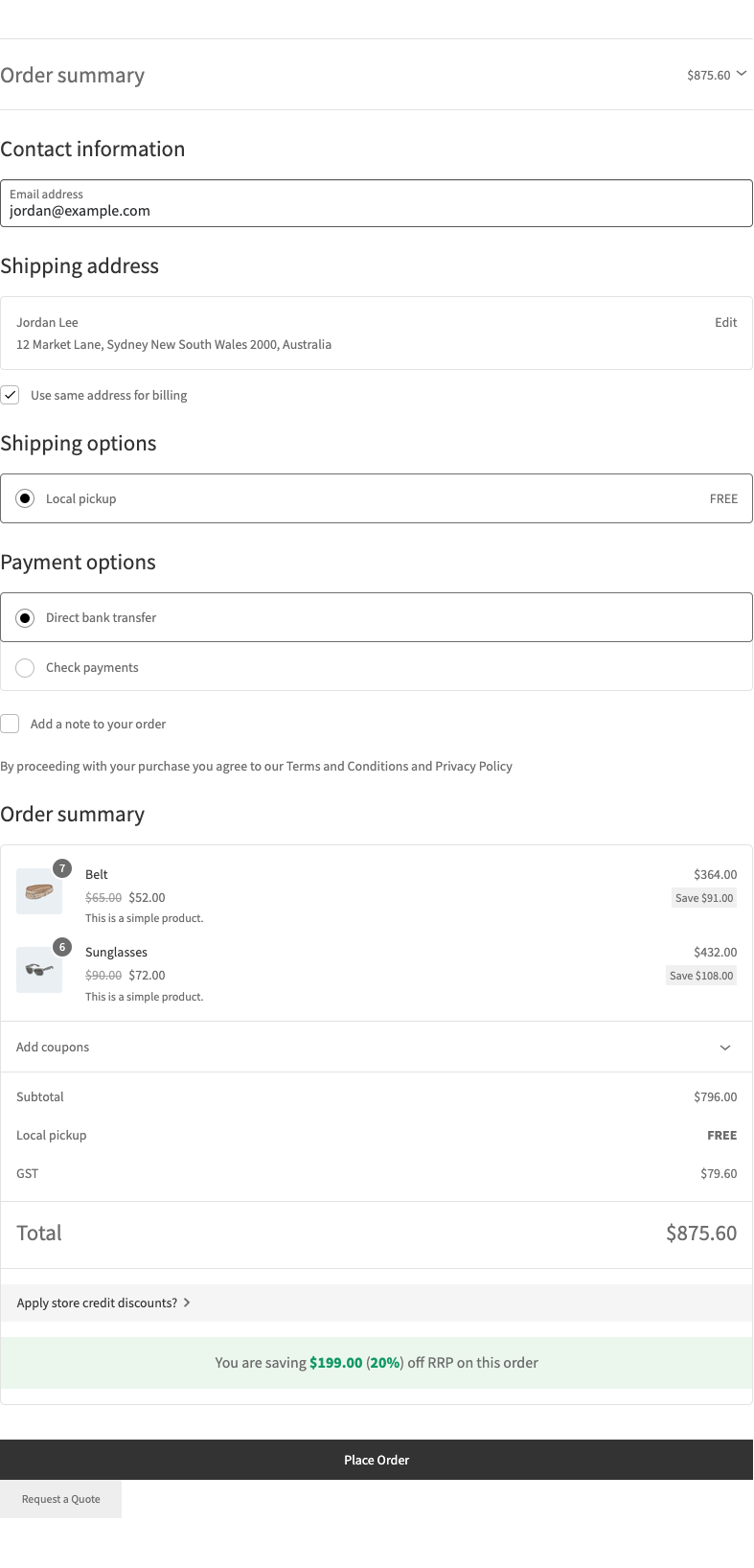
Premium also records the wholesale order type for orders placed through the Checkout block. Confirm the resulting order in your admin after the test.
Troubleshooting
The cart shows retail prices. Confirm the account’s role, the selected product’s wholesale price and whether minimum requirements are met.
An administrator sees more products. Test with the wholesale customer’s account. Administrators and shop managers bypass wholesale catalog filtering.
A payment method is missing. Check both the gateway’s WooCommerce availability requirements and your wholesale role restrictions.
Frequently asked questions
Do both plugins declare block compatibility?
WooCommerce Wholesale Prices explicitly declares compatibility with Cart and Checkout blocks. Premium does not make that declaration; WooCommerce treats undeclared plugins as compatible by default. Use the customer checks above to verify your setup.
Are minimum quantities the same as minimum order totals?
No. An item’s minimum quantity controls its quantity field. A minimum order total applies to the order as a whole; test your chosen rule at checkout.
Need help?
If you have a question or run into any issues, we’re here to help.
- Premium users: Open a support ticket
- Free users: Visit our community forum