
If you need to change how wholesale prices appear or who can access your wholesale settings, knowing where each option lives saves time. This reference covers the free settings in WooCommerce Wholesale Prices, their purpose and their initial behavior. Premium adds more controls, so your screen may differ when it is active.
Open the wholesale settings
- Go to Wholesale → Settings.
- Select Wholesale Prices.
- Open the tab for the setting you want to change.
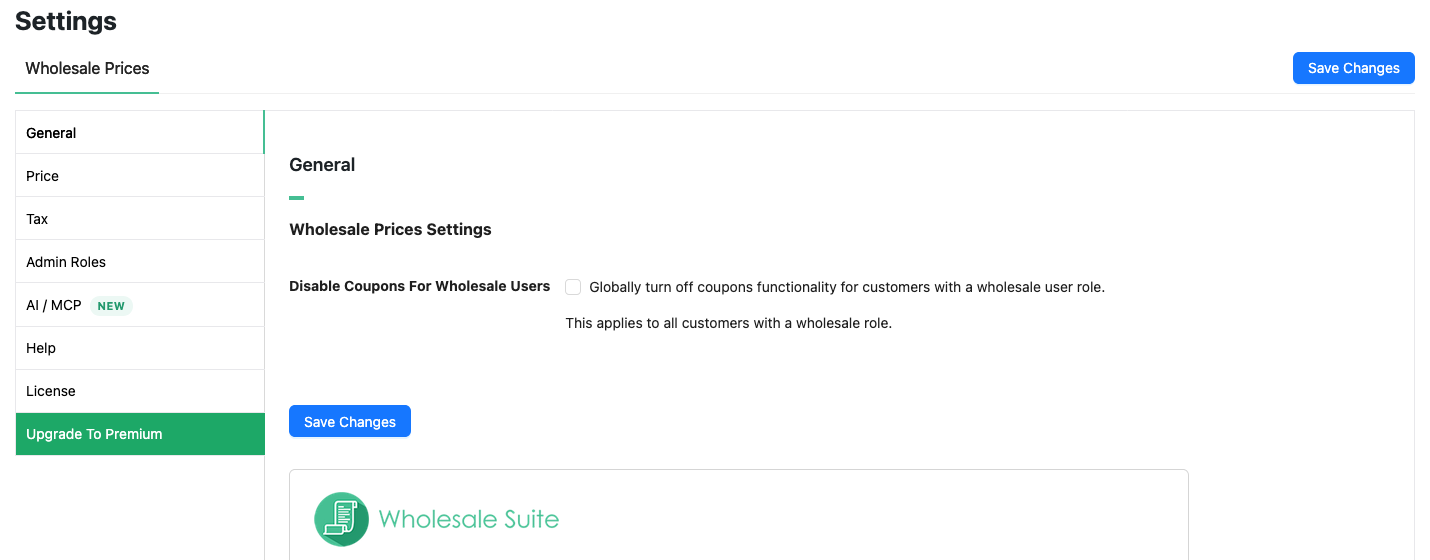
The Default column shows the value on a new installation. An existing store keeps its saved choices. Fields that show Premium or an upgrade prompt are not free controls even when they appear on the page.
General
| Setting | Description | Default |
|---|---|---|
| Disable Coupons For Wholesale Users | Turns off coupons for accounts with a wholesale role. This is a store-wide choice for those accounts. | Off when no saved value enables it. |
Price: price display and guest access
| Setting | Description | Default |
|---|---|---|
| Wholesale Price Text | Text displayed before an applicable wholesale price. | Wholesale Price: |
| Hide Retail Price | Hides the regular price instead of showing it crossed out when a wholesale price applies. | Off. |
| Variable Product Price Display | Shows variable products as a price range. Minimum and maximum display alternatives are Premium options. | Price Range. |
| Hide Wholesale Price on Admin Product Listing | Hides wholesale prices on the admin Products list. | Off. |
| Hide Price and Add to Cart button | Hides prices and add-to-cart controls from visitors who are not logged in. | Off. |
| Price and Add to Cart Replacement Message | Message shown when the guest price and cart hiding option is enabled. | Login to see prices when no custom message is supplied. |
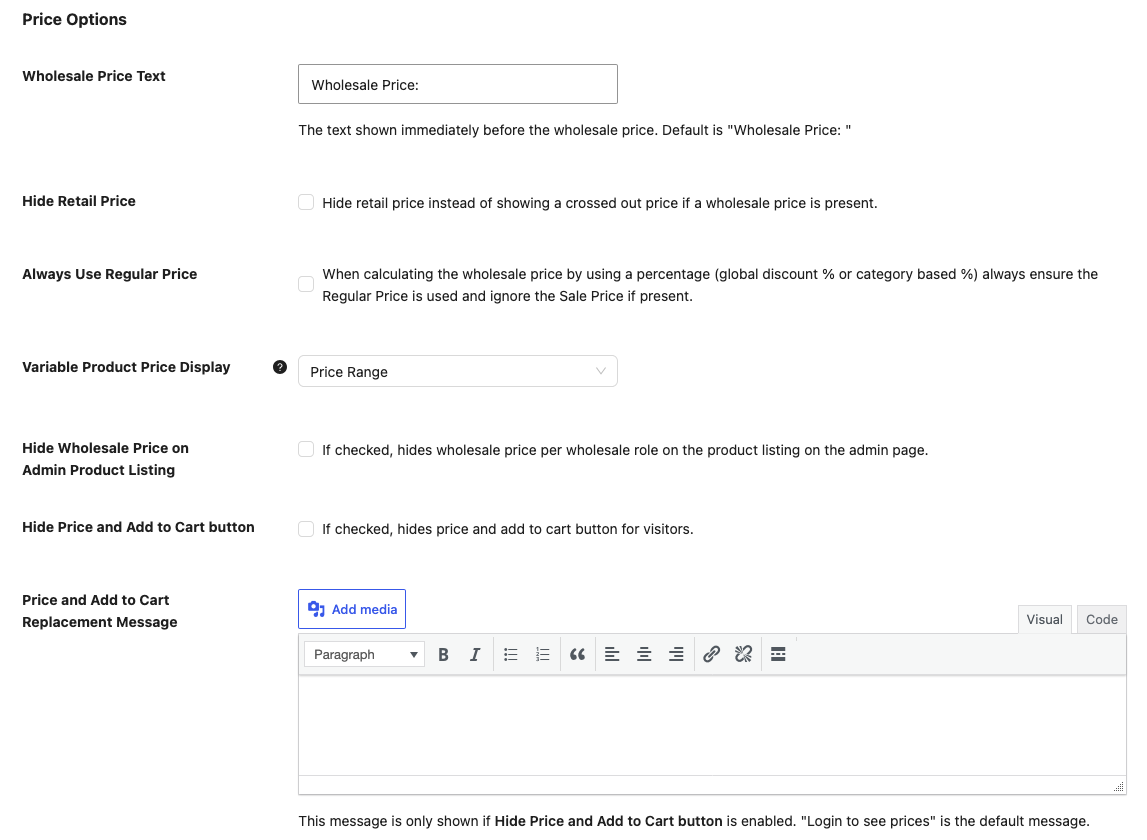
Hiding the retail price is different from hiding all prices from guests. See the display guide and the guest access guide for those workflows.
Always Use Regular Price is shown as an upgrade option in the free settings. It concerns percentage discount calculations; it is not an editable free pricing rule.
Price: show wholesale prices to non-wholesale visitors
| Setting | Description | Default |
|---|---|---|
| Show Wholesale Price to non-wholesale users | Displays a wholesale price preview to encourage registration. It does not assign a wholesale role. | Off unless enabled. |
| Locations | Selects Shop Archives, Single Product and, when installed, Wholesale Order Form for the preview. | All locations start selected. The main preview switch still controls whether the preview shows. |
| Click to See Wholesale Prices Text | Text customers use to open the wholesale price preview. | See wholesale prices. |
| Wholesale Roles(s) | Role used for the preview. This field is read-only in the free plugin, because the free plugin has one wholesale level. | Wholesale Customer. |
| Register Text | Text for the registration link shown with the preview. This field is read-only in the free plugin. To edit it, you need WooCommerce Wholesale Lead Capture. | Click here to register as a wholesale customer. |
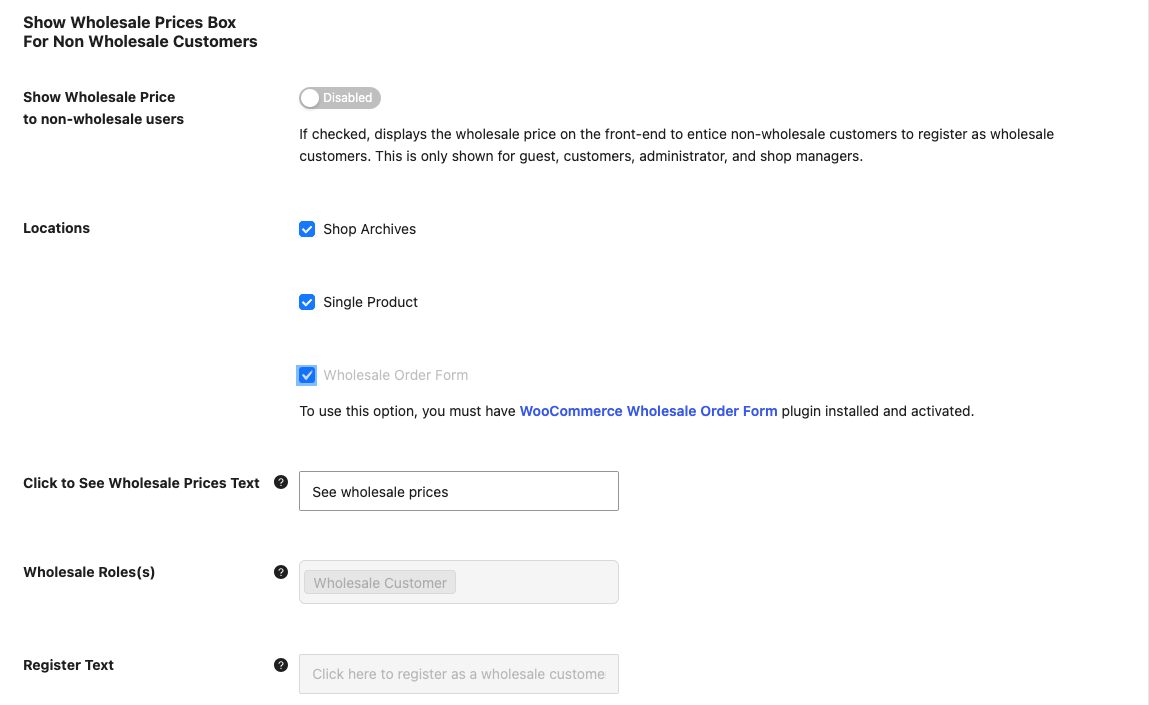
The Wholesale Order Form location requires that plugin to be active. Registration routing depends on WooCommerce Wholesale Lead Capture. Keep guest price hiding and wholesale previews in mind together when checking what a visitor can see.
Tax: identify the upgrade controls
The free screen includes tax controls marked for the Premium add-on. Do not expect these upgrade controls to apply Premium tax rules with the free plugin alone.
| Setting | Description | Default shown in free screen |
|---|---|---|
| Tax Exemption | Premium control to exempt wholesale roles. | Off. |
| Display Prices in the Shop | Premium override for wholesale shop tax display. | Use woocommerce default. |
| Display Prices During Cart and Checkout | Premium override for wholesale cart and checkout tax display. | Use woocommerce default. |
| Override Regular Price Suffix | Premium suffix override for regular prices viewed by wholesale users. | Blank. |
| Wholesale Price Suffix | Premium suffix override for wholesale prices. | Blank. |
A price suffix is text after a price. It is separate from the Wholesale Price Text label before a price.
The Tax tab also shows Wholesale Role / Tax Exemption Mapping and Wholesale Role / Tax Class Mapping. These sections only describe Premium features. They have no free settings.
Admin Roles
| Setting | Description | Default |
|---|---|---|
| Allowed roles | Roles allowed to access the Wholesale admin dashboard and settings. | Shop manager. Administrators always have access and are not listed. |
These roles control admin access. They do not create new wholesale pricing levels or turn a retail customer into a wholesale customer.
AI / MCP
The AI / MCP tab connects your store to AI assistants like Claude and ChatGPT through the free StoreAgent plugin. MCP is the connection standard these assistants use to work with your store.
If StoreAgent isn’t installed, the tab shows an Install StoreAgent (Free) button. If your site doesn’t allow plugin installs from the dashboard, you’ll see Install from WordPress.org instead. After StoreAgent is installed, the button changes to the next setup step, such as Activate StoreAgent or Set Up StoreAgent MCP.
| Setting | Description | Default |
|---|---|---|
| Enable MCP write access | Lets connected AI assistants make changes in Wholesale Suite, like setting wholesale prices. It allows or blocks all Wholesale Suite write abilities in StoreAgent’s MCP allowlist at the same time. The switch stays greyed out until StoreAgent 1.1.9 or later is active and connected. | Off, unless StoreAgent already allows all Wholesale Suite write abilities. |
This switch saves as soon as you click it. The AI / MCP tab has no Save Changes button. To see what an AI assistant can do with your store, read How to use AI abilities in Wholesale Suite.
Help: usage tracking
| Setting | Description | Default |
|---|---|---|
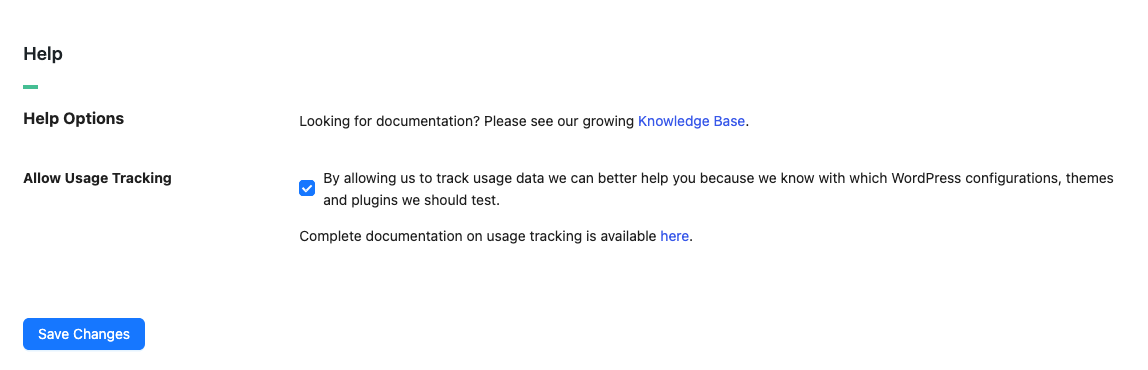
| Allow Usage Tracking | Controls the usage-tracking preference. The checkbox is available in Help and can also appear in General when tracking has been turned off. See Usage Tracking (What Is Tracked & Why). | The Help checkbox starts checked when no preference has been saved. Existing saved choices are kept. |
On a free-only installation with no saved consent, usage tracking does not run just because the Help checkbox starts checked. Saving an enabled preference permits tracking.
License and Upgrade To Premium
- License opens the license settings page for your Wholesale Suite plugins.
- Upgrade To Premium compares the free and Premium features. It has no settings.
Rename the default wholesale role
The role name is managed outside the settings tabs. The free plugin supports one wholesale level; adding more levels requires Premium.
- Go to Wholesale → Roles.
- Find the existing Wholesale Customer role.
- Click Edit for that role.
- Enter the new display name in Role Name.
- Keep Role Key unchanged.
- Click Edit Wholesale Role.
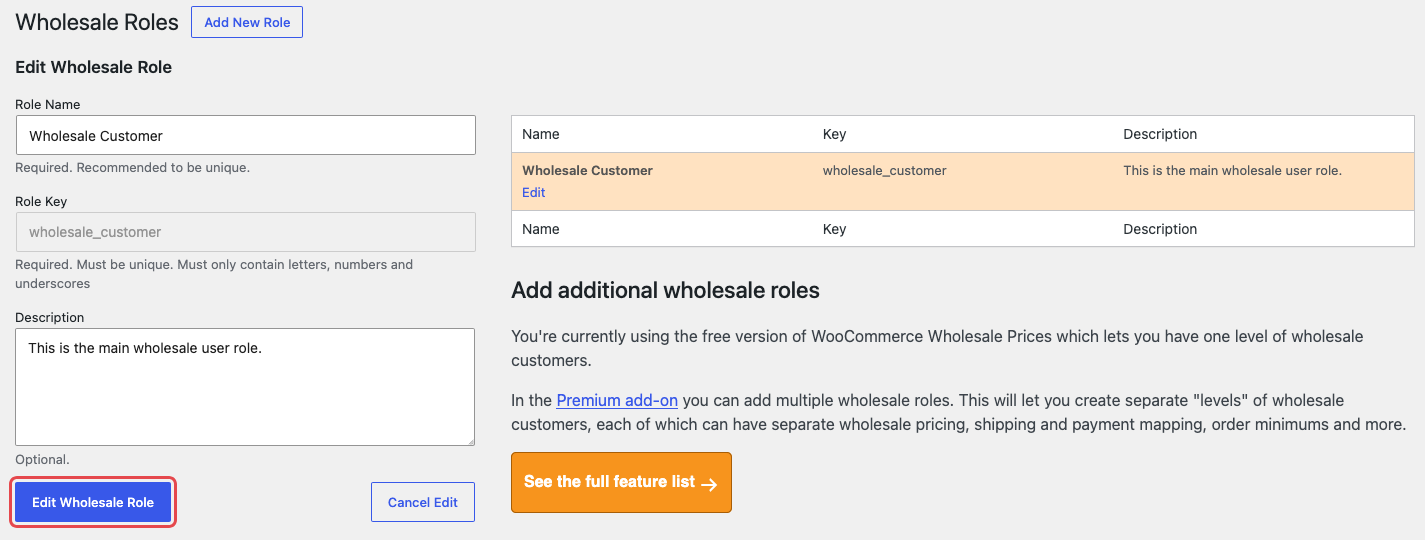
Changing a display name is different from changing a role key. Keep the existing key when renaming a role so customer assignments and pricing continue to refer to the same wholesale level.
Save and check your changes
- Click Save Changes after editing a settings tab. The AI / MCP switch saves on its own.
- Open your storefront using a wholesale test account.
- Check the same page while logged out if you changed guest display settings.
If your site uses page caching, clear the relevant cached page before comparing the result.
Frequently Asked Questions
Why do I see more tabs than this reference lists?
Wholesale Prices Premium and the other Wholesale Suite plugins add their own tabs and settings. With only the free plugin active, you see the tabs in this reference: General, Price, Tax, Admin Roles, AI / MCP, Help, License and Upgrade To Premium.
Does showing a wholesale price to a visitor let them buy at that price?
No. The preview does not assign a wholesale role. Check the customer’s actual role and cart price separately.
Need Help?
If you have a question or run into any issues, we’re here to help.
- Premium users: Open a support ticket
- Free users: Visit our community forum

