Not every wholesale customer needs to see the same details on your order form. You might want your distributors to see SKUs and stock levels while your smaller retail-tier buyers get a simpler table. This article shows you how to show or hide individual order form columns by user role, so each customer sees only what’s relevant to them. You’ll set this up in the form editor of WooCommerce Wholesale Order Form.
What you’ll need
- WooCommerce Wholesale Order Form version 3.1.0 or later
- WooCommerce Wholesale Prices active on your store
- The wholesale roles you want to target already set up
- An order form with the column you want to restrict already added to the table (see Getting started with WooCommerce Wholesale Order Form)
How column visibility works
Each column in your order form table has a Visible To setting. It decides who sees that column when they load the order form on your site. You can choose from three options:
| Option | Who sees the column |
|---|---|
| All users (default) | Everyone who can open the order form, including guests and logged-in customers without a wholesale role. |
| Wholesale users only | Logged-in customers who have any wholesale role. |
| Specific wholesale role(s) | Logged-in customers whose wholesale role is one of the roles you select. |
Restricted columns are removed from the order form before it loads for that customer. They aren’t just hidden from view, so a customer can’t reveal them by inspecting the page.
Admins and shop managers always see every column. This applies in the form editor and on the live order form, so you won’t lose sight of any column while you’re managing the form.
How to restrict a column by user role
Open the order form in the editor
- In your WordPress dashboard, go to Wholesale > Order Forms.
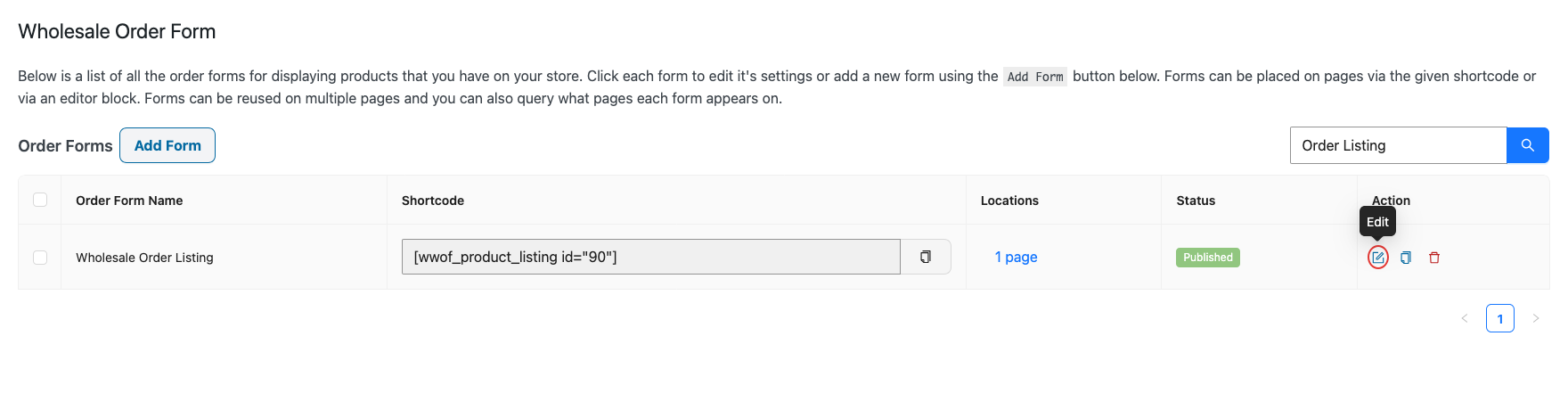
- Find the order form you want to change and click the Edit icon (pencil) in the Action column.
Set who can see the column
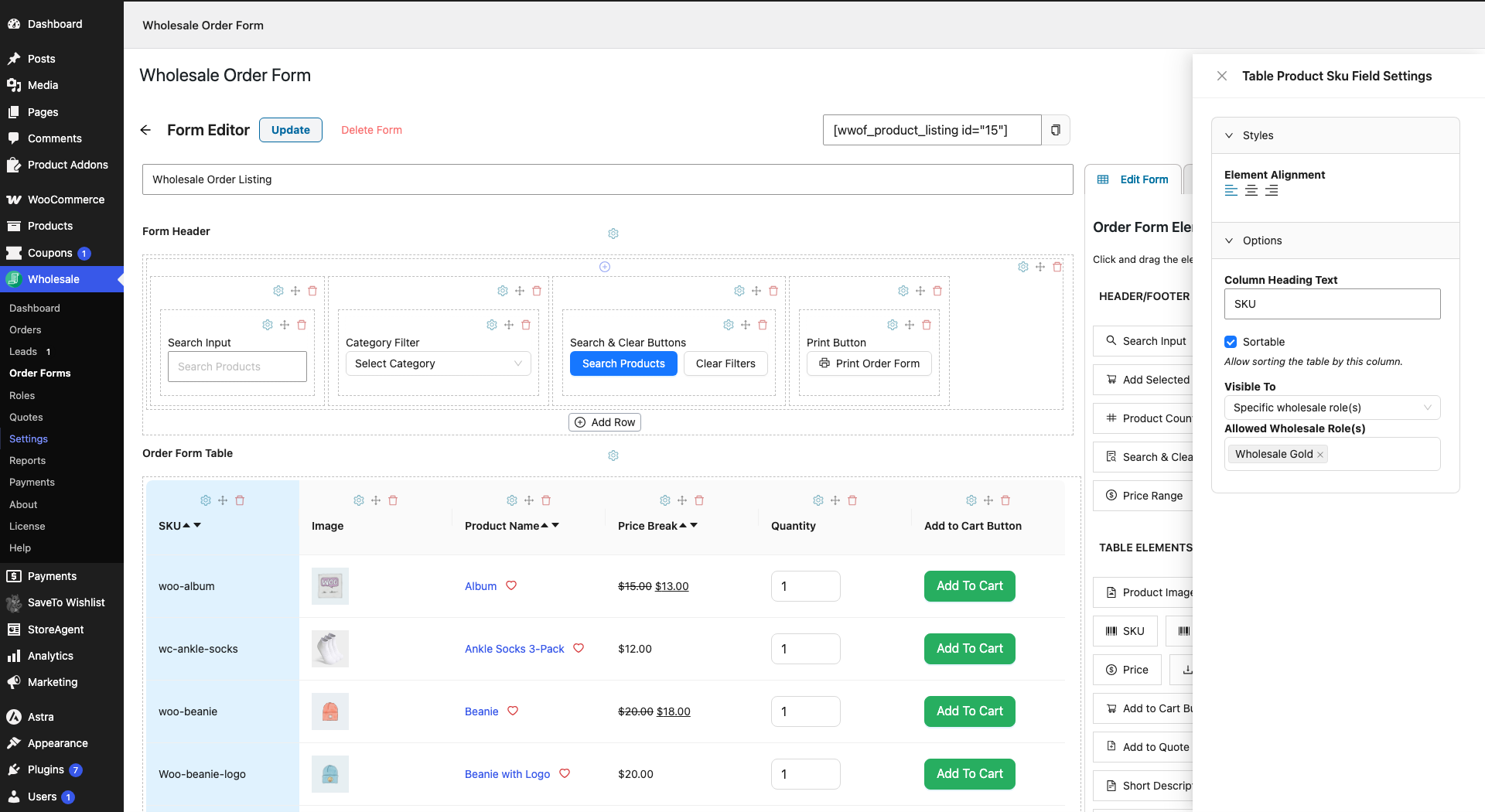
- In the Order Form Table section, click the Element Settings icon (the gear) above the column you want to restrict.
- In the settings panel that opens, find the Options section.
- Under Visible To, select All users, Wholesale users only, or Specific wholesale role(s).
- If you chose Specific wholesale role(s), click the Allowed Wholesale Role(s) field and select each role that should see the column.
- Click Update to save the form.
The Add to Cart Checkbox column has no Element Settings icon, so its visibility can’t be restricted. If you’re creating a brand-new form, the save buttons are Publish and Save Draft instead of Update.
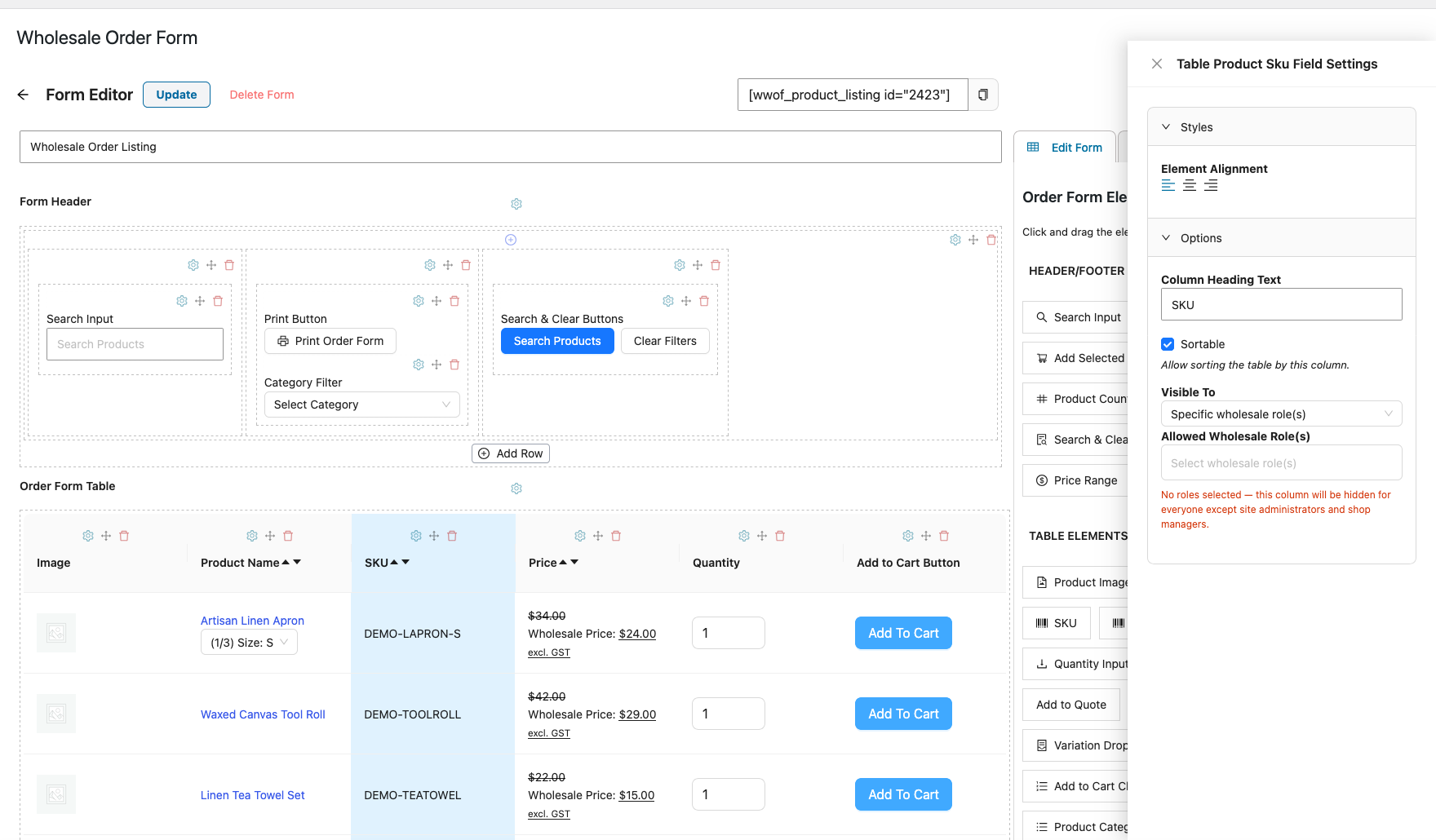
If you select Specific wholesale role(s) but leave Allowed Wholesale Role(s) empty, you’ll see this warning: “No roles selected — this column will be hidden for everyone except site administrators and shop managers.” Add at least one role, or switch the option back to All users.
Check the result as a customer
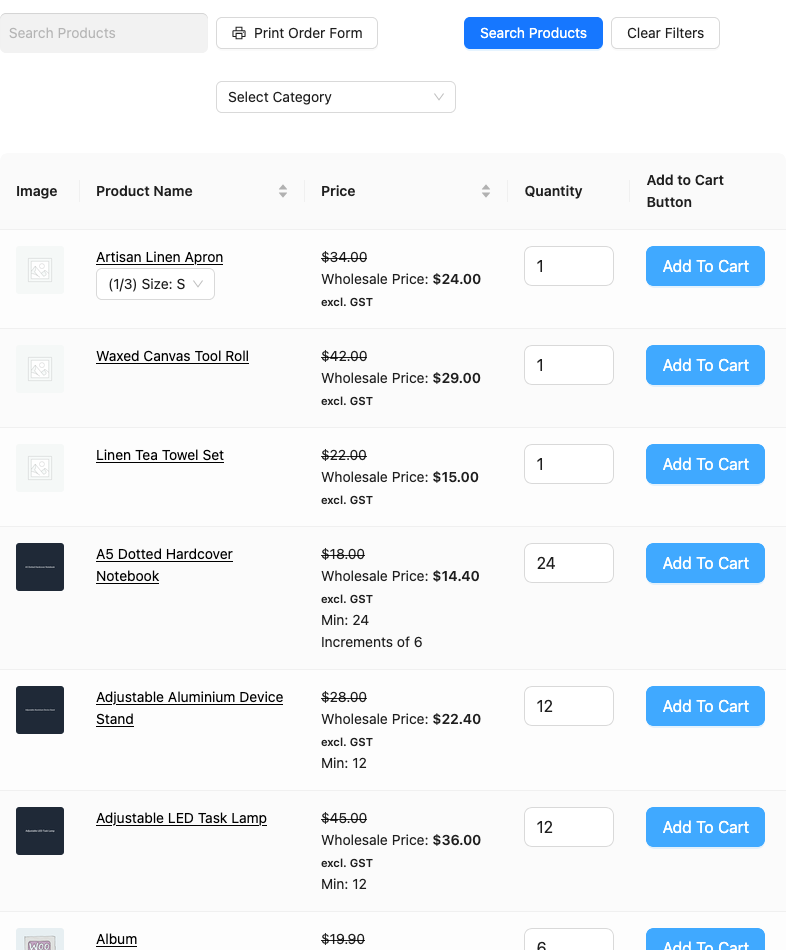
Because admins and shop managers always see every column, you need to view the form as a customer to confirm your changes. Log in with a test account that has the wholesale role you’re checking, and open the page where your order form is placed. To see what guests see, open the page in a private browser window.
Example: Show stock levels to distributors only
Say you sell to two wholesale tiers: Distributors, who place large orders and plan around stock, and Wholesale Customers, who buy smaller quantities. You add an In Stock Amount column to your order form, open its Element Settings, and set Visible To to Specific wholesale role(s) with only your Distributor role selected. Distributors now see exact stock counts when they order, while Wholesale Customers get a cleaner table without numbers that don’t apply to them.
You can apply the same approach to columns like SKU, GTIN, or Product Meta. Each column has its own setting, so you can mix and match per column.
How this works with other order form settings
Deleting a column with the Delete Element icon removes it from the form for everyone. Use Visible To when you want to keep the column on the form but limit who sees it.
Form Permissions control who can open the order form at all, while Visible To controls which columns they see once they’re in. For example, if your form allows public access, guests will see every column set to All users and none of the restricted ones. Learn more in How To Control Wholesale Order Form Access With Form Permissions.
Need a completely different layout for each tier? If you’re restricting most of the columns, it may be simpler to build a separate form per role. See How To Create Multiple Order Forms.
Troubleshooting
I set a column to a specific role, but I can still see it.
Log out, or use a private browser window, and view the form with a customer account instead. Admins and shop managers always see every column, both in the editor and on the live form.
The column has disappeared for all my customers.
Open the column’s Element Settings and check Allowed Wholesale Role(s). If Specific wholesale role(s) is selected with no roles chosen, the column is hidden for everyone except admins and shop managers.
A role I need isn’t in the Allowed Wholesale Role(s) list.
Only wholesale roles appear in this list. Regular WordPress roles such as Customer or Subscriber can’t be selected. Make sure the role is set up as a wholesale role first.
I can’t find the settings for the Add to Cart Checkbox column.
This column doesn’t have an Element Settings icon, so it can’t be restricted by role.
Frequently asked questions
What do guests and retail customers see?
Guests and logged-in customers without a wholesale role only see columns set to All users. Columns set to Wholesale users only or Specific wholesale role(s) are hidden from them.
What if a customer has more than one wholesale role?
They’ll see the column as long as at least one of their wholesale roles is in the Allowed Wholesale Role(s) list.
Can I hide elements in the form header or footer by role?
No. The Visible To setting is only available for columns in the order form table.
What’s next
- How To Control Wholesale Order Form Access With Form Permissions
- How To Create Multiple Order Forms
- How to add a GTIN column to the wholesale order form
- How To Show Product Meta On The Order Form
- How to change the look & feel of your order form
Need help?
If you have a question or run into any issues, we’re here to help.
- Premium users: Open a support ticket
- Free users: Visit our community forum