Your wholesale registration flow depends on a handful of settings: which pages to use, how new leads get approved, who gets the admin emails, and how you block spam sign-ups. WooCommerce Wholesale Lead Capture keeps all of them on one settings screen. This reference explains every setting on each tab, with its default, so you can check your setup at a glance.
To open the settings, go to Wholesale → Settings, then click the Wholesale Lead Capture tab. The settings are split into five tabs: General, Registration Form, Emails, Security, and Help.
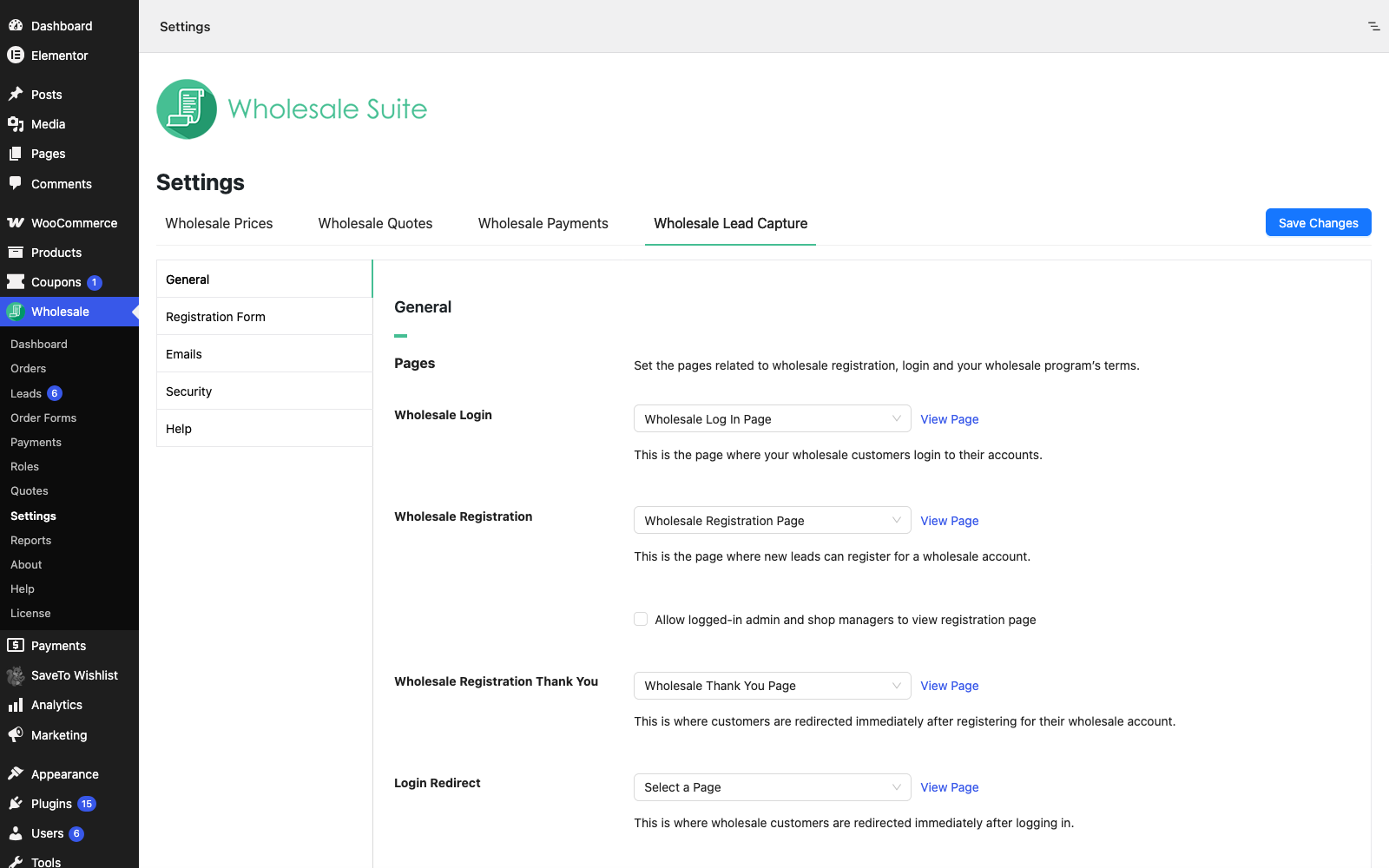
General settings
Pages
Each page setting has a dropdown with your site’s pages. Pick — Custom Link — to enter a URL instead of a page.
| Setting | Description | Default |
|---|---|---|
| Wholesale Login | The page where your wholesale customers log in to their accounts. | Wholesale Log In Page (created when you activate the plugin) |
| Wholesale Registration | The page where new leads register for a wholesale account. | Wholesale Registration Page (created when you activate the plugin) |
| Allow logged-in admin and shop managers to view registration page | A checkbox under Wholesale Registration. Tick it to see the registration page while you are logged in, for example to test it. | Off |
| Wholesale Registration Thank You | The page customers see right after they register. | Wholesale Thank You Page (created when you activate the plugin) |
| Login Redirect | Where wholesale customers go right after they log in. | Select a Page |
| Logout Redirect | Where wholesale customers go right after they log out. | Select a Page |
| Enable terms and condition | Shows the terms and conditions on the registration page. | Off |
| Terms and conditions text | The terms text that shows on the registration page. | Blank |
| Terms and conditions validation text | The message that shows when a customer submits the form without accepting the terms. | You need to agree to the terms and conditions. |
To create the login, registration and thank you pages in one step, use Create Lead Pages on the Help tab. To send customers to a different page after login or logout, see How To Redirect Customers After Log In Or Sign Out.
Lead Actions
| Setting | Description | Default |
|---|---|---|
| New Lead Role | The user role a wholesale customer gets once you approve them. | Wholesale Customer when that role exists, otherwise Customer |
| Auto Approve New Leads | Manual Approval Required: new registrations wait for an administrator or shop manager to approve them. Automatic Approval: new registrations are approved as soon as the form is submitted, and the customer is logged in right away. | Manual Approval Required |
| Auto Remove User After Rejection | Deletes the customer’s account from your site when you reject them. | Off |
| Account Upgrade | Lets existing retail customers request a wholesale account by filling in the registration form. Once approved, they get the New Lead Role. | Off |
| Show Account Upgrade Message | Shows an upgrade message with a link to the registration form on the My account page for standard customers. | On |
| Upgrade Message | The text of the upgrade message. | You are registered as a standard customer. Click here to {link}request an account upgrade{/link}. |
The Upgrade Message supports these placeholders:
| Placeholder | What it does |
|---|---|
{link} | Starts the link to the registration form. |
{/link} | Ends the link. The text between the two tags becomes the link. |
To approve and reject leads by hand, see How to approve and manage leads from the Wholesale Leads dashboard. For the account upgrade flow, see How To Enable Account Upgrade Request For A Regular Customer.
Registration Form settings
The Registration Form tab has one section, Registration Fields. It lists the built-in fields and your custom fields in one table, with the Field Name, Field ID, Field Type, Required, Enabled, Show on checkout and Action columns. To add a custom field, fill in the form above the table and click Add Custom Field. To change a field, click the edit icon in its Action column.
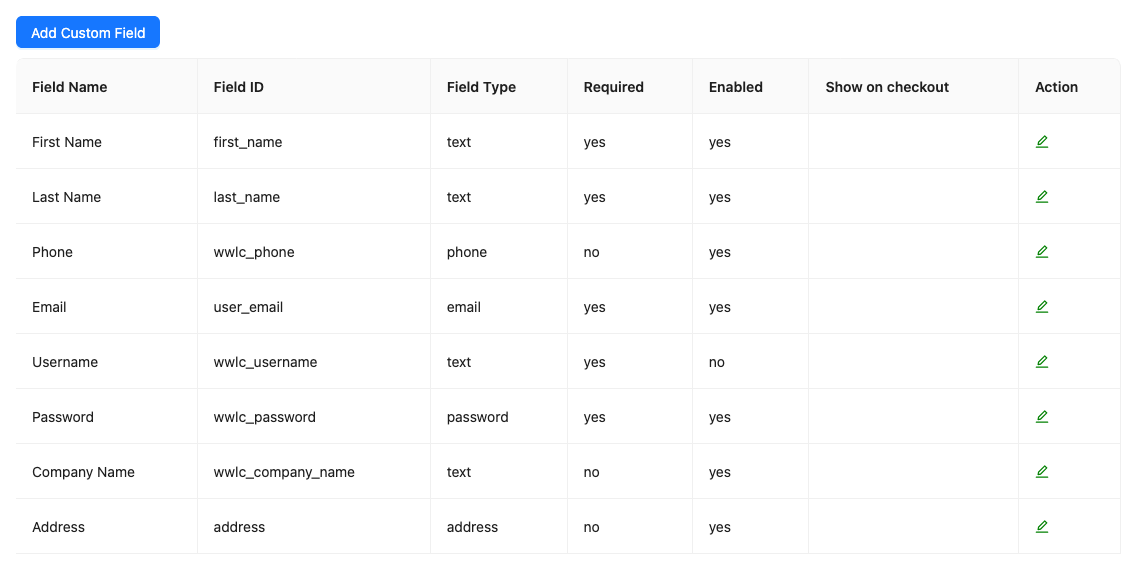
For each field option, see How To Edit The Registration Form.
Emails settings
| Setting | Description | Default |
|---|---|---|
| Allow managing of users via email | Adds Approve and Reject links to the new lead email that the admin gets, so you can act on a lead from your inbox. Works with the HTML email type only. | On |
| Admin Email Recipient | The address that gets the admin emails, such as the new lead email. Separate several addresses with commas. | Blank (uses the WordPress admin email) |
| Carbon Copy (CC) | Extra addresses to copy on the admin emails. Separate several addresses with commas. | Blank |
| Blind Carbon Copy (BCC) | Extra addresses to blind copy on the admin emails. Separate several addresses with commas. | Blank |
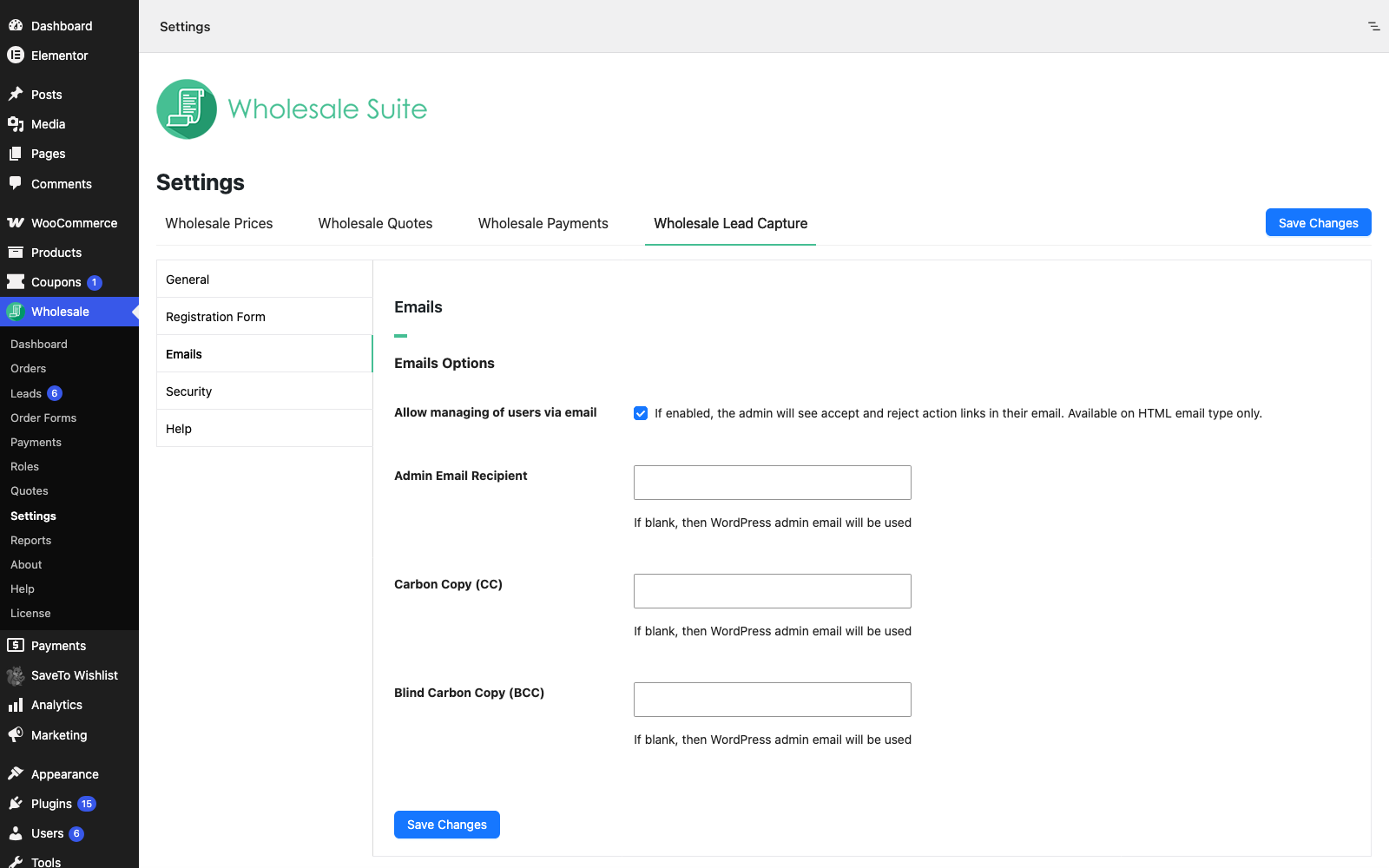
To change the wording of each email, see How to edit emails sent to users.
Security settings
| Setting | Description | Default |
|---|---|---|
| Enable Recaptcha | Adds a Google reCAPTCHA check to the registration form to block spam sign-ups. | Off |
| reCAPTCHA type | The reCAPTCHA version: V2 I’m not a robot, V2 Invisible, or V3 Score-based. Use the site key and secret key for the type you pick. | V2 I’m not a robot |
| Recaptcha site key | The site key from your Google reCAPTCHA account. | Blank |
| Recaptcha secret key | The secret key from your Google reCAPTCHA account. | Blank |
| Recaptcha v3 score threshold | The minimum score (0.0 to 1.0) to pass the check. Lower values let more sign-ups through, higher values are stricter. Used with V3 Score-based only. | 0.5 |
Google reCAPTCHA gives you the site key and secret key. If registrations fail the security check, see Troubleshooting the security check fail in the Wholesale Registration Form.
Help settings
| Setting | Description | Default |
|---|---|---|
| Create Necessary Pages | Click Create Lead Pages to create the registration, login form, and thank you pages. | Not applicable |
| Clean up plugin options on un-installation | Removes all Wholesale Lead Capture options when you uninstall the plugin. This cannot be undone. | Off |
| Refetch Plugin Update Data | Click the button to fetch the plugin update data again. Use it when a plugin update fails. | Not applicable |
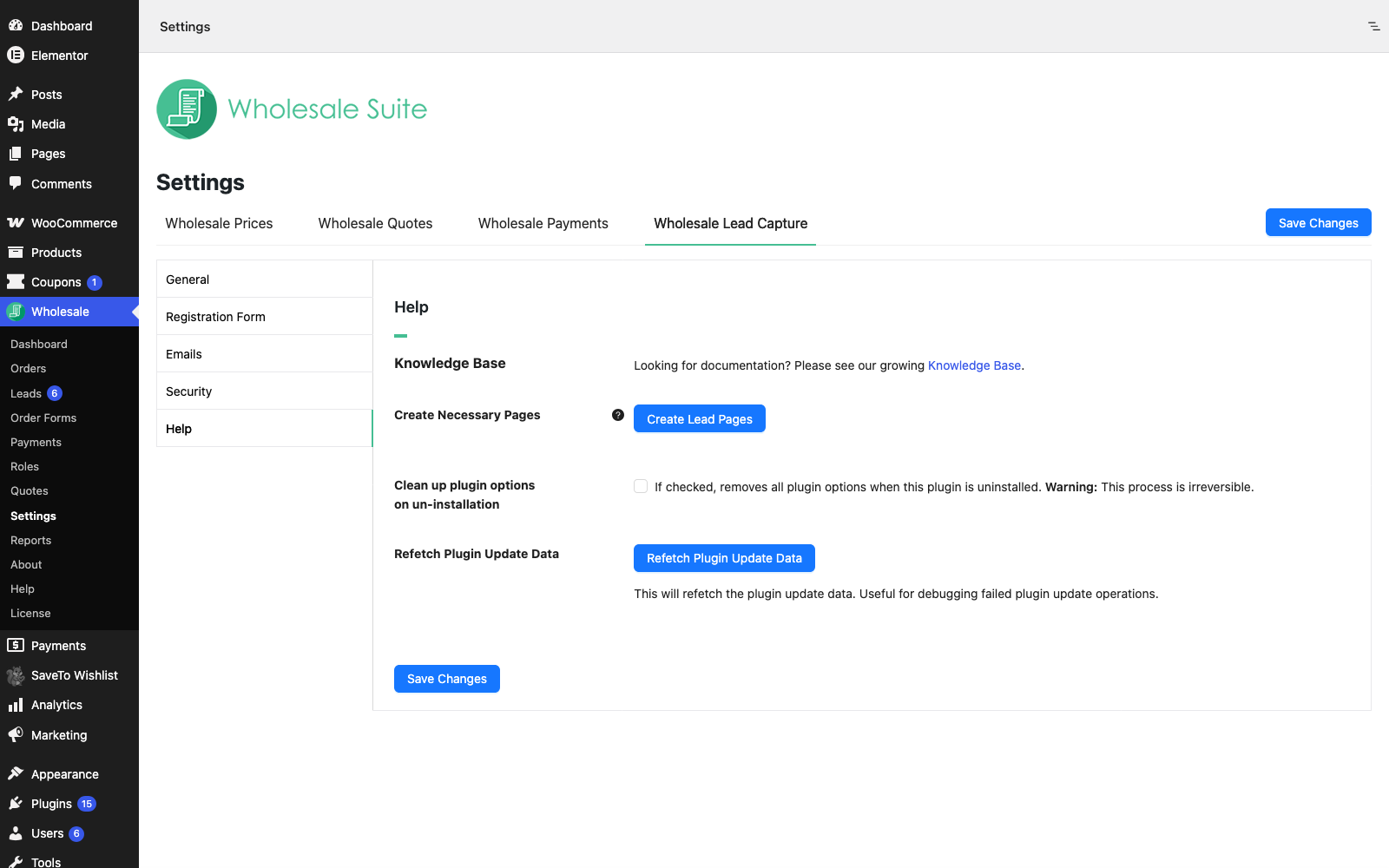
Before you turn on the clean-up option, read How to safely uninstall Wholesale Suite and remove its stored data.
Saving your changes
After you change a setting on the General, Emails, Security or Help tab, click Save Changes.
Frequently asked questions
Where do approved customers get their wholesale role from?
From the New Lead Role setting on the General tab. Change it before you approve leads, because the role is set at approval.
Why don’t I see the approve and reject links in the admin email?
Check that Allow managing of users via email is ticked on the Emails tab, and that the email uses the HTML email type. Plain text emails do not show the links.
Can I see the registration page while I’m logged in as an admin?
Yes. Tick Allow logged-in admin and shop managers to view registration page under Wholesale Registration on the General tab.
What’s next
- Getting started with WooCommerce Wholesale Lead Capture
- How To Edit The Registration Form
- How to approve and manage leads from the Wholesale Leads dashboard
- How to edit emails sent to users
Need help?
If you have a question or run into any issues, we’re here to help.
- Premium users: Open a support ticket
- Free users: Visit our community forum