
We are excited to announce the release of Wholesale Reports, a brand-new analytics dashboard built directly into Wholesale Prices Premium. This release gives WooCommerce store owners their first native view of how their B2B operation is actually performing, from total wholesale revenue down to the individual product level.
Until now, wholesale store owners had to piece together B2B performance from generic WooCommerce reports that do not distinguish between retail and wholesale orders. With the new wholesale reports dashboard, you can see your wholesale revenue, top products, best-selling categories, average order value, and unique customer trends in one place, filtered by date range and wholesale role.
If you are managing a WooCommerce wholesale operation, accurate wholesale reports are no longer a nice-to-have. They are the foundation for every pricing, inventory, and retention decision you make.
Why Wholesale Reports Matter For B2B Store Owners
The case for dedicated wholesale reports comes down to a simple reality: B2B buying behavior is fundamentally different from retail, and generic analytics cannot capture it. Wholesale orders have varying volumes, pricing tiers, payment terms, and buyer expectations. Treating them like retail orders in your analytics leads to decisions that miss the mark.
According to Forrester’s research, 61% of B2B revenue comes from existing customers through renewal and expansion. If you do not know which wholesale customers are returning, which products they buy, and how their order values are trending, you cannot protect that revenue. Harvard Business Review reports that a 5% increase in customer retention can raise profits by 25% to 95%, making retention metrics the single highest-leverage data point a wholesale store can track.
The new wholesale reports feature puts this data directly in your WooCommerce admin, with no external tools, spreadsheet exports, and no guesswork required.
What’s Inside The New Wholesale Reports Dashboard
The wholesale reports dashboard is organized into four main tabs, each focused on a specific area of your B2B performance:
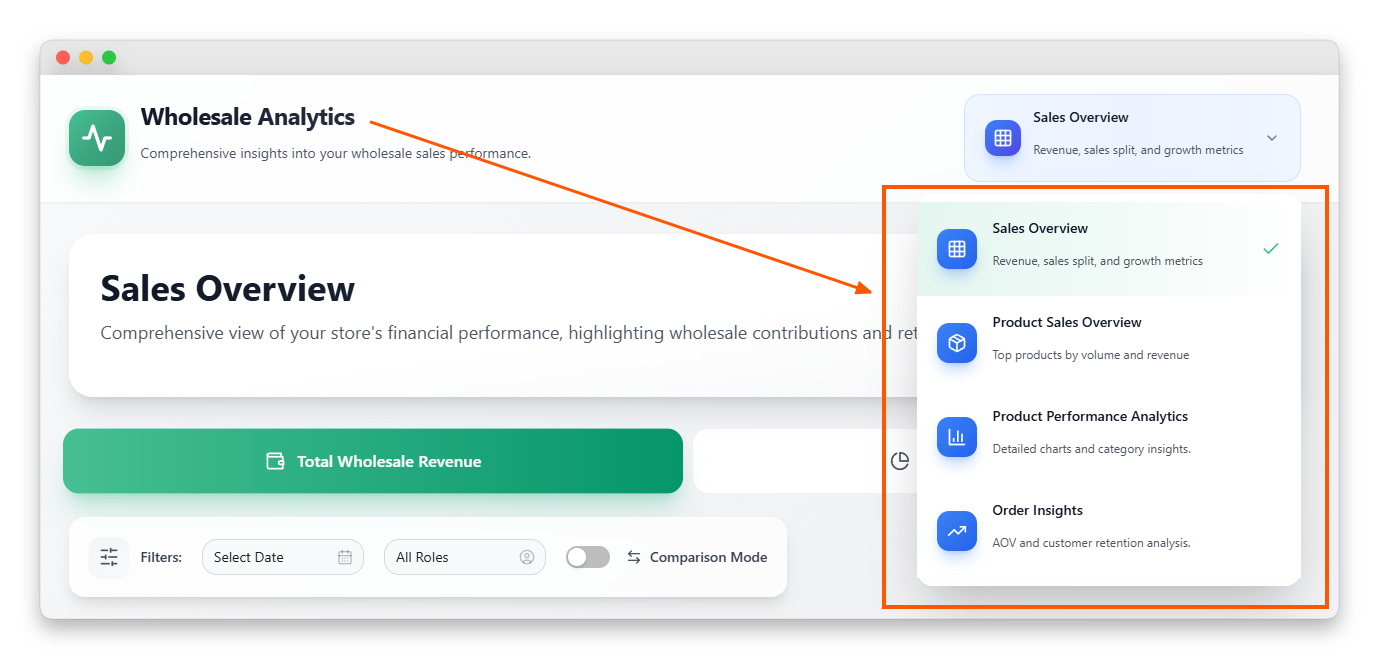
Sales Overview
Total wholesale revenue, wholesale vs retail split, and headline growth metrics for the period.
Product Sales Overview
Detailed tables ranking your top wholesale products by volume and by revenue.
Product Performance Analytics
Visual charts for best sellers and category-level drilldowns.
Order Insights
Average order value, customer retention, and period-over-period comparison.
Every tab shares the same filter bar at the top, which means you can slice any view by date range, wholesale role, or both. In the Order Insights tab, you can also toggle comparison mode to see period-over-period changes.
Let’s walk through what each section of the wholesale reports dashboard actually shows you.
Sales Overview: Tracking Total Wholesale Revenue
The Sales Overview tab is your starting point. It answers the two most important questions any wholesale store owner needs to know: how much wholesale revenue did I make, and how does that compare to my retail business?
Total Wholesale Revenue
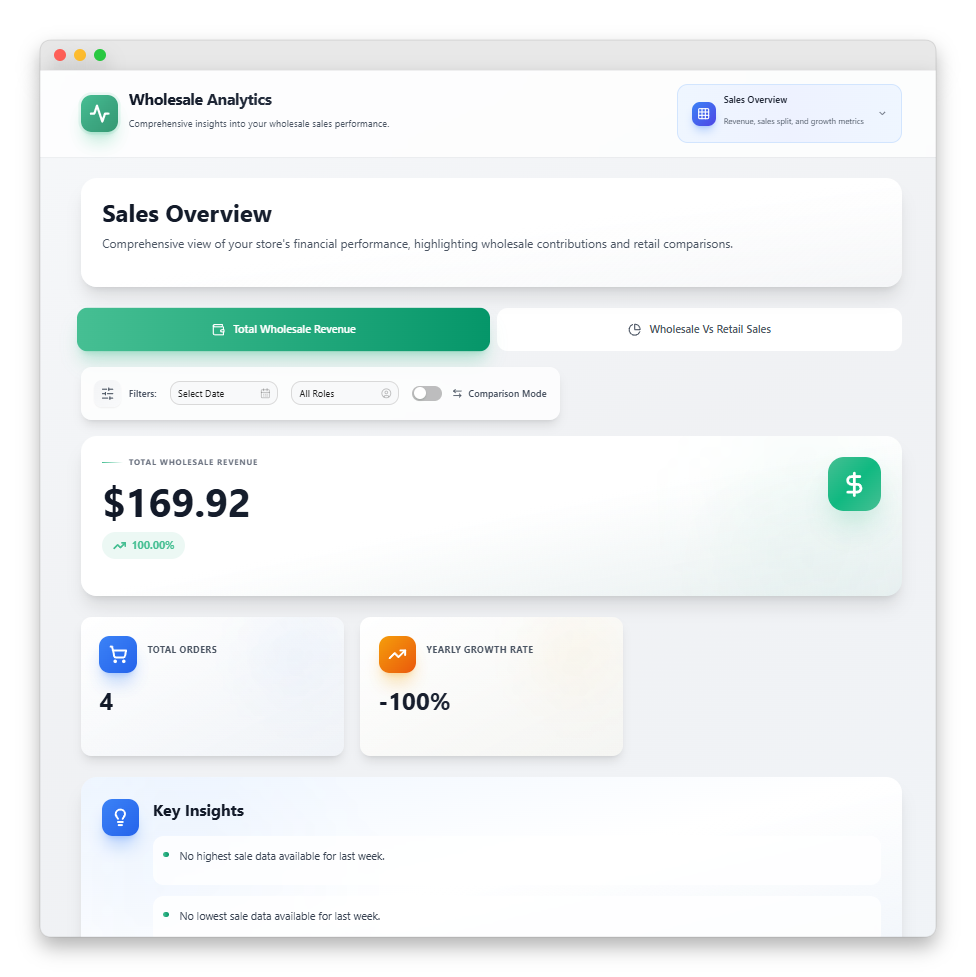
The Total Wholesale Revenue section displays a primary revenue card showing your current period total, a comparison card showing revenue change versus the previous period, and three supporting metric cards:
Total Orders: The count of wholesale orders in the selected period.
Growth Rate: Percentage change in revenue compared to your previous period.
A Key Insights block surfaces contextual observations from your data, helping you spot trends without having to manually dig through the numbers.
Wholesale Vs Retail Sales
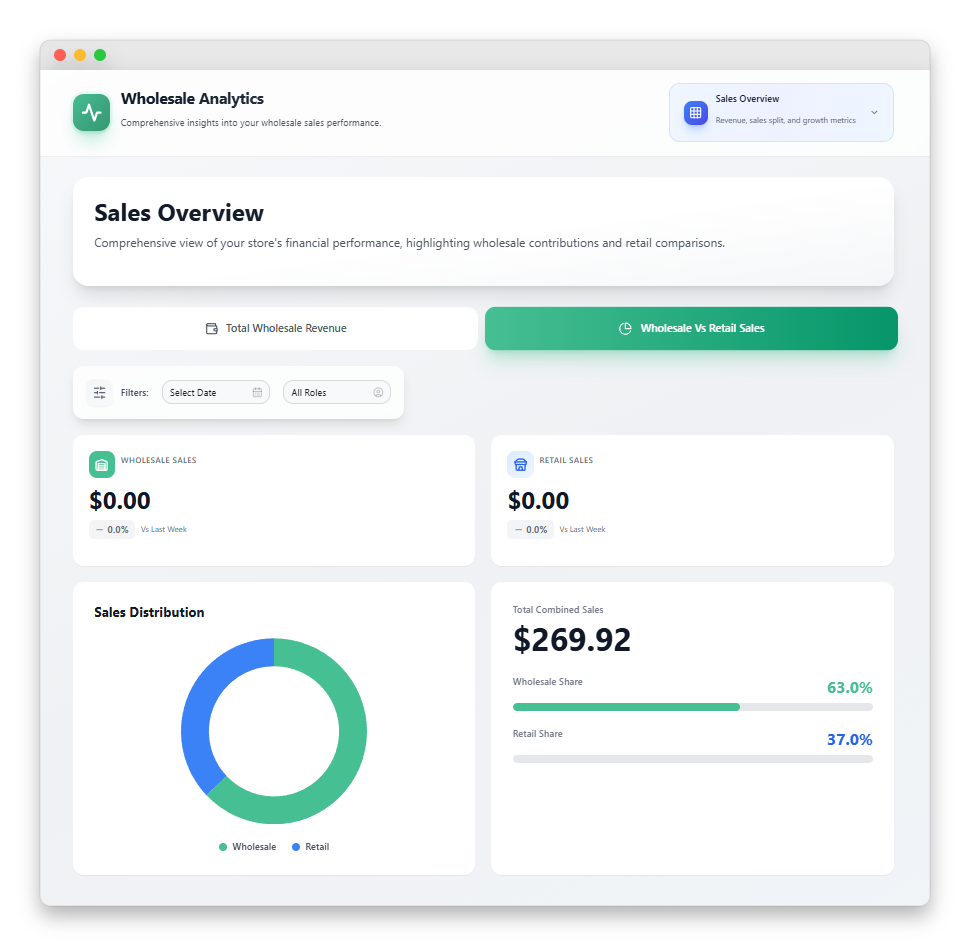
If your store serves both retail and wholesale customers, the Wholesale vs Retail section is essential. It shows two sales cards (one for each channel, with trend vs. last period), a donut chart showing the split, and a summary card with percentage breakdowns and progress bars.
Retail revenue is calculated server-side as total revenue minus wholesale revenue, so it correctly includes orders placed before you installed Wholesale Prices Premium. You get an accurate picture of your channel mix without any manual reconciliation.
Product Sales Overview: Ranking Your Top Performers
The Product Sales Overview tab drills into which individual products drive your wholesale business. It contains two detailed tables that answer the same question from different angles.
Top Products by Wholesale Volume
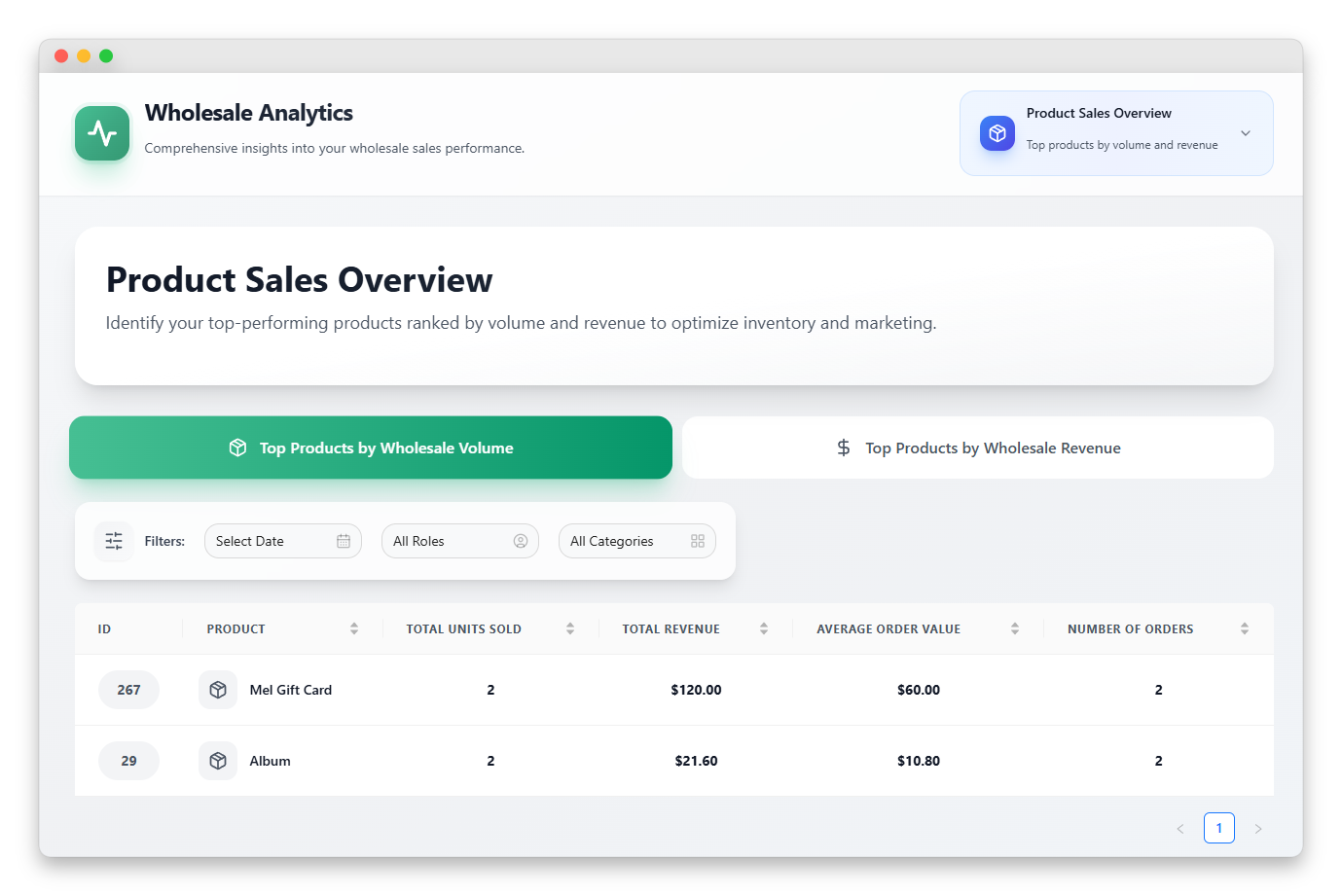
This 6-column table ranks products by the number of units sold. Each row shows the product rank, product name, total units sold, total revenue, average units per order, and number of orders. Click any sortable column header to re-rank the results by that metric.
Top Products by Wholesale Revenue
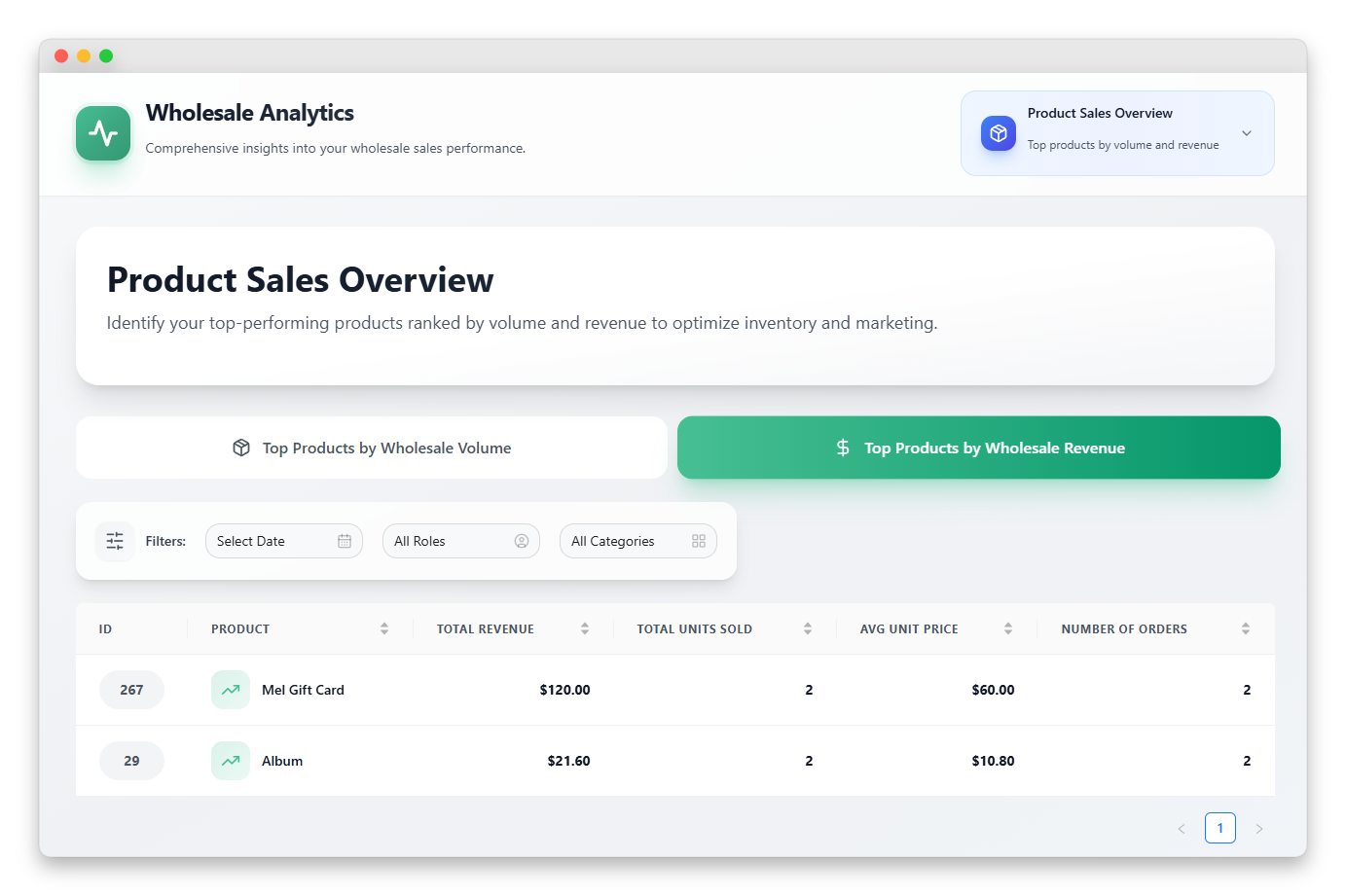
The revenue table shows the same products ranked differently: by dollars generated rather than units moved. Columns include product ID, product name, total revenue, total units sold, average price per unit, and the number of orders of a product.
Ranking by both volume and revenue matters because they tell different stories. Your highest-volume product might have thin margins, while a lower-volume product could be quietly driving most of your profit. The wholesale reports let you see both at a glance.
Product Performance Analytics: Best Sellers And Category Insights
While Product Sales Overview provides tables, Product Performance Analytics provides charts. This tab is designed for an at-a-glance view that you might share with a team or use to quickly spot outliers.
Best Sellers by Volume and by Revenue
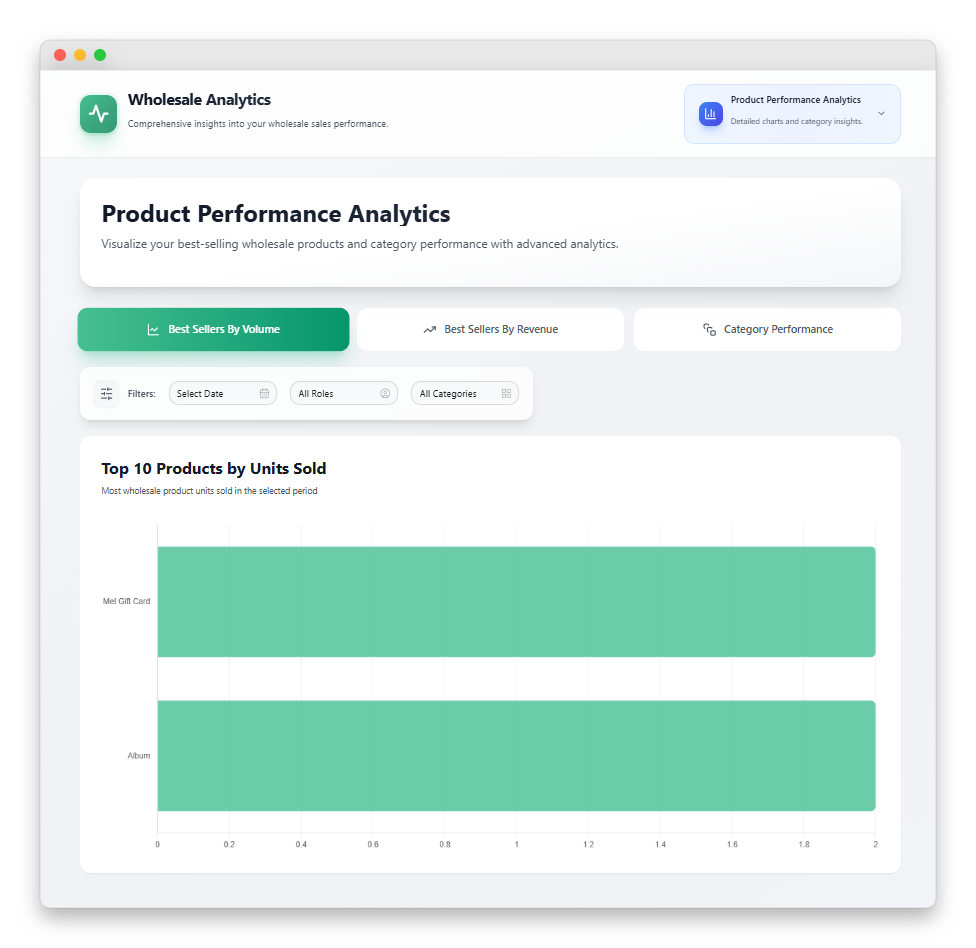
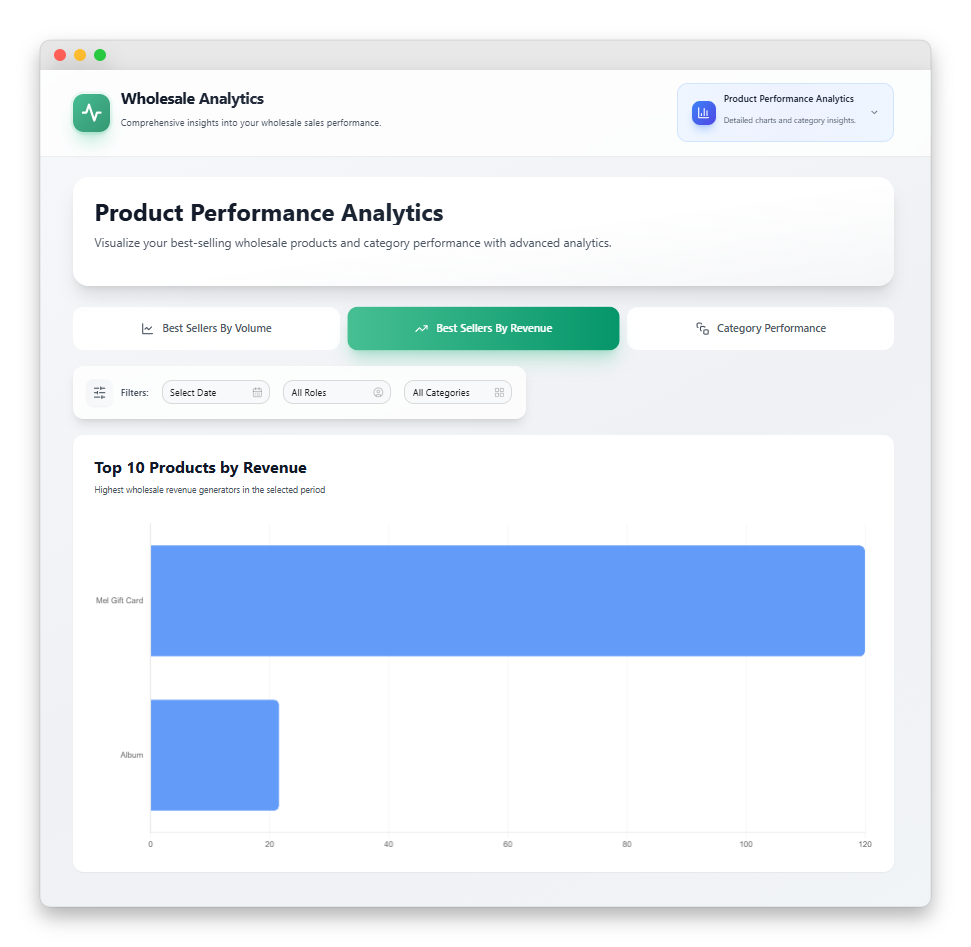
Two horizontal bar charts display your top 10 wholesale products ranked by units sold (green bars) and by revenue (blue bars). Product names appear on the Y-axis, with the metric values formatted on the X-axis. Hover over any bar to see the exact number in the tooltip.
Because these are fixed at the top 10, they are not meant for deep drilldown. They exist to answer “who are my superstars right now?” in a single glance.
Category Performance
This section is where the wholesale reports dashboard goes beyond typical WooCommerce analytics. The Category Performance view includes:
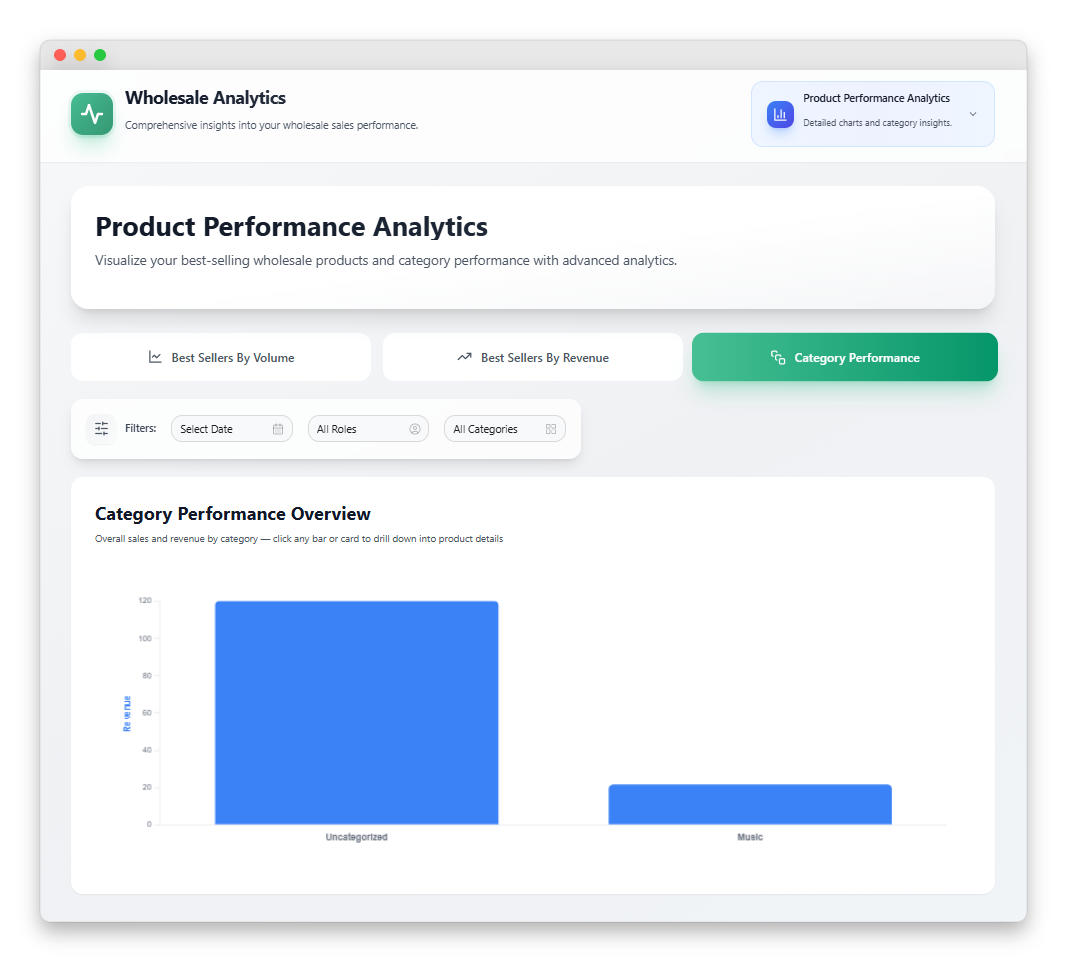
- A dual-axis grouped bar chart showing units sold (left axis) and revenue (blue, right axis) for each category
- Four category cards below the chart, each displaying category name, units count, and revenue
- A product drilldown modal that opens when you click any bar or card
Inside the drilldown modal, you get a scrollable grid of product cards for the selected category. Every card shows the product name, SKU, units sold, revenue, unit price, average order size, a category-share progress bar (the product’s share of the category’s total revenue), and a trend indicator.
This is the kind of view that turns your wholesale reports from a passive display into an actionable tool.
Order Insights: AOV And Customer Retention
The Order Insights tab focuses on two metrics that every wholesale operation should track closely: average order value and unique customer count. This is also the only tab where comparison mode is available, allowing you to compare any period with the one before it.
Average Order Value
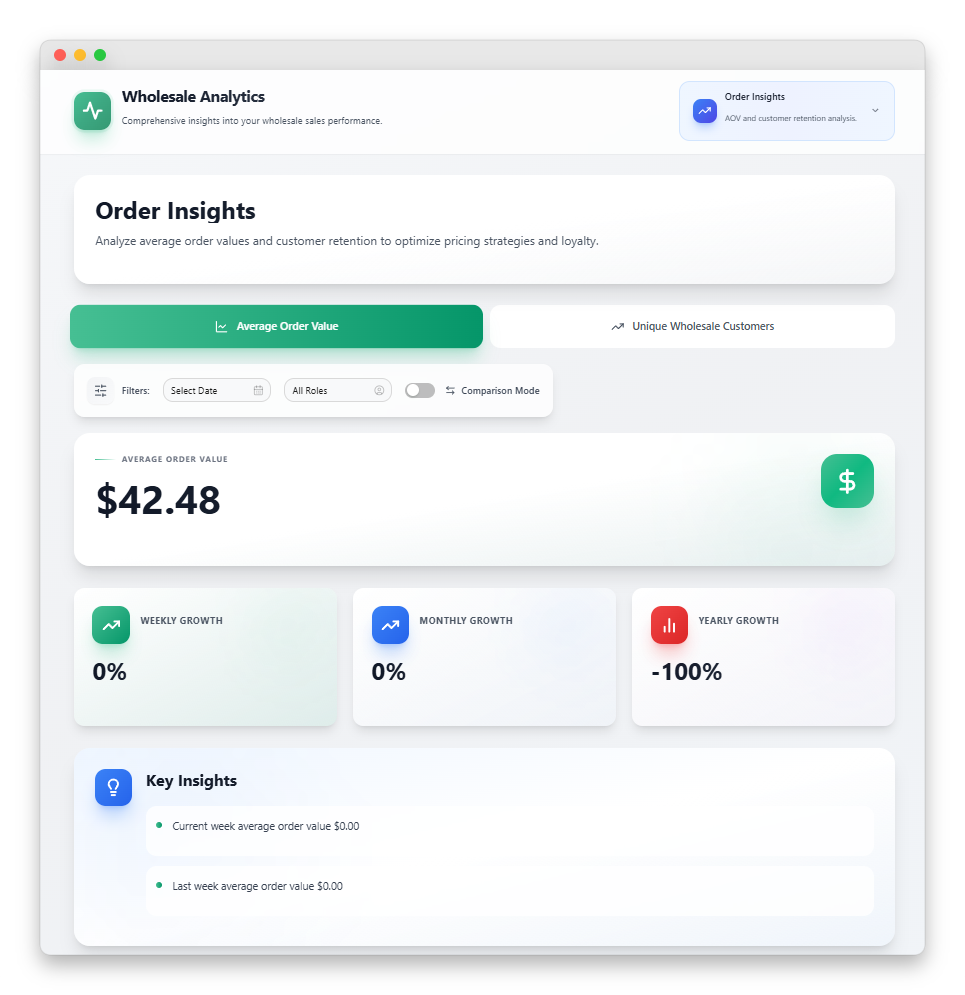
The AOV section displays a primary metric card with your current average order value and trend percentage. In comparison mode, it adds a card showing the AOV difference and the percentage change compared to the previous period.
Tracking AOV matters because it is one of the few metrics that directly link pricing, bundling, and minimum-order-policy decisions to revenue outcomes. If your wholesale reports show AOV trending down while order count is flat, you know to revisit your pricing tiers or volume discount structure.
Unique Wholesale Customers
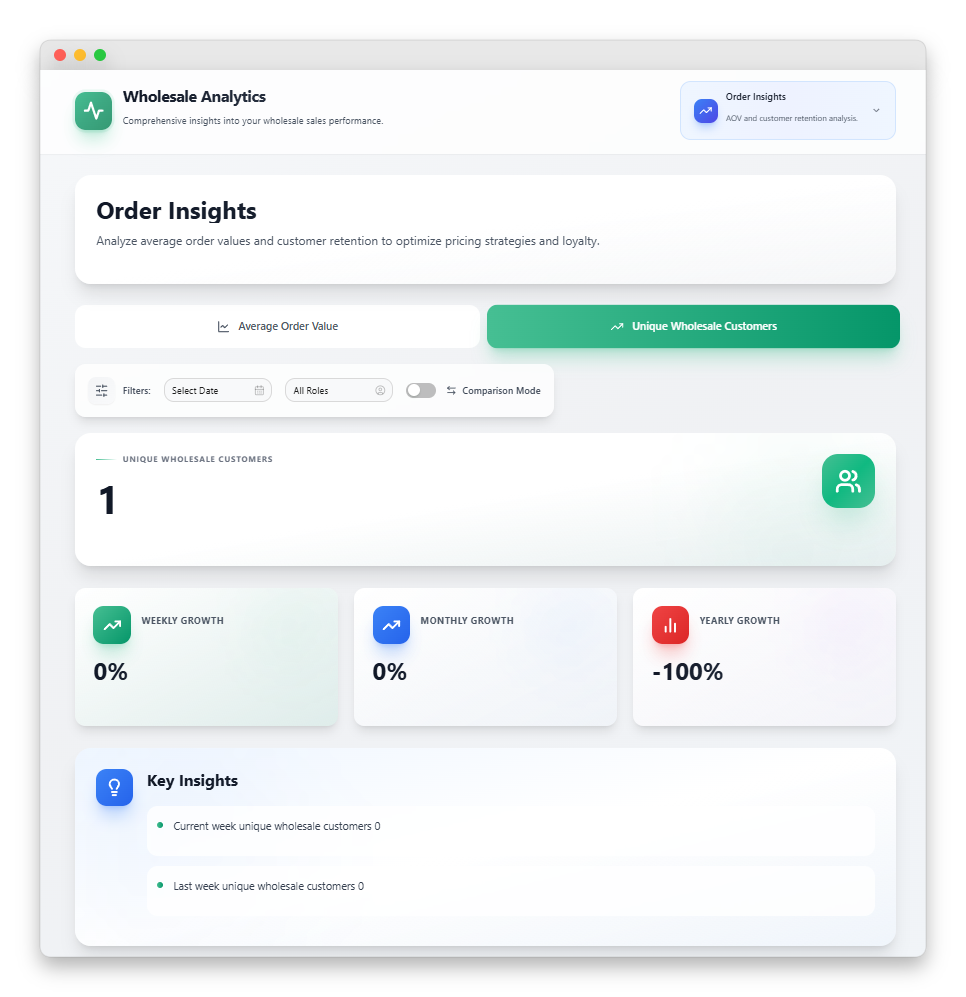
The customer section shows total unique wholesale customers in the period along with a “new this period” trend indicator. Comparison mode adds growth count and percentage change versus the previous period.
Filtering And Comparison Mode In Wholesale Reports
Every tab in the wholesale reports dashboard shares the same filter bar, which keeps the experience consistent and lets you slice your data in three ways:
Date range filter
Pick any custom range, or choose common presets. Every chart, table, and metric updates when you change the range. No more comparing apples to oranges across mismatched date windows.
Wholesale role filter
If you use multiple wholesale roles (Bronze, Silver, Gold, or custom tiers), you can filter the entire dashboard to show only one role’s performance. This is especially useful for understanding which tier generates the most revenue or which one has the highest retention.
Category filter
Available on the Product Sales Overview tab, this narrows the tables down to products from a single category.
Comparison mode
On the Order Insights tab, a toggle enables period-over-period comparison. When enabled, the dashboard fetches both the current period and an equivalent previous period, then displays the difference directly in the UI. This turns flat metrics into trend stories.
All filters work together. Change the date range, and the category filter stays applied. Toggle comparison mode, and your role filter still applies to both periods.
How To Access The Wholesale Reports Dashboard
The wholesale reports dashboard is available in Wholesale Prices Premium v2.0.9 and later. To access it:
- Update Wholesale Prices Premium to the latest version or later through your WordPress dashboard
- Navigate to WooCommerce > Wholesale Reports in your admin menu
- The dashboard loads with a default date range (typically the last 30 days), and the Sales Overview tab is active
- Use the filter bar at the top to adjust date range, role, or toggle comparison mode
- Click any tab to switch between Sales Overview, Product Sales Overview, Product Performance Analytics, and Order Insights
The wholesale reports feature requires the manage_woocommerce capability, so by default, it is visible to Administrators and Shop Managers. Every API call is cached for one hour, so your dashboard loads quickly even on large stores with thousands of orders.
If you are new to Wholesale Suite, the reports dashboard works best when combined with the full toolkit. Wholesale Suite bundle includes everything together.
💡 Pro Tip: Start by running the Order Insights tab in comparison mode. Compare “this month” to “last month” first, then widen to “last 90 days” vs “the prior 90 days.” The patterns you see at different time scales are usually what drive your next wholesale strategy decision.
Conclusion
The new wholesale reports dashboard in Wholesale Prices Premium closes the biggest gap that WooCommerce B2B store owners have lived with for years: the inability to see wholesale performance separately from retail. The value of this feature compounds the more you use it.
In this guide, we walked through every area of the new wholesale reports feature:
- Sales overview
- Product sales overview
- Product performance analytics
- Order insights
- Filtering and comparison mode in wholesale reports
- How to access the wholesale reports dashboard
If you are new to Wholesale Suite, the Wholesale Suite bundle includes reports and the full toolkit of pricing, ordering, payment terms, lead capture, and quoting features. For more ways to grow your B2B revenue, check out our guide on 30 growth hacks to increase wholesale sales, or explore our full knowledge base for setup guides and best practices.
If you are already running Wholesale Prices Premium, update to the latest version and take the dashboard for a spin!
Frequently Asked Questions
Is the wholesale reports dashboard included with Wholesale Prices Premium?
Yes. Wholesale Reports is built into Wholesale Prices Premium starting with version 2.0.9. There is no separate plugin to install. Just update your existing license through the WordPress dashboard.
Do the reports include orders placed before I installed the plugin?
Total revenue calculations (and the retail side of the Wholesale vs Retail view) include historical WooCommerce orders. Wholesale-specific metrics require orders tagged with a wholesale role, which means wholesale data starts from the point at which Wholesale Prices Premium began tagging orders.
How current is the data in the wholesale reports?
Each report query is cached for one hour, so the data you see reflects orders up to roughly 60 minutes old. This caching keeps the dashboard fast for high-volume stores while remaining timely enough for operational decisions.
Can I compare performance between different wholesale roles?
The role filter lets you scope the entire dashboard to a single role (for example, “Wholesale Gold only”). To directly compare two roles, run the dashboard once with each role selected and note the key metrics. A future release may add multi-role side-by-side comparison based on user feedback.
Does comparison mode work on every tab?
Comparison mode is currently available on the Order Insights tab for Average Order Value and Unique Wholesale Customers. Other tabs show trend indicators relative to the default previous period but do not yet support the full period-over-period comparison toggle.
What permissions are required to view wholesale reports?
The wholesale reports dashboard requires the manage_woocommerce WordPress capability, which is held by default by Administrators and Shop Managers. You can grant access to custom roles by adding that capability.