

For people using WordPress, especially those running an online store, WordPress schema markup can make a big difference. It helps your site stand out in search results by showing more useful information right on the page. If you use WooCommerce to sell products, this matters even more. You can display product names, reviews, prices, and availability, all before someone even clicks on your site.
Although it may sound technical at first, it’s a helpful way to provide search engines with more information about your website content. In this guide, you’ll learn what WordPress schema markup is, why it matters, what types are available, and exactly how to add it to your site.
What Is WordPress Schema Markup?
WordPress schema markup is a small piece of code added to your website to help search engines understand your content better. Think of it like giving labels or tags to different parts of your page. These labels tell Google what each section is about, whether it’s a product, review, an article, or something else.
Here’s a simple way to think about it: imagine your website is a school project, and you’re showing it to a teacher. Schema markup is like putting name tags on each part of your project. One tag says “Product,” another says “Price,” and another might say “Review.” These tags make it easier for the teacher to understand your work quickly. In the same way, schema markup helps search engines read and process your pages correctly.
So, where does schema markup show up?
You’ll usually see it in Google’s search results. For example, when someone searches for a product, Google might show the product name, star rating, number of reviews, and even whether it’s in stock. That extra information is often pulled straight from schema markup.
Adding WordPress schema markup gives your site a better chance of showing up with those extra details. These are called rich results, and they help your website catch more attention.
Why is schema markup important for SEO?
Search engines are smart, but they don’t always understand your content the way people do. That’s where WordPress schema markup comes in. It gives search engines extra clues about your content so they can list your pages more accurately and help the right people find them.
One big reason why schema markup matters is that it can add more details to your search results. These extra details are called rich snippets. Instead of showing only a page title and description, Google might also display a product’s rating, price, or stock status. For blog posts, it might show the publish date or author. For FAQs, it could list actual questions and answers right below the link.
This makes your listing more helpful and clickable in search results. And when a search result looks more helpful, people are more likely to click on it. That means schema markup can help increase the number of people visiting your site. More visits can also mean more sales, especially if you sell products through WooCommerce.
You may also read: How To Improve SEO For Product Pages (4 Best Tips).

Common Types Of Schema For WordPress Sites
There are many types of schema markup you can use on a WordPress site. Each type helps describe a different kind of content. Below are the most common examples:
1. Product schema
This is useful for online stores. It tells search engines that a page is about a product. It can include the name, price, brand, stock status, and review ratings. For example, if you sell t-shirts, this schema can help Google show the price and whether it’s available.
Standardized identifiers such as GTIN, EAN, and UPC are critical components of a high-quality product schema. If you aren’t sure how to include these, check out our guide on how to add GTIN to WooCommerce to ensure your structured data is complete.
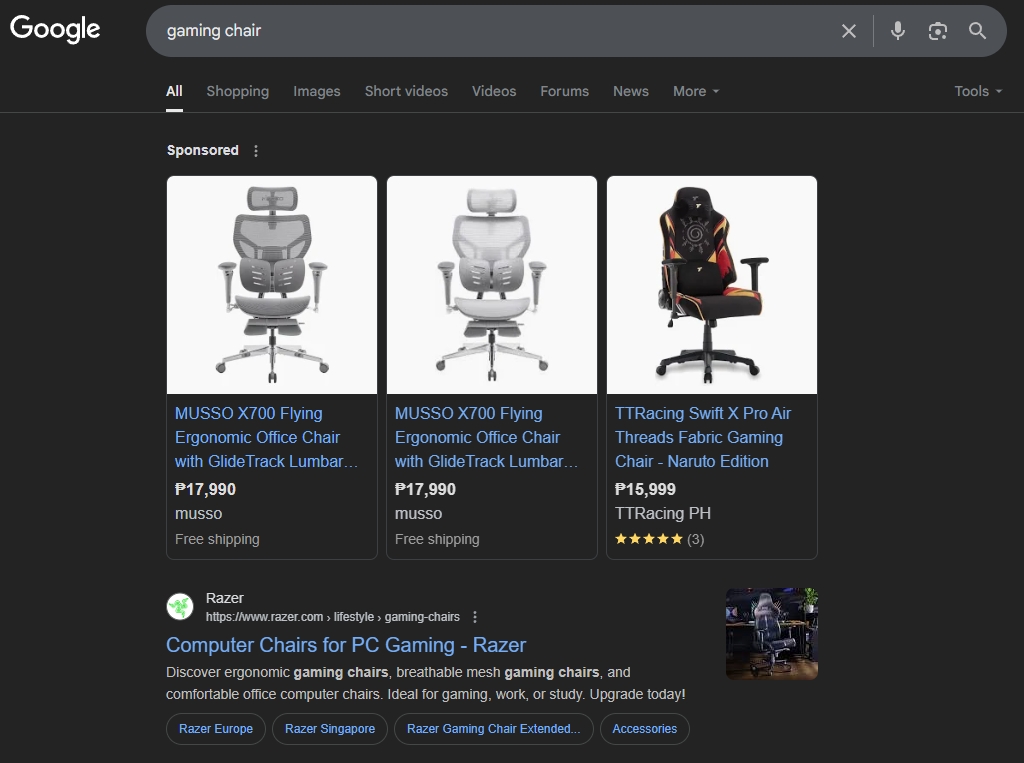
2. Review schema
This is used when someone leaves a review on your site. It helps search engines show star ratings and review counts in search results. You often see this in blog reviews or product feedback. It adds more trust and may catch someone’s eye faster.
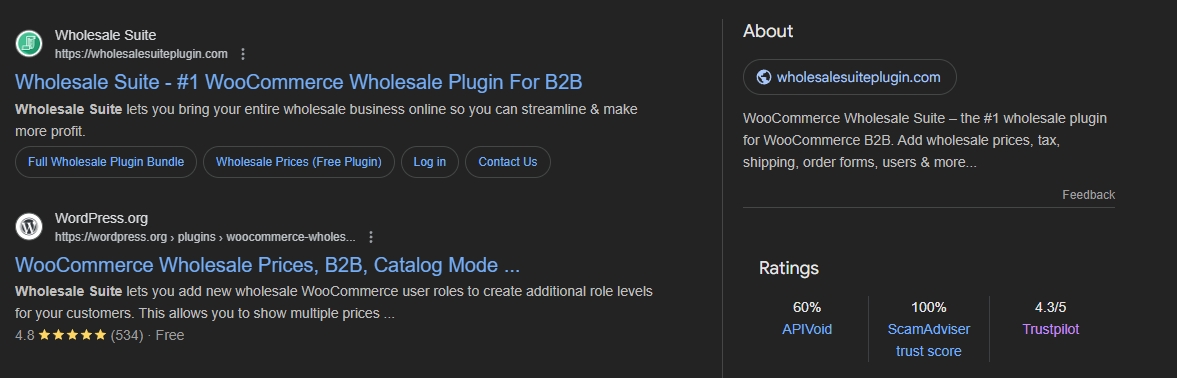
3. FAQ schema
If you have a page with common questions and answers, this schema tells Google what those questions are. When added properly, your FAQs might show directly in the search results, like in Google’s AI Overviews, which gives people answers even before they click.
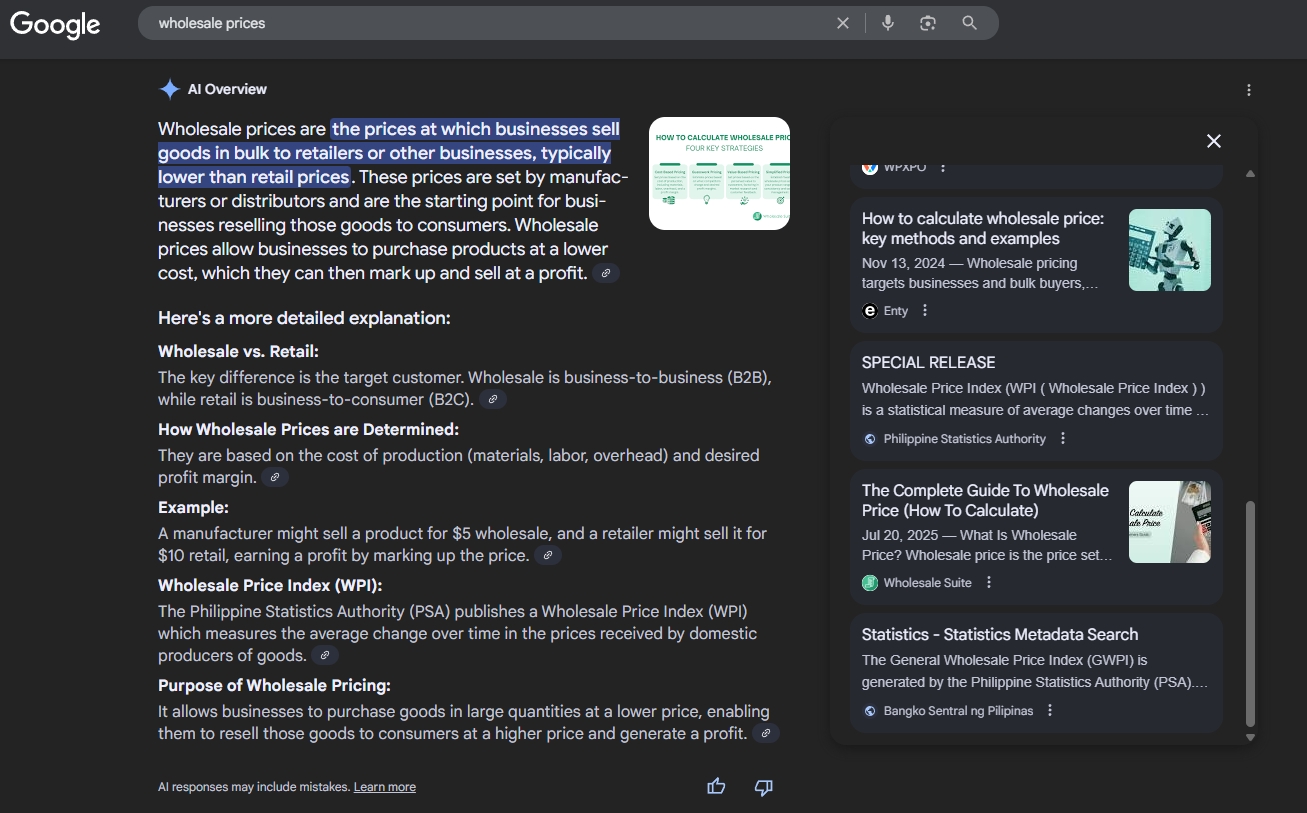
4. Article schema
This schema works well with blog posts and news articles. It tells search engines that the content is an article. It can also share extra info like the author’s name and publish date. This helps blog content show up more clearly in search results.

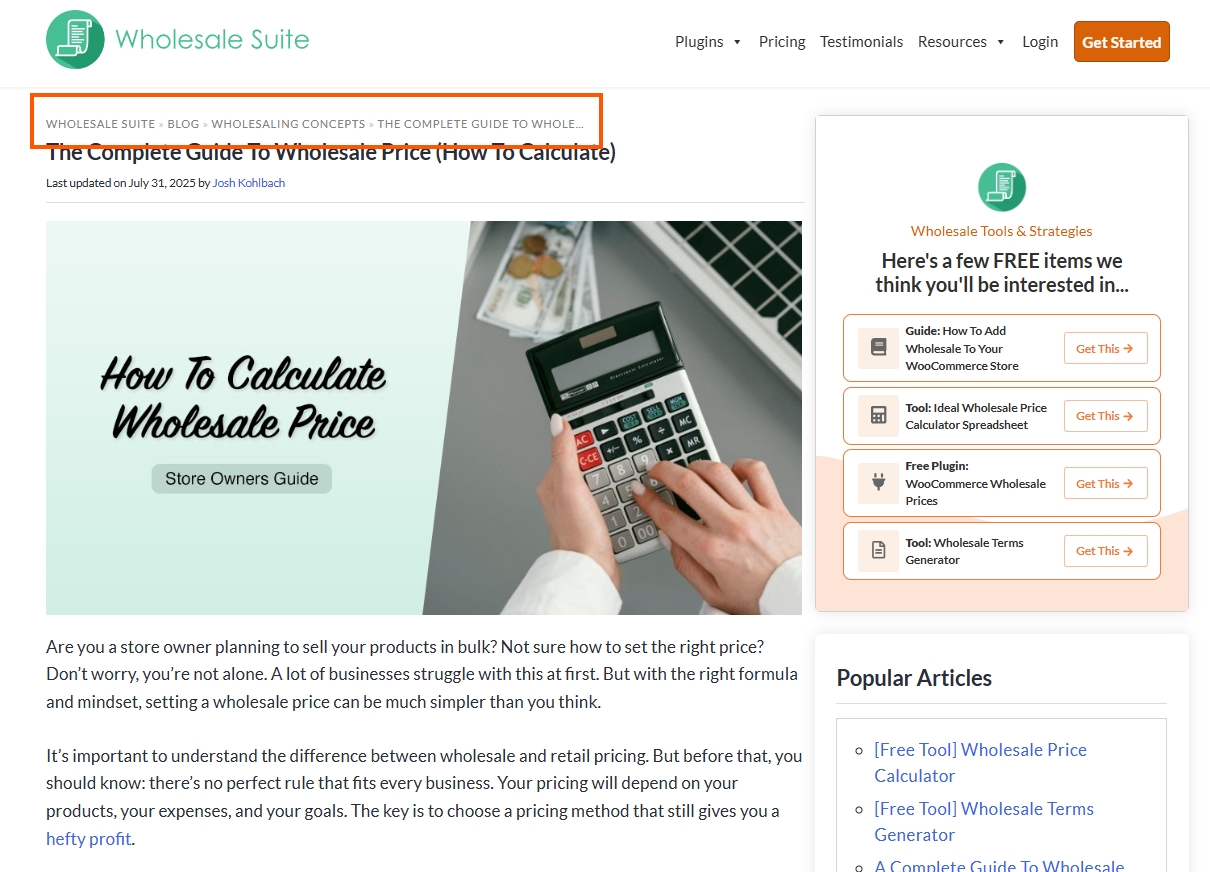
5. Breadcrumbs schema
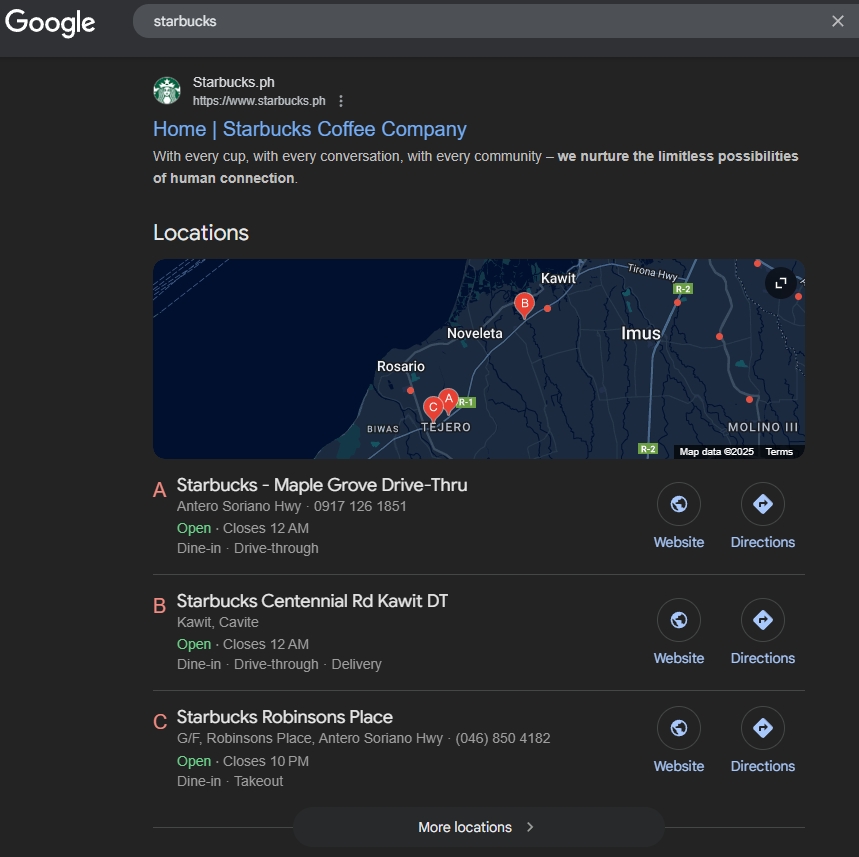
Breadcrumbs show the structure of your website. For example, it can display “Home > Blog > Tips” in a search result. This helps people (and search engines) understand their location on your site.
6. Local business schema
If your business has a location, this schema can include your address, phone number, opening hours, and more. It helps you show up in local search results when people nearby look for your service.
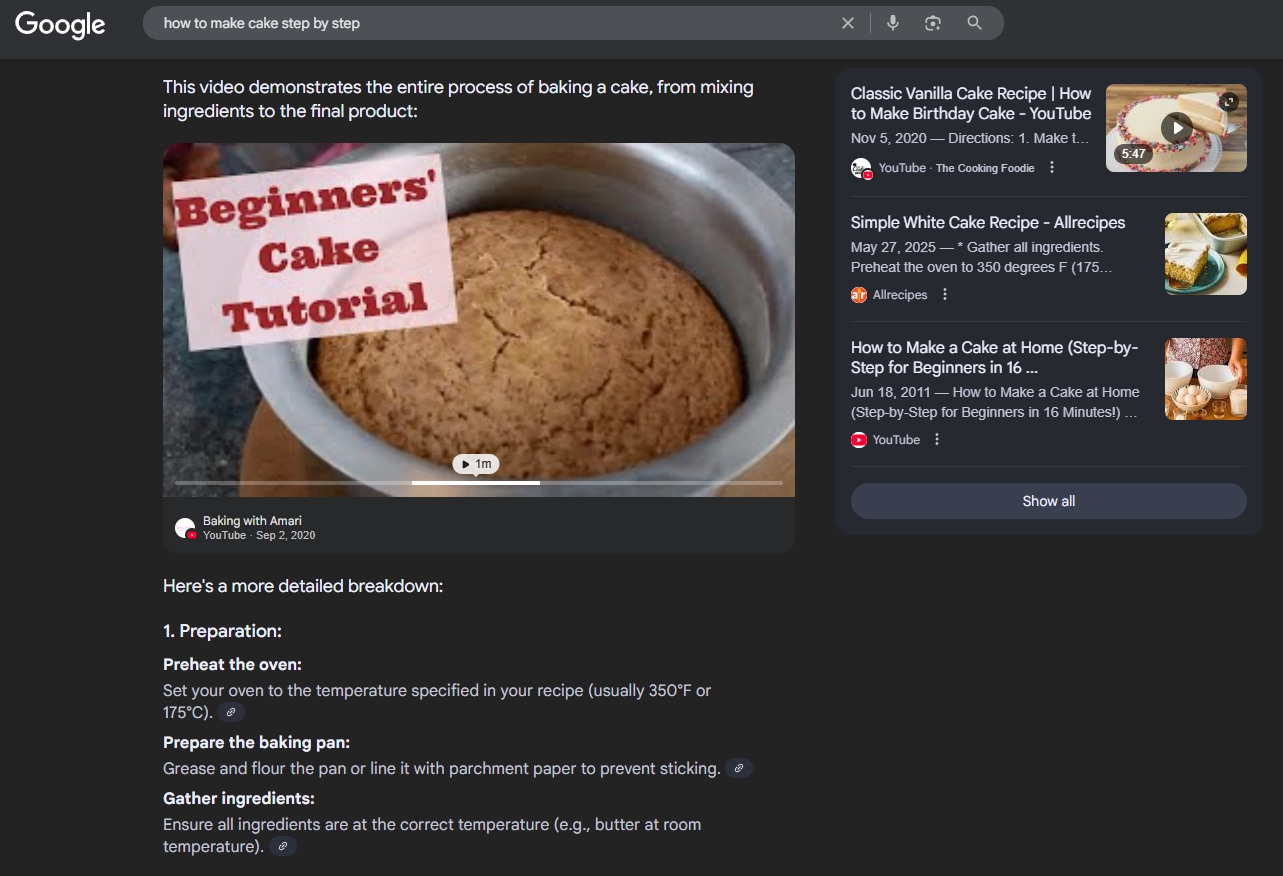
7. How-to schema
If your page has step-by-step instructions, this schema can help. Google might list the steps right in the search result. This is great for DIY tips, guides, or any helpful walkthrough.
Each of these types works differently, but they all do the same thing: they help Google understand your site better. Many store owners and bloggers who use WordPress schema markup start with just one or two types, then add more later as their site grows.
How To Add Schema Markup In WordPress (Using AIOSEO)
Adding WordPress schema markup doesn’t have to be hard. For the sake of this example, we’ll use a plugin called All in One SEO (AIOSEO). It’s one of the more popular choices because it works well for beginners and does not require any coding. This plugin lets you add schema in just a few clicks, which is helpful if you’re not a developer.
Note: In the following steps, we have already assumed that you have installed the plugin and have it working on your WordPress site. If not, you may follow these steps.
Step 1: Enable schema markup features
Go to All in One SEO and click on Search Appearance. Inside that page, look for the Content Types tab. This is where you’ll see options for different parts of your website, like blog posts, pages, and products. The good news is that schema markup is usually turned on by default here, so you may not need to do anything. But it’s still a good idea to check that it’s working.
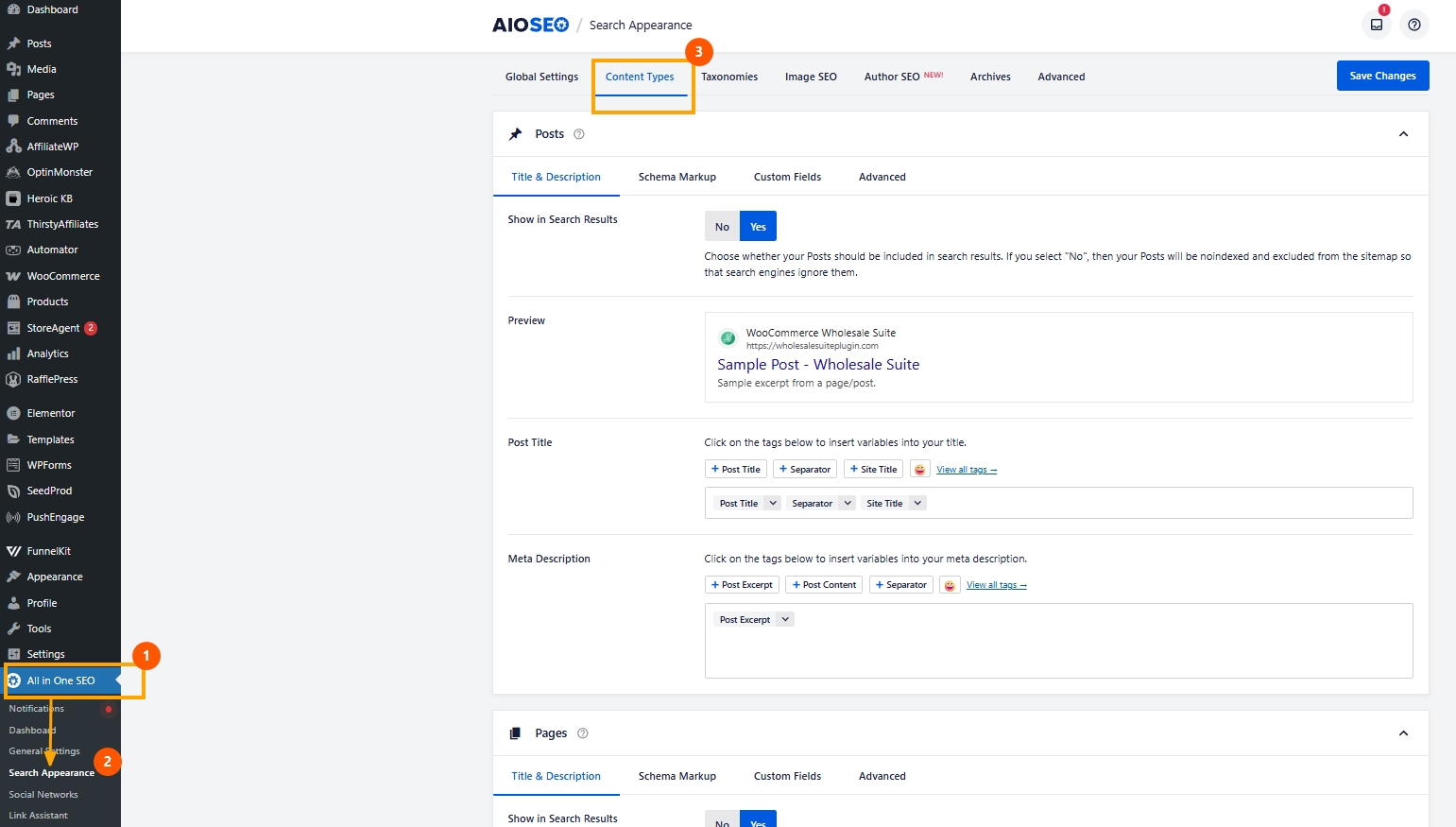
Step 2: Set default schema types
In the same Content Types tab, you can now choose the default schema type for each kind of content. For example, if you write blog posts, select “Article” as the default type. If you sell products through WooCommerce, set the type to “Product.” Once you choose the correct type for each one, scroll down and click Save Changes. This saves time because it applies the schema automatically to new posts or product pages.
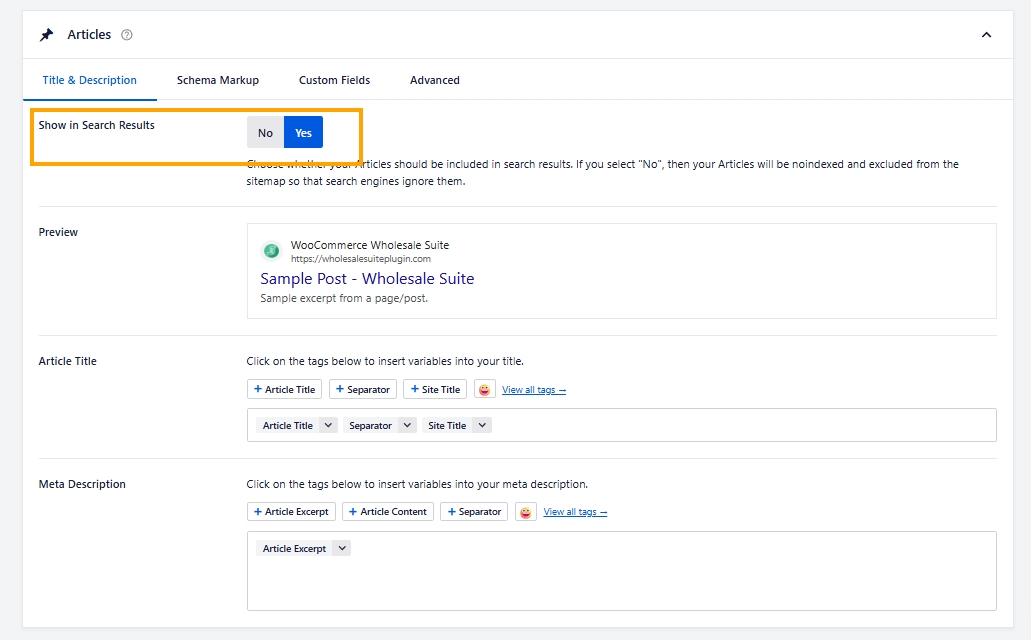
Step 3: Customize schema markup for individual content (optional)
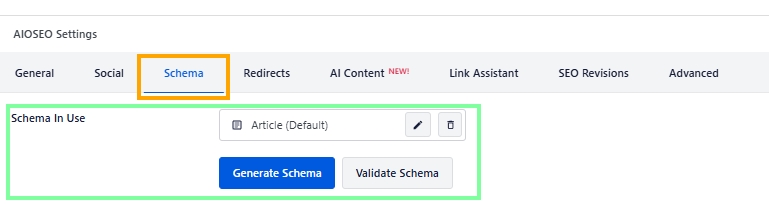
Sometimes, you might want to change the schema type for just one post or product. To do this, open the post or page you want to edit. Scroll down until you see the AIOSEO Settings. Click the Schema tab inside that box. From there, you can see the current schema applied. You’ll also have the option to edit it or choose a different one. For example, you can switch to “How-To” for a tutorial or “FAQ” for a question-and-answer page. This gives you more control without changing your entire site.
Step 4: Validate your schema
After setting everything up, it’s a smart idea to check if your schema was added correctly. Google provides free tools that you can use to test this. Two useful tools for this are Google’s Rich Results Test and the Schema Markup Validator. Copy the link to your page, paste it into the tool, and it will show if your schema is working. If there’s an issue, it will also tell you what needs fixing.
💡Tip: If you ever need to add custom schema and your plugin doesn’t support it, there are free tools online that can help you create JSON-LD code. These tools ask a few questions, then give you a code snippet to copy. It’s more advanced, but still useful if you want more control.
Best Practices When Using WordPress Schema Markup
Adding WordPress schema markup is helpful, but how you use it also matters. To get the best results, there are a few simple habits you should follow. These steps can help you avoid problems and ensure search engines read your content correctly.
1. Use only the schema that fits your content
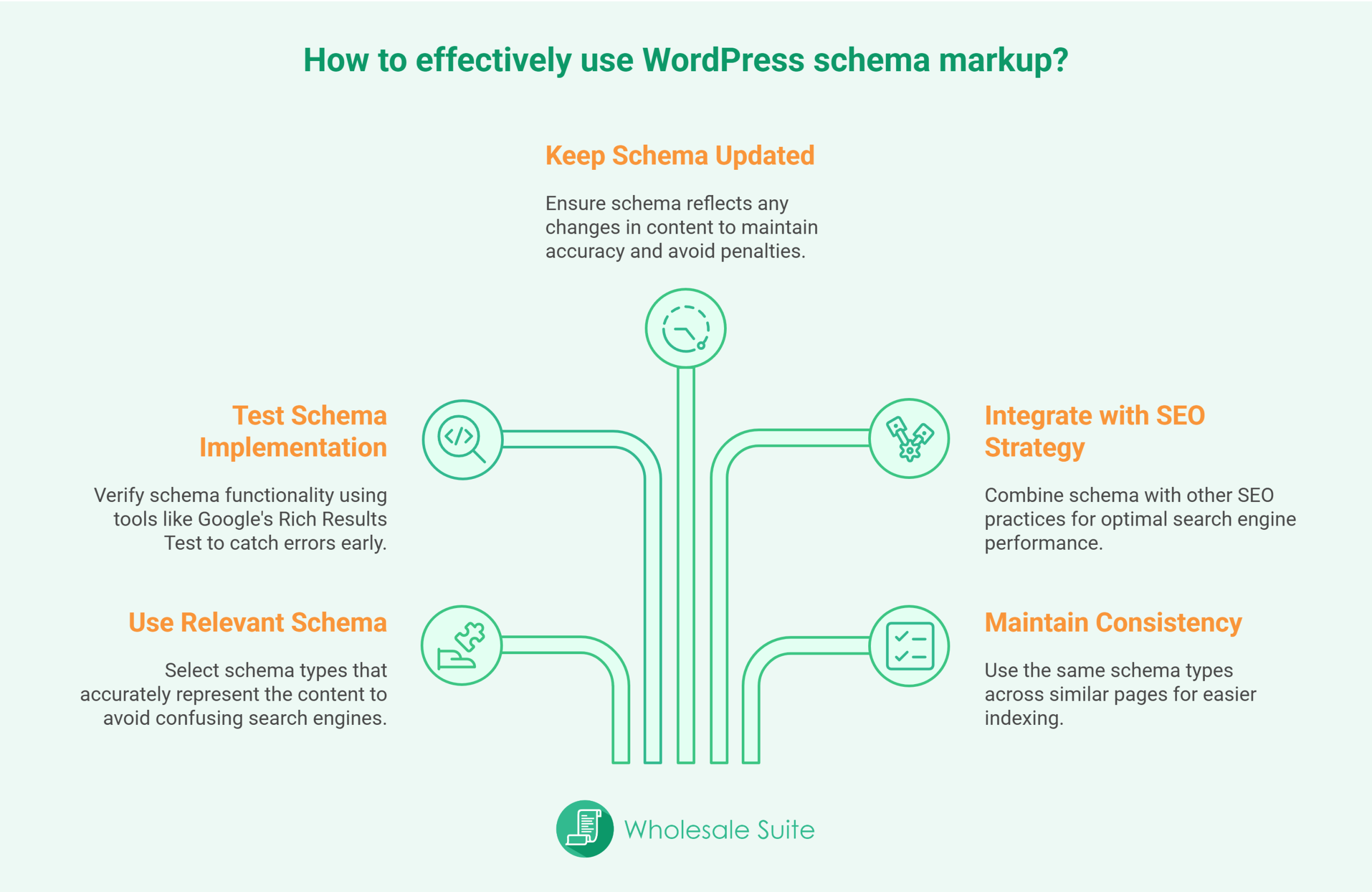
You don’t need to use every schema type available. Just pick the ones that make sense for your page. For example, if you’re writing a blog post, stick with “Article” or “FAQ.” If it’s a product page, use “Product.” Adding the wrong schema or too many at once can confuse search engines instead of helping them.
2. Always check if your schema works
After adding schema, it’s important to test it. You can do this using Google’s Rich Results Test or the Schema Markup Validator. These tools will show you what schema was found and if there are any problems. Testing helps you catch small errors before they affect your SEO.
3. Keep your content and markup updated
If you update something on your website, like a product’s price or availability, be sure your schema reflects those changes too. Schema markup pulls data from your site, so it must be accurate. If Google finds a mismatch, it might ignore the markup or stop showing rich results for that page.
4. Use schema as one part of a bigger SEO plan
Schema helps search engines understand your site better, but it works best when combined with other good SEO habits. That includes having a fast-loading site, making sure your site looks good on mobile, and writing clear, useful content. Schema adds helpful signals, but it should not be the only thing you rely on.
5. Be consistent across your website
Try to keep your schema settings consistent, especially if you have many similar pages. For example, if all your product pages use the same layout, they should all use the same schema type. This makes your site easier for Google to scan and index.
Conclusion
Learning how to use WordPress schema markup may seem difficult at first, but it can lead to better results over time. When search engines understand your pages better, your content has a better chance of showing up in search results. This is helpful whether you’re writing blog posts, adding products to a WooCommerce store, or answering questions through FAQs.
Let’s do a recap on what we discussed in this article:
In our experience, we’ve seen more of our blog posts on Wholesale Suite clicks because the article type appeared in the results, more apparently in AI Overviews. It helped improve how our content appears online, and we believe it can help you, too! Just make sure to keep things updated, know what your schema is doing, and stay consistent if you want to keep showing up in search results.
Over time, this simple habit can help your content look more helpful in search, bring in better clicks, and support your long-term growth.
Do you have questions about WordPress schema markup? Let us know in the comments!
Frequently Asked Questions
What is WordPress schema markup?
WordPress schema markup is a small piece of code added to your website that helps search engines better understand your content by labeling different parts of your pages, such as products, reviews, articles, or other content types.
What are the common types of schema markup for WordPress sites?
Common schema types for WordPress include Product schema for online stores, Review schema for reviews, FAQ schema for question pages, Article schema for blog posts, Breadcrumbs schema for site structure, Local Business schema for local searches, and How-To schema for tutorials.
What are the best practices when using schema markup on WordPress?
Best practices include using only schema types relevant to your content, consistently testing your schema with validation tools, keeping your markup updated with your actual content, integrating schema as part of your overall SEO strategy, and maintaining uniformity across similar pages for better indexing.
How can I add schema markup to my WordPress site?
You can add schema markup using the All in One SEO plugin by enabling the schema features in the Search Appearance settings, setting default schema types for different content, customizing schema for individual pages, and validating your schema with Google’s Rich Results Test or Schema Markup Validator.