Wholesale customers check the quantity discount table before they pick how many to buy, so it helps to put the table where they look. By default, WooCommerce Wholesale Prices Premium shows the table right after the wholesale price. This guide shows you how to move it after the short description or just above the add to cart button, and what happens on products that don’t have those parts.
Before you start
- WooCommerce Wholesale Prices (the free plugin), installed and active.
- WooCommerce Wholesale Prices Premium 2.1.0 or higher.
- At least one product with a quantity based discount for a wholesale role. See the Wholesale Pricing Guide – How Wholesale Pricing Works in Wholesale Suite.
- A wholesale customer account to test with. The table only shows to logged-in wholesale customers.
Change the table position
- In your WordPress admin, go to Wholesale > Settings.
- Click the Wholesale Prices tab.
- Click the General sub-tab.
- Scroll down to the Wholesale Products section.
- Select a position from the Quantity Discount Table Position dropdown.
- Click Save Changes.
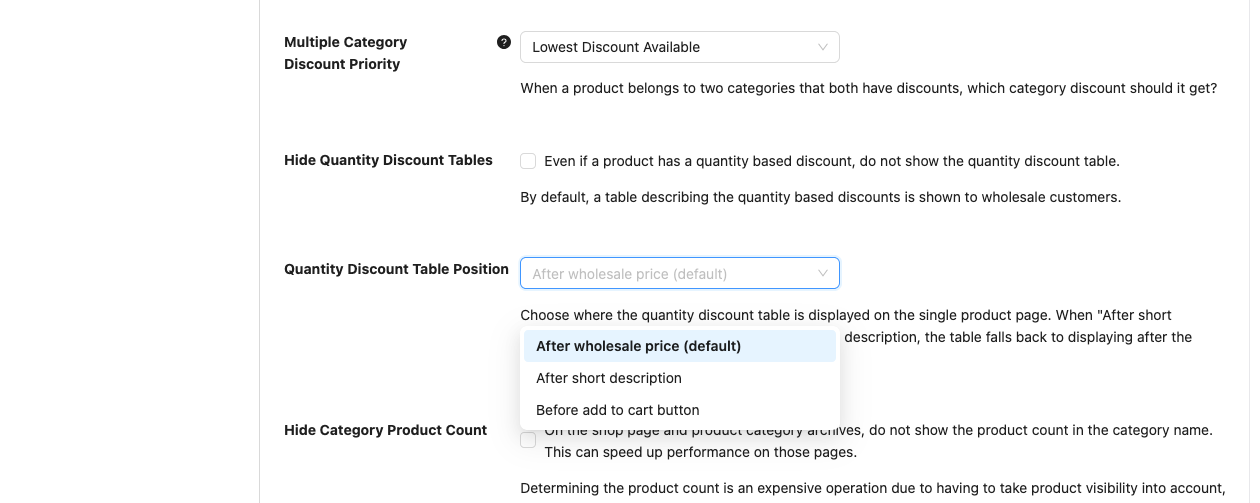
The new position applies the next time a wholesale customer loads a product page.
Choose a position
The dropdown has three options. Each one controls where the table shows on the single product page.
| Option | Where the table shows |
|---|---|
| After wholesale price (default) | Right below the wholesale price. |
| After short description | Below the product short description. If the product has no short description, the table shows after the price. |
| Before add to cart button | Above the add to cart area. On a simple product, that’s just above the quantity box and add to cart button. On a variable product, it’s above the variation dropdowns. If the page has no add to cart button, the table shows after the short description, or after the price when there’s no short description either. |
On simple products, the setting moves tables that come from the product’s own quantity discount rules. If the table comes from a category discount, or from a discount set for a whole wholesale role in the plugin settings, it stays after the price.
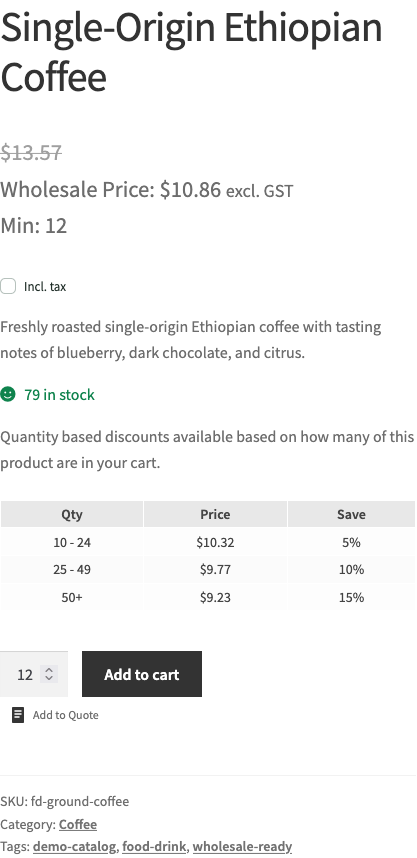
Variable products
On a variable product, the table shows once your customer picks a variation. It moves to the position you chose and updates when they switch to another variation. If they clear the selection, the table goes away until they pick a variation again.
How this works with Hide Quantity Discount Tables
The Hide Quantity Discount Tables checkbox sits just above the position setting, in the same Wholesale Products section. When it’s ticked, the table doesn’t show anywhere, so the position you pick has no effect. To show the table at your chosen position, make sure this box is unticked.
Troubleshooting
The table doesn’t show where I picked
Log in as a wholesale customer and reload the product page. If it’s still in the wrong place, set the dropdown back to After wholesale price (default) and save. Any position other than the default is placed by a script on the product page. If your theme or page builder changes the standard product page layout, the script may not find the right spot.
The table stays after the price on a simple product
Check where the product’s quantity discount is set. On simple products, the position setting only moves tables from discount rules set on the product itself. Tables from a category discount or a wholesale role discount always show after the price.
I can’t see the table at all
Check that Hide Quantity Discount Tables is unticked. Then check that you’re logged in with a wholesale role, and that the product has a quantity based discount for that role. Guests and retail customers never see the table. If you use a page builder or a custom product template, set the dropdown back to After wholesale price (default) and save. Some custom layouts skip the spot where the plugin adds the table.
Frequently asked questions
Does this setting change the table on the Wholesale Order Form?
No. It only changes the single product page. To show quantity discount tables on your order form, see How to change the look & feel of your order form.
Can my retail customers see the table?
No. The table only shows to customers who are logged in with a wholesale role.
Related articles
- Wholesale Pricing Guide – How Wholesale Pricing Works in Wholesale Suite
- Configure Your Wholesale Price On Products
- How to change the look & feel of your order form
Need help?
If you have a question or run into any issues, we’re here to help.
- Premium users: Open a support ticket
- Free users: Visit our community forum