

Running more than one wholesale tier is a smart move, but it raises a surprisingly hard question to answer: which tier is actually driving your revenue? Until now, your Wholesale Reports showed one role at a time, so finding out meant flipping between views, exporting numbers, and stitching the picture together by hand. The new wholesale role comparison feature in WooCommerce Wholesale Prices Premium removes that busywork entirely.
With wholesale role comparison, you can select two or more wholesale roles, such as Gold, Silver, and Bronze, and see them lined up side by side across every report tab. Revenue, orders, average order value, top products, and categories all appear side by side, making the winning tier obvious at a glance.
This article walks through exactly what the feature does, who benefits most from it, and how to turn it on and start comparing roles in your own store today.
What Is The Wholesale Role Comparison Feature?
Wholesale role comparison is a new Comparison Mode added to the Wholesale Analytics dashboard inside Wholesale Prices Premium. You will find it under Wholesale, then Reports, in the same place you already view your wholesale reports dashboard. Instead of viewing a single role at a time, you pick the roles you care about and the whole report redraws to show them together.
The feature spans all four report tabs: Sales Overview, Product Sales Overview, Product Performance Analytics, and Order Insights. In each one, your selected roles appear as side-by-side metric cards, grouped bar charts, and merged summary tables. Every role keeps one consistent color everywhere it appears, from its dot in the dropdown to its bars in a chart to its row in a table, so your eye can track a tier across the entire dashboard without losing it.
Behind the scenes, the wholesale role comparison feature reuses the reporting data your store already produces. It does not build a separate analytics engine, which is part of why it feels fast and why the numbers always match the rest of your reports.
Why wholesale role comparison matters for your store
When you sell to several wholesale tiers, averages hide the truth. A healthy overall revenue figure can mask the fact that one tier is carrying the business while another quietly drains attention and discounts. Wholesale role comparison turns that guesswork into a clear, evidence-based view of which tier earns its keep.
This kind of clarity has real financial weight. McKinsey research found that intensive users of customer analytics are 23 times more likely to outperform competitors on customer acquisition and 19 times more likely to be above average on profitability. Knowing which buyer segment responds best to your pricing is exactly the sort of insight that drives those results.
The payoff also shows up in retention. According to research from Bain & Company highlighted by Harvard Business Review, lifting customer retention by just 5 percent can increase profits by 25 to 95 percent. Wholesale role comparison helps you spot which tier is worth protecting and nurturing, so your retention effort lands where it pays off most.
How To Use Wholesale Role Comparison Step By Step
Setting up a wholesale role comparison takes only a minute. The controls sit in a single filter row at the top of each report tab, and the same flow works on every tab.
Step 1: Open your wholesale reports
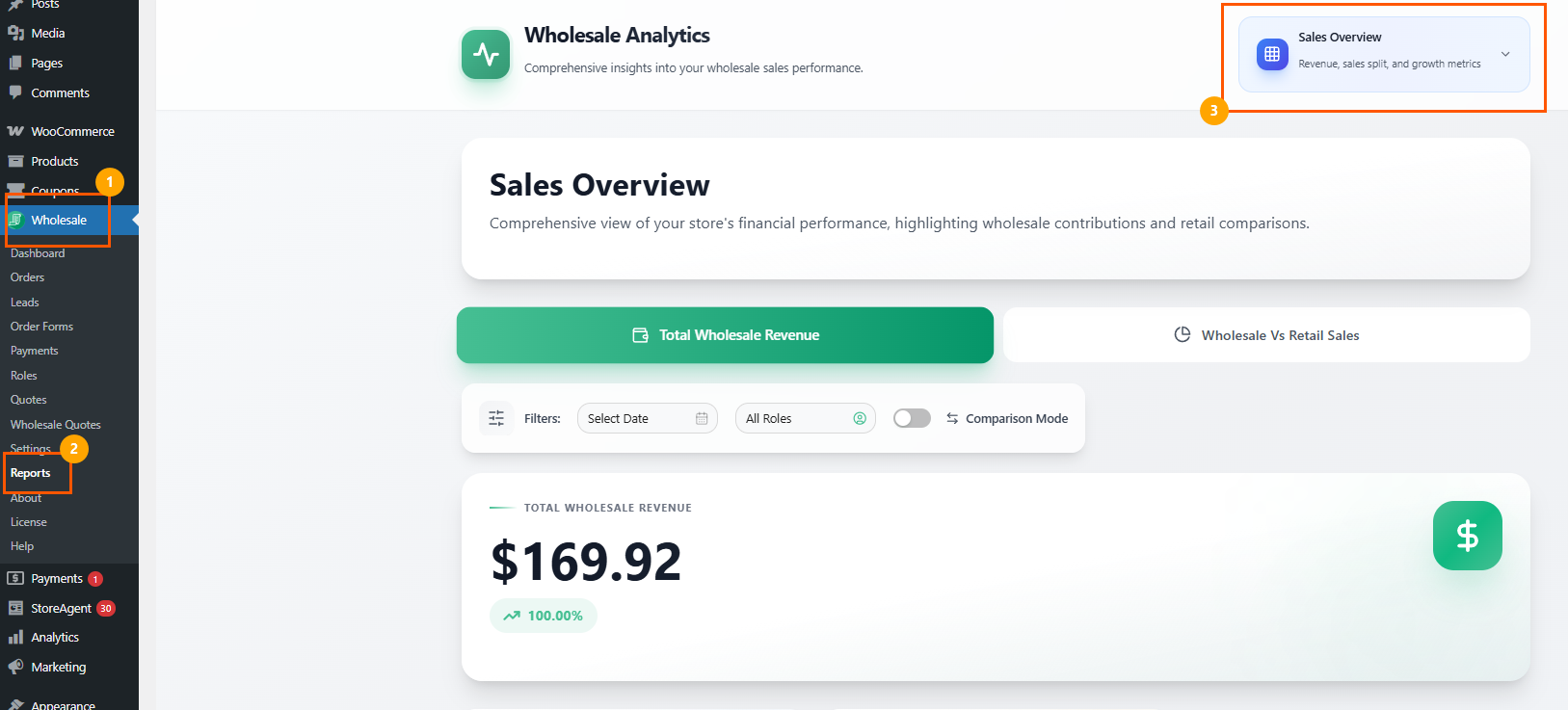
From your WordPress dashboard, go to Wholesale > Reports, to open the Wholesale Analytics dashboard. Pick the tab you want to start with, such as Sales Overview.
Step 2: Turn on Comparison Mode & set your date range
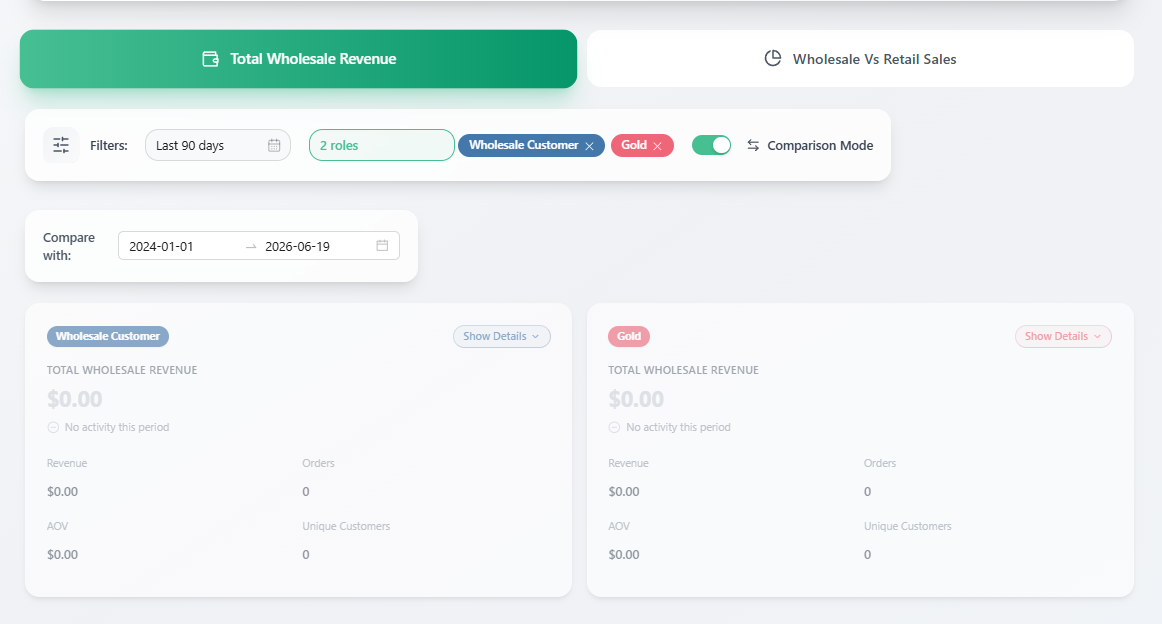
In the filter row, use Select Date to choose the period you want to analyze. This date range applies to every role you compare.
Click Select Roles to open the role dropdown, then flip the Comparison Mode toggle. The dropdown switches into a multi-select checklist headed by a ROLE FILTER label that reads “Select roles to compare,” and an Exit Compare link appears so you can leave the mode later.
Step 4: Tick two or more roles (optional)
Check the roles you want to compare, for example Wholesale Customer, Gold, Silver, and Bronze. Each role has its own colored dot, and you can use the All button to select every role at once or Clear to reset. As soon as two or more roles are selected, the whole tab redraws to show them together.
Step 5: Add a previous-period comparison if you want one
The existing Compare With option still works alongside role comparison. Set a start and end date there to layer a previous period on top, so you can see how each role trends over time as well as against its sibling tiers.
Step 6: Expand a role for the full picture
Click Show Details on any role card to expand it. The expanded view reveals that role’s revenue, order count, average order value, unique customers, top 5 products, and top 3 categories, all in one place.
Step 7: Exit Compare when you are done
Click Exit Compare to drop back to the standard single-role view. Your wholesale role comparison is only ever a toggle away, so you can move between focused and side-by-side analysis as you work.
What You Can Compare With Wholesale Role Comparison Across Four Tabs
Every report tab supports compare mode, and each one has its own sub-views accessed through the pill buttons at the top of the tab. Here is what each tab brings to your wholesale role comparison.
Sales Overview
This tab covers Total Wholesale Revenue and Wholesale vs Retail Sales (the example we did above). You get a metric card per role for figures like total wholesale revenue, revenue difference, total orders, and yearly growth rate, plus a grouped bar chart with one bar per role. A summary table rounds it out with revenue, orders, average order value, unique customers, and percent of total for each role.
Product Sales Overview
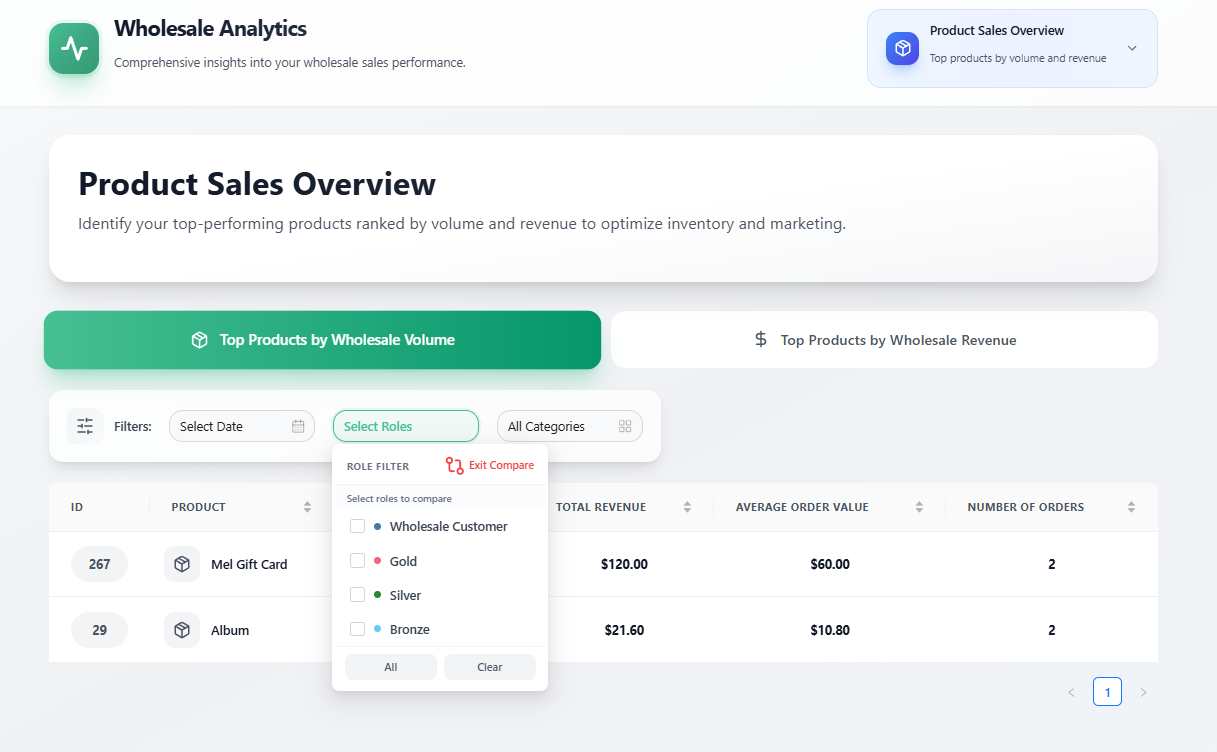
Here you compare Top Products by Wholesale Volume and Top Products by Wholesale Revenue. A merged table shows each role’s top products together, with columns for product ID, name, total revenue, average order value, and number of orders, and an All Categories filter lets you narrow the view. A horizontal bar chart per product is colored by role so you can see which tier buys what.
Product Performance Analytics
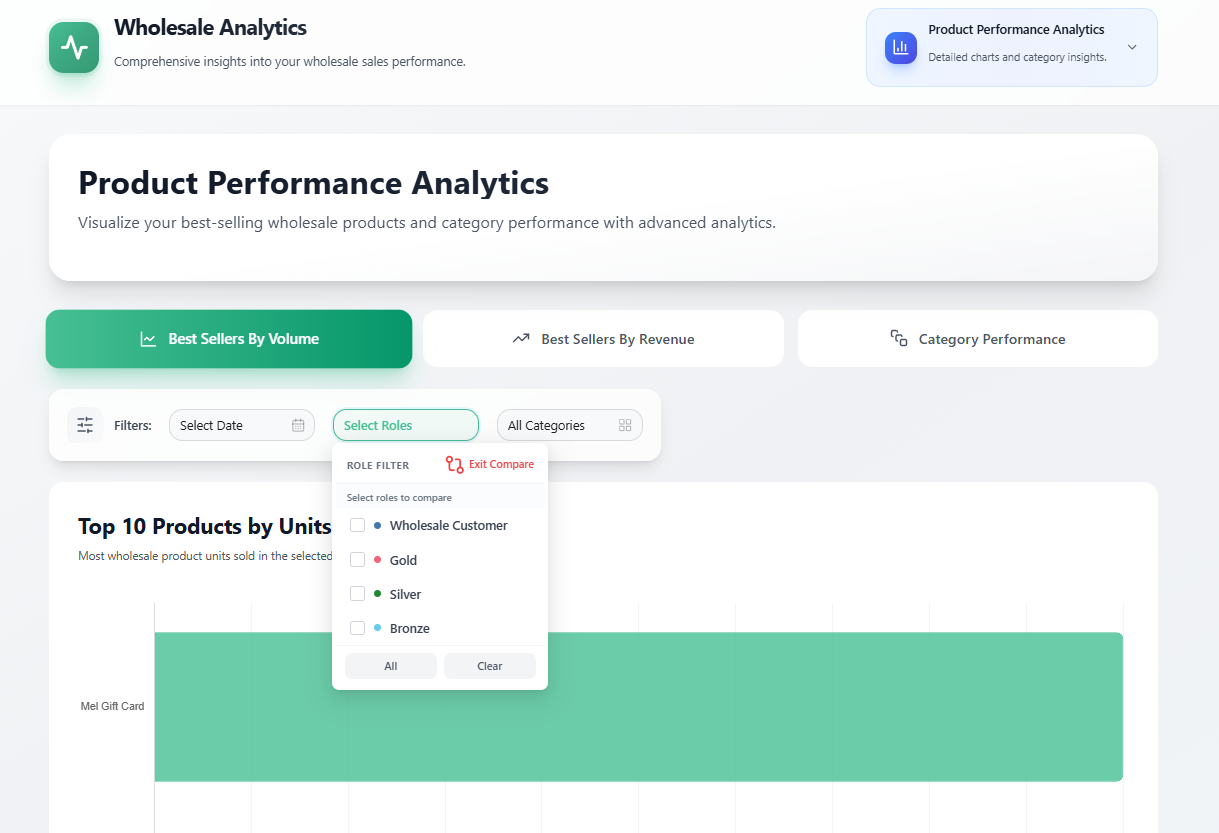
This tab digs into Best Sellers by Volume, Best Sellers by Revenue, and Category Performance. Horizontal bar charts, such as Top 10 Products by Units, show each role’s contribution per product or category, with merged tables alongside for the exact numbers.
Order Insights
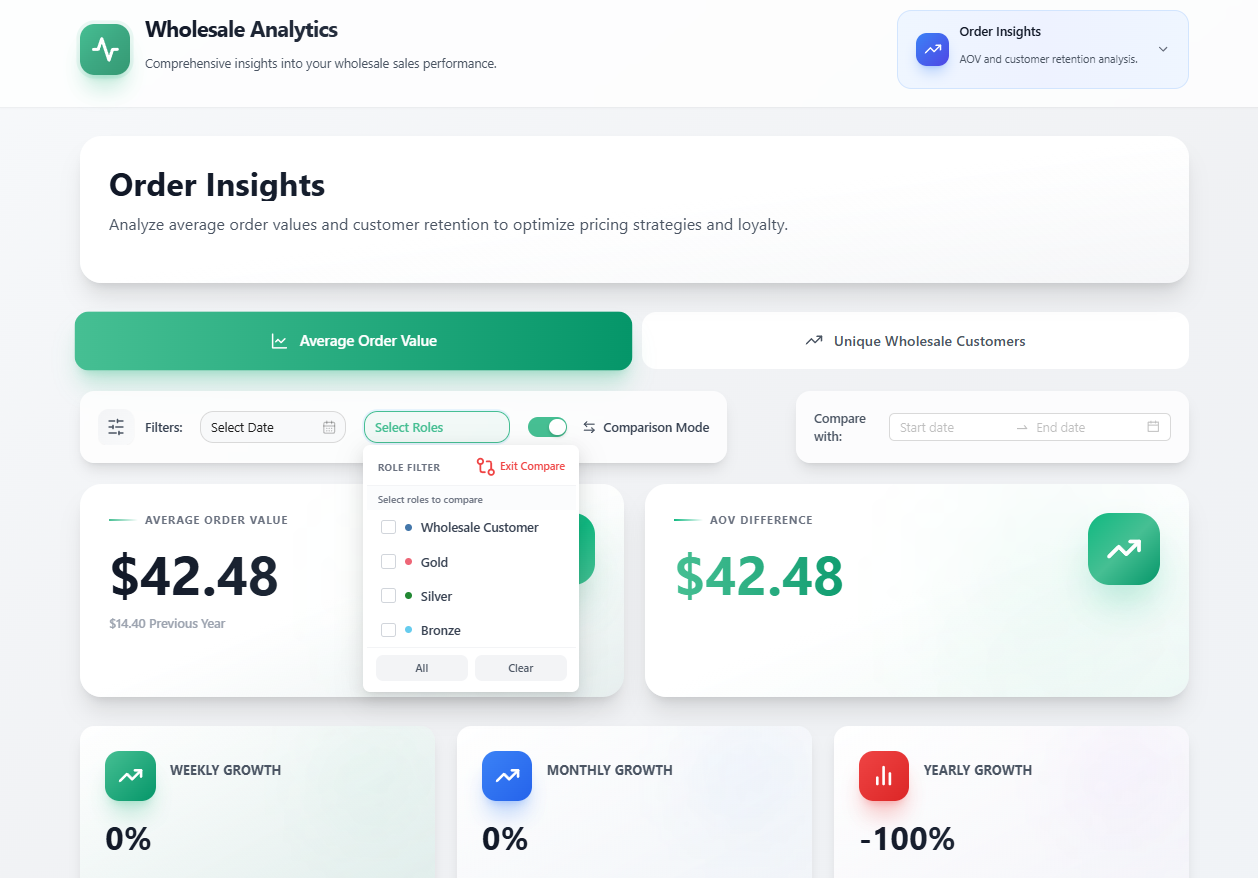
The final tab focuses on Average Order Value and Unique Wholesale Customers. You get metric cards per role for figures like average order value, AOV difference, and weekly, monthly, and yearly growth, plus a grouped bar chart and a summary table per role.
One thoughtful detail worth knowing: when a tab’s data source does not return a particular column, that cell shows a dash rather than a misleading number. So your wholesale role comparison never invents a value just to fill a table.
Tips For Getting The Most Out Of Wholesale Role Comparison
To turn your wholesale role comparison into action rather than just a nice chart, keep a few habits in mind.
Compare on more than revenue alone. A tier with lower total revenue but a much higher average order value may be more profitable per order and more worth protecting. Use the Order Insights tab alongside Sales Overview to catch that nuance.
Expand the role cards before you draw conclusions. The top 5 products and top 3 categories inside Show Details often explain why one tier outperforms another, which points you toward the products to stock deeper or promote harder.
Once a tier proves its value, reward it. You can pair your findings with role-based pricing and targeted discounts in Advanced Coupons to send your best-performing tier an offer designed to deepen the relationship and lift retention even further.
Conclusion
Multiple wholesale tiers only pay off if you can tell which one is actually working, and that is precisely the gap wholesale role comparison closes. By placing your roles side by side across revenue, orders, average order value, products, and categories, the feature replaces manual spreadsheet wrangling with a clear answer you can act on the same day.
The setup is genuinely simple. Open your reports, choose a date range, flip on Comparison Mode, tick the roles you want, and the dashboard does the rest, complete with consistent colors, expandable role cards, and charts that stay readable even with several tiers in view. From there, the insight feeds directly into better decisions about pricing, stock, and where to spend your retention effort.
If you already run tiered wholesale pricing, wholesale role comparison is ready and waiting in your reports. If you are still on a single role, it is one more reason to grow into a tiered structure, knowing the analytics will keep pace as you scale.
Here is what we covered in this article:
- What is the wholesale role comparison feature
- How to use wholesale role comparison step by step
- What you can compare with wholesale role comparison across four tabs
- Tips for getting the most out of wholesale role comparison
Frequently Asked Questions
Where do I find the wholesale role comparison feature?
It lives in the Wholesale Analytics dashboard inside WooCommerce Wholesale Prices Premium. Go to Wholesale, then Reports, and open any of the four tabs. Click Select Roles and turn on the Comparison Mode toggle to start comparing roles.
How many wholesale roles can I compare at once?
You can compare two or more roles, and you can select all of your wholesale roles if you like. When you choose four or more roles with a previous-period comparison active, the charts automatically simplify to current-period bars so the view stays readable, while the previous-period numbers appear in the role cards and summary table.
What details can I see when I expand a role?
Clicking Show Details on a role card reveals that role’s revenue, order count, average order value, unique customers, top 5 products, and top 3 categories. It is the quickest way to understand why one tier is outperforming another.
Do I need extra permissions to use wholesale role comparison?
No. The feature runs on the same permissions that already control access to your wholesale reports, so anyone who can currently view those reports can use comparison mode without any new setup.