

Store owners running wholesale operations on WooCommerce have asked us the same question: when will the Wholesale Order Form support bundled products? Today, that wait is over. The new WooCommerce Product Bundle Integration in Wholesale Order Form v3.1.0 makes bundle products fully orderable through the form, opening up a major new sales channel for stores that package related items together.
Bundles are one of the most effective ways to lift wholesale order values. Industry research consistently shows that buyers presented with pre-assembled product groupings spend more, order faster, and return more often. The challenge until now has been the gap between offering bundles on your storefront and letting wholesale customers actually buy them through a fast, one-page ordering experience. The WooCommerce Product Bundle Integration closes that gap completely.
In this article, we’ll walk through what the new WooCommerce Product Bundle Integration does, why it matters for your store, how to set it up, and how to get the most out of it for your wholesale customers.
What Is The New WooCommerce Product Bundle Integration?
Before this update, bundle products created with the official WooCommerce Product Bundles extension were invisible inside the Wholesale Order Form. Your wholesale customers had to leave the order form, navigate to a separate product page, and configure the bundle there before returning to finish their order.
The WooCommerce Product Bundle Integration changes that. Bundles now appear as native rows inside the form, alongside your simple and variable products. If a bundle includes items that need configuration, such as a bundled t-shirt that needs a size selection, the order form shows the dropdowns inline. Customers can preview the contents of each bundle, configure any required choices, and add the whole bundle to the cart without ever leaving the page.
This is a big deal for stores that already use bundles to package related products together. With the WooCommerce Product Bundle Integration in place, your “Starter Kits,” “Monthly Subscription Boxes,” “Apparel Pre-Packs,” or any other grouped offering is now a first-class citizen in the order form.
Why Bundles Matter So Much For Wholesale Stores
If you’re not already using bundles in your wholesale operation, the data on bundling is hard to ignore. Strategic product bundling can increase wholesale Average Order Value (AOV) and reduce order processing time.
McKinsey research adds even more weight. B2B e-commerce has now overtaken in-person sales as the most effective sales channel, and buyers are placing increasingly large orders through self-service digital channels. The stores winning this shift are the ones making it easiest for wholesale buyers to find, configure, and reorder. Bundles, combined with a fast order form, are one of the most direct ways to deliver that ease.
Here are the practical reasons wholesale stores use bundles, all of which are now unlocked by the WooCommerce Product Bundle Integration:
- Faster reordering. A retailer who needs to restock can add a “Standard Restock Pack” in one click instead of selecting 15 individual items.
- Higher average order value. Bundles encourage buyers to take the full set rather than just the items they remember.
- Easier inventory management. Pre-packs let you move slow movers alongside top sellers.
- Better merchandising. A “Spring Collection Bundle” can act as a curated recommendation for wholesale buyers.
If you want a deeper dive into bundle pricing strategy, our 12 bundle pricing examples guide walks through the most effective pricing structures for online stores.
Who Is The WooCommerce Product Bundle Integration For?
This integration is designed for any WooCommerce store owner who runs a wholesale operation alongside the official WooCommerce Product Bundles extension. You’ll get the most benefit if any of the following apply to your store:
- Sell physical products in pre-assembled kits, starter packs, or themed sets
- Operate a subscription box or curated monthly bundle for wholesale buyers
- Sell apparel and offer pre-pack runs of sizes
- Ship parts, components, or supplies that customers typically buy together
- Upsell wholesale buyers into larger, multi-product purchases
The WooCommerce Product Bundle Integration is also useful if you previously had to maintain separate product pages and instructions just to walk wholesale buyers through bundle ordering. All of that friction is now gone.
How WooCommerce Product Bundle Integration Works Inside The Order Form
The team at Wholesale Suite designed the new integration so it feels native to anyone already familiar with the Wholesale Order Form. Bundles show up alongside other products in the order form table. There are no separate menus, no toggle settings to remember, and no extra shortcodes to deploy.
Bundle rows in the order form table
Each bundle appears as its own row, just like a simple product. Buyers see the bundle name, price, image, and the same column data you’ve configured for the rest of your form. If a bundle has variable items inside it, like “pick your chair color,” a small chevron or expansion control reveals the configuration panel inline. The buyer makes their selections and adds the configured bundle to the cart without ever leaving the form.
Variation labels that read naturally
Earlier versions of similar integrations would sometimes show internal slugs in the variation dropdowns, things like oak-matte / medium instead of Oak Matte / Medium. The WooCommerce Product Bundle Integration uses the human-readable variation labels you set up in WooCommerce, so dropdowns read the way your wholesale buyers expect.
Mobile-friendly configuration
On phones and tablets, tapping a bundle opens its configuration panel directly. The team weighed several options for touch-device behavior and landed on this approach because it gives buyers the clearest path forward without accidental taps.
Step By Step: How To Set Up The WooCommerce Product Bundle Integration
Here’s the full walkthrough, from plugin setup through to a wholesale customer placing a bundle order.
Part I: One-time setup (store owner)
Step 1: Make sure the required plugins are active
Go to WordPress Admin > Plugins. Confirm these are installed and active:
- WooCommerce
- WooCommerce Product Bundles 8.3 or newer (required for this integration)
- WooCommerce Wholesale Order Form v3.1.0+
- Wholesale Prices / Wholesale Prices Premium (if you use wholesale roles)
Step 2: Create or confirm you have a bundle product
Go to Products > All Products. You need at least one product whose type is “Product Bundle.” If you already sell bundles, skip ahead. If not, go to Products > Add New, choose Product Bundle in the Product data dropdown, add the bundled items underneath, set the bundle price, and publish.
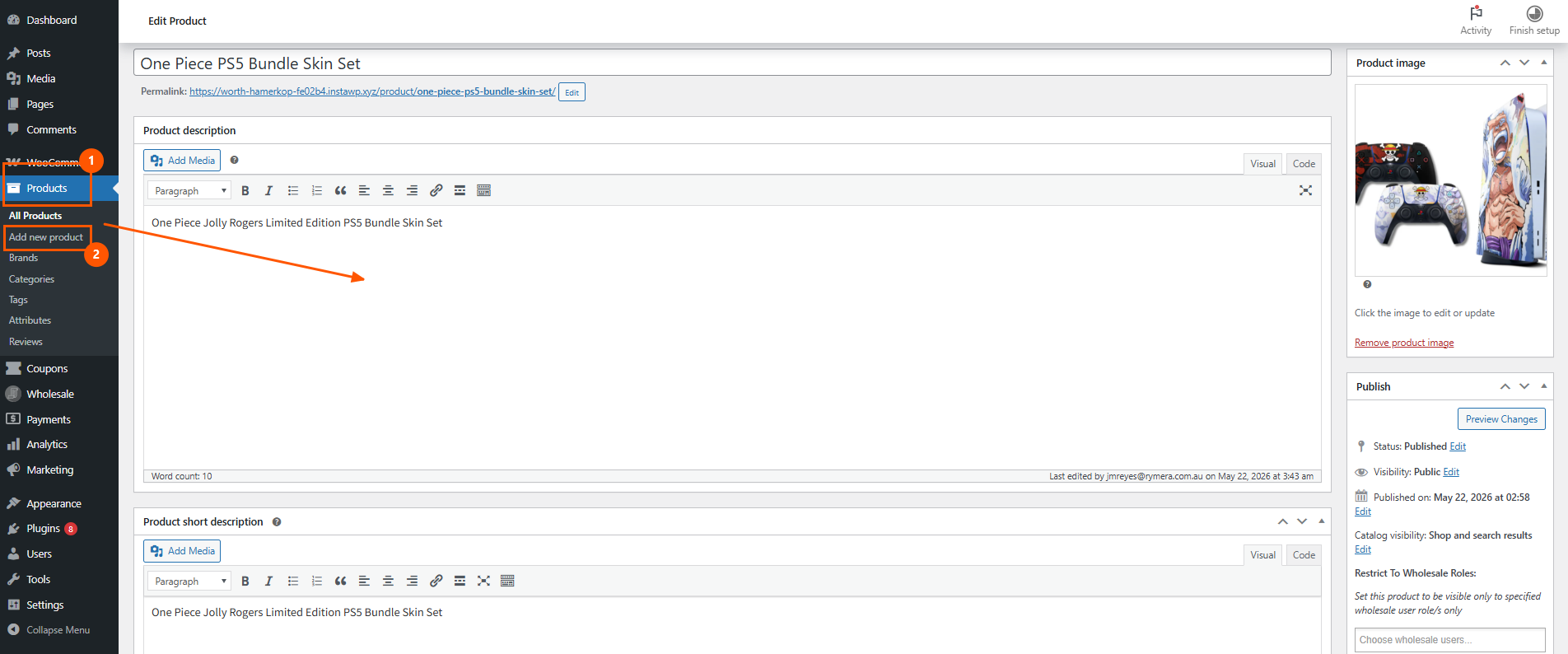
Step 3: Set wholesale pricing on the bundle (optional but recommended)
On the bundle’s product edit screen, scroll to the Wholesale Price fields and enter the discount price for each wholesale role. Our WooCommerce Product Bundles pricing integration guide has full details on how wholesale pricing works with bundled products.
Step 4: Make sure the bundle is included in your order form
Go to Wholesale > Order Forms and edit the order form you want bundles to appear in. If your form is set to “Show all products,” bundles will appear automatically. If your form is filtered by category, tag, or specific products, make sure the bundle is included in that filter, or assign it to a category that the form is set to display. Save the form. No special “enable bundles” toggle exists: bundles flow in through your normal product selection rules.
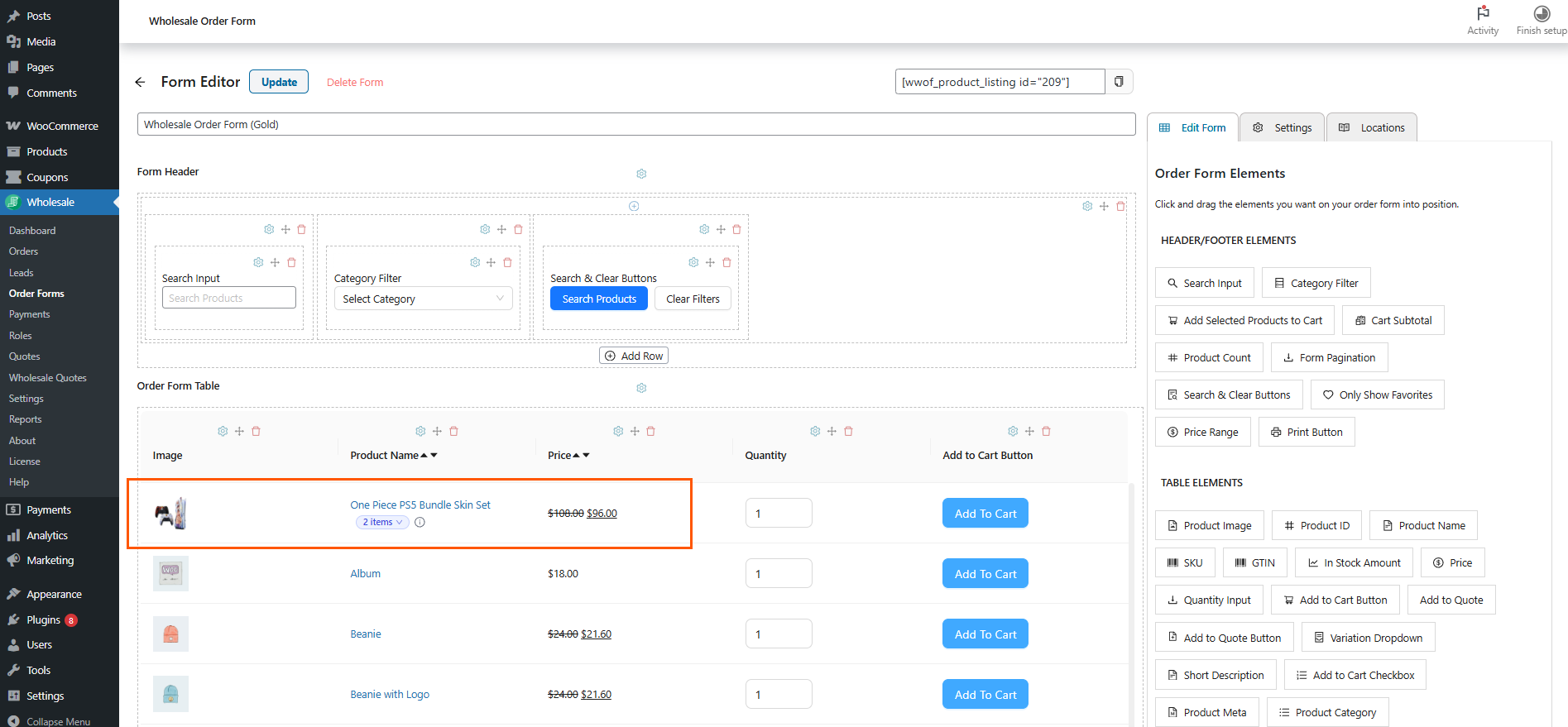
Part II: What you’ll see in the order form (buyer view)
Open the page where your Wholesale Order Form is displayed, logged in as a wholesale customer.
Step 5: The bundle appears as a row
The bundle shows up just like any other product in the table, with its name, image, SKU, price, and any other columns you’ve configured. You’ll see a small bundle indicator (called a “pill”) next to the product name showing it’s a bundle.
Step 6: Preview bundle contents (desktop)
Hover your mouse over the bundle pill. A small popover appears showing what’s inside the bundle. This is just a preview peek, and nothing has been added to the cart yet.
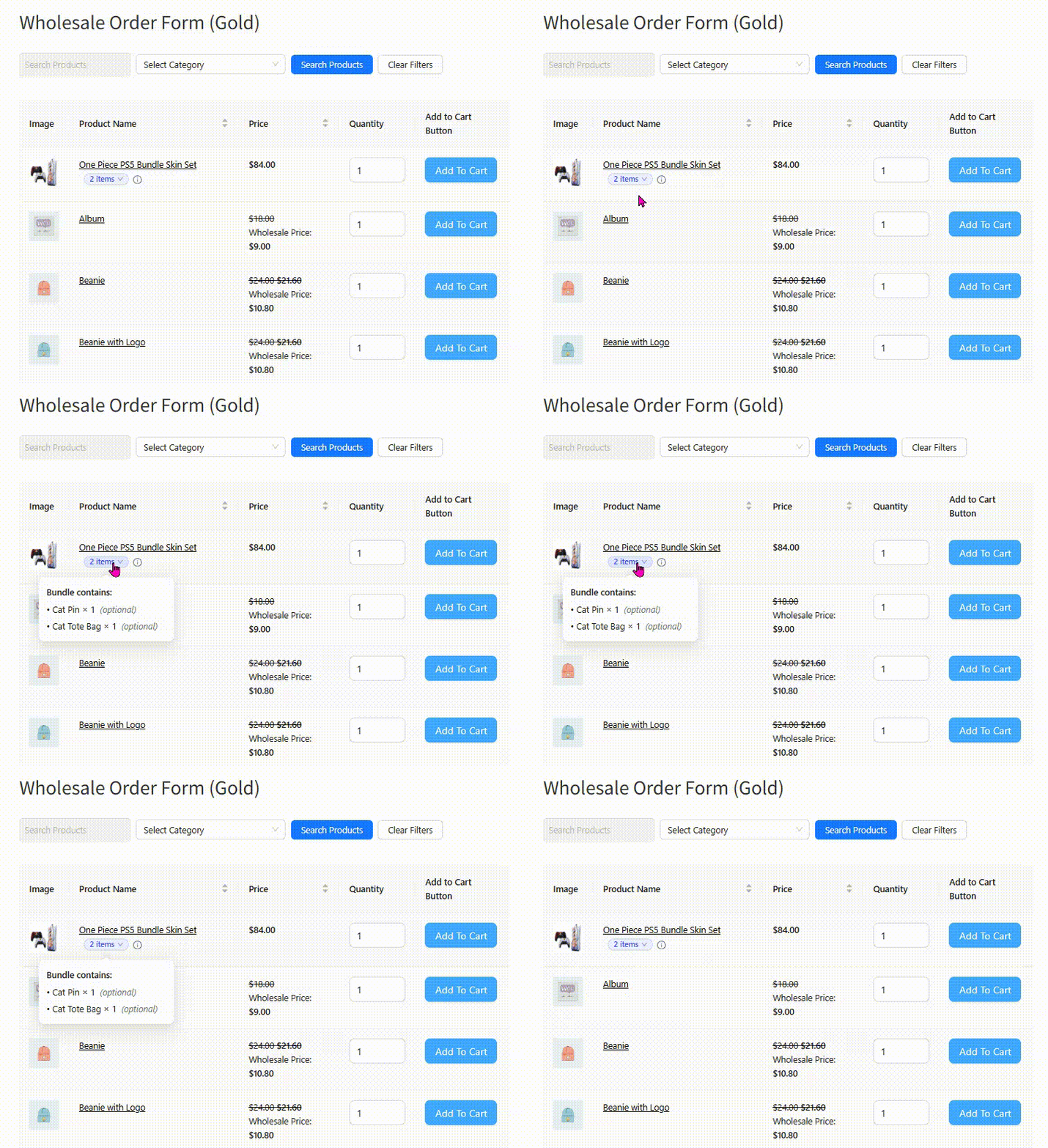
Step 7: Open the configuration panel (touch/mobile, or to make selections)
Click or tap the bundle pill. A configuration panel expands directly inside the order form row. You’ll see a list of all items in the bundle, dropdown selectors for any bundled item that has variations, and quantity controls if the bundle allows per-item quantity changes.
Step 8: Make your selections
Pick variations from the dropdowns. Adjust quantities if the bundle allows it. The bundle’s total price updates as you make changes.
Step 9: Add the bundle to the cart
Once configured, enter a quantity in the order form’s main quantity field for that bundle row, then click the Add to Cart button: either the per-row button or the bulk “Add Selected to Cart” button at the bottom of the form, depending on how your form is configured. The bundle goes into the cart with all selections preserved, exactly as if it were added from the single product page.
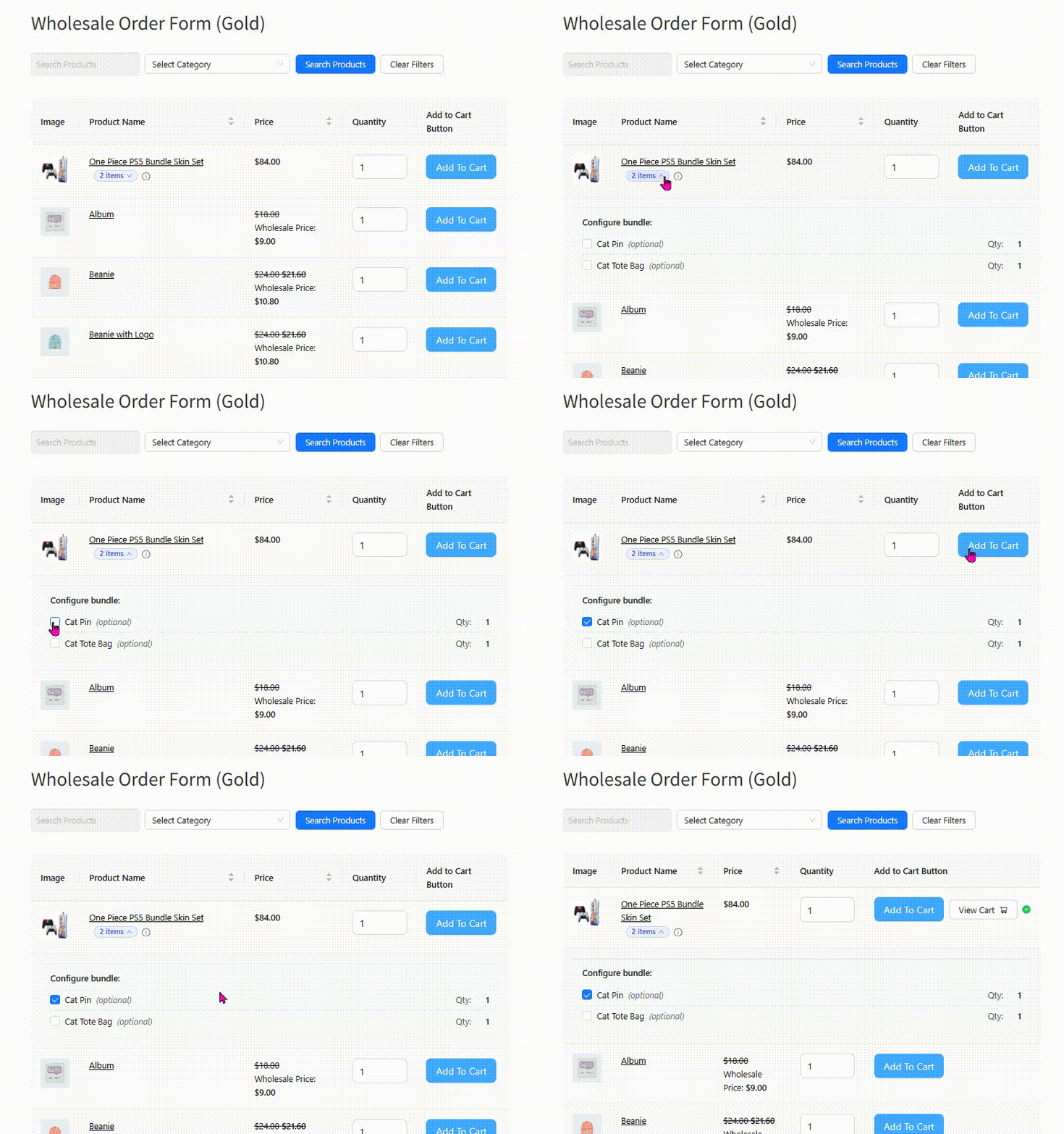
Step 10: Continue or check out
You can keep ordering more products from the same form, or click View Cart / Checkout to finish. If you’ve turned on the new “Open View Cart in same tab” setting, the link opens in the same window instead of a new tab.
Part III: How to verify it’s working
- Log in as a wholesale customer (not as admin, since admins see different visibility).
- Visit the order form page.
- Scroll until you find your bundle. It should display as a normal row.
- Hover (desktop) or tap (mobile) the bundle pill: the preview or configuration panel should appear.
- Add the configured bundle to the cart.
- Open the cart: you should see the bundle listed with all its bundled items underneath, just like a normal WooCommerce bundle purchase.
- (Optional, store admin) Go to WooCommerce > Orders after a test order and confirm the order shows the “Placed via: Wholesale Order Form” label.
Troubleshooting
- Bundle isn’t showing in the form. Check the form’s product filter rules. Also, confirm the bundle is published, in stock, and the wholesale customer’s role has access.
- Variation dropdown shows codes instead of labels. Clear any caching (page cache, object cache). The labels are sent in the data, so a stale cache could explain it.
- Bundle pill appears, but the configuration panel won’t open. Check the browser console for JavaScript errors and confirm WooCommerce Product Bundles is at version 8.3+.
Other v3.1.0 Improvements Worth Knowing About
The WooCommerce Product Bundle Integration is the headline of v3.1.0, but the release ships several other improvements that affect day-to-day use of your wholesale order form.
Column visibility by user role
You can now hide specific order form columns from non-wholesale users while keeping them visible for your wholesale buyers. The classic example is the “In Stock Amount” column. You might want your wholesale customers to see real-time stock, but you probably don’t want that data exposed to the general public. Each column in the order form editor now has a “Visible to” setting with three modes: All users, Wholesale users only, or Specific wholesale role(s).
This is enforced server-side. When a column is restricted, it’s stripped from the form entirely for users who don’t qualify, not just hidden with CSS. Sensitive data stays on the server.
Wholesale variations no longer leak
If you use Wholesale Prices Premium with the “Only Show Wholesale Products To Wholesale Customers” setting enabled, the order form’s variation dropdown now correctly hides non-wholesale variations from wholesale customers. The single product page already did this, but the order form was previously showing all variations. The v3.1.0 release fixes that.
“View Cart” link behavior
A new setting controls whether the “View Cart” link in the add-to-cart popup opens in the same tab or a new tab. Most WooCommerce stores expect same-tab behavior, so this option matches your buyers’ expectations.
Behind-the-scenes security tightening
Order form requests now always trust the user’s actual wholesale role on the server, rather than trusting whatever the browser claims. It’s an internal change with no user-facing impact, but it brings the order form in line with how the rest of Wholesale Suite handles role validation.
Best Practices For The WooCommerce Product Bundle Integration
Once your bundles are visible in the order form, a few small choices can dramatically lift their performance.
Lead with your most-ordered bundles
Use the form’s search and filtering options to make sure your most popular bundles surface near the top. Wholesale buyers reorder constantly, so the easier you make it for them to find the bundles they already love, the faster their checkout becomes.
Pair bundles with bundle discounts
If you also run Advanced Coupons, you can layer bundle-specific coupons on top of the WooCommerce Product Bundle Integration. The complete guide to WooCommerce bundle discounts on Advanced Coupons walks through how to structure these offers without cannibalizing your individual product sales.
Use clear, recognizable bundle names
“Premium Starter Kit” outperforms “Bundle SKU 47” every time. Your wholesale buyers are scanning the form. Names should communicate value at a glance.
Configure variation labels in WooCommerce
Because the new integration uses your WooCommerce variation labels directly, take a moment to confirm yours read naturally. Capitalized, properly spaced labels make the in-form configuration dropdown feel polished.
Combine bundles with column restrictions
If your bundles include exclusive wholesale-only configurations, pair the WooCommerce Product Bundle Integration with the new column visibility feature to hide those bundles or their stock data from retail visitors.
For more on layering features in the form, our guide on creating customer order forms that convert covers the full set of best practices.
Existing WooCommerce Product Bundles Pricing Integration
It’s worth noting that Wholesale Suite has supported wholesale pricing for bundled products for several years through Wholesale Prices Premium. Our WooCommerce Product Bundles integration page covers that pricing-level integration in detail. What’s new in v3.1.0 is the order form visibility piece. You can now combine wholesale pricing on bundles with full order form visibility for those same bundles, which is the configuration most wholesale stores have been asking for.
If you’re new to Wholesale Suite, our Wholesale Order Form v3.0 release post is a good overview of what the order form does today. The v3.1.0 update sits on top of that foundation, with the WooCommerce Product Bundle Integration as the main new capability.
Conclusion
WooCommerce Product Bundle Integration in Wholesale Order Form v3.1.0 closes one of the longest-standing feature gaps in the entire Wholesale Suite ecosystem. Bundles are now a fully native part of the order form experience, with inline configuration, accurate variation labels, smart cart awareness, and mobile-friendly behavior. For any store that already runs the official WooCommerce Product Bundles extension, this is a substantial upgrade with no extra configuration required.
We’re excited to put it in your hands!
Here is what we covered in this article:
- What the new WooCommerce Product Bundle Integration is
- Why bundles matter so much for wholesale stores
- Who the WooCommerce Product Bundle Integration is for
- How the WooCommerce Product Bundle Integration works inside the order form
- Step by step setup for the WooCommerce Product Bundle Integration
- Other v3.1.0 improvements worth knowing about
- Best practices for the WooCommerce Product Bundle Integration
- Existing WooCommerce Product Bundles pricing integration
Frequently Asked Questions
Do I need a separate license to use the WooCommerce Product Bundle Integration?
No. The integration is included automatically in Wholesale Order Form v3.1.0. You will, however, need the official WooCommerce Product Bundles extension (v8.3 or newer) installed and active alongside your Wholesale Order Form plugin.
Will the WooCommerce Product Bundle Integration work with my existing bundle products?
Yes. Any bundle product you’ve already created through the WooCommerce Product Bundles extension will appear automatically in your order form after updating to v3.1.0. You don’t need to recreate or reconfigure any bundles.
Can wholesale customers configure bundle options inside the order form?
Yes. If your bundle has variable items inside it, the order form shows an inline configuration panel where customers can pick their options without leaving the page. Once they’ve made their selections, they add the fully configured bundle to the cart from the same place.
What happens if I deactivate WooCommerce Product Bundles?
The order form will degrade gracefully. Bundle rows will no longer appear, and any cart presence indicators that referenced bundles will revert to the standard in-cart behavior. Your individual products will continue to work exactly as before.
Does the WooCommerce Product Bundle Integration affect wholesale pricing on bundles?
No. Wholesale pricing for bundles is handled by the existing Wholesale Prices Premium integration. The new v3.1.0 work focuses purely on order form visibility and configuration. Pricing rules you’ve already set up for bundled products will continue to apply.