
WooCommerce Wholesale Quotes sends automatic email notifications at each stage of the quote lifecycle, from submission through to conversion or expiry. This article documents all eight email notifications, who receives each one, what triggers it, and how to customise the subject, heading, and content.
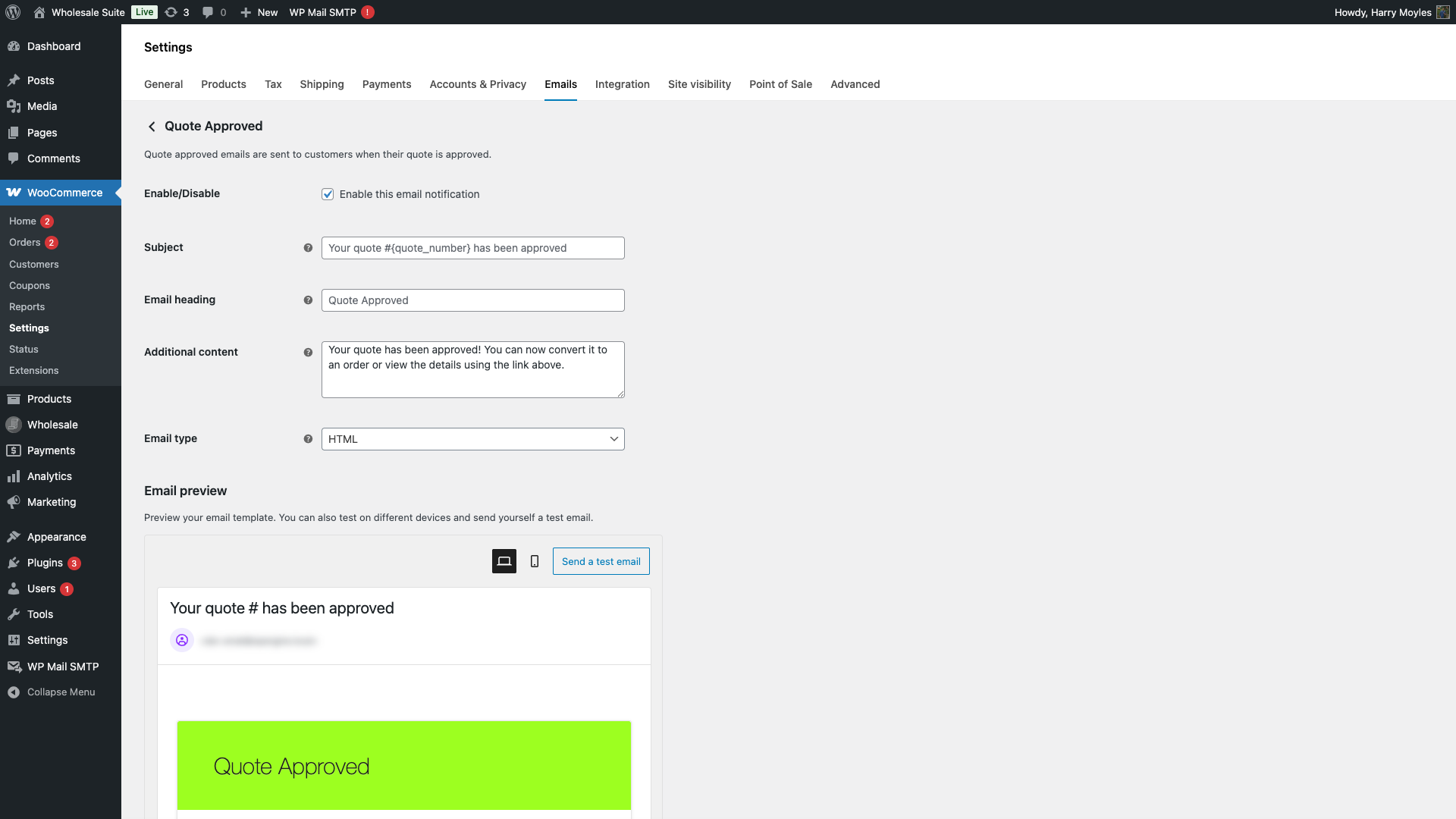
All email templates are managed through the standard WooCommerce email settings. To access them, go to WooCommerce > Settings > Emails.
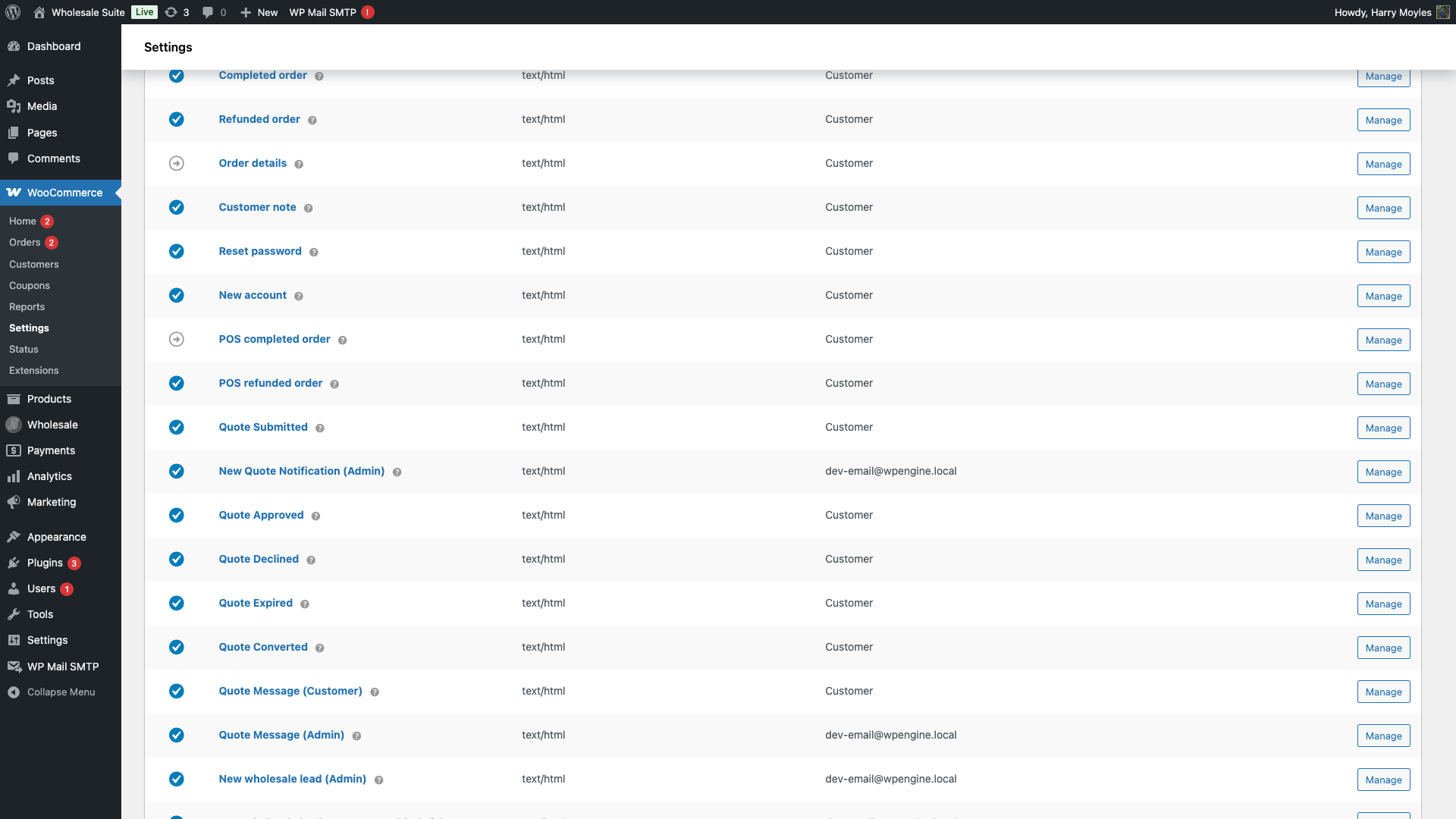
Quote Submitted (Customer)
| Detail | Value |
|---|---|
| Sent to | Customer |
| Trigger | Customer submits a new quote |
| Enabled by default | Yes |
| Default subject | Your quote #{quote_number} has been submitted |
| Default heading | Quote Submitted Successfully |
| Default additional content | We have received your quote request and will review it shortly. You will receive a response within 24–48 hours. |
| Available placeholders | {quote_number}, {quote_date}, {customer_name} |
This email confirms to the customer that their quote was received. It is sent at the same moment as the admin notification below.
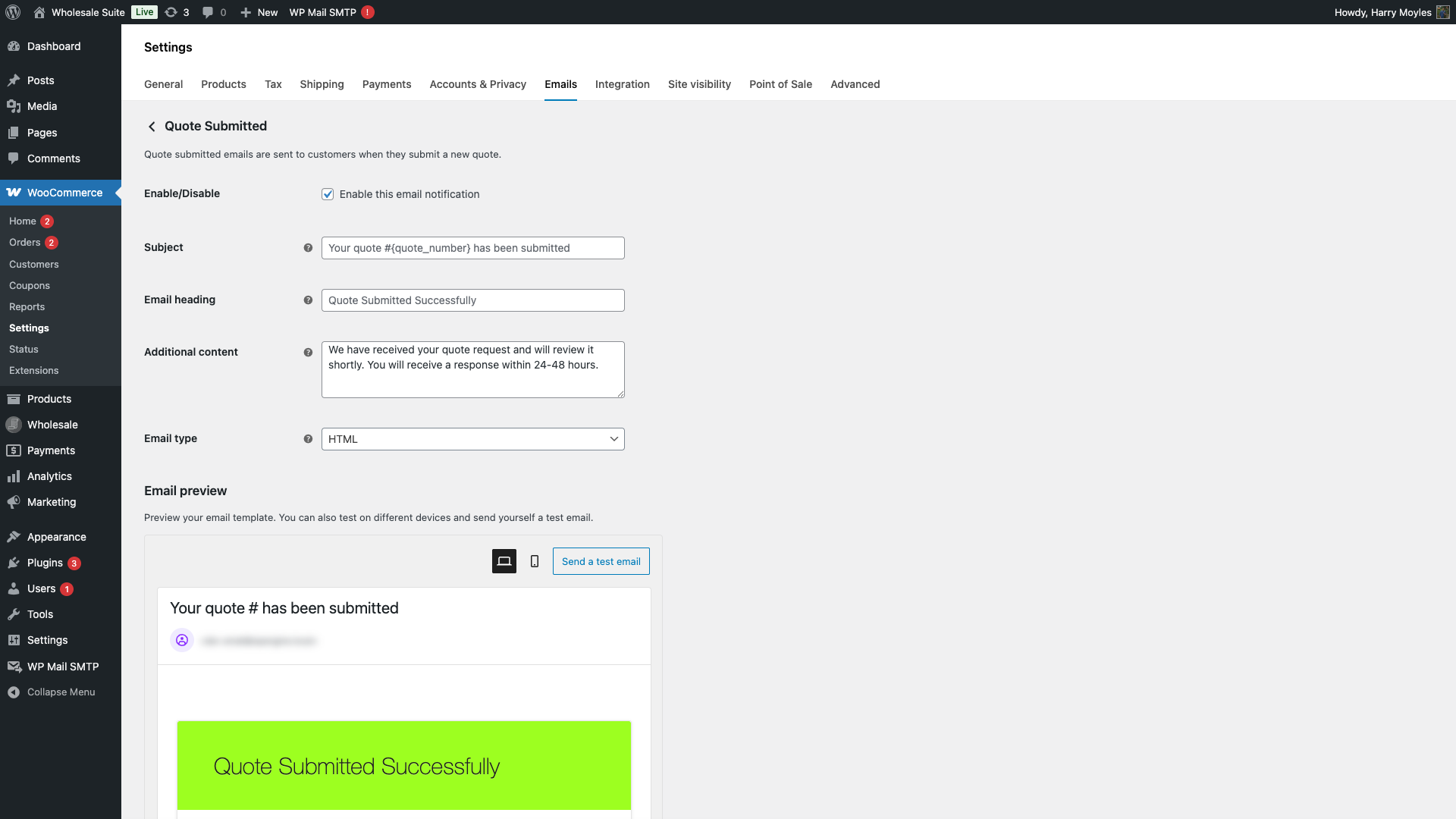
New Quote Notification (Admin)
| Detail | Value |
|---|---|
| Sent to | Admin (configurable) |
| Trigger | Customer submits a new quote |
| Enabled by default | Yes |
| Default subject | New quote #{quote_number} received from {customer_name} |
| Default heading | New Quote Received |
| Default additional content | Please review and respond to this quote request as soon as possible. |
| Available placeholders | {quote_number}, {quote_date}, {customer_name}, {quote_total} |
This email alerts your team whenever a new quote arrives. The recipient defaults to your site’s admin email address. You can change it, or add multiple recipients separated by commas, using the Recipient(s) field on the email settings screen.
You can also control the admin recipient from Wholesale > Settings > Wholesale Quotes > Notifications > Admin Email Recipient, which provides the same setting in one place.
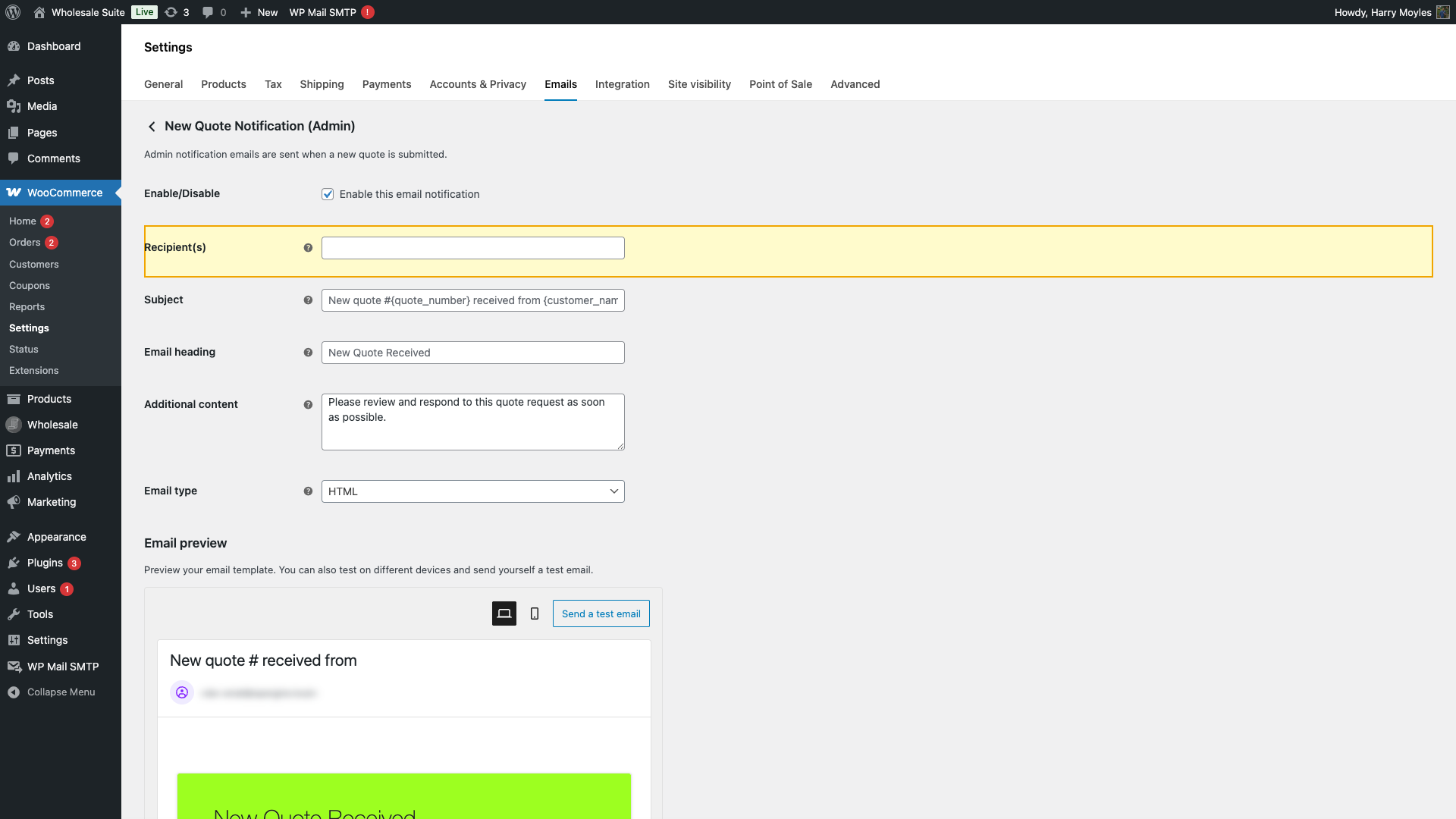
Quote Approved
| Detail | Value |
|---|---|
| Sent to | Customer |
| Trigger | Admin approves the quote |
| Enabled by default | Yes |
| Default subject | Your quote #{quote_number} has been approved |
| Default heading | Quote Approved |
| Default additional content | Your quote has been approved! You can now convert it to an order or view the details using the link above. |
| Available placeholders | {quote_number}, {quote_date}, {customer_name}, {quote_total}, {quote_url} |
Sent when you approve a quote from the admin panel. The email includes a link back to the quote so the customer can review the details and proceed to checkout.
Quote Declined
| Detail | Value |
|---|---|
| Sent to | Customer |
| Trigger | Admin declines the quote |
| Enabled by default | Yes |
| Default subject | Update on your quote #{quote_number} |
| Default heading | Quote Update |
| Default additional content | If you have any questions about this decision, please contact us. We appreciate your interest and look forward to working with you in the future. |
| Available placeholders | {quote_number}, {quote_date}, {customer_name}, {decline_reason} |
The {decline_reason} placeholder inserts the reason you enter when declining a quote. If you leave the reason blank when declining, this placeholder outputs nothing in the email.
Quote Converted
| Detail | Value |
|---|---|
| Sent to | Customer |
| Trigger | Admin converts the quote to a WooCommerce order |
| Enabled by default | Yes |
| Default subject | Your quote #{quote_number} has been converted to order #{order_number} |
| Default heading | Quote Converted to Order |
| Default additional content | Your quote has been successfully converted to an order. You can view your order details using the link above. |
| Available placeholders | {quote_number}, {order_number}, {order_date}, {customer_name}, {order_url} |
This email notifies the customer that their approved quote has been turned into a real order. The {order_url} placeholder links directly to the WooCommerce order detail page so the customer can track and pay for their order.
Quote Expired
| Detail | Value |
|---|---|
| Sent to | Customer |
| Trigger | Quote passes its expiry date (checked daily) |
| Enabled by default | Yes |
| Default subject | Your quote #{quote_number} has expired |
| Default heading | Quote Expired |
| Default additional content | If you would like to resubmit this quote or create a new one, please visit our website. |
| Available placeholders | {quote_number}, {quote_date}, {customer_name}, {expiry_date} |
Quote expiry is checked once per day in the background. The number of days before expiry is configured under Wholesale > Settings > Wholesale Quotes > General > Quote expiration days. Setting it to 0 means quotes never expire and this email is never sent.
Quote Message (Customer)
| Detail | Value |
|---|---|
| Sent to | Customer |
| Trigger | Admin sends a message on the quote thread |
| Enabled by default | Yes |
| Default subject | New message on your quote #{quote_number} |
| Default heading | New Quote Message |
| Available placeholders | {quote_number}, {customer_name}, {admin_name} |
When messaging is enabled and an admin posts a message on a quote, this email notifies the customer. The Enable Messages setting must be on (under Wholesale > Settings > Wholesale Quotes > General) for messages, and therefore this email, to be available.
Quote Message (Admin)
| Detail | Value |
|---|---|
| Sent to | Admin (configurable) |
| Trigger | Customer sends a message on the quote thread |
| Enabled by default | Yes |
| Default subject | New message on quote #{quote_number} from {customer_name} |
| Default heading | New Customer Message |
| Available placeholders | {quote_number}, {customer_name} |
Alerts you whenever a customer replies in the quote message thread. The recipient defaults to the admin email. You can change it in the email’s settings screen under WooCommerce > Settings > Emails.
How to customise email templates
Each email can be individually customised. The settings available for every email are:
- Enable/Disable: turn the email on or off without deleting its settings.
- Subject: the email subject line. Use the available placeholders to insert quote-specific data.
- Email heading: the heading displayed at the top of the email body.
- Additional content: optional text shown below the main email content. Useful for adding store-specific notes or calls to action.
- Email type: choose HTML, plain text, or multipart (sends both).
To edit an email:
- Go to WooCommerce > Settings > Emails.
- Find the email you want to edit and click Manage.
- Update the fields you need, then click Save changes.
For deeper template customisation, such as changing the layout or adding your logo, you can override the HTML templates by copying them into your theme. See the WooCommerce template structure documentation for instructions.
Enabling and disabling emails from plugin settings
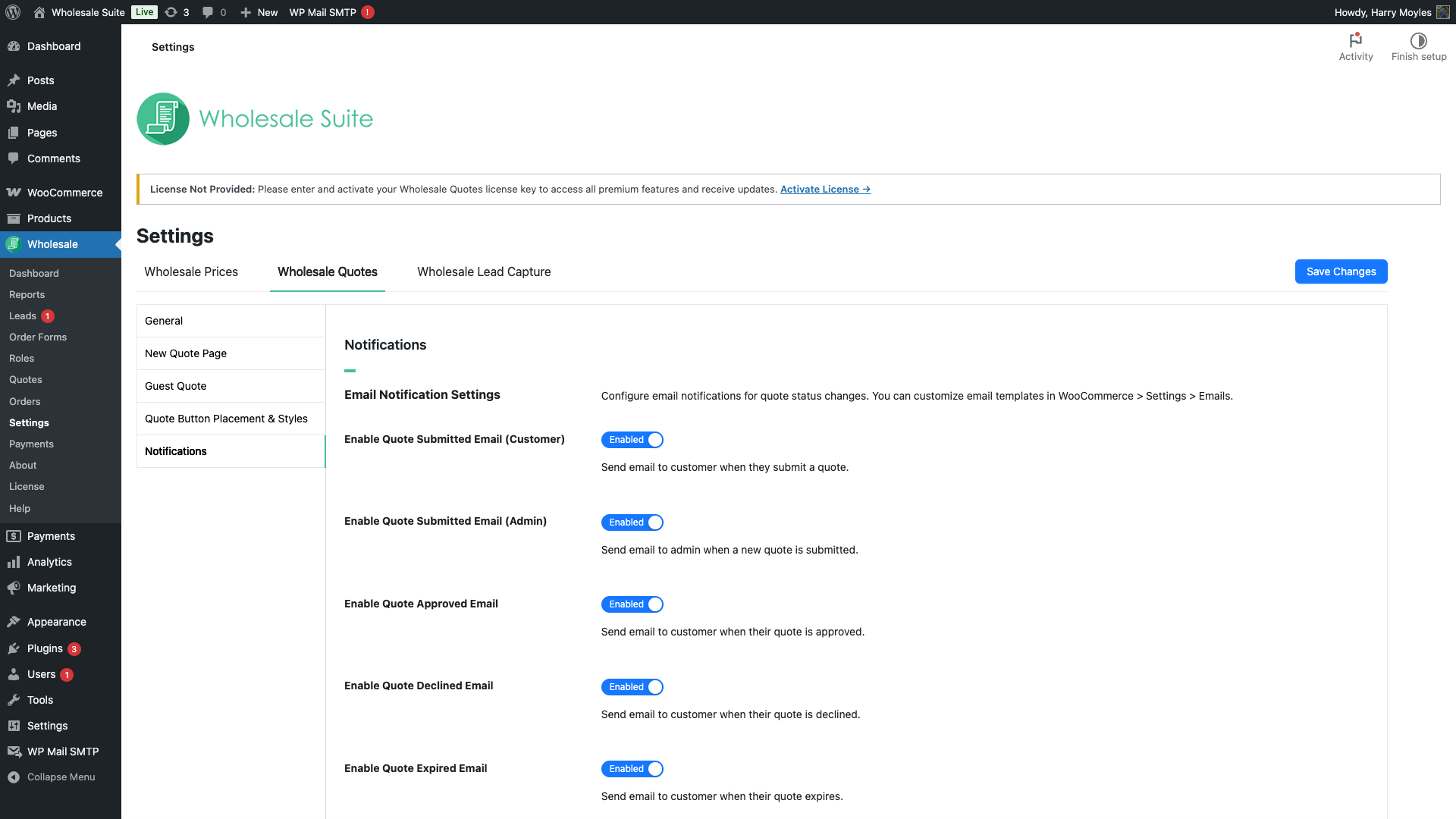
As an alternative to the WooCommerce Emails screen, you can enable or disable individual notification types directly from Wholesale > Settings > Wholesale Quotes > Notifications. Changes made in either place have the same effect.
Troubleshooting an empty Quote Items table
If a quote notification email shows the Quote Items table but no products, update WooCommerce Wholesale Quotes to version 1.0.2 or later. Version 1.0.2 and later load the saved quote line items before the email template is rendered.
After updating, submit a new test quote and trigger a new notification. The Quote Items table should show each product name, quantity, price, and line total. The subtotal and total should also match the quote. You do not need to change any notification settings.
Emails that were already sent are not rebuilt after an update, so use a newly generated notification when checking the fix.
Frequently asked questions
Can I send quote notifications to more than one admin email address?
Yes. In the Recipient(s) field on the New Quote Notification (Admin) and Quote Message (Admin) email settings screens, enter multiple addresses separated by commas.
Why isn’t the Quote Expired email being sent?
Check two things: (1) confirm the email is enabled under WooCommerce > Settings > Emails, and (2) confirm that Quote expiration days is set to a value greater than 0 in Wholesale > Settings > Wholesale Quotes > General. If expiration is set to 0, quotes never expire and the email is never triggered.
Do message notification emails work for guest customers?
Yes. Message emails are sent to the email address associated with the quote, regardless of whether the customer has a WordPress account.
Need help?
If you have a question or run into any issues, we’re here to help.
- Premium users: Open a support ticket
- Free users: Visit our community forum

