
Want wholesale customers to choose their own role when they sign up? If your store uses multiple wholesale roles, for example a standard wholesale customer role and a VIP wholesale role, you can add a role-selection dropdown to your registration form. It uses a custom field and a small PHP snippet. This guide shows you how.
Prerequisites
- WooCommerce Wholesale Prices Premium is active, with at least two wholesale roles created under Wholesale > Roles.
- WooCommerce Wholesale Lead Capture is active.
- You have access to your child theme’s
functions.phpfile or a code snippets plugin.
How it works
By default, WWLC assigns every approved lead the same role, whichever one is set in Wholesale > Settings > Wholesale Lead Capture > General > New Lead Role. The snippet below lets a registrant pick their own role from a dropdown you configure as a custom field, and stores their choice so WWLC applies it when you approve them.
Step 1 — Create the role-selection custom field
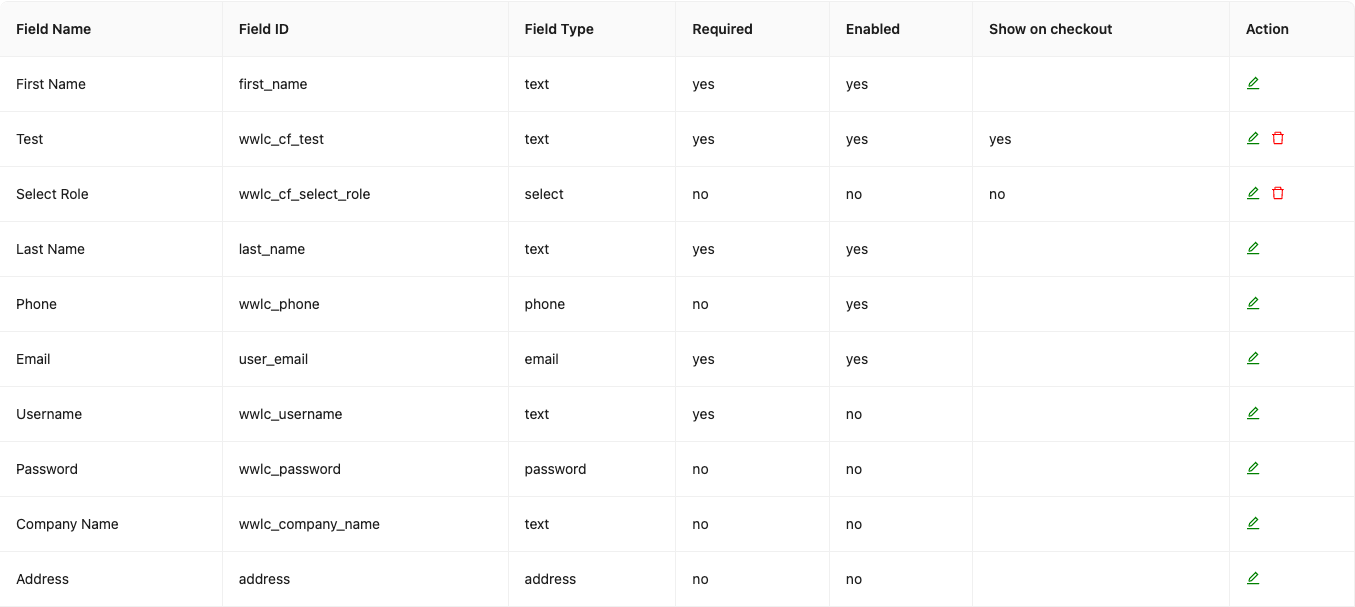
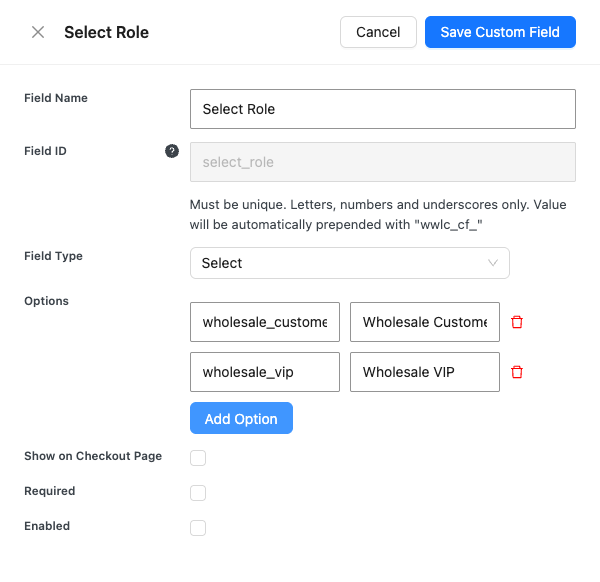
Go to Wholesale > Settings > Wholesale Lead Capture > Registration Form. Under Registration Fields, click Add Custom Field and add a new Select field with the field ID wwlc_cf_select_role.
For each option in the dropdown, set the value to the role key (the meta key) for that wholesale role. For example, if you have a role with the key wholesale_customer and a VIP role with the key wholesale_vip, your option values should be wholesale_customer and wholesale_vip respectively. The option label can be anything. It’s what the registrant sees.
Step 2 — Add the PHP snippet
Add the following code to your child theme’s functions.php file, or use a code snippets plugin:
add_action( 'wwlc_action_after_create_wholesale_lead', 'wwlc_set_role_from_custom_field' );

function wwlc_set_role_from_custom_field( $new_lead ) {
    $selected_role = get_user_meta( $new_lead->ID, 'wwlc_cf_select_role', true );

    if ( ! empty( $selected_role ) ) {
        update_user_meta( $new_lead->ID, 'wwlc_custom_set_role', sanitize_text_field( $selected_role ) );
    }
}
This snippet runs after a new lead is created. It reads the value from the role-selection dropdown (stored in user meta as wwlc_cf_select_role) and saves it as wwlc_custom_set_role. This is the internal meta key WWLC checks when assigning a role on approval.
Step 3 — Test the registration form
Once the custom field and snippet are in place, visit your wholesale registration page. You should see the role-selection dropdown in the form. Register a test account, select a role, then approve the user in Wholesale > Leads. The approved account should have the role the registrant selected, not the default role.
Frequently asked questions
What if the registrant doesn’t select a role?
If the dropdown is left blank or the custom field value is empty, WWLC falls back to the default role set in Wholesale > Settings > Wholesale Lead Capture > General > New Lead Role.
Can I use a different custom field ID?
Yes. If you use a different field ID, update the wwlc_cf_select_role key in both the add_action callback and the get_user_meta call to match your field ID.
Need Help?
If you have a question or run into any issues, we’re here to help.
- Premium users: Open a support ticket
- Free users: Visit our community forum

