Building a wholesale order form is the fun part. You pick the products, set up the columns, and your wholesale customers get a fast, one-page way to place big orders. But a form that only lives in your admin isn’t doing anything for you yet, and the last step is easy to forget when you’re busy running a store. That’s why Wholesale Order Form 3.1.3 adds a WooCommerce setup checklist right inside the Wholesale Suite dashboard.
It tracks the two things that actually put your form in front of buyers: creating the form and placing it on a published page. Each one ticks off separately, so you always know what’s left to do.
In this article, we’ll show you what the new WooCommerce setup checklist tracks, how to work through it step by step, where it shows up in WooCommerce Home, and the two optional emails that come with it.
What The New WooCommerce Setup Checklist Does
If you’ve updated Wholesale Prices recently, you may have already spotted the Get Started with Wholesale Prices card at the top of Wholesale > Dashboard. It walks you through setting up wholesale pricing, with a progress bar for each Wholesale Suite plugin you have installed.
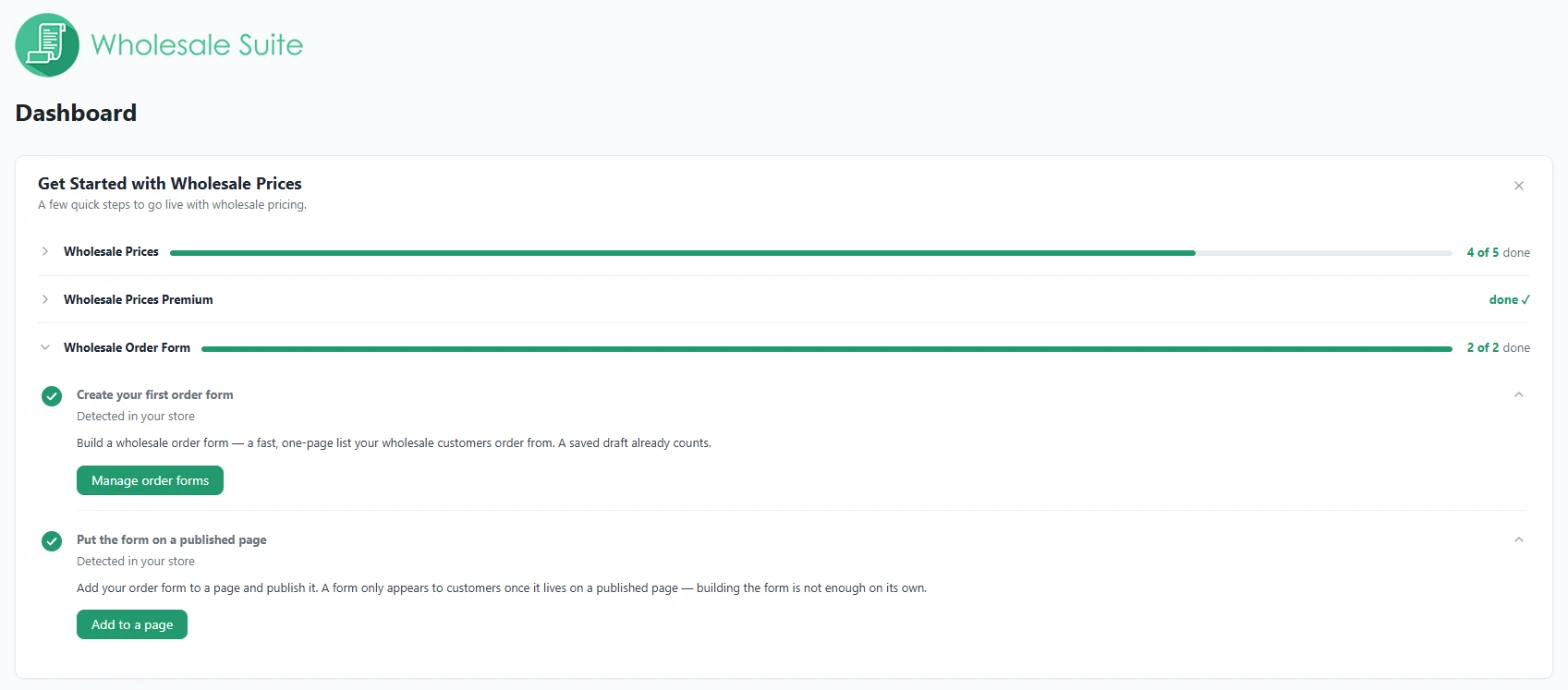
Wholesale Order Form 3.1.3 adds its own section to that card. It has a progress bar that reads 0 of 2, 1 of 2, or 2 of 2 done. Together with the Wholesale Prices and Wholesale Prices Premium sections, it turns the card into one WooCommerce setup checklist for your whole wholesale store.
The two steps it tracks
- Create your first order form. This ticks as soon as an order form exists in your store. A saved draft already counts, so you get credit for starting even before the form is finished.
- Put the form on a published page. This ticks once a published page or post on your site contains an order form shortcode.
Click a step to expand it. You’ll see a short explanation and a button that takes you straight to the right screen: Create an order form (or Manage order forms, once you have one) for the first step, and Add to a page for the second.
It checks your store for you
You never tick anything by hand. The section looks at your store and marks a step complete when it finds the work done, with the note Detected in your store underneath. Steps refresh the next time you load the dashboard after saving a form or a page.
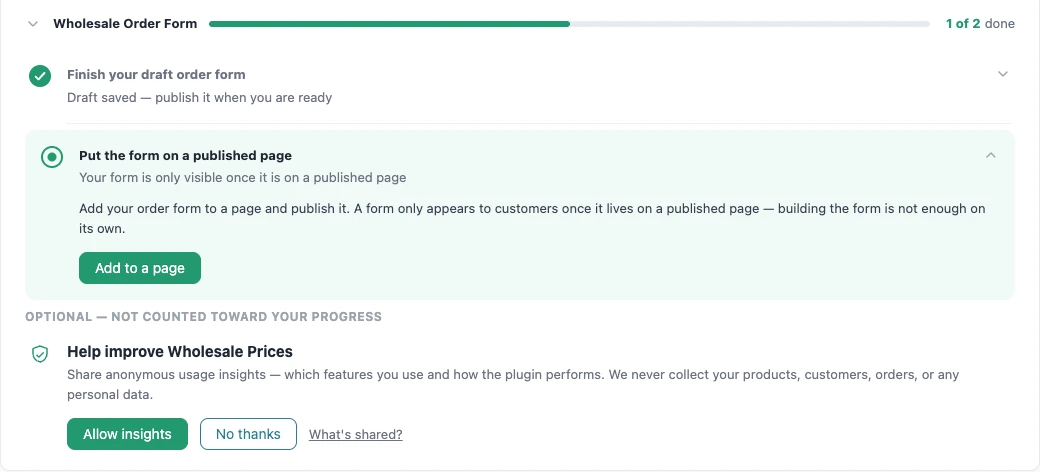
If your only form is still a draft, the first step stays ticked but changes its wording to Finish your draft order form. That nudges you to finish what you started instead of starting over. Detection also works with Breakdance, because the section checks Breakdance layouts as well as regular page content.
Why A WooCommerce Setup Checklist Helps Wholesale Order Forms
Here’s the catch that trips up a lot of new order form users: a form only appears to customers once it lives on a published page. Building the form on its own isn’t enough. The checklist spells this out and makes the second step hard to miss.
A visible progress bar also gives you a clear finish line. Instead of wondering whether you’ve skipped something, you can glance at the dashboard and see 2 of 2 done. That’s handy when you come back to a half-finished setup after a busy week.
It also helps if you run several Wholesale Suite plugins. The card keeps pricing, Premium, and Order Form setup together, so you have one place to check instead of a handful of separate screens.
Who it’s for
- New Wholesale Order Form users who want a guided path to their first live form.
- Agencies and freelancers setting up wholesale stores for clients, who need a quick way to confirm the order form is live before handing over.
- Existing stores, which will simply see the section as complete if a form is already on a published page.
How To Use The WooCommerce Setup Checklist Step By Step
Here’s the full walkthrough, from updating the plugins to seeing 2 of 2 done.
Step 1: Update Wholesale Order Form and Wholesale Prices
The new section ships with Wholesale Order Form 3.1.3. It plugs into the setup card that comes with Wholesale Prices, so you’ll also need Wholesale Prices 2.3.0 or newer. On an older version of Wholesale Prices, the order form section won’t appear, and nothing else about your store will change.
Update both plugins from Plugins > Installed Plugins. If you’re brand new to the plugin, our Wholesale Order Form getting started guide covers installation and licensing.
Step 2: Open the Wholesale dashboard
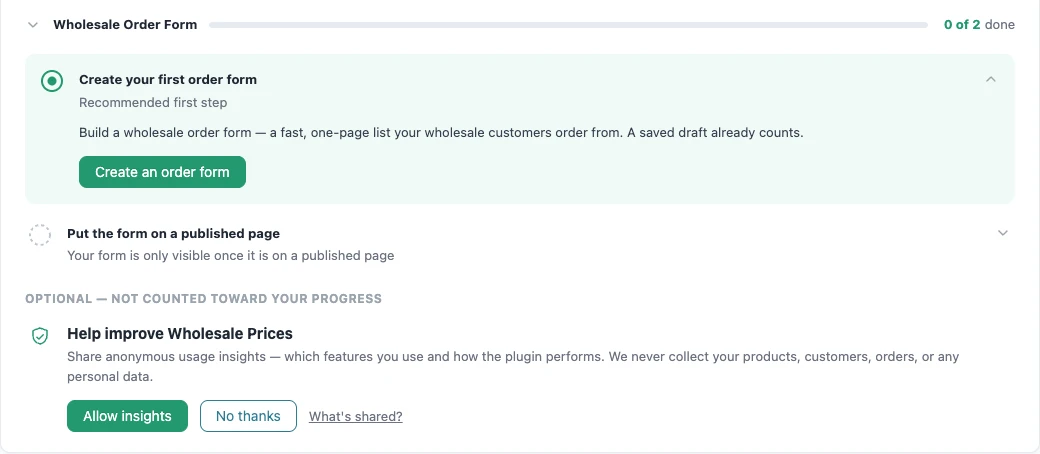
Go to Wholesale > Dashboard. The setup card sits at the top of the page, and the Wholesale Order Form section appears below the Wholesale Prices section. On a store with no order form yet, your WooCommerce setup checklist shows 0 of 2 done, with Create your first order form marked as the recommended first step.
Step 3: Create your first order form
Click Create an order form. It opens Wholesale > Order Forms, where you click Add Form and build your form. Choose the products, columns, and settings that suit your buyers, then save. Need ideas? Our guide to wholesale customer order forms that convert covers the best practices.
Even a saved draft completes this step. Back on the dashboard, the section moves to 1 of 2 done, and the step now reads Finish your draft order form.
Step 4: Publish the form and copy its shortcode
When the form is ready, publish it. Draft forms are only visible to administrators and shop managers, so your buyers won’t see a draft even once it’s on a page.
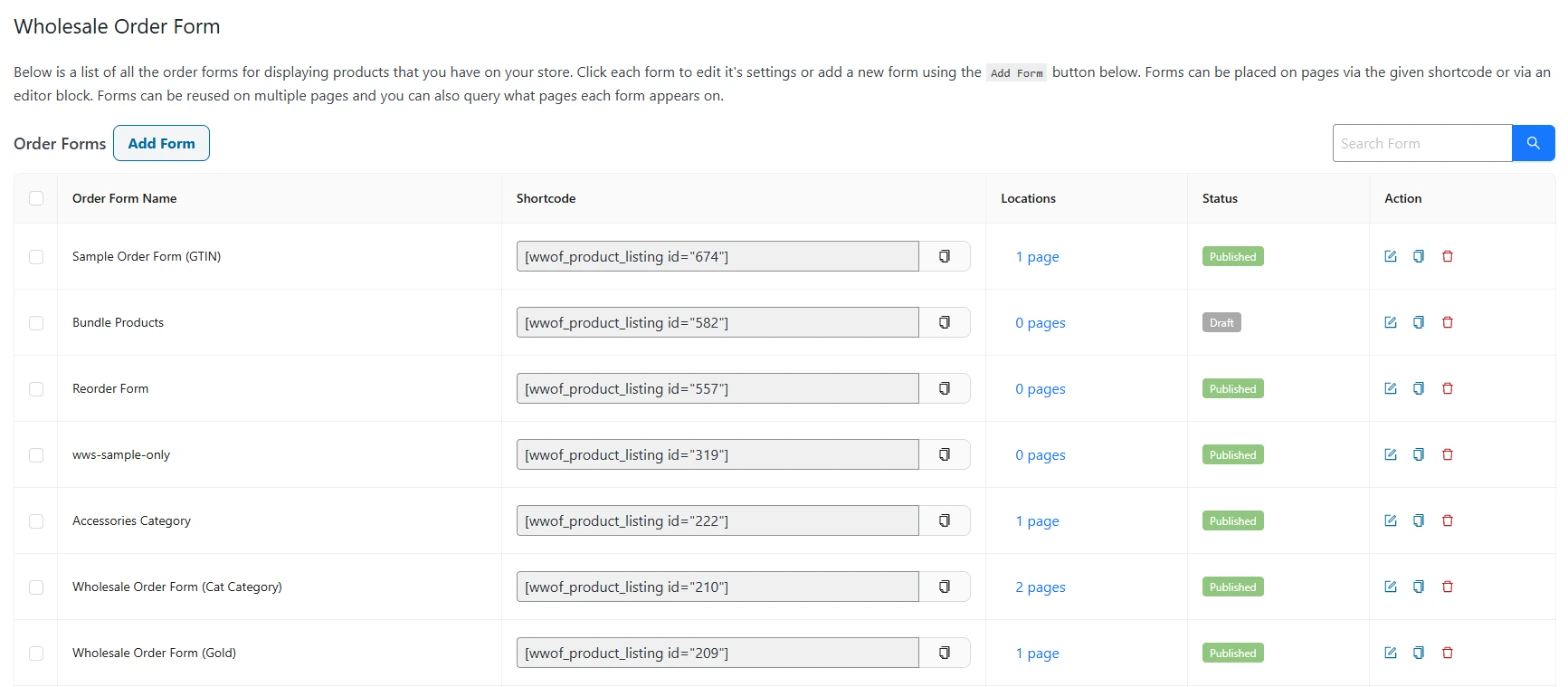
Every form has its own shortcode in the Shortcode column on Wholesale > Order Forms, with a copy button beside it. The Locations column shows how many pages each form appears on. A form showing 0 pages is one your customers can’t reach yet.
Step 5: Put the form on a published page
Click Add to a page in the checklist. It opens your Pages screen, where you can create a new page or edit an existing one. Add a Shortcode block, paste your form’s shortcode, and publish the page.
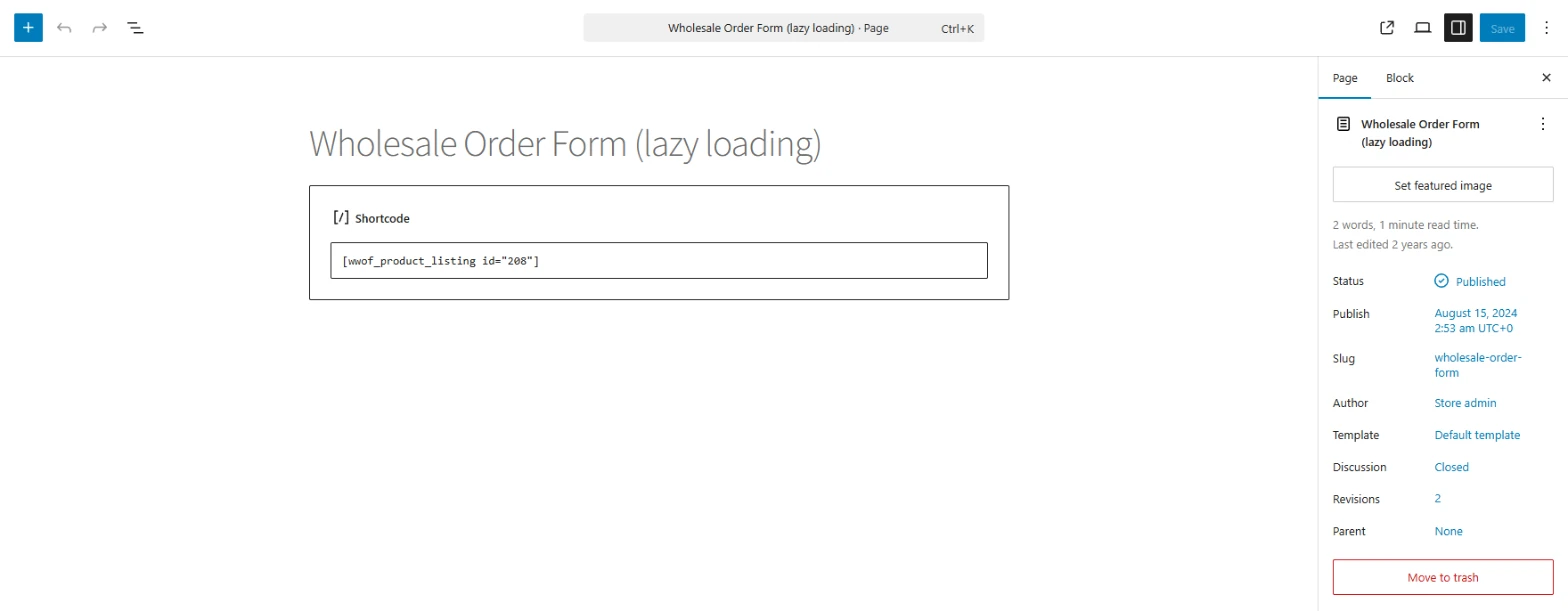
The step also counts a published post, not just a page. If you build pages with Breakdance, a form placed in a Breakdance layout counts as well. Running more than one form? Our guide to creating multiple order forms shows how to give different buyers their own form.
Step 6: Check your progress
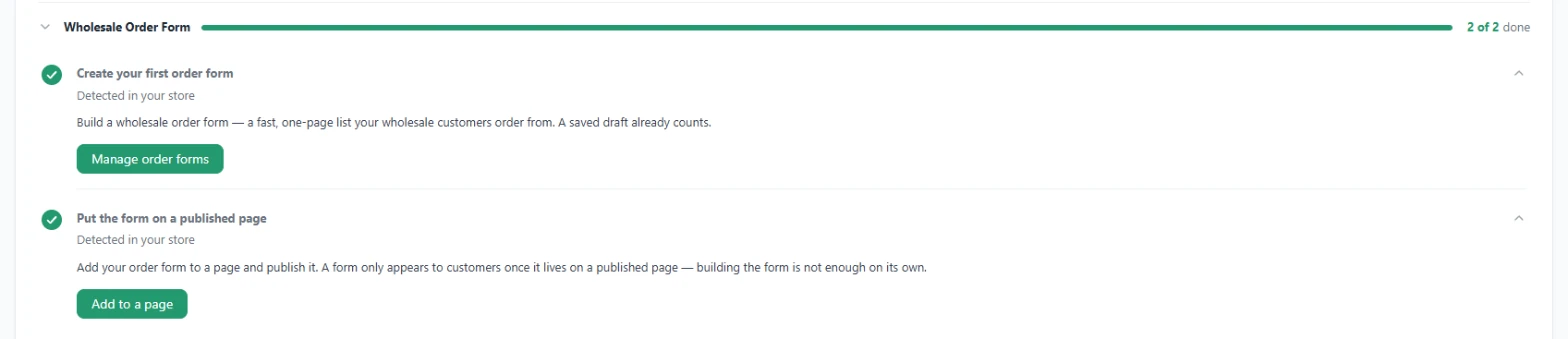
Reload Wholesale > Dashboard. Both steps now show a green tick with Detected in your store, and the section reads 2 of 2 done. That’s the order form part of your WooCommerce setup checklist finished.
Find Your Order Form Task In WooCommerce Home
You don’t have to visit the Wholesale dashboard to get a reminder. The update also adds a task called Set up your wholesale order form to the Things to do next list on WooCommerce Home. It’s labeled as a five-minute job, and clicking it takes you to the Wholesale dashboard.
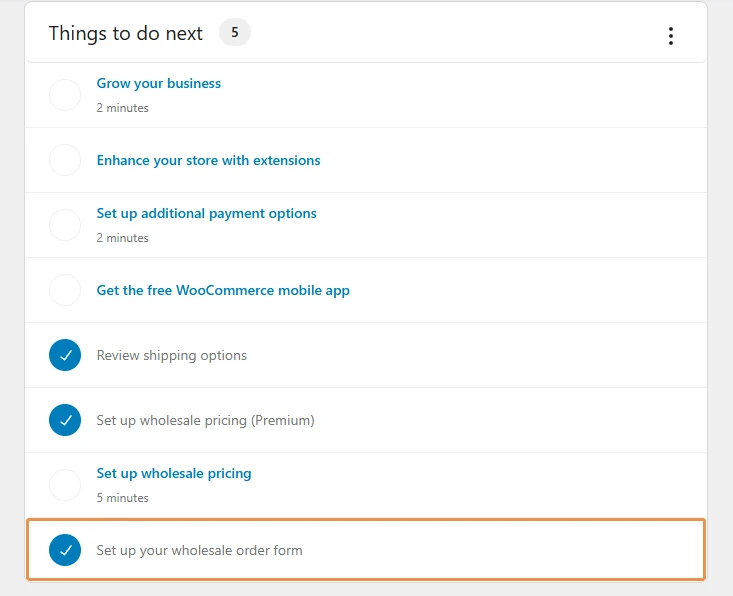
The task ticks off once you complete both order form steps. It also counts as done if you close the whole setup card with the X in its corner, since that tells Wholesale Suite you’ve finished with setup. Only users who can manage WooCommerce, such as administrators and shop managers, see the task.
Because the task reads the same information as the dashboard checklist, the two never disagree about your progress.
Two Setup Emails That Mark Your Progress
Wholesale Order Form 3.1.3 also adds two short emails to your store’s admin email address. They’re sent when something actually happens in your store, never on a timer, and each one goes out only once.
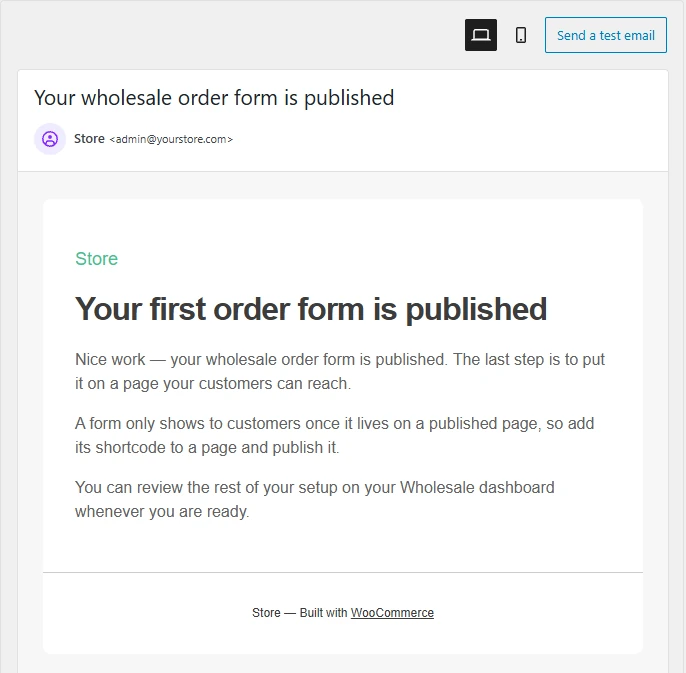
The first form published email
This is sent the first time you publish an order form, with the subject Your wholesale order form is published. It congratulates you and reminds you that the last step is putting the form on a page your customers can reach.
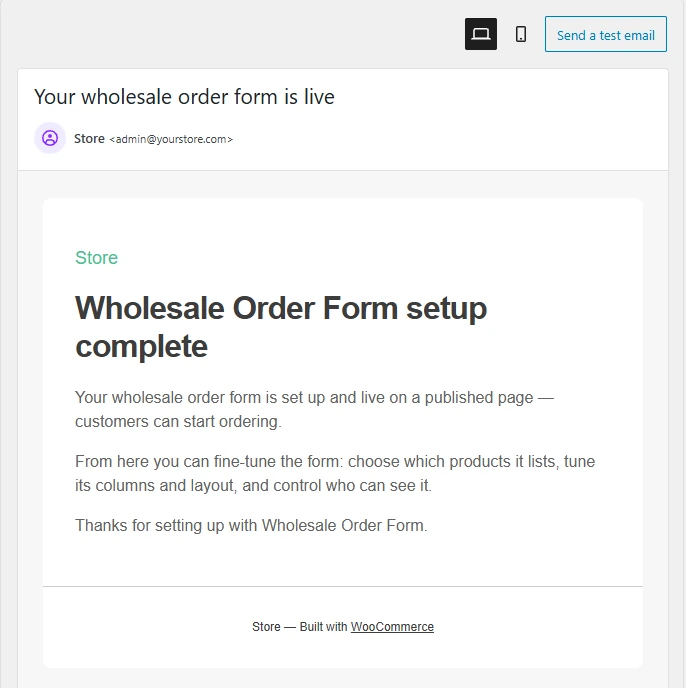
The setup complete email
This one is sent when the order form section of your WooCommerce setup checklist reaches 2 of 2, with the subject Your wholesale order form is live. It confirms your form is live and suggests what to fine-tune next: which products it lists, its columns and layout, and who can see it.
How to edit or turn off the emails
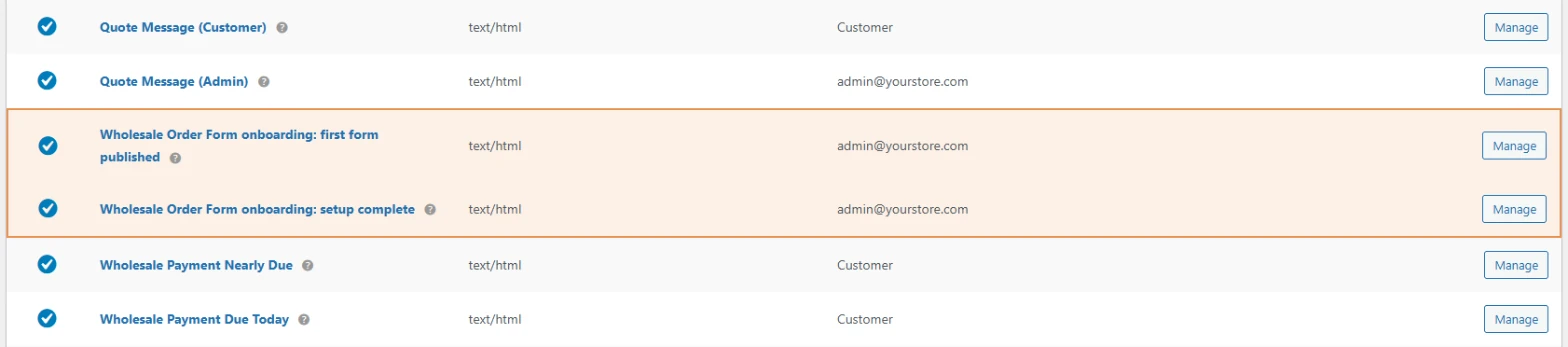
Both are regular WooCommerce emails, so you manage them under WooCommerce > Settings > Emails like any other WooCommerce email. Find Wholesale Order Form onboarding: first form published or Wholesale Order Form onboarding: setup complete and click Manage. From there, you can untick Enable this email, or rewrite the subject, heading, and message.
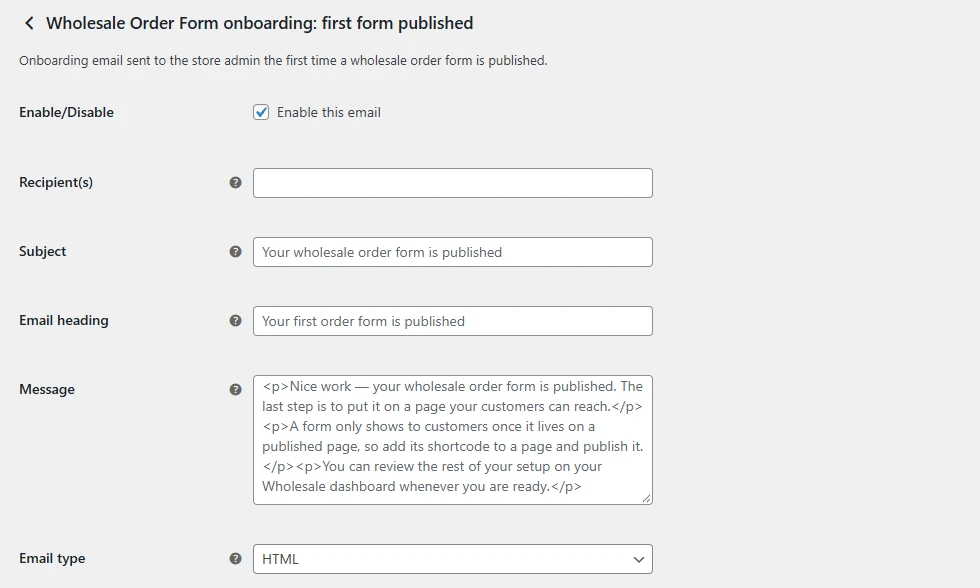
Two details are worth knowing. If your store already had a published form on a published page when you updated, neither email is sent, because there’s nothing new to celebrate. If an email is turned off when its milestone happens, it won’t send later when you turn it back on.
Wholesale Suite also sends lifecycle emails to your wholesale customers, which you can read about in our lifecycle emails feature guide. For ideas on what makes a welcome sequence work, our sister brand Advanced Coupons has a handy guide to onboarding email essentials.
Tips For Getting The Most From Your Setup Checklist
A few habits make the checklist even more useful once your first form is live.
- Publish the form, not just the page. The second step checks that the page is published. If the form on it is still a draft, buyers see nothing, so make sure the form’s status reads Published on Wholesale > Order Forms.
- Use the Locations column for every form. The checklist goes green once one form is on a page. If you build more forms later, the Locations column is the quickest way to spot any that aren’t on a page yet.
- Close the card when you’re done. Once you complete every section of the card, the X in the card’s corner tidies up your dashboard and marks the WooCommerce Home task as done.
- Sharing insights is optional. The section notes when each step was first completed. That date only appears if you choose Allow insights in the optional Help improve Wholesale Prices panel on the same card.
What Else Is New In Wholesale Order Form 3.1.3
The setup checklist is the headline, but this release also fixes a long list of issues. Here are the ones your buyers are most likely to notice:
- Tighter privacy for products and prices. Logged-out visitors can no longer see private products or wholesale pricing in an order form, and each wholesale customer now sees prices only for their role.
- No more lost cart items. Clicking Add to Cart quickly on several products now adds every one of them, in order.
- Big orders add faster. Add Selected Products to Cart no longer stalls on large carts.
- Header cart icons update straight away on block themes that use WooCommerce’s Mini-Cart block.
- Default Category works for everyone, not just admins, and draft forms stay hidden from wholesale customers until you publish them.
- Clear messages when a connection drops, so buyers know to try again instead of wondering what happened.
Conclusion
An order form only earns its keep once your buyers can reach it, and that last step is the one most likely to slip. The new WooCommerce setup checklist in Wholesale Order Form 3.1.3 turns that into two clear steps on your Wholesale dashboard, checks your store for you, and shows a progress bar until your form is live on a published page.
With the matching task in WooCommerce Home and two optional emails that mark each milestone, you get gentle reminders without any extra admin work. Update to Wholesale Order Form 3.1.3 and Wholesale Prices 2.3.0, open your dashboard, and let your WooCommerce setup checklist show you exactly what’s left.
Here is what we covered in this article:
- What the new WooCommerce setup checklist does
- Why a WooCommerce setup checklist helps wholesale order forms
- How to use the WooCommerce setup checklist step by step
- Find your order form task in WooCommerce Home
- Two setup emails that mark your progress
- Tips for getting the most from your setup checklist
- What else is new in Wholesale Order Form 3.1.3
Frequently Asked Questions
Do I need Wholesale Prices to see the order form setup steps?
Yes. The order form section lives inside the setup card that comes with Wholesale Prices, so you need Wholesale Prices 2.3.0 or newer alongside Wholesale Order Form 3.1.3. On older versions, the section doesn’t appear and nothing else changes.
Does a draft order form count as done?
Yes. Saving a draft completes the first step, and it then reads Finish your draft order form. Remember to publish the form before you rely on it, because draft forms are only visible to administrators and shop managers.
Will I get the setup emails if my store was already set up?
No. If your store already had a published form on a published page when you updated, both emails are skipped. They’re only sent when a milestone happens after the update.
Can I turn off the onboarding emails?
Yes. Go to WooCommerce > Settings > Emails, click Manage next to either Wholesale Order Form onboarding email, and untick Enable this email. You can also rewrite the subject, heading, and message there.
Does it detect order forms built with a page builder?
It detects forms added with the shortcode in a published page or post, and forms placed in Breakdance layouts. If you use another builder, adding the shortcode in a regular page content area is the most reliable way to have the step tick.