
If your wholesale buyers regularly order dozens of products, you’ve probably heard this complaint before: adding items to a quote one by one takes too long. The WooCommerce CSV upload to quote feature in Wholesale Quotes is designed to address this.
According to Sana Commerce’s B2B Buyer Report 2025, 85% of B2B buyers experience frustrations when ordering online. Manual product entry is one of the most common sources of that friction.
Wholesale Quotes latest version introduces a WooCommerce CSV upload to quote feature that changes this entirely. Customers and store admins can now upload a spreadsheet file directly to a quote and bulk-populate it with products. Here’s how it works.
What Is The WooCommerce CSV Upload To Quote Feature?
The WooCommerce CSV upload to quote feature lets wholesale customers and store admins upload a CSV file. This can add multiple products to a quote at once. It bypasses manual product searches entirely.
Here’s what the feature covers:
- CSV template download: a pre-formatted template with four columns (id, sku, name, qty) is available to download from the Quote Page, so buyers know exactly how to structure their file
- Drag-and-drop upload: files can be dropped onto the upload zone or selected via file picker, and on mobile, a tap-to-select option is available
- Partial success handling: valid rows get added even if some rows have errors, and the errors are reported separately
- Duplicate detection: if the same product appears more than once in the CSV, the quantities are combined into a single line item with a warning shown
- Admin-side upload: store admins can use the same CSV upload feature directly in the quote editor
- Guest support: guest buyers can upload a CSV when guest quotes are enabled in your store’s settings
- Server-side pricing: prices never come from the CSV, so buyers cannot inject their own numbers. The plugin applies the correct wholesale price based on the buyer’s assigned role
- Rate limiting: uploads are capped at 5 per minute per user or IP address, which keeps the feature safe from abuse while staying generous for real-world use
How To Download The CSV Template
Before uploading, buyers need their file in the right format. To get the template:
- Go to the Quote Page on your store
- Find the CSV upload panel and click to expand it
- Click the Download Template link
- Open the file in Excel, Google Sheets, or any spreadsheet app
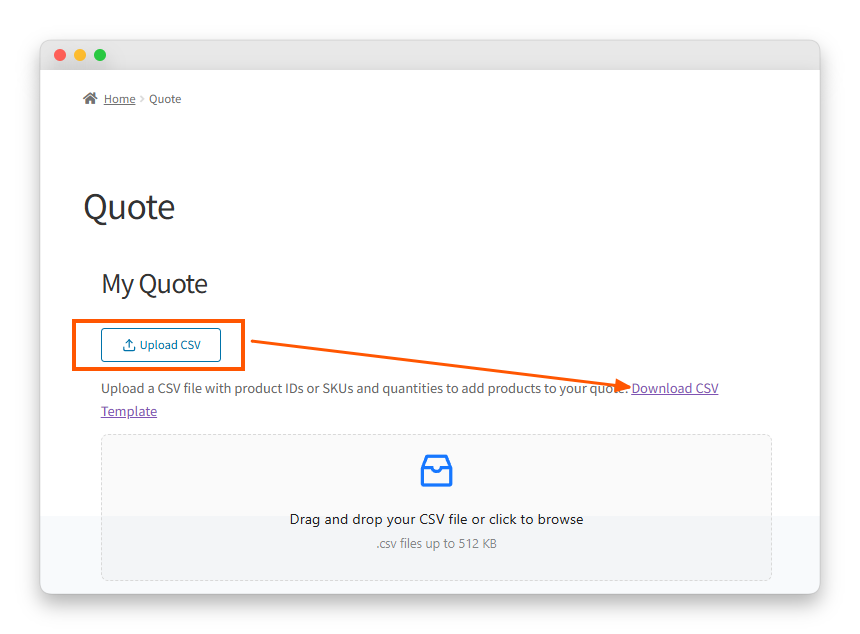
The template has four columns:
- id: the WooCommerce product or variation ID (optional if SKU is provided)
- sku: the product’s SKU (optional if ID is provided)
- name: a reference label for the buyer’s own use, and not used for product matching
- qty: the quantity to request
At least one of id or sku must be filled in per row. If both are included, the plugin cross-validates them, so any mismatch between them will be flagged as an error. This protects buyers from accidentally ordering the wrong item when a spreadsheet has been edited over time.
How To Upload Your CSV On The Quote Page
Once the file is ready, the WooCommerce CSV upload-to-quote process on the Quote Page takes just a few seconds.
- Visit the Quote Page on your store
- Open the CSV upload panel (click the panel header to expand it if collapsed)
- Drag and drop your CSV file onto the upload zone, or click to open the file picker
- Wait for the processing spinner to complete
- Review the result banner, where valid products are added to your draft quote immediately
What the result screen shows
After upload, a banner confirms how many products were added. If all rows are valid, a success message appears, and the products are displayed in the quote.
If some rows had issues, a partial success banner appears alongside an error table listing each problem by row number, for example, “Row 14: SKU not found” or “Row 22: product does not exist.”
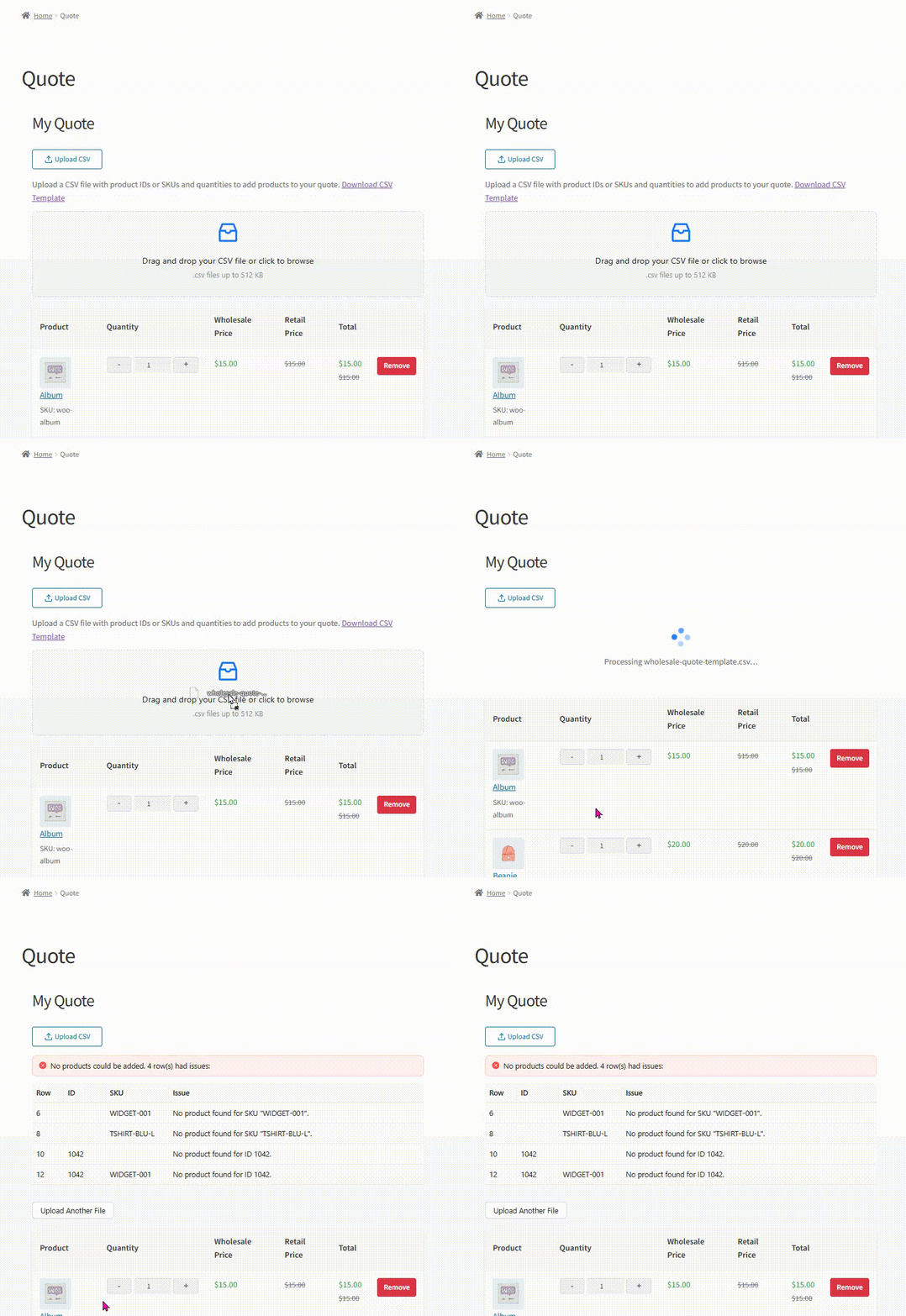
When there are more than 10 errors, a Download Error Report button appears, allowing buyers to export the full list as a CSV and work through it in their spreadsheet app. The download uses a timestamped filename in the format quote-upload-errors-YYYYMMDD-HHmmss.csv and includes both errors and warnings, so duplicate-quantity warnings sit alongside hard failures like missing SKUs. The whole report is generated client-side in the browser, so no server round-trip is needed, even for very large CSVs.
Admin CSV Uploads In The Quote Editor
The WooCommerce CSV upload to quote feature is also available to store administrators directly in the admin quote editor, which is useful for processing emailed purchase orders or building quotes on a customer’s behalf.
Using CSV upload in the admin quote editor
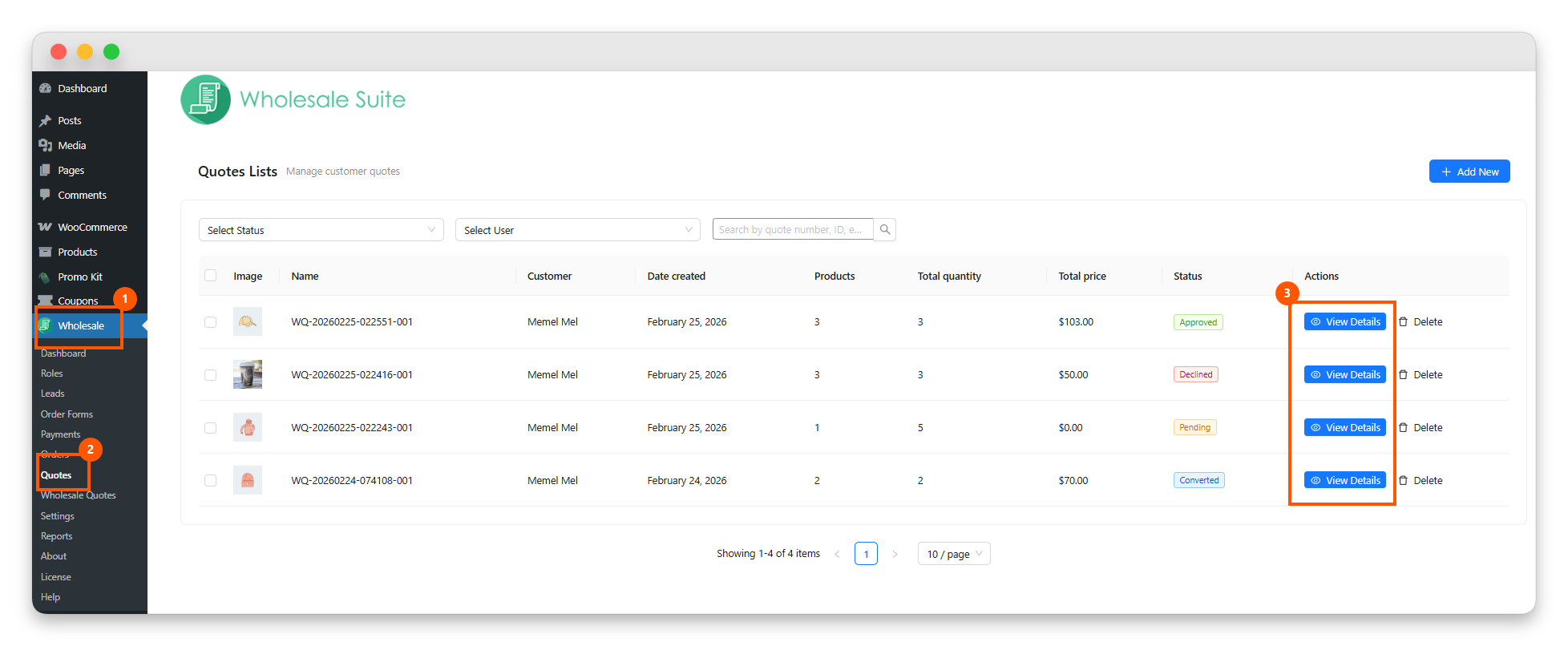
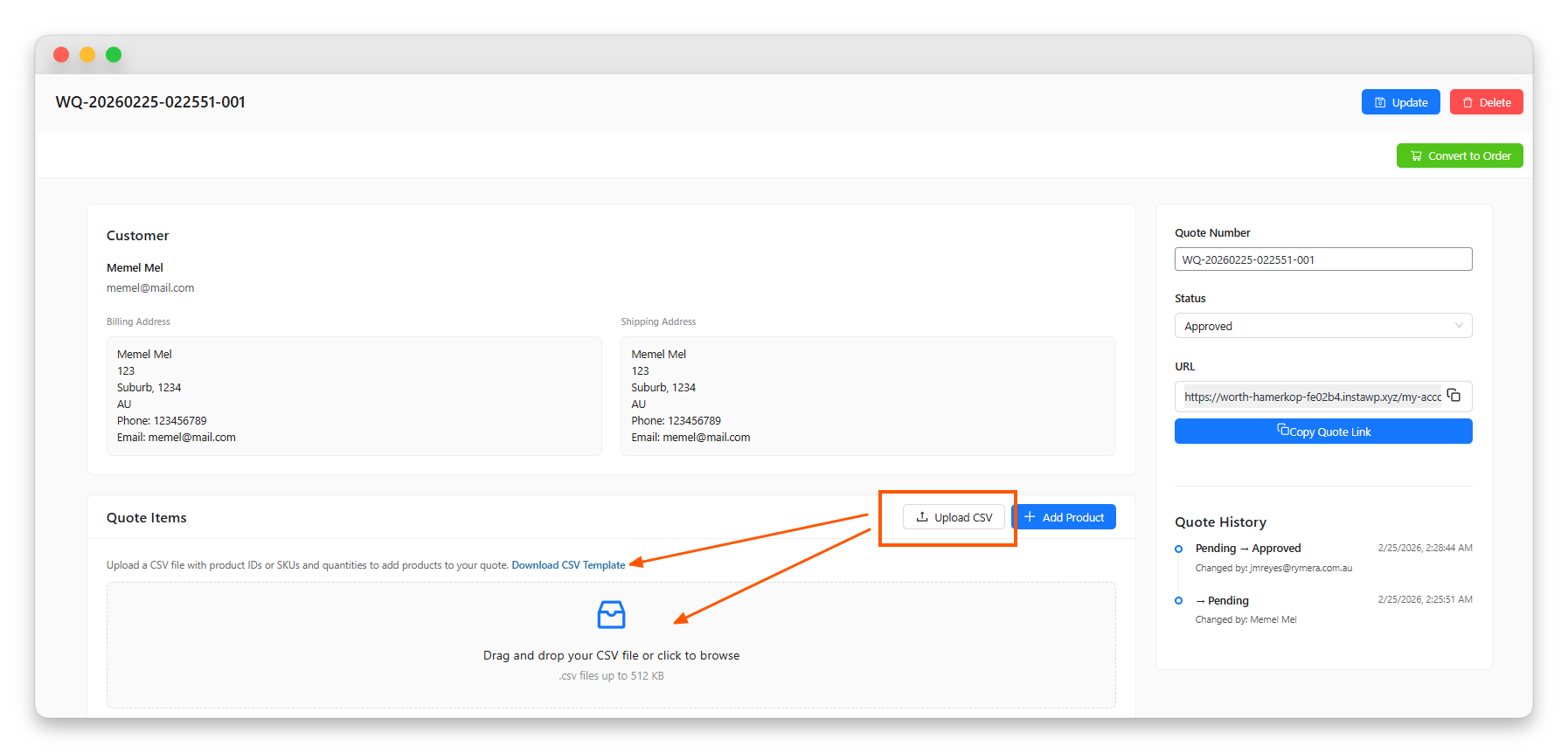
- Go to WP Admin > Wholesale > Quotes
- Open any quote by clicking View Details (the CSV upload panel only appears when editing an existing quote, not on the list view, so there is no ambiguity about which quote is being populated)
- In the Items section, look for the CSV upload option next to the Add Product button
- Upload a CSV file using drag-and-drop or the file picker
- Valid products are added to the quote using the wholesale pricing for that quote’s assigned customer role, not the admin’s own role
- The items table refreshes automatically after a successful upload, so the totals and any bound data stay in sync without a page reload
Error Handling And Duplicate Detection
One practical strength of the WooCommerce CSV upload to quote feature is how it handles imperfect or messy files.
Partial success
The plugin does not reject an entire upload because some rows have issues. If 48 out of 50 rows are valid, those 48 products get added to the quote and the two problem rows are reported separately. Buyers can correct only what’s broken and re-upload as needed.
Error reporting
Each error includes the row number and a description of the problem. When a file has more than 10 errors, a downloadable CSV error report becomes available, making it easier to review a long list of issues in a spreadsheet rather than on-screen.
Duplicate detection
If the same product appears in multiple rows of the CSV, the plugin combines the quantities into a single line item and shows a warning. A CSV with the same SKU at row 5 (qty: 10) and row 18 (qty: 5) produces one quote item with a quantity of 15. This behavior mirrors how the plugin handles manual item additions, so CSV-uploaded items behave identically to anything added through the regular product search.
Mobile And Accessibility Support
Bulk uploads on mobile devices often feel like a retrofit, but the WooCommerce CSV upload-to-quote component has been polished specifically for touch devices and assistive technologies.
On touch screens, the drop zone automatically changes its prompt to “Tap to select a CSV file” and ensures the input has a tap-friendly touch target. Error tables scroll horizontally on small screens so that row details stay readable without clipping, and the collapsible panel also works with touch gestures.
These details matter because B2B buyers increasingly use tablets and phones during field work, warehouse walks, and on-site approvals. The feature was built with that reality in mind from day one.
Why This Update Matters For Your Wholesale Store
For stores with high-volume B2B buyers, the WooCommerce CSV upload to quote feature removes a genuine friction point from the quoting process.
Many wholesale buyers maintain spreadsheets of their standard orders. They know their SKUs and quantities, and they place similar orders regularly. Without CSV upload, converting that spreadsheet into a quote meant opening the Quote Page and searching for each product individually, which is a slow process for orders with 50 or more line items.
The broader B2B data backs this up. According to McKinsey’s ninth annual B2B Pulse Survey, 71% of B2B suppliers now offer some form of ecommerce, and online sales account for 34% of revenue for a typical organization. Forrester’s 2025 B2B Marketing and Sales Predictions go further, projecting that more than half of large B2B transactions worth $1 million or more will be processed through digital self-serve channels, driven by millennial and Gen Z buyers.
For store admins, CSV upload also provides a practical way to handle purchase orders received by email. Instead of manually searching for each product, an admin can paste the SKUs and quantities from the emailed order into the CSV template and upload it directly to the quote editor. The feature also works for guest buyers, provided guest quotes are enabled in your Wholesale Quotes settings.
Start Building Quotes Faster With CSV Upload
The WooCommerce CSV upload to quote feature finally closes out a design that respects every constraint real wholesale stores care about. By collapsing dozens of manual searches into a single file upload with server-side pricing, Wholesale Quotes aligns with a clear preference for speed, self-service, and digital-first control. For store owners evaluating whether to roll out the feature, learn how quickly it can reach the wholesale accounts, admin users, and sales representatives who will benefit most. Here is a recap of what this article covered:
- What Is The WooCommerce CSV Upload To Quote Feature?
- How To Download The CSV Template
- How To Upload Your CSV On The Quote Page
- Admin CSV Uploads In The Quote Editor
- Error Handling And Duplicate Detection
- Mobile And Accessibility Support
- Why This Update Matters For Your Wholesale Store
Wholesale Quotes is part of the Wholesale Suite plugin family for WooCommerce and pairs naturally with the Wholesale Order Form plugin for catalog-style bulk ordering. To learn more about the full feature set and pricing, visit the Wholesale Quotes product page.
Frequently Asked Questions
What file format does the CSV upload accept?
The CSV upload accepts .csv files only. Excel files (.xlsx) are not supported in this release. Files must be under 512 KB and contain no more than 500 data rows per upload.
Do I need to fill in both the product ID and SKU?
No. You only need one, either the id column or the sku column. The name column is for your own reference and is not used for product matching. If you include both ID and SKU, the plugin cross-validates them, so a mismatch between the two will show up as an error.
What happens if a product in my CSV is out of stock?
That row will be flagged as an error and listed in the error table. The remaining valid products will still be added to the quote. You can fix the issue and re-upload just that item if needed.
Where is the CSV upload located in the admin area?
Inside WP Admin > Wholesale > Quotes. Open any existing quote by clicking View Details, and the CSV upload button appears in the Items section alongside the Add Product button. The panel only shows up while you are editing a specific quote, not on the quotes list view, so there is no ambiguity about which quote is being populated.
Can store admins use CSV upload too?
Yes. Store admins can upload a CSV from the Items section of any quote in the admin quote editor. Pricing is determined by the wholesale role assigned to the quote’s customer, not the admin’s account role, which mirrors how manual admin item entry already works.
Is there a limit to how many products I can upload at once?
The CSV upload supports up to 500 product rows per file with a maximum file size of 512 KB. For most wholesale order scenarios, this is well within the range of a typical bulk order.
How long does a large CSV take to process?
The feature is built to process a full 500-row file in under 10 seconds on standard shared hosting. Uploads are also rate-limited to 5 per minute per user or IP address, which keeps the feature safe from abuse while staying generous for real-world use.
Does CSV upload work for guest buyers?
Yes, as long as guest quotes are enabled in your Wholesale Quotes settings. Guest buyers can download the template and upload a CSV the same way registered customers do, and the form collects an email address so the quote still ties back to a real contact.