
If you use the Search by SKU for WooCommerce plugin alongside Wholesale Suite, products restricted to wholesale roles can appear in front-end search results for non-wholesale users. Wholesale Suite still blocks those users from viewing or buying the products, so this is a search-display issue rather than a security gap, but it can still confuse shoppers. The quickest fix is to switch to the Wholesale Order Form’s built-in SKU search, which respects wholesale visibility. This article explains the conflict and how to resolve it.
What causes this conflict
The Search by SKU for WooCommerce plugin extends WooCommerce search by running its own custom product query. Because that custom query does not pass through the standard WooCommerce query hooks that Wholesale Suite uses for product visibility filtering, restricted products can slip into search results for non-wholesale users.
Wholesale Suite still enforces visibility on the single product page. If a non-wholesale user clicks through from a search result to a restricted product, they are redirected back to the shop page. The conflict affects search result display only. It does not let non-wholesale users view or purchase restricted products.
Which searches are affected
The conflict applies only to site-wide WooCommerce search, meaning shop pages, search results pages, and any widget or shortcode that queries products through the standard WooCommerce search loop.
The Wholesale Order Form’s built-in product search is not affected. The Order Form runs its own search through the wholesale/v1/products REST API route, which applies Wholesale Suite’s visibility rules independently of WooCommerce’s standard query loop. If your customers need to search products by SKU, enabling SKU search directly within the Order Form avoids this conflict entirely.
Recommended alternative: use SKU search in the Wholesale Order Form
The Order Form’s built-in SKU search is the recommended way to give customers SKU search without the visibility conflict. It can also match on a parent product’s SKU when Show Variations Individually is enabled. If a variation has no SKU of its own, searching the parent product’s SKU still returns the matching variations as individual rows.
To enable SKU search in the Order Form:
- Edit your Wholesale Order Form.
- In the form header settings, select the Search Input element, then enable SKU Search (its helper text reads “Allow searching by SKU”).
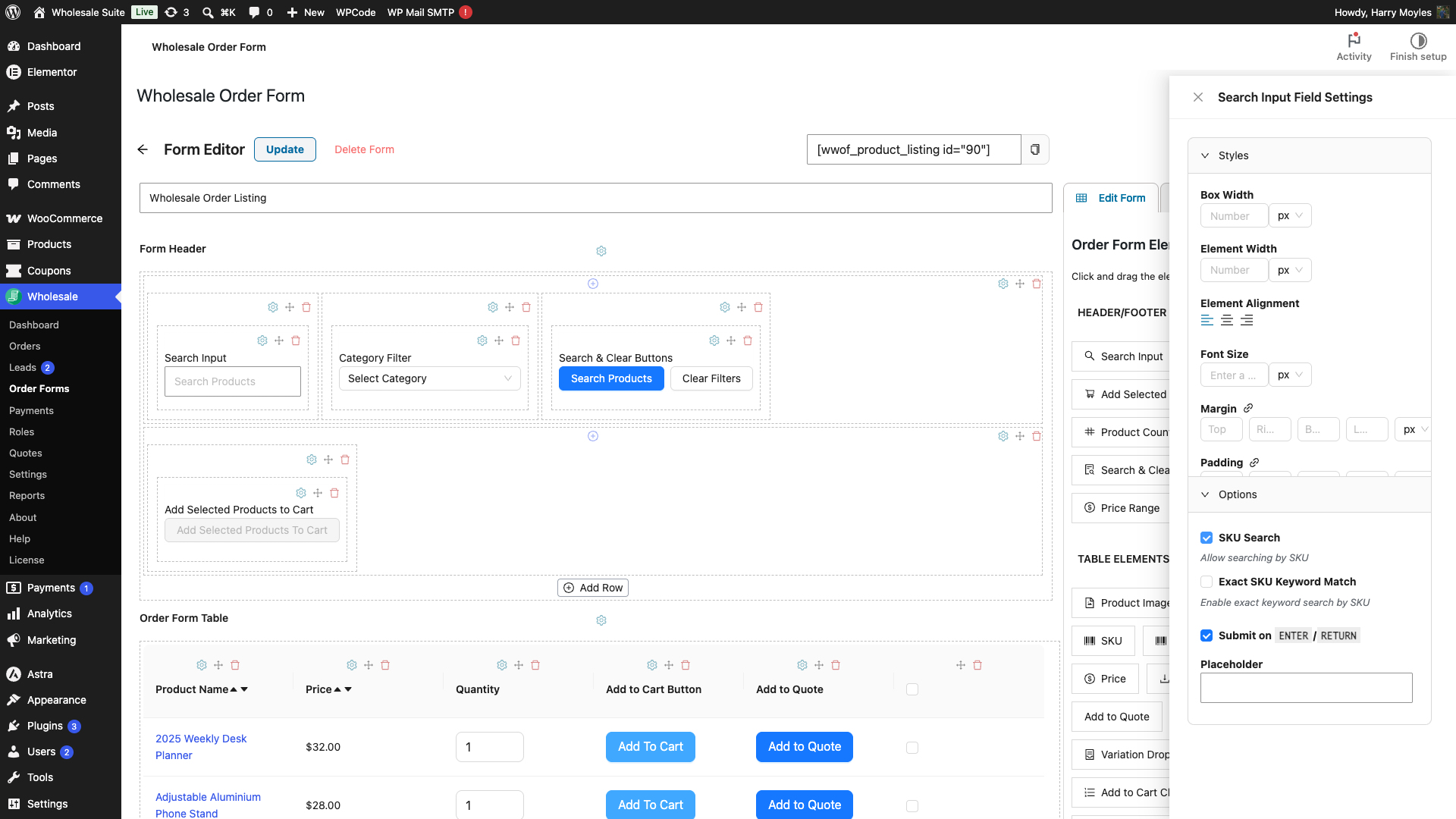
To also return individual variations when customers search a parent product’s SKU, enable Show Variations Individually separately:
- In the Order Form editor, open the Settings tab (General Order Form Settings).
- Enable Show Variations Individually.
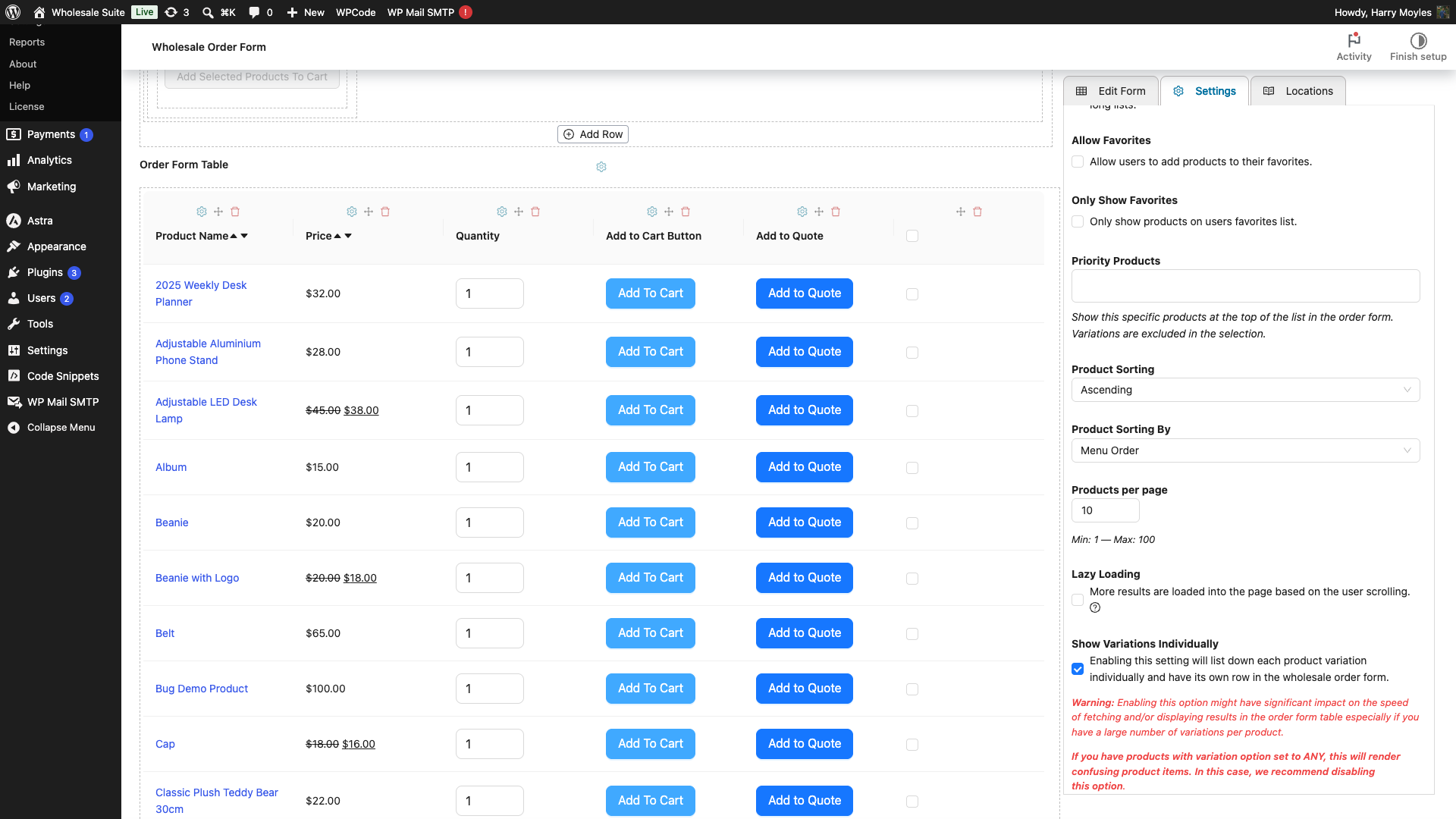
For a full walkthrough of setting up the Order Form, see the WooCommerce Wholesale Order Form Getting Started Guide.
Confirming the conflict
If you suspect the Search by SKU for WooCommerce plugin is causing restricted products to appear in site-wide search results, confirm it with these steps:
- Temporarily deactivate the Search by SKU for WooCommerce plugin under WP Admin > Plugins.
- While logged out, or signed in with a non-wholesale account, search the front end for a product restricted to a wholesale role.
- If the restricted product no longer appears, the conflict is confirmed.
Once confirmed, you have two options:
- Recommended: use the Wholesale Order Form’s built-in SKU search instead of the Search by SKU plugin, as described above. This gives your customers SKU search without the visibility conflict.
- If you need to keep the Search by SKU plugin active, contact its support team to request a fix for the custom query conflict with WooCommerce product visibility filters.
Still need help?
If you still have questions after following the steps above, our support team is here to help.

