

If you sell a t-shirt that comes in 4 colors and 5 sizes, WooCommerce’s default behavior is to show one product on the shop page (the parent variable product) and force the customer to click through to a product detail page, pick their attributes, and add to cart. For a store with a dozen variable products, that works fine. For a store with 50, 200, or 800 SKUs across colors, sizes, and pack quantities, it becomes a conversion killer. Shoppers want to see and buy individual variations directly, without clicking through every parent product first. That friction is exactly why so many merchants want to show WooCommerce variations as single products.
In 2026, the methods for displaying WooCommerce variations as single products changed. Iconic’s WooCommerce Show Single Variations plugin (the longtime go-to for this job) is being absorbed into Liquid Web’s Kadence Shop Kit, which means its standalone roadmap is over. Search Engine Journal documented the consolidation, and you can read our own coverage of the IconicWP shutdown for the wholesale-specific angle. For displaced users and any store with a serious variable-product catalog, the question is which method to use now.
This guide compares the three approaches that let you show WooCommerce variations as single products in 2026: Wholesale Order Form (table-based), native WooCommerce blocks, and custom shop loop modifications.
Why Stores Need To Show WooCommerce Variations As Single Products
The default WooCommerce variable product display works for catalogs where each parent product has 2-3 variations. Beyond that threshold, the click-through model breaks down for three reasons, and each one pushes store owners to look at how to show WooCommerce variations as single products.
First, the customer can’t see what they want without clicking. A t-shirt parent product shows “From $20” on the shop page, while the actual colors, sizes, and stock counts stay hidden behind a click. Shoppers who scroll the shop page miss the variation they would have bought, because it isn’t visible until they commit to the product detail page.
Second, bulk ordering compounds the click problem. A wholesale buyer who needs 5 colors in 3 sizes (15 variations total) has to click into the parent product, configure one variation, add to cart, navigate back, click into the next variation, configure, and add again. Repeat that fifteen times. With the average cart abandonment rate sitting around 70% across ecommerce, according to the Baymard Institute, that kind of repetitive friction is exactly what pushes buyers to give up before they finish.
Third, on-page filtering and search results don’t work well at the parent level. When a shopper filters by “Red,” WooCommerce surfaces the parent product (because it has a red variation) without highlighting that specific option. The customer still has to click through to find the variation they searched for.
For stores hitting any of these problems, choosing to show WooCommerce variations as single products on the shop, category, and search pages is the structural fix. WooCommerce’s own variable product documentation explains the default parent-product behavior, which is the baseline these three methods improve on. Below are the approaches that work in 2026.
I. Wholesale Order Form (Table-Based)
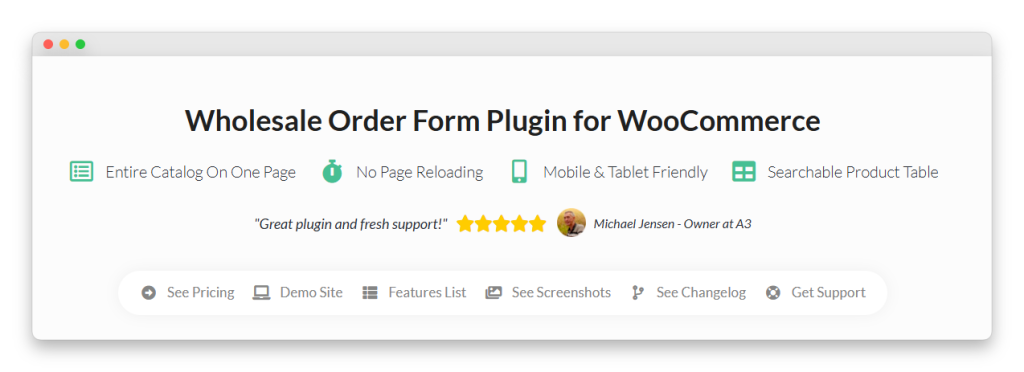
Wholesale Order Form is the most flexible 2026 method for displaying WooCommerce variations as single products, especially for stores with a wholesale or B2B side or a heavy multi-SKU catalog. Where Iconic’s Show Single Variations split variations onto the standard shop grid, Wholesale Order Form gives you a dedicated table-based ordering page where each variation appears in its own row, customers can add multiple products to the cart in one action, and you control which columns appear.
How it works
The plugin’s “Show Variations Individually” setting renders every variation of a variable product as its own row in the order form table. A t-shirt with 4 colors and 5 sizes appears as 20 separate rows, each with its own SKU, price, stock count, and add-to-cart input. Customers can search, filter by category, sort by column, and tick checkboxes to add multiple variations to the cart in a single click. The knowledge base walkthrough shows exactly where to enable this setting.
Each form is fully configurable. The columns you can display include image, product name, SKU, price (with wholesale-tier pricing if you also run Wholesale Prices Premium), stock count, short description, variation dropdown, quantity input, and add-to-cart button. You can build different forms for different user roles, scope each form to specific pages, and run multiple forms on the same page.
When to use it
Use Wholesale Order Form when you:
- Have 50+ SKUs across variable products and the shop page feels cluttered.
- Sell wholesale or B2B alongside retail, and buyers need fast bulk ordering.
- Want different display logic for different customer roles (retail browsers see one form, wholesale accounts see another).
- Need to show SKU, GTIN, stock count, or other B2B data alongside variations. Our GTIN, UPC, EAN, and ISBN column guide walks through how to add identifier columns.
- Your customers reorder frequently and need a quick-order flow.
Trade-offs to know
Wholesale Order Form is a separate page (or pages) by default, not a replacement for your shop page. If you want the order form to take over /shop/ entirely, that is configurable. If you want to keep the standard shop grid for browsing and add an order form for fast ordering, you run both.
II. Native WooCommerce With Variation Swatches
The native WooCommerce variation swatches block has matured significantly through 2024 to 2026. It now covers most color and image swatch use cases without a separate plugin, including swatch-style attribute selection on the product page and, in newer themes, on the shop page itself. For lighter catalogs, swatches can reduce the click-through friction without going all the way to showing WooCommerce variations as single products in a table.
How it works
Within the WooCommerce block editor, you add the variation swatches block to your shop or category template. The block displays attribute options (colors, sizes) as visual swatches under each variable product card. A customer can pick a swatch, see the variation-specific price, and add to cart without leaving the shop page.
The display isn’t strictly “variations as individual products,” since the parent product still groups them on the page, but it removes the click-through barrier by surfacing the variation choice inline. For stores with light-to-moderate variation counts, that can be enough.
When to use it
Use native variation swatches when you:
- Have 2-4 attributes per product and 4-8 total variations.
- Want to keep the standard shop grid layout rather than switch to a table.
- Your catalog is small enough that one parent product per variation family doesn’t crowd the page.
- Your theme supports the WooCommerce variation swatches block natively (Storefront, Astra, Blocksy, Kadence, and most modern themes do).
Trade-offs to know
Native swatches don’t scale past moderate catalogs. A store with 50+ variable products, each carrying 10+ variations, becomes unscannable. The block also doesn’t natively support showing variations as separate rows the way the table-based method does, since it surfaces attribute selection inline within the parent product card.
III. Custom Shop Loop Modification (Developer Path)
The third method is the developer-built option: modify WooCommerce’s shop loop directly to split variations into separate posts and inject them into the standard shop grid. This is what Iconic’s Show Single Variations plugin did under the hood. It is also the path some development agencies build for clients who want full control over how they show WooCommerce variations as single products.
How it works
A custom function hooks into woocommerce_shop_loop or similar template hooks to query variations directly and render them as if they were individual products. Each variation gets its own card on the shop, category, and search pages. The customer sees what looks like 20 separate products (the t-shirt’s 20 variations) on the shop grid and can add each to cart directly.
The hook architecture is well-documented, and several tutorials cover the basic approach. The complexity comes from edge cases such as stock display, sale prices, parent-product filtering, search results, and SEO, since you typically don’t want every variation to have its own indexable URL.
When to use it
Use a custom shop loop modification when you:
- Have specific shop-grid display requirements that off-the-shelf plugins don’t meet.
- Have developer resources to maintain the customization through WooCommerce upgrades.
- Business model genuinely requires the standard shop grid layout (not a table) with variations split out.
Trade-offs to know
Custom code is maintenance debt. WooCommerce ships breaking changes 2-3 times a year on hooks, blocks, and the shop loop architecture. A custom shop loop modification needs ongoing testing and updates. For most stores, that recurring cost exceeds the price of using a maintained plugin like Wholesale Order Form.
What we’ve seen: The most common mistake stores make when picking a variations display method is choosing native swatches when they have a bulk-ordering or wholesale use case. The native swatch flow is optimized for browsing and single-purchase shoppers; it is not built for a buyer who needs to add 10-20 variations to a cart in one session. We’ve watched wholesale stores spend months trying to make native swatches work for their B2B buyers before switching to a table-based form and immediately seeing their abandoned wholesale cart rate drop. If your buyers are picking multiple variations per order, the table format is the right structural fit even when your store also has retail traffic.
Comparison: Which Method Fits Your Store
Here is a quick decision matrix for choosing how to show WooCommerce variations as single products:
- Catalog up to ~20 variable products with 4-8 variations each: Native variation swatches block. Lowest setup cost, no plugin overhead, works in modern themes out of the box.
- Wholesale, B2B, bulk-ordering, or 50+ SKU catalog: Wholesale Order Form. The table layout is the right structural fit, and bulk add-to-cart compounds the win.
- Mixed retail and wholesale: Wholesale Order Form for the wholesale role, plus native swatches on the standard shop grid for retail. Both can coexist.
- Specific custom display requirement that off-the-shelf plugins don’t meet: Custom shop loop modification. Accept the maintenance debt.
For most stores migrating off Iconic’s Show Single Variations specifically, the answer is Wholesale Order Form. Iconic’s plugin split variations onto the shop grid, and Wholesale Order Form’s “Show Variations Individually” setting does the same job in a table layout, with bulk-ordering, multi-form configuration, and B2B workflows added on top.
How To Migrate From Iconic Show Single Variations
If you ran Iconic’s plugin and want to switch to Wholesale Order Form so you can keep showing WooCommerce variations as single products, the sequence below is the safest path. The audit step is the one most stores skip and the one that causes the painful surprises.
- Audit your current display. Document every page where Iconic was splitting variations (shop, category, search, filtered results). Note the URLs, because those are the pages customers have bookmarked.
- Install Wholesale Order Form on staging only. Mirror your real catalog. Variation-heavy catalogs surface issues at scale that test data won’t show.
- Decide your shop-loop strategy. Wholesale Order Form is a separate page by default. If you want it to replace the shop entirely, configure the form on
/shop/. If you want both a shop grid for browsing and an order form for ordering, keep them on different URLs and link between them. - Configure forms per customer role. Build one form for retail browsers with image, name, price, and quantity. Build another for wholesale accounts with SKU, stock count, GTIN, and tiered pricing visible. Test the role logic before going live.
- Switch traffic, then deactivate Iconic. Activate Wholesale Order Form on production, monitor a few hundred real orders, then deactivate Iconic’s plugin. Running both in parallel longer than the cutover invites layout conflicts.
For wholesale-specific workflows on top of variation display, request-a-quote setups and reorder flows integrate natively with Order Form.
Pick The Method That Matches Your Catalog Reality
For most WooCommerce stores in 2026, the question isn’t whether you should show WooCommerce variations as single products. It is which method fits your catalog. Native swatches work for small catalogs where a handful of variations sit comfortably inside the parent card. Wholesale Order Form scales to wholesale and B2B catalogs where buyers need to add many variations at once, and you want to show WooCommerce variations as single products in a fast, scannable table. Custom shop loop modifications earn their keep only when you have specific requirements and the developer resources to maintain them through WooCommerce’s frequent updates.
The right call comes down to matching the method to your real catalog rather than the version you wish you had. Audit the pages that depend on variation display, count how many SKUs your shoppers actually scroll through, and be honest about whether your buyers browse one item at a time or order in bulk. Once you know that, the choice usually makes itself, and migrating off Iconic becomes a structural upgrade instead of a like-for-like swap.
Here’s what we covered in this article:
- Why stores need to show WooCommerce variations as single products
- Comparison: which method fits your store
- How to migrate from Iconic Show Single Variations
If you’re migrating off Iconic’s Show Single Variations and you want a structural upgrade rather than a like-for-like swap, see Wholesale Order Form’s full feature set and pricing, and we’ll help you map your specific catalog to the right form configuration.
Frequently Asked Questions
Will Iconic’s Show Single Variations plugin still work after the IconicWP shutdown?
Short term, yes. Your existing installation continues to function. Longer term, the plugin is being absorbed into Kadence Shop Kit and the standalone roadmap is over. Update cadence and niche compatibility fixes are the metrics to watch over the next 1-2 quarters.
Can I use Wholesale Order Form on a non-wholesale store?
Yes. Despite the name, the plugin handles any product catalog and any customer role. Many B2C stores use it as a quick-order alternative for repeat customers, especially in niches like coffee, supplements, and craft supplies where customers reorder the same SKUs frequently.
Do I need both Wholesale Order Form and Wholesale Prices Premium?
Only if you also want tiered or role-based pricing. Wholesale Order Form by itself handles the variation display and bulk ordering job. Wholesale Prices Premium adds wholesale-tier pricing rules. The two integrate, but neither requires the other for the basic variation-display use case.
Does Wholesale Order Form work with my theme?
Yes, in our testing across the major performance-conscious WooCommerce themes (Storefront, Astra, Blocksy, GeneratePress, Kadence, and others). The plugin renders within the standard WooCommerce template ecosystem and doesn’t require theme-specific overrides for the basic display.
What about SEO when I show variations as single products?
WooCommerce’s default behavior is that variations don’t get individual indexable URLs, since the parent product is the canonical URL. Wholesale Order Form respects this default, so when you show variations as single products in the order form, you don’t create duplicate-content issues. For stores that specifically want each variation to have its own URL, that is a separate and more involved configuration.
Can I keep Iconic’s plugin active while testing Wholesale Order Form?
For a brief overlap of 1-2 weeks for validation, yes. Two plugins fighting over the shop loop is not a long-term setup, but a short parallel run for confidence-building is reasonable. Just don’t leave both active beyond the cutover window.