A proper WooCommerce wholesale catalog gives approved buyers their own product selection, wholesale-specific pricing, and a streamlined ordering interface, while regular shoppers never see any of it.
This guide walks you through how to build that WooCommerce wholesale catalog from scratch using Wholesale Suite. By the end, you will have a complete wholesale-only browsing experience with role-based access, product visibility controls, and a registration workflow for new buyers.
What Is A Wholesale Catalog In WooCommerce?
A WooCommerce wholesale catalog is a curated set of products and categories visible only to approved wholesale user roles, with dedicated pricing and a streamlined ordering interface. It is not a second WooCommerce installation or a separate storefront. Your wholesale catalog lives inside your existing store, layered on top of your retail catalog using visibility rules and role-based pricing.
Think of it as three components working together:
- Product and category visibility. This controls which products each user role can see. Retail customers see the retail catalog, while wholesale buyers see wholesale products (and potentially shared products at different prices).
- Role-based pricing. Wholesale users see wholesale prices. Everyone else sees retail prices, or no price at all if the product is wholesale-only.
- A dedicated ordering interface. Instead of browsing your standard shop pages, wholesale buyers use a purpose-built order form designed for bulk purchasing.
According to Gartner, 75% of B2B buyers prefer a rep-free sales experience. A self-service WooCommerce wholesale catalog delivers that experience inside WooCommerce.
For more on the private store concept specifically, see our guide to building a WooCommerce private store.
Planning Your Wholesale Catalog Structure
Before configuring anything, map out which products are wholesale-only, which are shared with retail, and which roles see what. Skipping this step is the most common cause of configuration headaches later in the build.
Decide which products are wholesale-only vs. shared with retail
Some products only make sense at wholesale volumes. Bulk packs, case quantities, and unbranded versions are typically wholesale-only. Other products exist in both catalogs at different price points: a retail customer pays full price, and a wholesale buyer gets the discounted rate.
Create a simple list or spreadsheet that maps each product (or product category) to its visibility rule: wholesale-only, retail-only, or visible to both.
Organize products into wholesale categories
If you are working with a large catalog, create WooCommerce product categories specifically for wholesale items. This makes category-level visibility restrictions much faster to manage than setting visibility product by product. For example, you might create categories like Wholesale Bulk Packs, Wholesale Case Quantities, or Wholesale Exclusive alongside your retail categories.
Define which wholesale roles see which products
If you plan to run multiple wholesale tiers (for example, Silver, Gold, and Platinum), different roles may see different product selections. Gold buyers might access premium product lines that Silver buyers cannot see. Map out this role-to-product relationship before you start configuring your wholesale catalog.
What we’ve seen: Store owners who skip this planning step and jump straight into configuration often end up with overlapping visibility rules. Products appear for the wrong roles, or wholesale items show up on the retail shop page. Thirty minutes of planning saves hours of troubleshooting later.
Setting Up Your Wholesale Catalog With Wholesale Suite (Step-By-Step)
Here is the complete setup process, from role creation to buyer registration. Each step builds on the previous one. You will need Wholesale Prices Premium as the foundation, plus Wholesale Order Form and Lead Capture plugins for the full WooCommerce wholesale catalog experience.
Step 1: Create wholesale user roles
Wholesale Prices Premium lets you create custom wholesale roles beyond the default Wholesale Customer role that ships with the free plugin. These roles are the backbone of your entire wholesale catalog, since every visibility rule, pricing tier, and access control is tied to them.
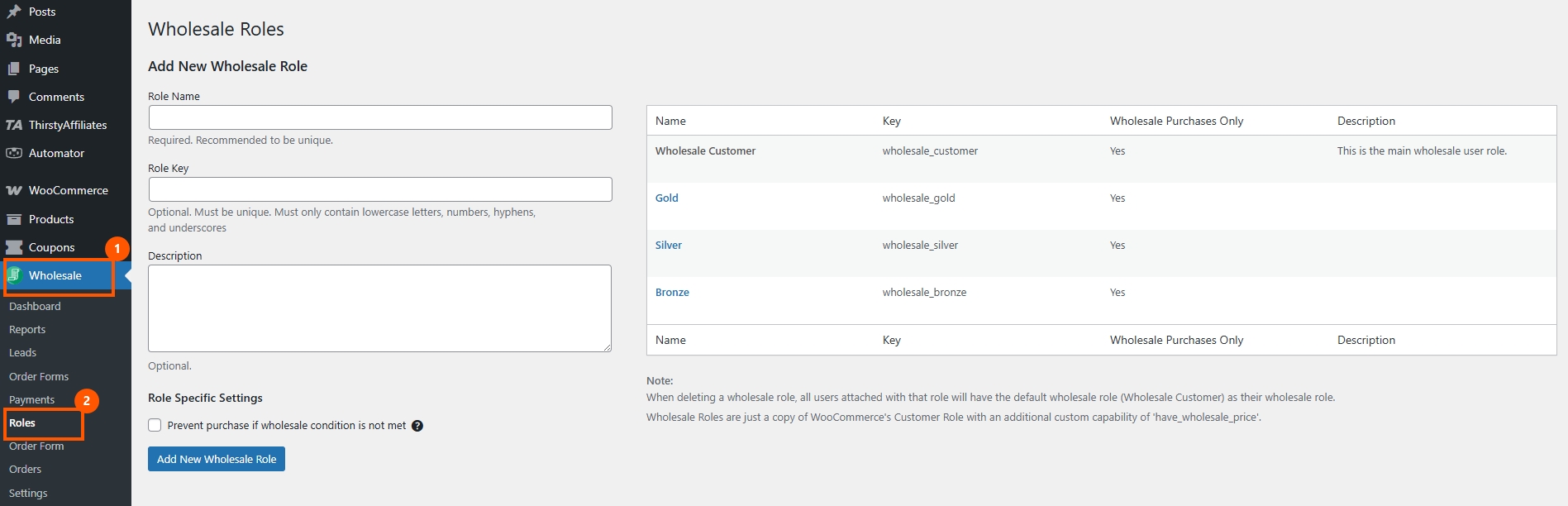
Navigate to the wholesale roles settings in Wholesale Prices Premium and create roles that match the plan you built in the previous section. If you have a single wholesale tier, you only need one custom role. When you run multiple tiers, create a role for each: Wholesale Bronze, Wholesale Silver, Wholesale Gold, or whatever naming convention fits your business.
Each role can have its own pricing rules, product visibility settings, minimum order requirements, and payment or shipping options.
Step 2: Set product visibility by role
This core mechanism turns a standard WooCommerce store into a wholesale catalog. In Wholesale Prices Premium, you can control which products each wholesale role can see.
For wholesale-only products, restrict visibility so only your wholesale roles can see them. Retail customers and logged-out visitors will not find these products on the shop page, in search results, or through direct URL access.
For shared products (available to both retail and wholesale), leave visibility open to all users. The difference is pricing, not visibility. Configure this by editing any WooCommerce product and scrolling to the wholesale visibility settings. For a deeper look at how these controls work, see our guides on WooCommerce product visibility and hiding individual products from non-wholesale users.
Step 3: Set category visibility for wholesale-only categories
Beyond individual products, you can restrict entire categories to specific wholesale roles. This is significantly faster than configuring visibility product by product, especially if you organized your wholesale products into dedicated categories during the planning phase.
When you restrict a category to wholesale roles, the category itself disappears from the shop page navigation for non-wholesale users, and all products within it are hidden as well. Category-level and product-level restrictions work together, so you can restrict a category to wholesale users and then further restrict specific products within it to only certain wholesale tiers.
Step 4: Configure wholesale pricing for visible products
With roles and visibility in place, set up the actual wholesale prices your buyers will see. Wholesale Prices Premium gives you three levels of pricing control:
- Global percentage discount. Apply a flat percentage off retail pricing across all products for a given role. This is the fastest way to get started.
- Category-level pricing. Set different discount percentages per product category, which is useful when margins vary across product lines.
- Product-level pricing. Set specific wholesale prices on individual products. This gives you the most control but takes more time to configure.
Most store owners start with a global discount and then add category or product-level overrides where needed. Wholesale buyers only see their wholesale prices when logged in with the correct role, and retail customers always see the standard retail price.
Step 5: Set up the Wholesale Order Form as your catalog browsing experience
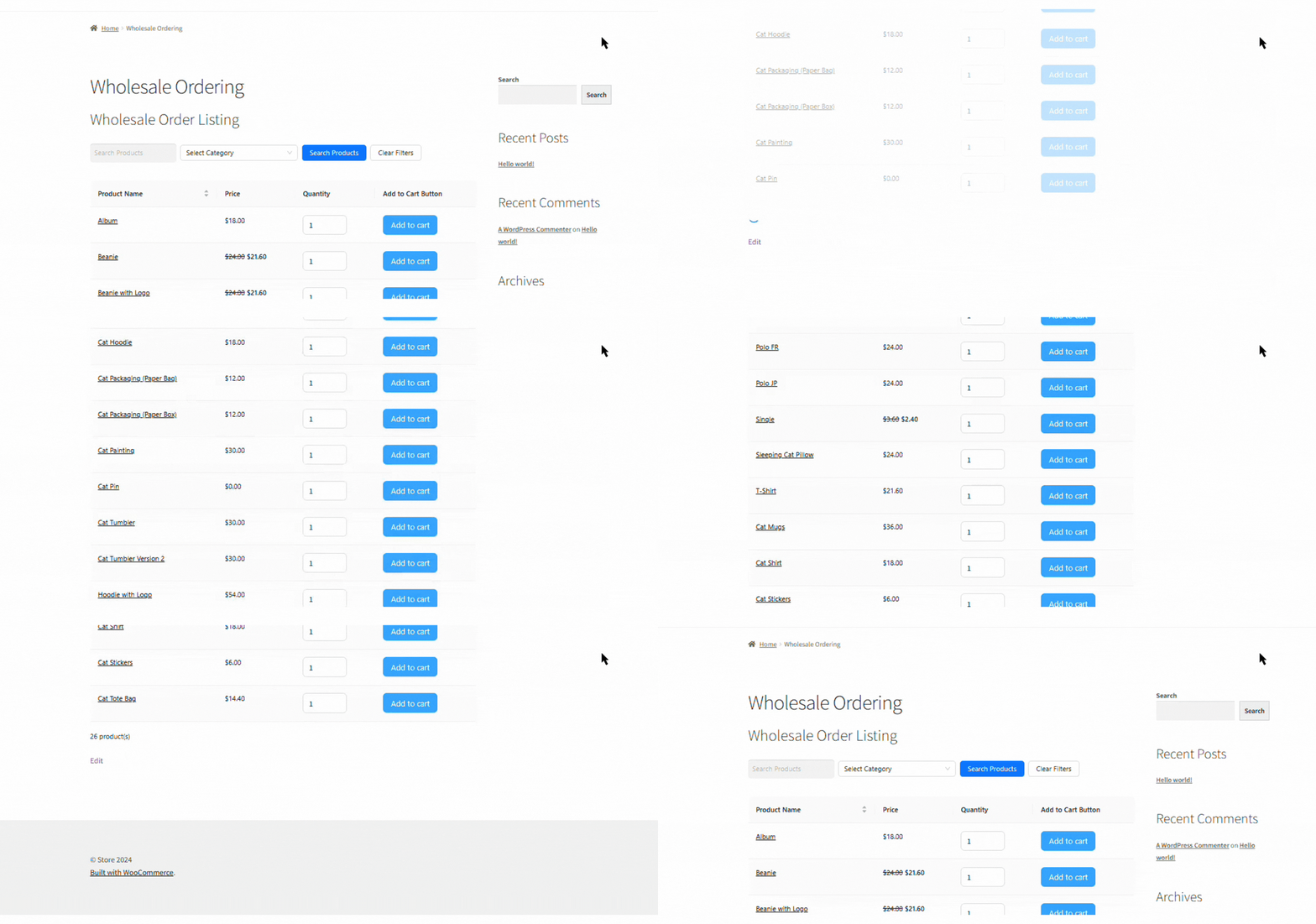
Wholesale Order Form transforms the wholesale browsing experience. Instead of clicking through standard WooCommerce shop pages one product at a time, wholesale buyers get a single-page, AJAX-powered ordering interface built for bulk purchasing.
The order form displays all products the logged-in wholesale role can access. Buyers can search by product name or SKU, filter by category, see their wholesale prices, enter quantities, and add multiple items to the cart without page reloads. According to McKinsey’s 2024 B2B Pulse Survey, 39% of B2B buyers are now willing to spend more than $500,000 on a single order through digital self-service or remote channels, showing how much buyers trust self-serve ordering even for high-value purchases.
For many wholesale store owners, the Order Form page becomes the primary entry point for wholesale buyers. You can link to it from your wholesale registration confirmation email, add it to the navigation for wholesale users, or set it as the default landing page after wholesale login.
Step 6: Create a registration page with Wholesale Lead Capture
The final piece of your wholesale catalog is the front door: how new wholesale buyers apply for access. Wholesale Lead Capture provides a registration form that prospective wholesale buyers fill out to request access.
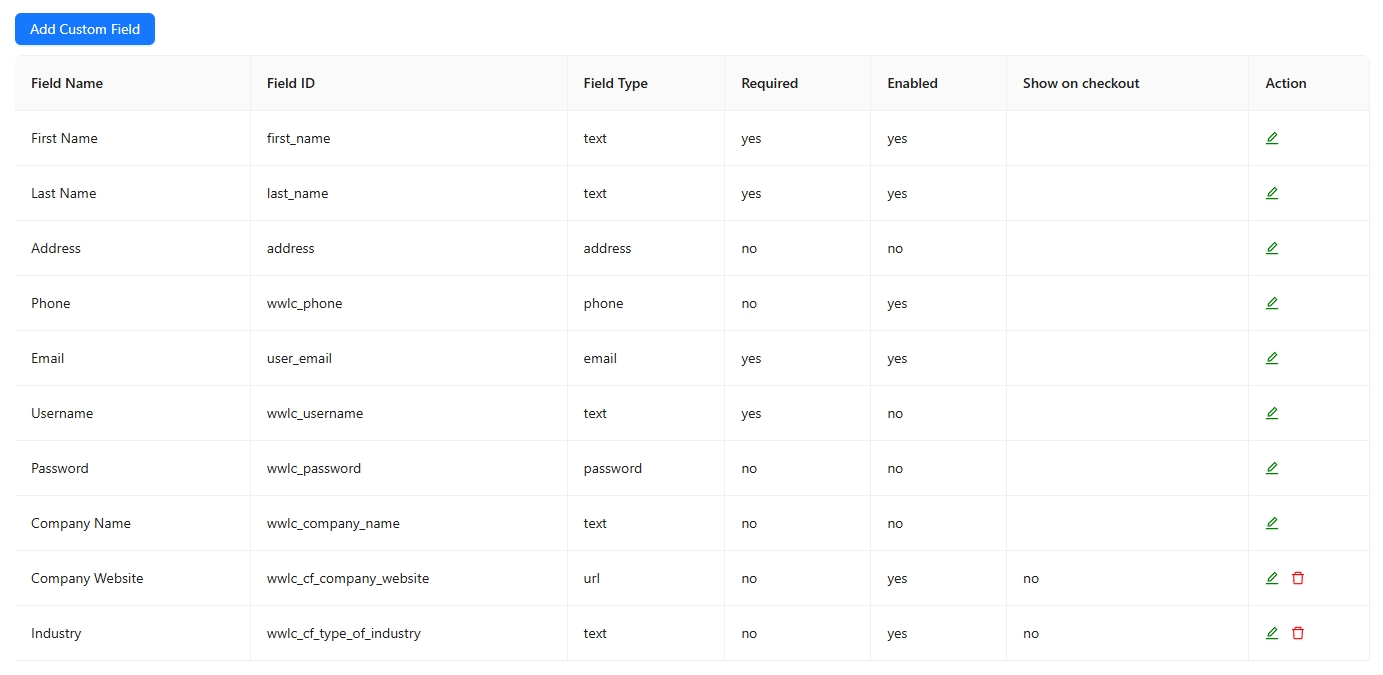
Build your form with fields relevant to your vetting process: company name, business type, tax ID, expected order volume, and any other qualification criteria. You can also add file upload fields for business licenses or resale certificates.
Configure the approval workflow based on your business needs. Manual approval means you review each application and approve or reject it before the buyer gains access, while auto-approval assigns the wholesale role immediately after registration, which works well for stores with less restrictive requirements. Once a buyer is approved, they are automatically assigned the correct wholesale role and can immediately see the wholesale catalog, wholesale pricing, and the Order Form. The entire loop is closed: registration, approval, access.
Protecting Your Wholesale Catalog
Setting up visibility rules and pricing is only half the job. You need to verify that the catalog actually works the way you intend for every type of user who visits your store.
Ensure non-logged-in users can’t see wholesale products
Log out of your store completely and browse as a guest. Check the shop page, category pages, search results, and try accessing wholesale-only product URLs directly. Nothing from your wholesale catalog should be visible or accessible.
If wholesale products appear for logged-out visitors, the most likely cause is a visibility setting that defaults to all users instead of restricting access to specific wholesale roles. Go back to Step 2 and verify that each wholesale-only product and category has the correct visibility setting.
Hide wholesale prices from retail customers
Log in as a regular retail customer (create a test account with no wholesale role) and verify that wholesale pricing is invisible. For shared products, the retail customer should see the standard retail price. For wholesale-only products, the retail customer should not see the product.
Test the experience as different user roles
Create a test account for each wholesale role you have configured. Browse the store as each role and verify the correct products, categories, and prices appear. Then test as a non-logged-in visitor and as a standard retail customer.
According to Forrester, more than half of large B2B transactions will be processed through digital self-serve channels. When your wholesale buyers land in your catalog, the experience must work flawlessly from their first visit, because a broken or confusing catalog sends them straight to a competitor.
What we’ve seen: The most common testing mistake is checking only one user role. Store owners verify that their primary wholesale role works and skip testing as a retail customer or a second wholesale tier. That is how pricing leaks and visibility gaps slip through.
Build Your WooCommerce Wholesale Catalog Today
A WooCommerce wholesale catalog is not a single feature you toggle on. It combines visibility rules, role-based pricing, a dedicated ordering interface, and a buyer registration workflow, all working together inside your existing store. That modular approach gives you more flexibility than a rigid one-click solution, because you control exactly what each buyer role can see, access, and order.
The build follows a clear path. You plan your catalog structure first, create the wholesale roles that everything else depends on, set product and category visibility so each role sees the right selection, and configure wholesale pricing at whatever level fits your margins. From there, the Order Form becomes the browsing and ordering experience your buyers actually use, and Lead Capture handles how new buyers apply and get approved. Test the whole thing as every user type before you go live, because the first impression your wholesale catalog makes is what keeps buyers from drifting to a competitor.
Wholesale Suite bundle includes Wholesale Prices Premium, Wholesale Order Form, and Wholesale Lead Capture, giving you everything you need to build a complete WooCommerce wholesale catalog with role-based access.
Here’s what we covered in this article:
- What is a wholesale catalog in WooCommerce?
- Planning your wholesale catalog structure
- Setting up your wholesale catalog with Wholesale Suite (step by step)
- Protecting your wholesale catalog
Frequently Asked Questions
Can I show different products to different wholesale roles?
Yes. Wholesale Prices Premium lets you set product and category visibility per role, so each wholesale tier can see a different catalog. A Gold wholesale buyer might see premium product lines that a Silver buyer cannot access. You configure this at both the individual product and category levels.
Do I need a separate WooCommerce store for wholesale?
No. You can run retail and wholesale from the same WooCommerce installation. Product visibility and role-based pricing keep the two catalogs completely separate within one store, so retail customers never see wholesale products or pricing, and wholesale buyers get their own browsing experience through the Order Form.
Will wholesale products show up in search results for retail customers?
No. When you set product visibility to wholesale-only roles in Wholesale Prices Premium, those products are hidden from the WooCommerce shop page, category pages, and on-site search results for non-wholesale users. Only users logged in with an approved wholesale role can see the products.
How do new wholesale customers get access to the catalog?
They register through a Wholesale Lead Capture form on your site. After you approve their application (or after auto-approval, if configured), they are assigned a wholesale role and can immediately see the wholesale catalog, wholesale pricing, and the Order Form.
Can I use the Wholesale Order Form as the main wholesale catalog page?
Yes. Many store owners use the Wholesale Order Form as the primary browsing interface for wholesale buyers. It displays all products the logged-in wholesale role has access to, with search, filtering, and bulk ordering built in. You can link to it from your wholesale login confirmation, add it to the wholesale navigation menu, or set it as the post-login landing page.