Picture one of your best wholesale buyers landing on a product they order every month, only to find it marked sold out. Until now, that was the end of the road. The Add to Quote button simply wasn’t available for unavailable items, so the buyer had no way to say, “I still want this, please quote me.” That silent dead end is exactly the problem the new out of stock quote button solves.
Shipping with Wholesale Quotes version 1.0.2, the out of stock quote button lets you bring the Add to Quote button back to sold out products. When a wholesale customer visits an item that is currently unavailable, they can still request a quote on it. The feature came directly from a real customer request, and it is off by default, so nothing on your store changes until you decide to switch it on.
In this guide, we will walk through what this feature is, why it matters for a B2B store, who benefits most from it, how it behaves behind the scenes, and the exact steps to turn it on in your WooCommerce dashboard. By the end, you will know how to keep the buying conversation going even when a product is temporarily out of stock.
What Is The Out Of Stock Quote Button In Wholesale Quotes
This feature is a new setting that displays the Add to Quote button on the single product page of any item that is out of stock. It sits neatly just below the standard “Out of stock” notice, and it uses the exact same button style you have already configured, so nothing looks out of place.
Before this update, WooCommerce hid the entire add-to-cart area on sold out products. Because the quote button’s cart-tied placements piggyback on that area, the button vanished along with it. The fix attaches the button to the product summary, which always renders, but only for out of stock items on those cart-tied placements.
A sold out product is one of the quietest ways a store loses money. The visitor was interested enough to reach the product page, and then they hit a wall with no obvious next step. Industry research reported by Retail Dive estimated that retailers miss out on nearly a trillion dollars in sales every year due to stockouts, with shoppers encountering unavailable products on roughly one in three trips.
How The Out Of Stock Quote Button Works
Once enabled, the button appears only where it should and nowhere else. A few sensible guardrails are built in so the feature stays tidy across your storefront.
Here is how the button behaves in practice:
- Single product pages only. The button shows up on individual product pages, not on your main shop or category pages. Your product grids stay clean, with no quote buttons cluttering them up.
- In-stock products are untouched. Items that are in stock keep their button exactly where you set it, and there is never a duplicate button on the page.
- It handles every product type. The feature works correctly for simple products, backorder products, and variable products, including variable products where every single variation is sold out.
How To Turn On The Out Of Stock Quote Button In Wholesale Quotes
Switching it on takes about a minute. Because it is off by default, you will need to flip it on yourself, then confirm one paired setting so the whole flow works smoothly. Follow these steps.
Step 1: Open the settings
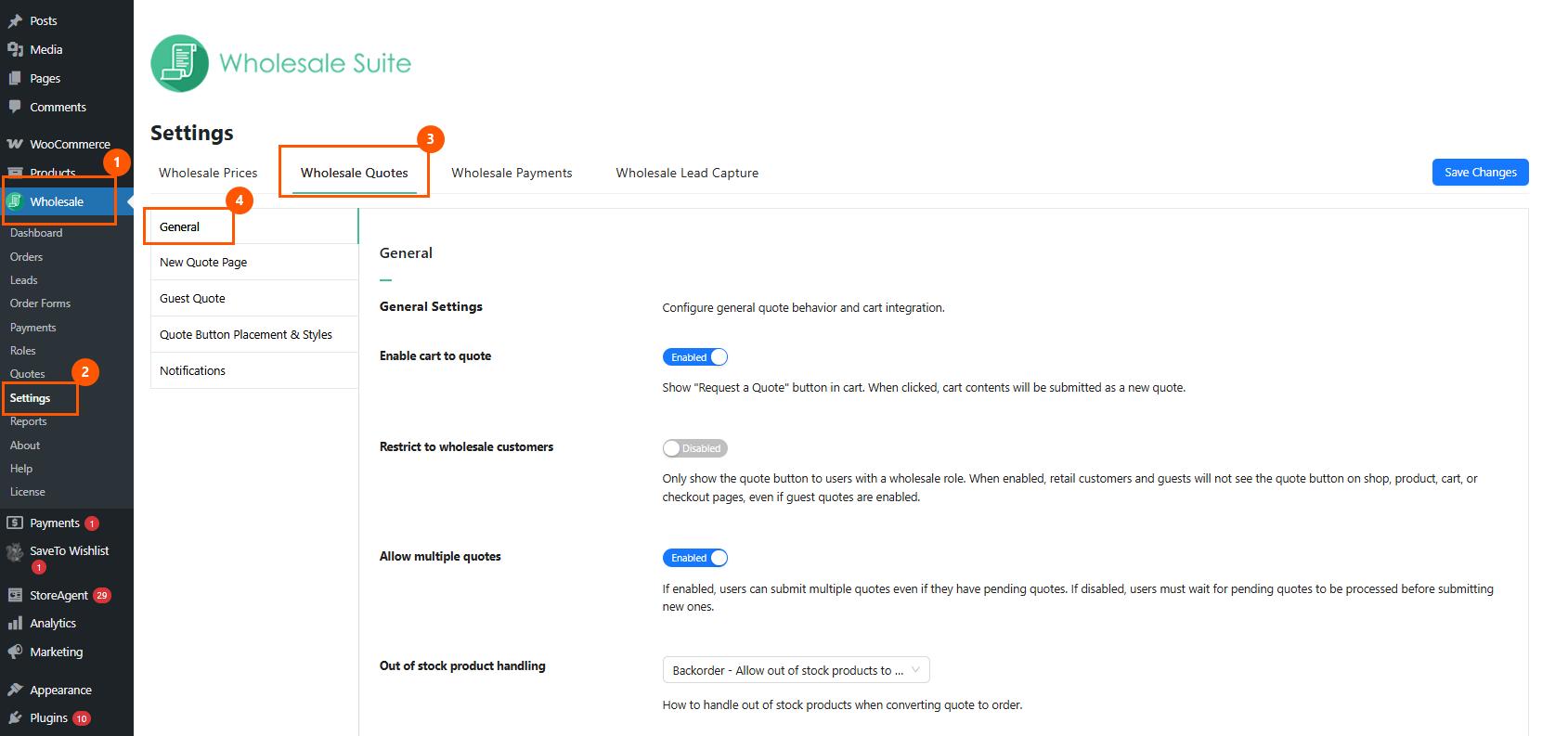
In your WordPress dashboard, go to Wholesale > Settings > Wholesale Quotes. Open the General tab, where the core quote options are located.
Step 2: Enable the feature
Find “Show quote button for out-of-stock products” and switch it to Enabled. On the same screen, look at the “Out of stock product handling” option just above it. Set it to Backorder or Notify, not “Exclude.”
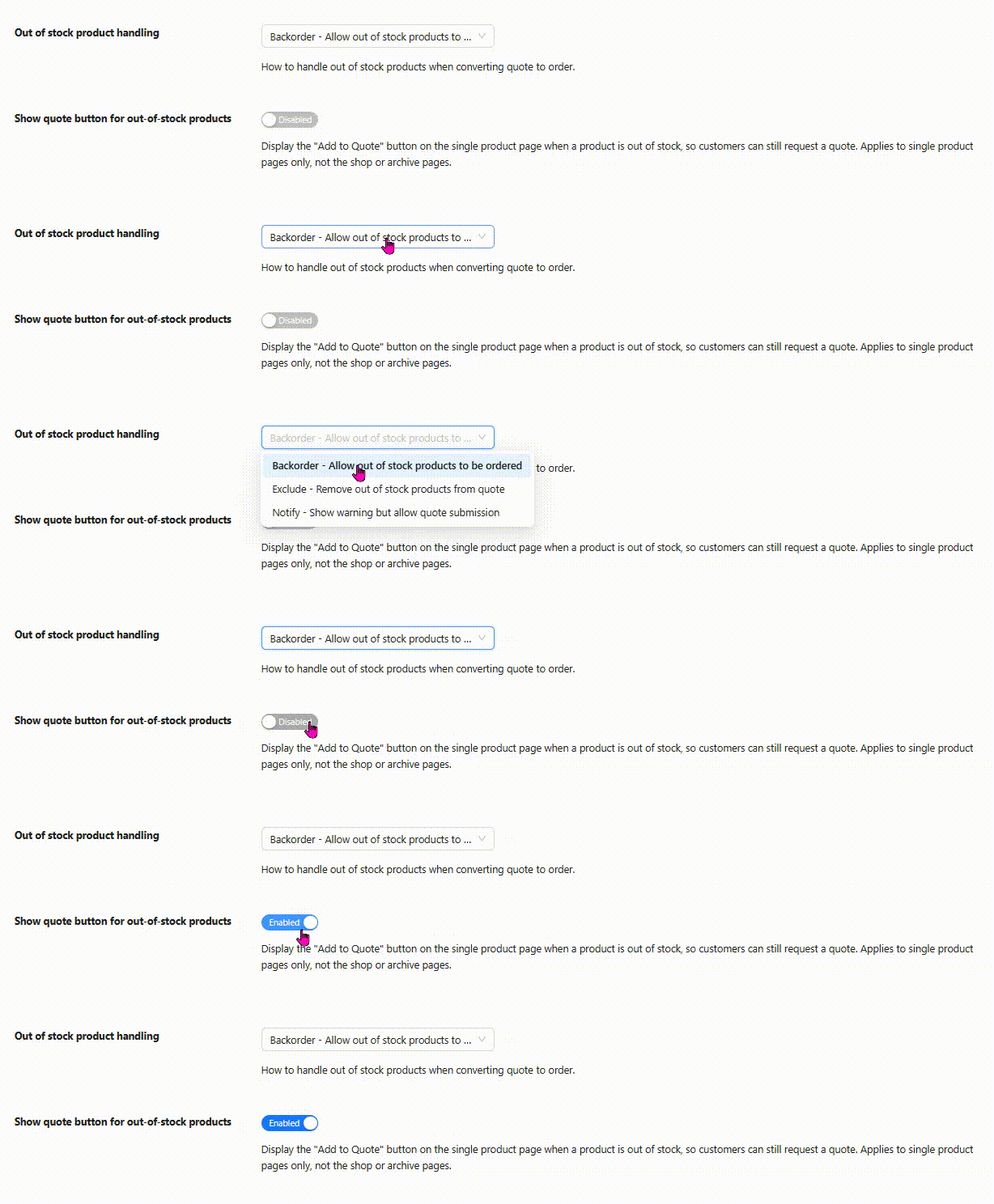
Save your changes. Click Save to lock in the settings.
Step 3: Test it on a product
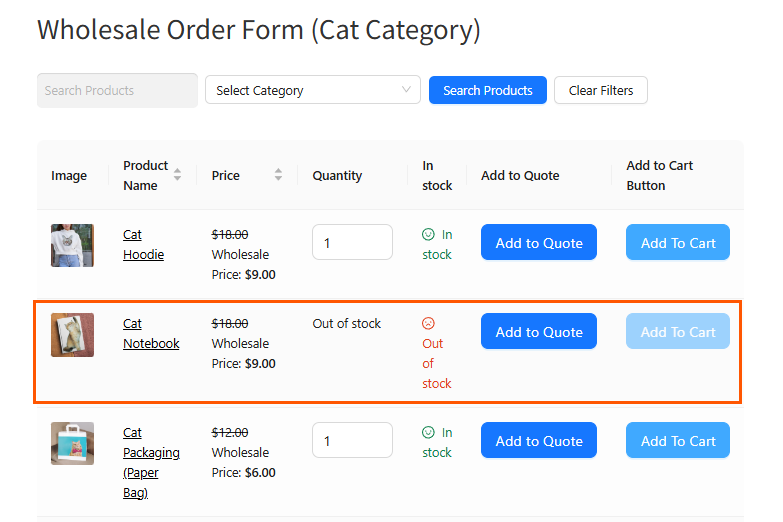
Pick a product, set it to Out of stock under the Inventory tab, then view that product on your storefront. Click the button, check that the item lands in the quote, then submit it. The request will appear under Quotes as a pending quote.
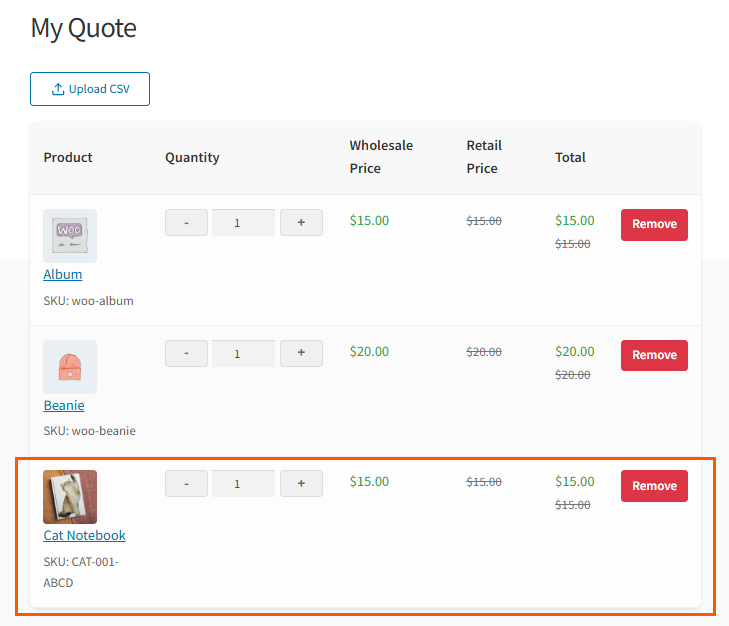
One thing to watch: Do not combine this button with the “Out of stock product handling, Exclude” setting. If you do, a customer can add the sold out item to their quote, but the system will block them at submission with an error. Using Backorder or Notify avoids this and lets the whole flow work cleanly.
If you need a refresher on setting a product’s stock status in the first place, our walkthrough on how to manage stock in WooCommerce covers the Inventory tab in detail. You can also review how WooCommerce itself handles availability in the official out-of-stock documentation.
Conclusion
A sold out product no longer has to mean a lost opportunity. The out of stock quote button keeps the door open, letting wholesale buyers request a quote on the items they want even when those items are temporarily unavailable. That matters most for corporate gift registries, where a list can sit for weeks before an item goes out of stock. It is a small feature with an outsized effect, because it converts a frustrating dead end into a warm lead and a clear demand signal at the same time.
The best part is how little it asks of you. The out of stock quote button is off by default, it respects your existing button styling, and it comes with guardrails that keep your shop pages clean and your quote flow reliable. Turn it on, pair it with Backorder or Notify, run a quick test, and you are ready to capture demand you were quietly losing before.
If you are already running Wholesale Quotes, updating to version 1.0.2 and flipping this one toggle is one of the easiest wins available to a B2B store. Give it a try, watch the quote requests come in on your sold out products, and let that data guide what you restock next.
Here is what we covered in this article:
- What the out of stock quote button is in Wholesale Quotes
- How the out of stock quote button works
- How to turn on the out of stock quote button in Wholesale Quotes
Frequently Asked Questions
Is the out of stock quote button turned on automatically?
No. It is off by default in Wholesale Quotes version 1.0.2. If you do nothing, your store behaves exactly as before. You need to go to Wholesale Quotes, Settings, General and switch on “Show quote button for out-of-stock products” to enable it.
Where does the button appear on my store?
It appears only on single product pages, sitting just below the “Out of stock” notice. It does not show on your main shop or category pages, so your product grids stay clean. In-stock products keep their button where you set it, and there is never a duplicate button.
Does the button work with variable products?
Yes. It works with simple products, backorder products, and variable products, including variable products where every variation is sold out. A safeguard ensures exactly one button renders per request, so there is never a duplicate on those all-sold-out variable products.
Why does my quote submission fail after enabling the button?
This usually happens when the button is combined with the “Out of stock product handling, Exclude” setting. In that case a buyer can add the item to their quote, but the system blocks submission with an error. Set the handling option to Backorder or Notify to let the flow work smoothly.
What happens to a quote request for a sold out product?
The request lands in your dashboard under Wholesale, Quotes as a pending quote, just like any other quote request. You can review it, price it, and message the buyer. It also tells you which unavailable products have real demand, which helps you decide what to restock.