

Wholesale buyers don’t all shop the same way. Some know exactly what they need and want to order right now. Others need a price confirmed for a bigger run, a mixed pallet, or a product they’ve never bought from you before. If your WooCommerce product table only lets them add to cart, that second group has to leave the order form, find another page, and start again.
Wholesale Quotes 1.0.4 closes that gap. Your Wholesale Order Form can now show an Add to Quote link right under each Add to Cart button, in the same cell. Every row of your WooCommerce product table becomes a place to order or to ask for a quote, and you don’t need to give up a whole column to do it.
In this article, we’ll cover what the new link does, who it helps, how to switch it on step by step, and how it behaves for your customers. We’ll also round up the other fixes that shipped in the same release.
What’s New: An Add To Quote Link Under Every Add To Cart Button
Wholesale Order Form builds a fast, searchable WooCommerce product table where wholesale customers type quantities and add many products at once. Until now, the only way to let them request a quote from that table was a separate Add to Quote column with its own button in every row.
Version 1.0.4 of Wholesale Quotes adds a second option. The Add to Cart Button column in the form builder now has a Show Add to Quote link setting. Tick it, and each row shows a small Add to Quote text link directly beneath its Add to Cart button.
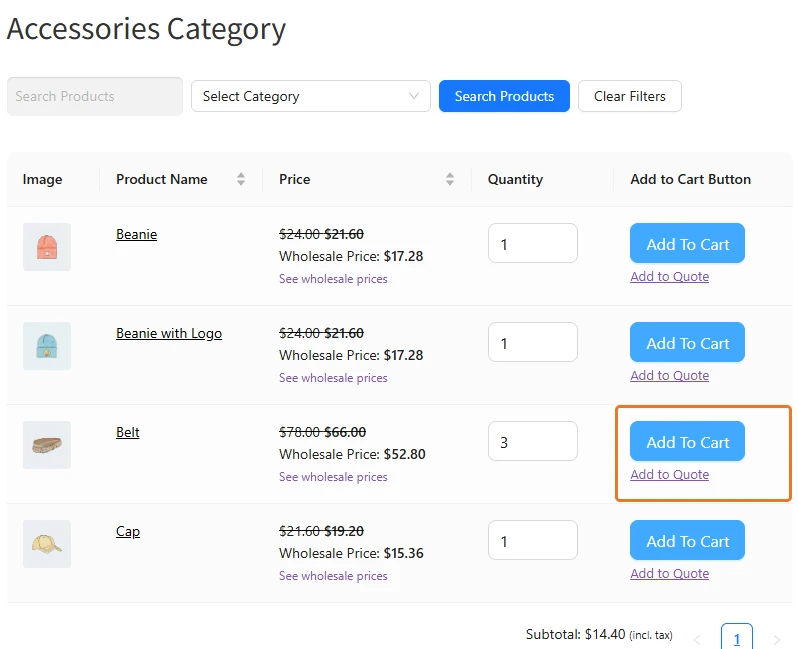
The setting is off by default, so none of your existing order forms change when you update. It’s also a separate option from the Add to Quote column. You can use the link, the column, or both on the same form.
Why A Quote Option Belongs In Your WooCommerce Product Table
Quotes are a normal part of B2B buying. A request for quote lets a buyer ask for pricing on specific products and quantities before committing, and many wholesale accounts work that way by habit or company policy. When your WooCommerce product table is the main place those buyers shop, the quote option should live there too.
Putting the link under the Add to Cart button keeps both choices side by side. A buyer can add their usual reorder to the cart and send the unusual items to a quote without leaving the page. That’s the same idea behind our comparison of a wholesale order form vs a quote request: most stores need both, and the best setup lets customers pick in the moment.
It also saves space. Order forms tend to get wide fast once you add images, SKUs, stock levels, prices, and quantity boxes. A full Add to Quote column costs another slice of width, which matters even more on a phone. The link sits inside the cell you already have.
Who The Add To Quote Link Is For
Any store running Wholesale Order Form and Wholesale Quotes together can use it, but a few setups get the most out of it.
Stores with wide order forms
If your WooCommerce product table already has six or seven columns, the link gives customers a quote option without squeezing everything else. It’s a tidy fit for forms that show product images, variation dropdowns, and quantity-based pricing in the same row.
Stores where quotes are the exception
When most orders go straight to checkout, and quotes are only for large or custom jobs, a full-size button in every row can pull too much attention. A quiet text link keeps Add to Cart as the main action and leaves the quote option there for the buyers who need it.
Stores that sell on negotiated pricing
Some products always need a conversation first, such as bulk runs, made-to-order items, or volume deals. The link lets buyers add those items to a quote while building the rest of their order. They can then send everything from the quote page in one go, including items added through CSV upload to quote.
What You Need Before You Start
The new link connects two plugins, so both need to be on recent versions:
- Wholesale Quotes 1.0.4 or later: this is the release that adds the Show Add to Quote link option.
- Wholesale Order Form 3.1.4 or later: this release lets other plugins add options to the Add to Cart Button settings. In older versions, the new checkbox simply doesn’t appear, and nothing else breaks.
- Wholesale Prices: the free core plugin that every Wholesale Suite plugin runs on.
You’ll also want at least one order form published on a page. If you haven’t built one yet, our order form setup checklist walks you through creating a form and putting it live.
How To Add An Add To Quote Link To Your WooCommerce Product Table
Turning the link on takes about a minute per form. Here’s the full process.
Step 1: Update Wholesale Quotes and Wholesale Order Form
Go to Plugins in your WordPress dashboard and update Wholesale Quotes to 1.0.4 and Wholesale Order Form to 3.1.4. Make sure both stay active after the update.
Step 2: Open your order form in the form builder
Go to Wholesale > Order Forms and click Edit on the form you want to change. The form builder opens with the Order Form Elements panel on one side and your form’s layout on the other.
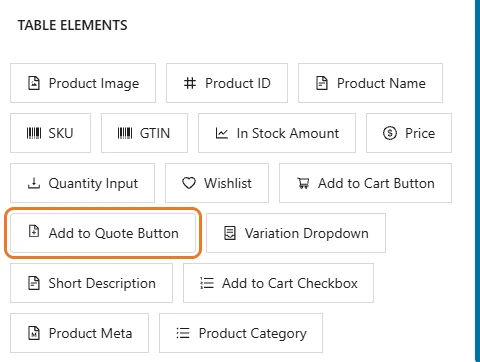
While you’re here, you’ll notice the Table Elements list now shows the quote element only once, as Add to Quote Button. Earlier versions listed it twice by mistake, and this release fixes that.
Step 3: Open the Add to Cart Button column settings
In the Order Form Table, find your Add to Cart column and click its gear icon. This opens the settings drawer for the Add to Cart Button element, where you normally set the button text, the add to cart notification, and who can see the column.
Step 4: Tick Show Add to Quote link and save the form
In the drawer’s Options section, just above Visible To, you’ll find a new checkbox: Show Add to Quote link, with the note “Shows an Add to Quote link under the Add to Cart button.” Tick it, close the drawer, and click Update to save the form.
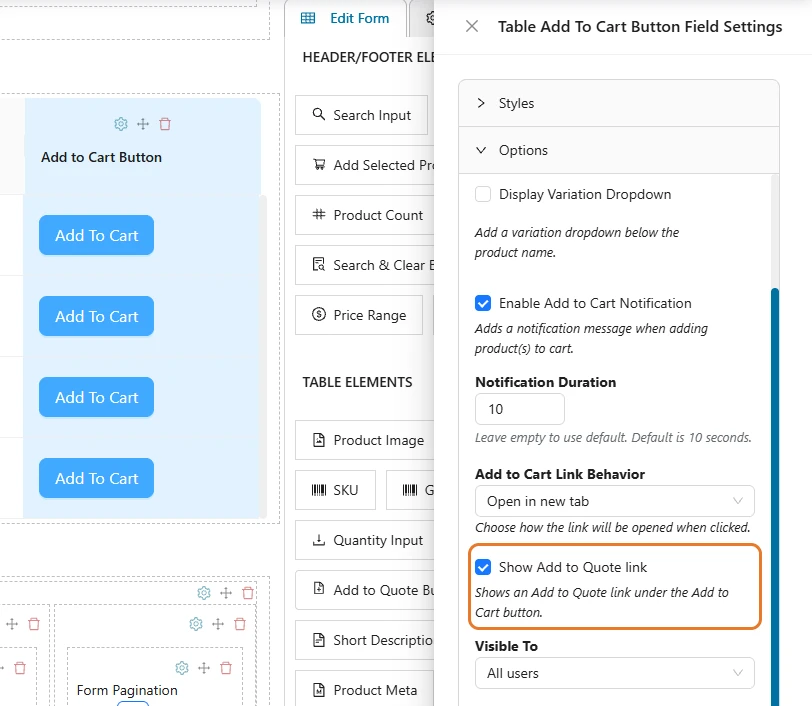
The setting is saved per column. If a form has more than one Add to Cart column, or you run several forms, switch it on wherever you want the link to appear.
Step 5: Check the link as a wholesale customer
The builder’s preview doesn’t draw the link, so check it on the live page. Log in as a wholesale customer in another browser and open the page that holds your order form. Each row of your WooCommerce product table should now show Add to Quote under the Add to Cart button.
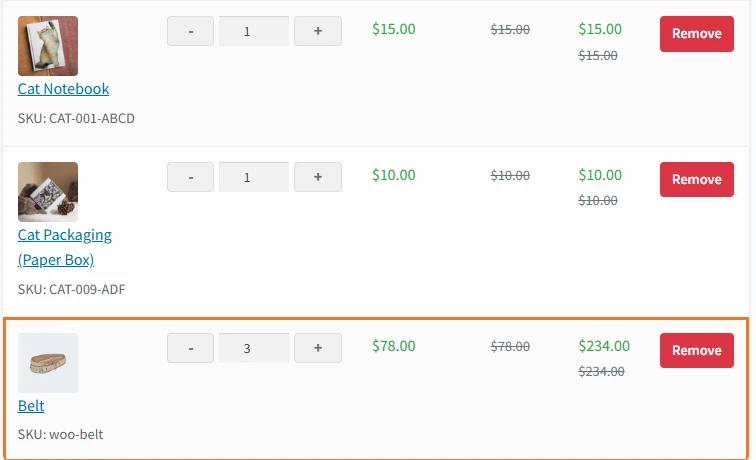
Type a quantity in a row and click the link. The product is added to the customer’s quote with that quantity. Depending on your quote settings, they either stay on the form with a short confirmation or go straight to the quote page to review their items.
How The Link Works For Your Customers
The link and the Add to Quote column button share the same behind-the-scenes process, so the experience feels consistent wherever a customer clicks. Here’s what to expect.
It uses the quantity in the row
Whatever the customer types in the row’s quantity box is what goes into the quote. If they click the link again later, the product’s quantity in the quote goes up, the same way adding to cart twice raises a cart line. The column button works differently: it switches to Remove from Quote once the product is in the quote.
It quotes the variation the customer picked
For a variable product shown with a dropdown, the link adds the exact variation selected in that row, not the parent product. If the customer hasn’t chosen a value yet, nothing is added, and a message asks them to pick one first. Variations with an “Any” attribute keep the chosen value too, so a Red and a Blue choice become two separate quote lines.
It follows your quote settings
After the add, the customer either stays on the order form with a notice or goes straight to the quote page, depending on the Action after adding product to quote setting in Wholesale Quotes. Guests who are allowed to request quotes are asked for their email first, just as they are with the button. Our guide to guest quote requests covers that setup.
It works without an Add to Quote column
You don’t need the Add to Quote column on the form for the link to work. Many stores will remove the column and rely on the link alone, which gives the cleanest WooCommerce product table. A page that holds several order forms works too, since each link reads its own form’s rows and quantities.
It respects who can see quotes
With Restrict to wholesale customers switched on in Wholesale Quotes, retail customers and guests see neither the link nor the quote button. This release goes further, too. Those visitors also get a “Quotes are available to wholesale customers only.” message on the quote page instead of the quote form, and the quote system itself refuses their requests, not just hides the buttons.
Link Or Column: Which Should You Use?
Both options add products to the same quote, so the choice comes down to layout and how prominent you want quotes to be.
- Use the link when space is tight, when Add to Cart should stay the main action, or when you want a simpler WooCommerce product table on mobile.
- Use the column when quotes are the main way your buyers purchase, and you want a full-size, colored button they can’t miss. The column button also lets customers remove a product from the quote with a second click.
- Use both if you want the button for visibility and the link as a second path for buyers who scan down the Add to Cart column.
The column keeps its own Button Text, Button Color, and Button Text Color settings in the form builder. The link is a small text link in your theme’s link color, so it blends into the cell rather than competing with the Add to Cart button.
Other Improvements In Wholesale Quotes 1.0.4
The Add to Quote link is the headline, but this release also fixes several things in and around the order form and the quote pages.
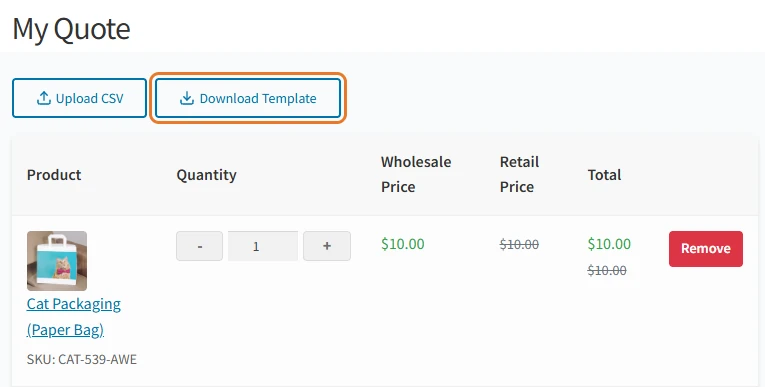
- Download Template button: the quote page now shows a Download Template button next to Upload CSV, so customers can grab the CSV template without opening the upload panel first.
- Variations from the order form: the Add to Quote button on a variable product row now quotes the variation chosen in the dropdown. Before, it added the parent product at 0.00.
- Column button styles: the Add to Quote button in the order form now uses the text and colors you set for its column.
- One quote element in the builder: the form builder lists the quote element once, as Add to Quote Button.
- Tax display: quote prices and totals now follow your wholesale tax display setting, so a store that shows wholesale prices excluding tax no longer sees tax-inclusive prices on quotes.
- Lighter pages for restricted visitors: with Restrict to wholesale customers on, the quote scripts, styles, counter and dropdown no longer load for guests and retail shoppers.
- Quote history fixes: the Total column shows the real currency symbol, the View button opens the quote details again, and a Reorder button that never did anything has been removed.
Tips For Using The Add To Quote Link Well
A few small choices make the link more useful for your buyers.
- Tell buyers what quotes are for. A short line above the form, such as “Need pricing for larger quantities? Click Add to Quote”, helps first-time buyers understand the second option.
- Pick a clear post-add action. If buyers usually quote several products at once, set the action after adding to Show notice only (stay on page) so they can keep working through the form.
- Decide who should see quotes. If quotes are only for approved accounts, turn on Restrict to wholesale customers. You can also hide products and prices from guests for a fully private catalog.
- Test on a phone. Open the form at mobile width and check that the link sits neatly under the button and is easy to tap.
Conclusion
Wholesale buying mixes quick reorders with bigger decisions that need a price agreed first. The new Add to Quote link lets one WooCommerce product table handle both, right in the row, without adding a column or sending buyers somewhere else. It’s a small on-screen change that removes a real step from how your customers shop.
Setup is quick: update Wholesale Quotes to 1.0.4 and Wholesale Order Form to 3.1.4, tick Show Add to Quote link in the Add to Cart Button settings, and save. The link uses the row’s quantity and chosen variation, follows your existing quote settings, and stays hidden from anyone your quote restrictions exclude. Pair it with the release’s other fixes, from the Download Template button to accurate tax display, and your WooCommerce product table becomes a stronger place to start every kind of wholesale order.
Here is what we covered in this article:
- What’s new: an Add to Quote link under every Add to Cart button
- Why a quote option belongs in your WooCommerce product table
- Who the Add to Quote link is for
- What you need before you start
- How to add an Add to Quote link to your WooCommerce product table
- How the link works for your customers
- Link or column: which should you use?
- Other improvements in Wholesale Quotes 1.0.4
- Tips for using the Add to Quote link well
Frequently Asked Questions
Do I need the Add to Quote column for the link to work?
No. The link works on its own, so you can remove the Add to Quote column from your form and rely on the link alone. You can also keep both if you want the larger button and the link together.
Why don’t I see the Show Add to Quote link option?
The option needs Wholesale Quotes 1.0.4 and Wholesale Order Form 3.1.4 or later, both active. On an older Wholesale Order Form, the checkbox doesn’t appear in the Add to Cart Button settings. Update both plugins and reopen the form builder.
Can I change the text of the Add to Quote link?
The link reads “Add to Quote” by default and doesn’t use the Button Text setting of the Add to Quote column. If you need different wording, you can change the plugin text with a translation tool, like any other plugin text.
What happens if a customer clicks the link twice?
Each click adds the row’s quantity again, so the product’s quantity in the quote goes up, just like clicking Add to Cart twice. Customers can adjust or remove lines on the quote page before they submit.
Will retail customers see the link?
Only if your quote settings allow them to request quotes. With Restrict to wholesale customers turned on, retail customers and guests don’t see the link or the button, and the quote page tells them quotes are for wholesale customers only.