
Not every customer wants to pay by card at checkout. Invoice Gateway for WooCommerce lets them place the order now and pay later against an invoice you send from your accounting software. This guide walks you through installing the plugin, turning on the invoice payment method, and configuring every general option, from the default order status to Net 30 payment terms.
Before you start
You need:
- WooCommerce installed and active
- An administrator account on your WordPress site
Invoice Gateway for WooCommerce is free and works on any WooCommerce store. You don’t need Wholesale Suite to use it, although it works alongside the Wholesale Suite plugins if you sell wholesale.
Install and activate the plugin
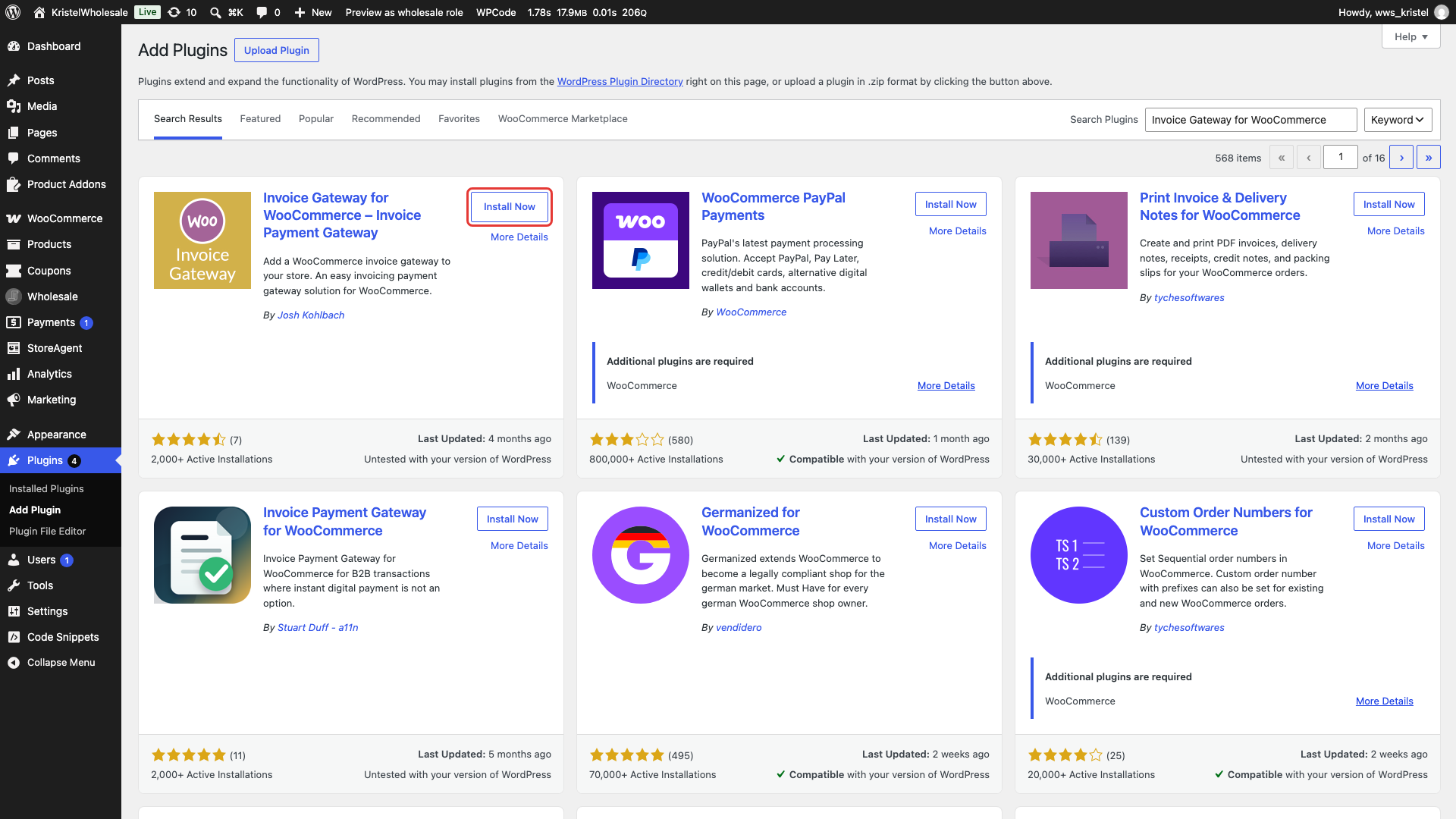
- In your WordPress dashboard, go to Plugins → Add Plugin.
- Search for Invoice Gateway for WooCommerce.
- Click Install Now.
- Click Activate.
Turn on the Invoice Payment method
Activating the plugin adds a new payment method called Invoice Payment, but it stays off until you enable it.
- Go to WooCommerce → Settings.
- Click the Invoice Gateway tab.
- Under Invoice Gateway Settings, click the here link to open the payment method settings.
- Tick Enable Invoice Payment.
- Review the remaining fields (see the table below).
- Click Save changes.
You can also use WooCommerce → Settings → Payments. Click Enable next to Invoice Payment to turn it on, or click Manage to open the same settings screen.
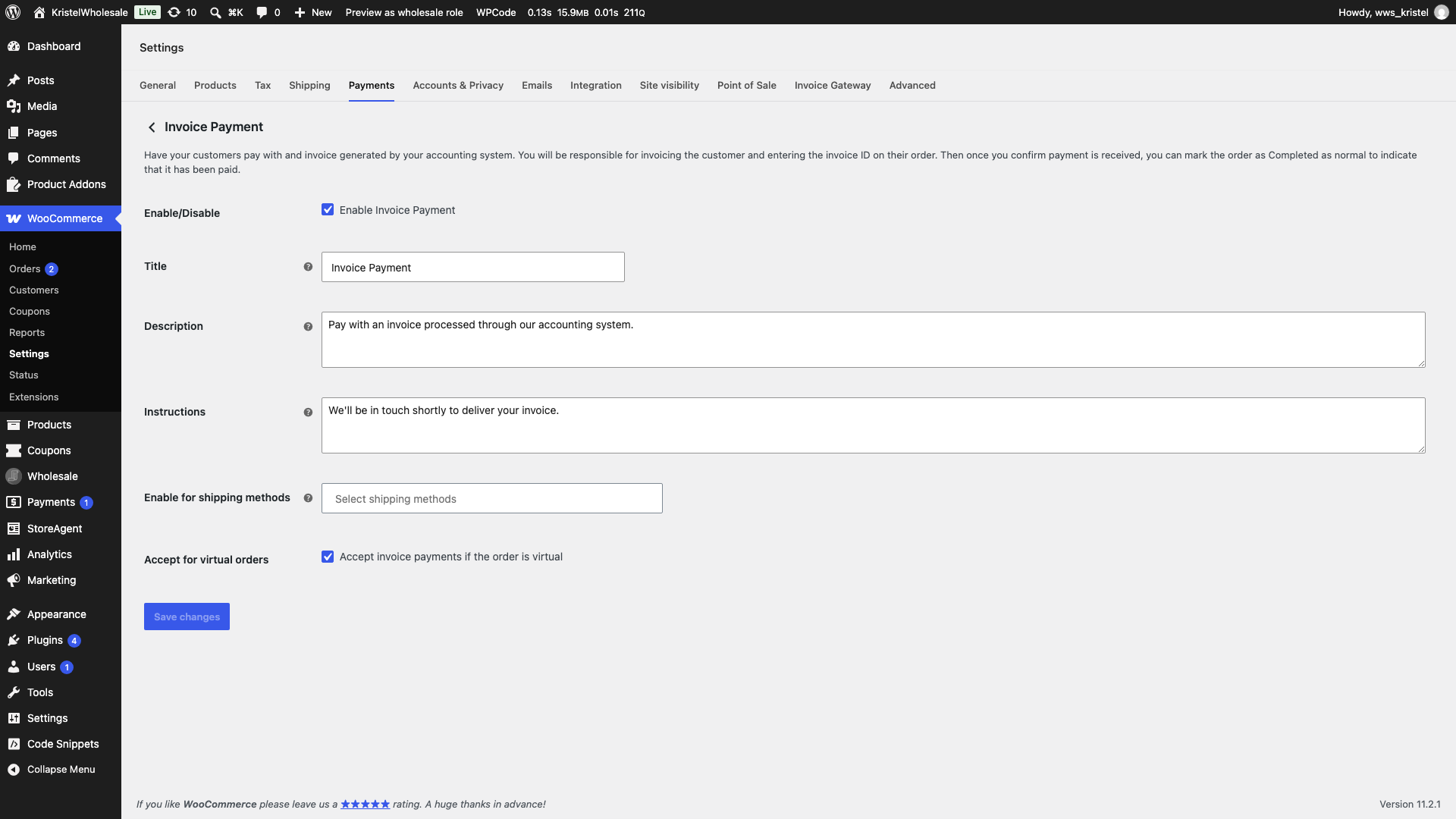
| Setting | Description | Default |
|---|---|---|
| Enable/Disable | Turns the Invoice Payment method on or off at checkout. | Off |
| Title | The payment method name customers see at checkout. | Invoice Payment |
| Description | Text shown under the payment method at checkout. It’s replaced by the purchase order number field when Enable Purchase Order Number is on. | Pay with an invoice processed through our accounting system. |
| Instructions | Shown on the order received page, and in the customer’s order email while the order is On hold. | We’ll be in touch shortly to deliver your invoice. |
| Enable for shipping methods | Limits invoice payment to orders using the shipping methods you select. Leave blank to allow all shipping methods. | Blank (all methods) |
| Accept for virtual orders | Allows invoice payment for orders that don’t need shipping. | On |
Configure the general options
The general options control what happens to an invoice order after the customer places it. Go to WooCommerce → Settings → Invoice Gateway and stay on the General sub-tab. All of the settings below are in the General Options section.
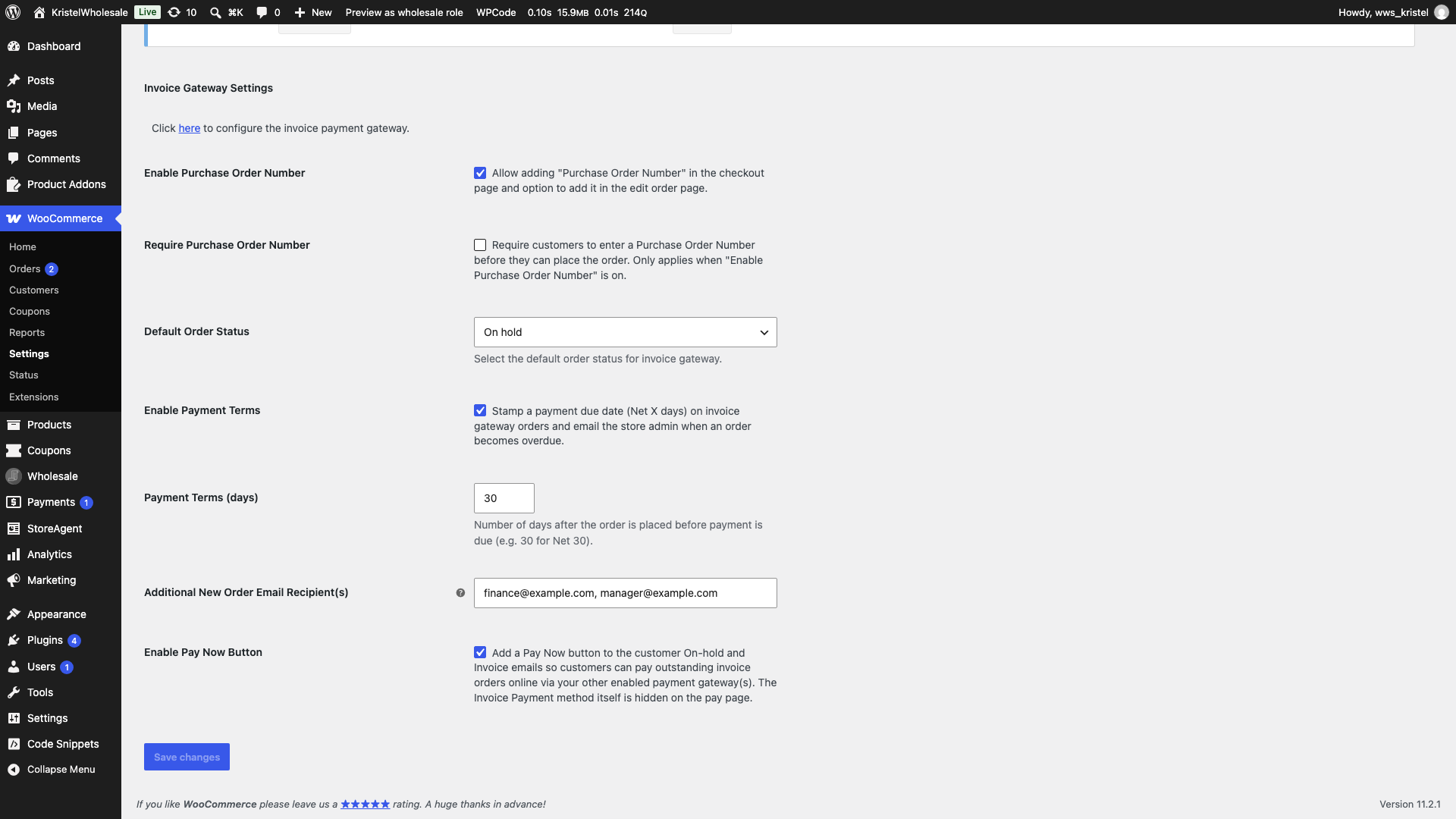
| Setting | Description | Default |
|---|---|---|
| Enable Purchase Order Number | Adds a purchase order (PO) number field to the invoice payment method at checkout. | Off |
| Require Purchase Order Number | Stops customers placing an invoice order without a PO number. | Off |
| Default Order Status | The status new invoice orders receive. | Pending payment is shown until you save a status. Select On hold. |
| Enable Payment Terms | Gives each invoice order a payment due date and emails you when it becomes overdue. | Off |
| Payment Terms (days) | How many days after the order is placed payment is due. | 30 |
| Additional New Order Email Recipient(s) | Extra addresses that receive the New Order email for invoice orders. | Blank |
| Enable Pay Now Button | Adds a Pay Now button to certain customer emails so customers can pay an invoice order online. | Off |
Choose the default order status
- Select a status from the Default Order Status dropdown.
- The dropdown shows Pending payment until you save a status. Select On hold for most invoice workflows.
- The options are Pending payment, Processing, On hold, and Completed, plus any custom statuses your store adds.
- Click Save changes.
On hold suits most invoice workflows. It tells you payment hasn’t arrived yet, and WooCommerce sends the customer the On-hold order email with your invoice Instructions. WooCommerce treats Processing and Completed orders as paid, so choosing either one means payment terms won’t flag the order as overdue.
Set up Net X payment terms
Check that Default Order Status shows the status you want before you click Save changes. Saving this screen also saves the status that the dropdown shows.
- Tick Enable Payment Terms.
- Enter a number in Payment Terms (days), such as 30 for Net 30.
- The minimum is 1. A blank or zero value falls back to 30.
- Click Save changes.
When an invoice order moves into your Default Order Status, the plugin stamps a due date on it: the order date plus your payment terms. A daily background check then looks for unpaid invoice orders past their due date. For each one, it emails the store admin and adds the order note “Invoice payment overdue — store admin notified.” Each order triggers the overdue email once.
The overdue email goes to the administration email address in Settings → General, not to the customer. Want Stripe-based customer reminders and automatic collection instead? See Wholesale Payments.
Changing Payment Terms (days) only affects orders that haven’t been given a due date yet. Orders that already have one keep it.
Send New Order emails to extra recipients
- Enter one or more email addresses in Additional New Order Email Recipient(s).
- Separate multiple addresses with commas, for example
[email protected], [email protected].
- Separate multiple addresses with commas, for example
- Click Save changes.
These addresses receive the WooCommerce New Order email for invoice orders only. Orders paid through other payment methods still go to your usual New Order recipients. If an address isn’t a valid email, the plugin removes it when you save and shows a notice listing what it removed.
Add a Pay Now button to customer emails
- Tick Enable Pay Now Button.
- Click Save changes.
The Pay Now button appears in the customer’s On-hold order email and in the order details (invoice) email you send manually from the order screen. It links to the order’s payment page, where the customer can pay with any of your other payment methods. Invoice Payment is hidden on that page so they can’t pick it again.
You need at least one other payment method enabled for the button to appear.
Collect purchase order numbers
- Tick Enable Purchase Order Number to add a PO number field to the invoice payment method at checkout.
- Optionally, tick Require Purchase Order Number to make the field mandatory.
- Click Save changes.
The PO number is saved to the order and included in the admin New Order email.
Restrict who can pay by invoice
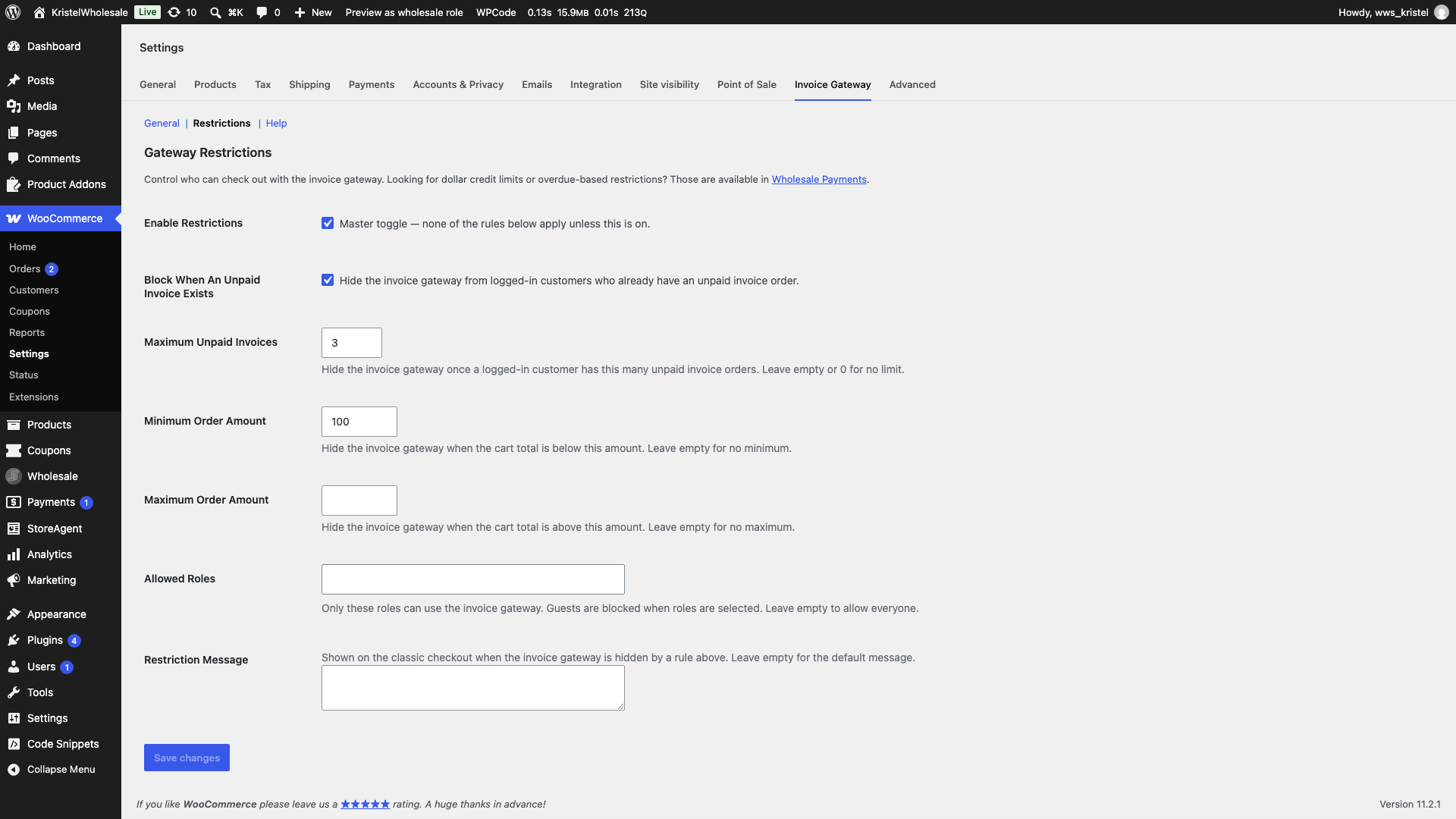
By default, any customer can choose Invoice Payment at checkout. To limit it by user role, order amount, or unpaid invoices, go to WooCommerce → Settings → Invoice Gateway and click the Restrictions sub-tab. Set up invoice gateway usage restrictions walks through each rule.
Troubleshooting
Invoice Payment doesn’t appear at checkout
Check that Enable Invoice Payment is ticked on the Invoice Payment settings page. Then check Enable for shipping methods: if you’ve selected methods there, the customer’s chosen shipping method must be one of them. For orders that don’t need shipping, make sure Accept for virtual orders is ticked. If you use gateway restrictions, a rule on the Restrictions sub-tab may be hiding it.
I’m not receiving overdue emails
Make sure Default Order Status isn’t set to Processing or Completed. WooCommerce treats those statuses as paid, so the plugin skips them. Also confirm Enable Payment Terms is ticked and check the administration email address in Settings → General. Orders placed before you turned on payment terms don’t have a due date, so they never become overdue.
The check runs once a day through WooCommerce’s scheduled actions, so an overdue order can take up to a day to trigger the email.
Extra recipients aren’t getting the New Order email
Confirm the order was placed with Invoice Payment. Extra recipients only apply to invoice orders. Then check that the New Order email is enabled in WooCommerce → Settings → Emails.
The Pay Now button isn’t showing in emails
Enable at least one other payment method in WooCommerce → Settings → Payments. The button also only appears while the order still needs payment, and only in the On-hold and order details (invoice) emails.
Frequently asked questions
Do I need Wholesale Suite to use Invoice Gateway for WooCommerce?
No. The plugin is free and works on any WooCommerce store. If you do sell wholesale, you can offer invoice payment to wholesale customers too.
Does the customer see the payment due date?
No. The due date is used to work out when an order is overdue, and the overdue email goes to the store admin only.
What status should I use for invoice orders?
On hold works best for most stores. It sends the customer your invoice instructions and lets payment terms flag the order when it’s overdue. Change the order to Completed once you’ve been paid.
What’s the difference between Invoice Gateway and Wholesale Payments?
Invoice Gateway lets customers check out now and pay you later, outside WooCommerce or online with the optional Pay Now button. It also offers optional Net X terms and an overdue alert to you. Wholesale Payments is a separate payment method that charges through Stripe. It offers payment plans, credit limits, customer reminders, and automatic payment collection.
What’s next
- How to set up invoice gateway usage restrictions
- How To Let Wholesale Customers Pay Via Invoice
- How to restrict wholesale customers to specific payment gateways
- WooCommerce Wholesale Payments Getting Started Guide
Need help?
If you have a question or run into any issues, we’re here to help.
- Premium users: Open a support ticket
- Free users: Visit our community forum

