Need to find where a wholesale option lives? This article lists each tab on the Wholesale Prices settings screen, the exact label of every setting, and its default value. The tabs below appear when WooCommerce Wholesale Prices Premium is active, and each setting that has its own guide links to it. The free WooCommerce Wholesale Prices plugin has fewer options, listed in WooCommerce Wholesale Prices free plugin settings.
To open the settings, go to Wholesale → Settings, then select Wholesale Prices. Open the tab you need. The Default column shows the value a store has before anyone saves a change.
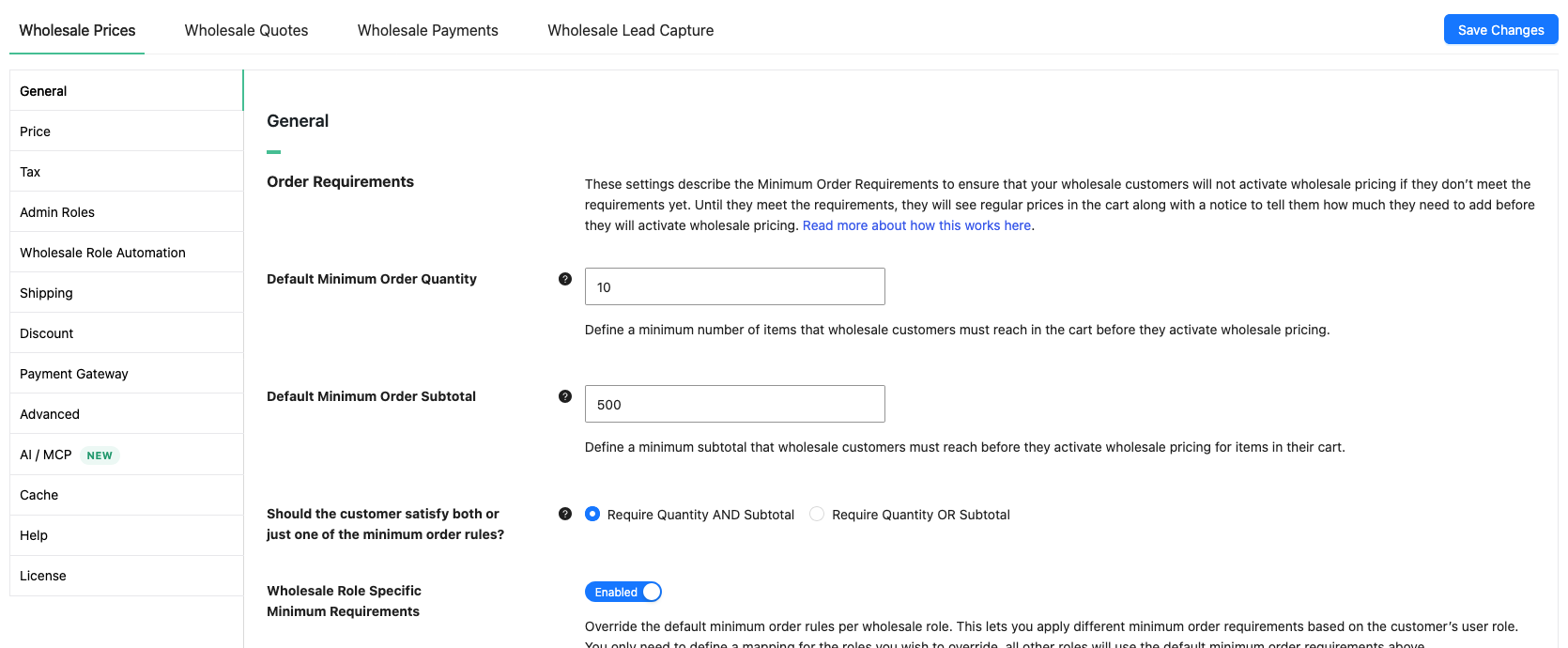
General settings
The General tab holds four sections. The settings need WooCommerce Wholesale Prices Premium, except Disable Coupons For Wholesale Users, which the free plugin also has.
Order requirements
These rules decide when a wholesale customer gets wholesale prices. Until the customer meets them, the cart shows retail prices.
| Setting | Description | Default |
|---|---|---|
| Default Minimum Order Quantity | Smallest number of items a wholesale customer must have in the cart before wholesale pricing applies. Enter 0 or leave it blank to turn the rule off. See How To Set Minimum Order Requirements For Wholesale Customers. | 0 |
| Default Minimum Order Subtotal | Smallest cart subtotal a wholesale customer must reach before wholesale pricing applies. Enter 0 or leave it blank to turn the rule off. | 0 |
| Should the customer satisfy both or just one of the minimum order rules? | Choose Require Quantity AND Subtotal or Require Quantity OR Subtotal. The choice is ignored when one of the two minimums above is off. Neither option is selected until you save a choice. If both minimums are set and no choice is saved, the OR rule applies. | Not set |
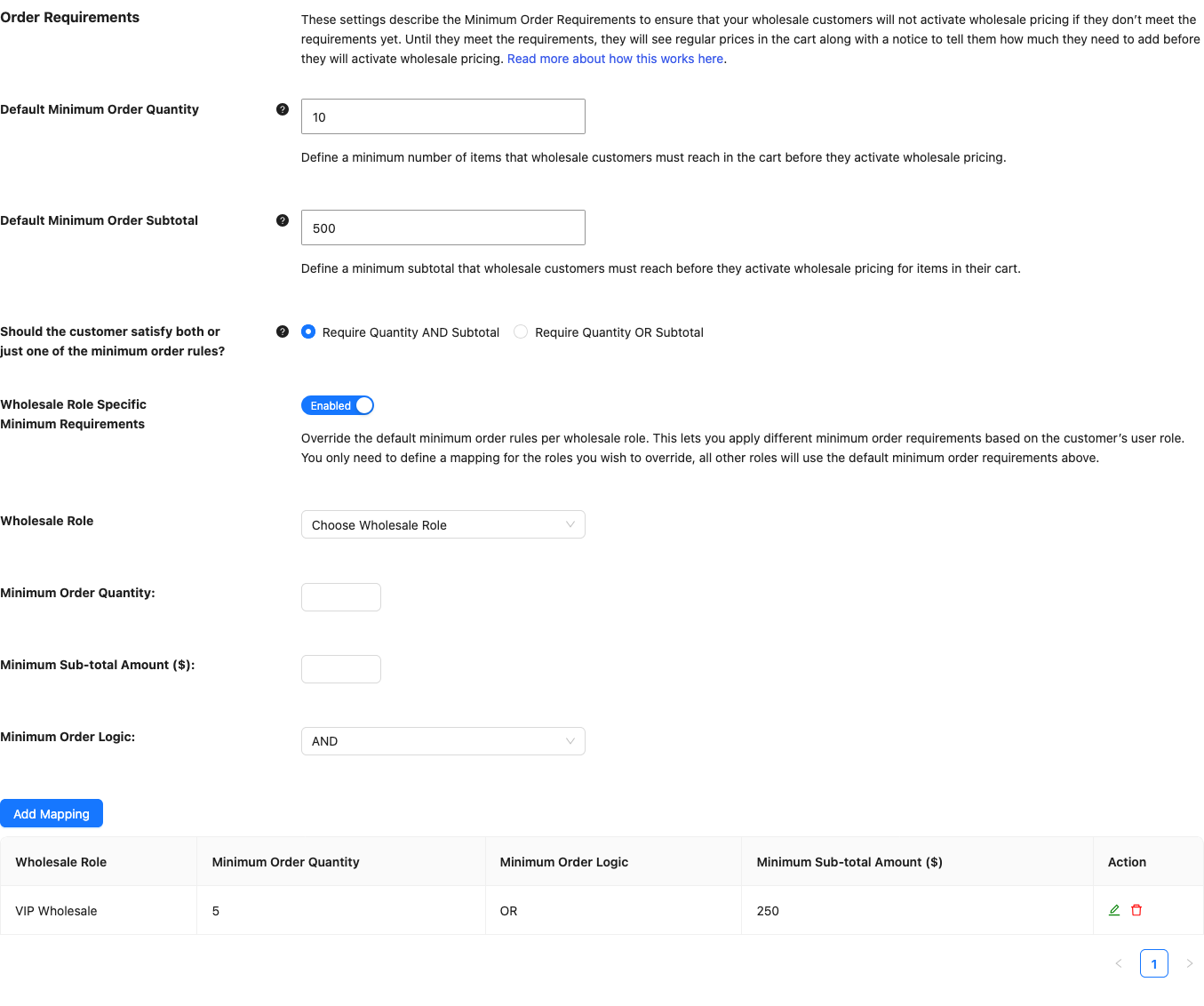
| Wholesale Role Specific Minimum Requirements | Lets you set different minimums for individual wholesale roles. Roles without a mapping use the default minimums above. When this is on, a mapping table appears. Click Add Mapping to add a row with a Wholesale Role, Minimum Order Quantity, Minimum Sub-total Amount ($) and Minimum Order Logic (AND or OR). A new row starts with Minimum Order Logic set to AND. The table has no rows until you add one. | Off |
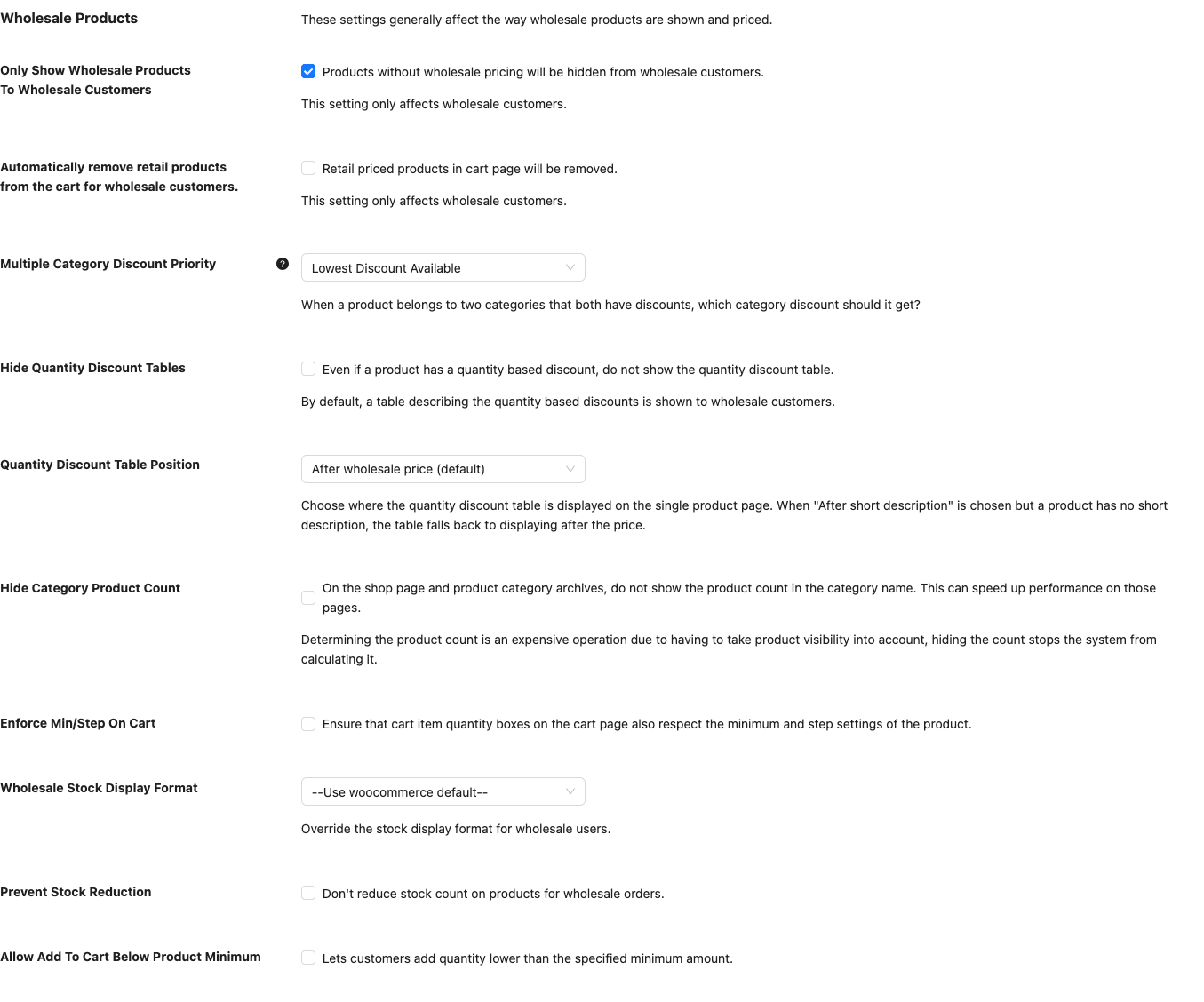
Wholesale products
| Setting | Description | Default |
|---|---|---|
| Only Show Wholesale Products To Wholesale Customers | Hides products that have no wholesale price from wholesale customers. It does not affect other visitors. See How To Adjust Visibility Of Wholesale Products. | Off |
| Automatically remove retail products from the cart for wholesale customers. | Removes products that only have a retail price from a wholesale customer’s cart. It does not affect other visitors. | Off |
| Multiple Category Discount Priority | Picks the category discount a product gets when it sits in two categories that both have a percentage discount. Choose Highest Discount Available or Lowest Discount Available. See Quantity based tiered pricing for product categories guide. | Lowest Discount Available |
| Hide Quantity Discount Tables | Hides the table of quantity based discounts, even when a product has one. Without this setting, wholesale customers see the table. | Off |
| Quantity Discount Table Position | Chooses where the quantity discount table shows on the single product page: After wholesale price (default), After short description or Before add to cart button. If a product has no short description, the table shows after the price. | After wholesale price (default) |
| Hide Category Product Count | Removes the product count from category names on the shop page and category archives. Only customers with a wholesale role lose the count. Counting products means checking product visibility, so hiding the count can speed up those pages. | Off |
| Enforce Min/Step On Cart | Makes the quantity boxes on the cart page follow each product’s minimum and step settings. See How to set minimum order quantity and step quantity for wholesale customers. | Off |
| Wholesale Stock Display Format | Changes how stock shows for wholesale customers. Options: –Use woocommerce default–, Always show quantity remaining in stock e.g. “12 in stock”, Only show quantity remaining in stock when low e.g. “Only 2 left in stock” and Never show quantity remaining in stock. | –Use woocommerce default– |
| Prevent Stock Reduction | Does not reduce stock counts for wholesale orders. See How To Prevent Stock Reduction For Wholesale Orders. | Off |
| Allow Add To Cart Below Product Minimum | Lets customers add fewer items than a product’s minimum. Covered in the same guide as Enforce Min/Step On Cart. | Off |
Wholesale customer capabilities
| Setting | Description | Default |
|---|---|---|
| Disable Coupons For Wholesale Users | Turns off coupons for every customer who has a wholesale role. See How To Make A Wholesale-Only Coupon. | Off |
| Always Allow Backorders | Lets wholesale customers place a backorder even when the product does not allow backorders. It overrides the backorder setting on the product for all wholesale roles. | Off |
| Show Backorders Notice When Allowed | Shows the standard WooCommerce Available on backorder notice to wholesale customers. The setting does nothing while Always Allow Backorders is off. | Off |
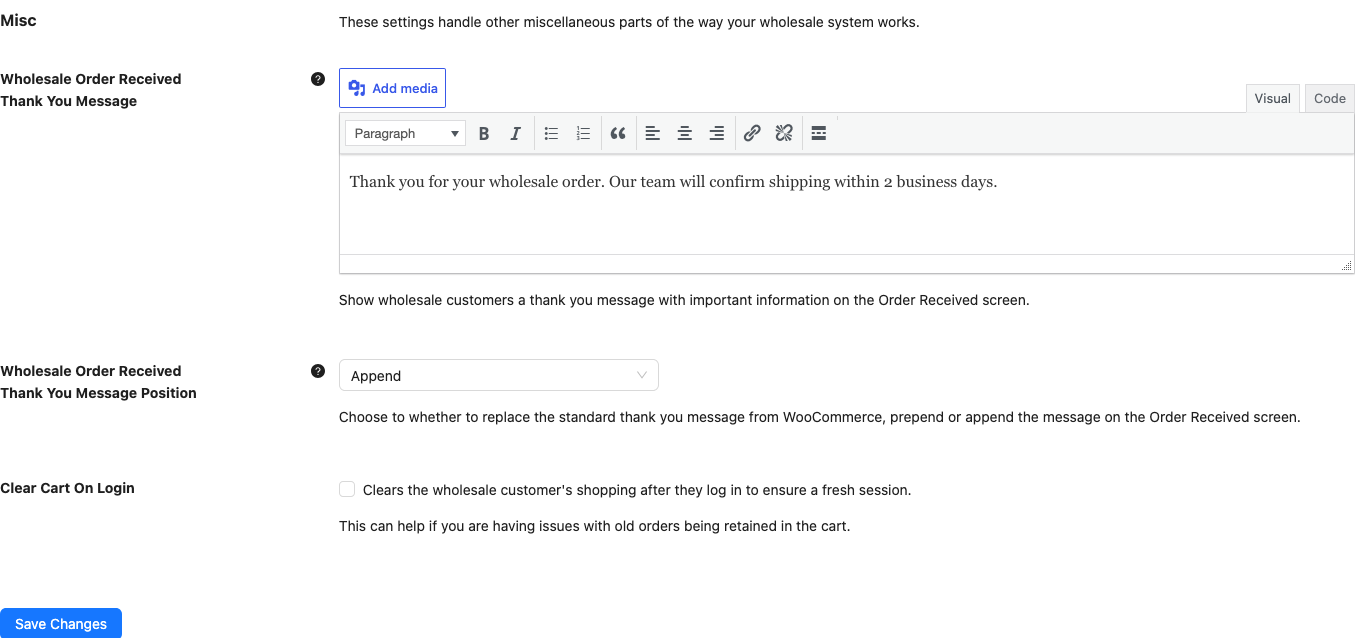
Misc
| Setting | Description | Default |
|---|---|---|
| Wholesale Order Received Thank You Message | A message with the editor toolbar that wholesale customers see on the Order Received screen. Leave it blank to keep the standard WooCommerce message. Other customers never see it. | Empty |
| Wholesale Order Received Thank You Message Position | Chooses how your message works with the standard WooCommerce thank you message. Replace replaces it, Append adds your message after it, and Prepend adds your message before it. | Replace |
| Clear Cart On Login | Empties a wholesale customer’s cart and resets their shopping session after they log in. Use it when old items keep showing up in the cart. It only affects customers with a wholesale role. | Off |
Price settings
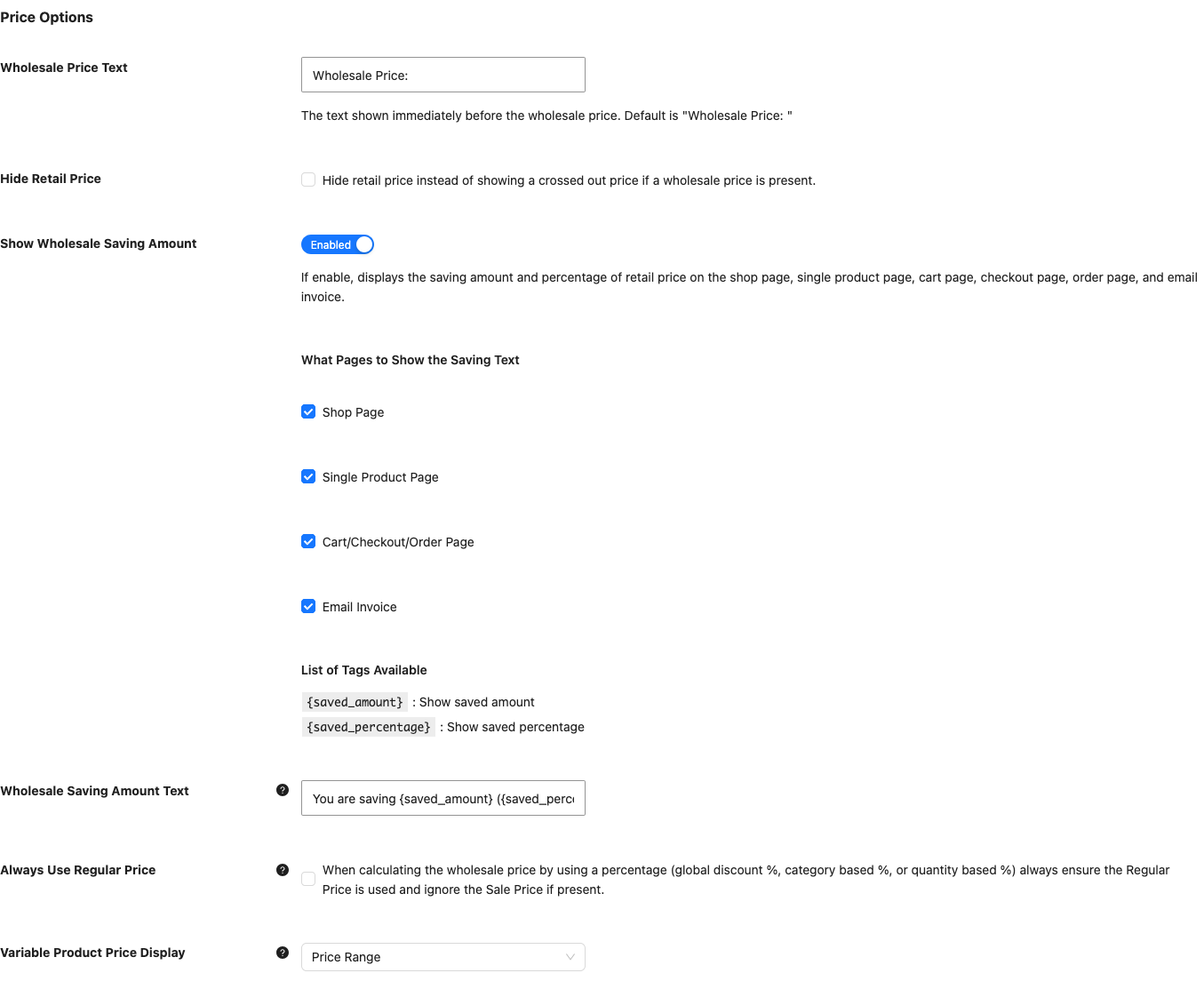
The Price tab controls how wholesale prices look. It has two sections. Wholesale Price Text, Hide Retail Price, Hide Wholesale Price on Admin Product Listing, Hide Price and Add to Cart button and Price and Add to Cart Replacement Message also exist in the free plugin with the same labels. The other settings in the first section need WooCommerce Wholesale Prices Premium, and so do the Minimum Price and Maximum Price options of Variable Product Price Display.
Price options
| Setting | Description | Default |
|---|---|---|
| Wholesale Price Text | Text shown before the wholesale price. See How to change the “Wholesale Price: ” text on the front end. | Wholesale Price: |
| Hide Retail Price | Hides the retail price instead of showing it crossed out when a wholesale price applies. See How To Hide The Crossed-Out Regular Price For Wholesale Customers. | Off |
| Show Wholesale Saving Amount | Shows how much wholesale customers save. When it is on, you choose the pages with the checkboxes Shop Page, Single Product Page, Cart/Checkout/Order Page and Email Invoice, and you can edit the text in Wholesale Saving Amount Text. See How To Show Wholesale Customers How Much They Are Saving. | Off. All four page checkboxes start unchecked. |
| Wholesale Saving Amount Text | The saving message, which uses the tags in the table below. | You are saving {saved_amount} ({saved_percentage}) off RRP on this order |
| Always Use Regular Price | When a price comes from a percentage (global discount, category discount or quantity based discount), always calculate from the regular price and ignore the sale price. See How to set a wholesale sale price. | Off |
| Variable Product Price Display | Sets how wholesale customers see the price of a variable product whose variations cost different amounts. Price Range shows the range. Minimum Price shows the lowest price and adds From: to the price text. Maximum Price shows the highest price and adds To:. Other visitors are not affected. | Price Range |
| Hide Wholesale Price on Admin Product Listing | Hides the wholesale price for each wholesale role on the Products list in the admin. See How To Fix The Admin-side Product Listing Loading Slow When Wholesale Prices Premium Is Active. | Off |
| Hide Price and Add to Cart button | Hides the price and the add to cart button from visitors who are not logged in. See How to hide prices from guests in WooCommerce Wholesale Prices. | Off |
| Price and Add to Cart Replacement Message | Text with the editor toolbar that replaces the price and button when the setting above is on. | Empty. The message Login to see prices shows until you enter your own. |
The saving text accepts two tags.
| Tag | What it shows |
|---|---|
{saved_amount} | The amount saved |
{saved_percentage} | The percentage saved |
Percentage prices stay in sync. When a product uses a percentage wholesale discount set on the product, WooCommerce Wholesale Prices Premium recalculates the stored wholesale price from the regular price every time you save the product. This also happens for imports and REST API updates. There is no setting for it.
Show wholesale prices box for non wholesale customers
| Setting | Description | Default |
|---|---|---|
| Show Wholesale Price to non-wholesale users | Shows wholesale prices to guests, customers, administrators and shop managers, to encourage them to register. When it is on, the settings Locations (Shop Archives, Single Product and Wholesale Order Form), Click to See Wholesale Prices Text, Wholesale Roles(s) and Register Text appear. The Wholesale Order Form location needs WooCommerce Wholesale Order Form. Register Text needs WooCommerce Wholesale Lead Capture. It links to the registration page set in the Lead Capture settings. See How To Show Wholesale Price To Non-Wholesale Users. | Off |
Tax settings
The Tax tab sets tax display and tax rules for wholesale roles. It has three sections and needs WooCommerce Wholesale Prices Premium.
Tax options
| Setting | Description | Default |
|---|---|---|
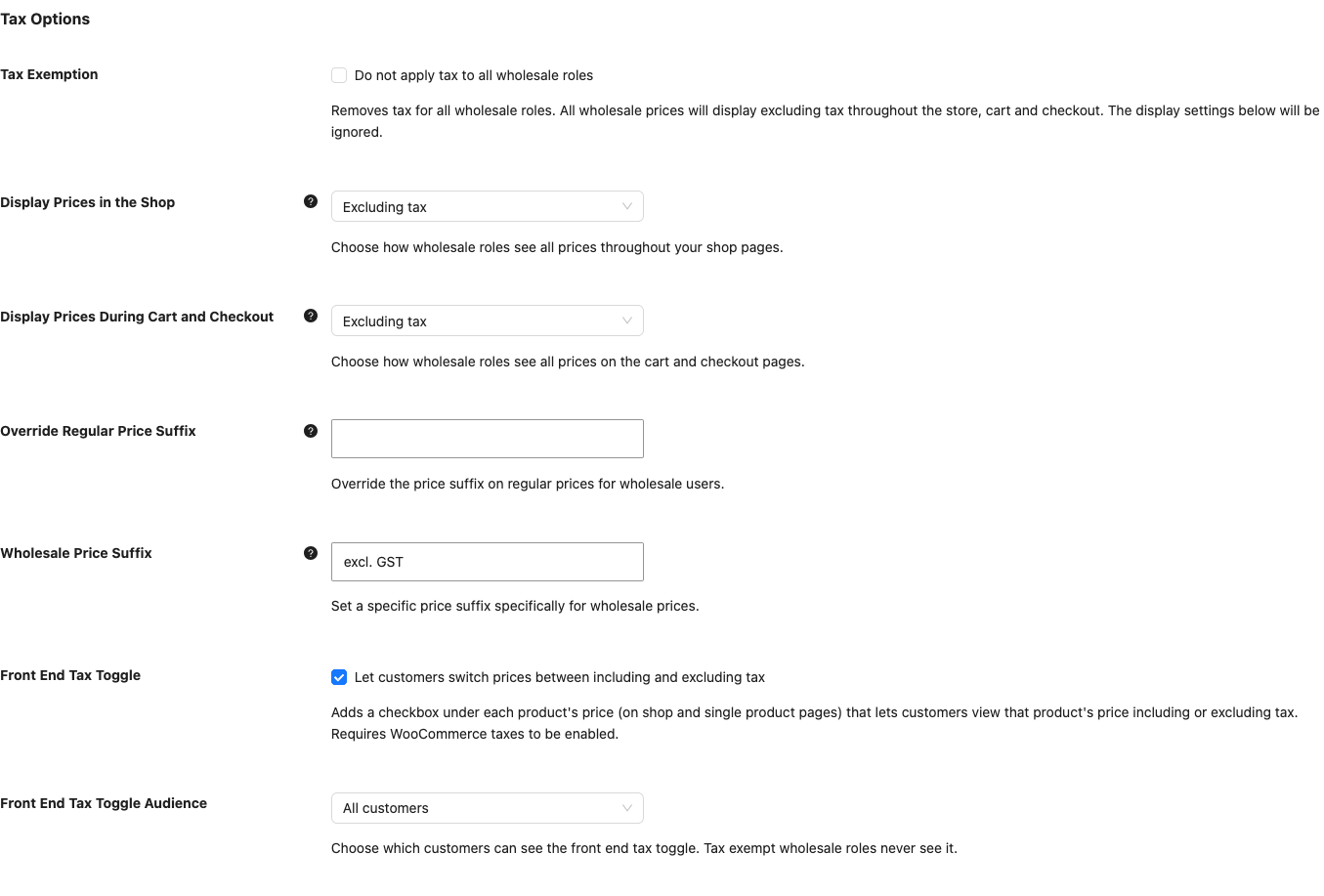
| Tax Exemption | Removes tax for all wholesale roles. Wholesale prices show excluding tax across the store, cart and checkout, and the display settings below are ignored. See How to make a wholesale role tax exempt. | Off |
| Display Prices in the Shop | Chooses how wholesale roles see prices on shop pages: –Use woocommerce default–, Including tax or Excluding tax. See How to display wholesale prices including or excluding tax. | –Use woocommerce default– |
| Display Prices During Cart and Checkout | Chooses how wholesale roles see prices on the cart and checkout pages. It has the same three options. | –Use woocommerce default– |
| Override Regular Price Suffix | Replaces the price suffix on regular prices for wholesale users. Leave it blank to use the default suffix. You can use the tags {price_including_tax} and {price_excluding_tax}. See How to set a custom price suffix for wholesale prices. | Empty |
| Wholesale Price Suffix | Sets a price suffix for wholesale prices only. Leave it blank to use the default suffix. It accepts the same two tags. | Empty |
| Front End Tax Toggle | Adds a checkbox under each product price on shop and single product pages. Customers use it to view that price including or excluding tax. It needs WooCommerce taxes to be on. | Off |
| Front End Tax Toggle Audience | Chooses who sees the toggle: All customers, Wholesale customers only or Retail customers only. Tax exempt wholesale roles never see it. | All customers |
The two suffix settings accept these tags.
| Tag | What it shows |
|---|---|
{price_including_tax} | The price including tax |
{price_excluding_tax} | The price excluding tax |
Wholesale role / tax exemption mapping
This section overrides the general Tax Exemption setting for individual roles. Click Add Mapping to add a row with a Wholesale Role and Tax Exempted? (Yes or No). See How to apply a different tax rate to wholesale customers.
Wholesale role / tax class mapping
| Setting | Description | Default |
|---|---|---|
| Wholesale Only Tax Classes | Hides the mapped tax classes from customers without a wholesale role. If a product uses a mapped tax class, customers whose role is not in the mapping, including guests, pay the standard tax class. | Off |
Below this setting, click Add Mapping to add a row with a Wholesale Role and a Tax Class. The table has no rows until you add one.
Admin roles
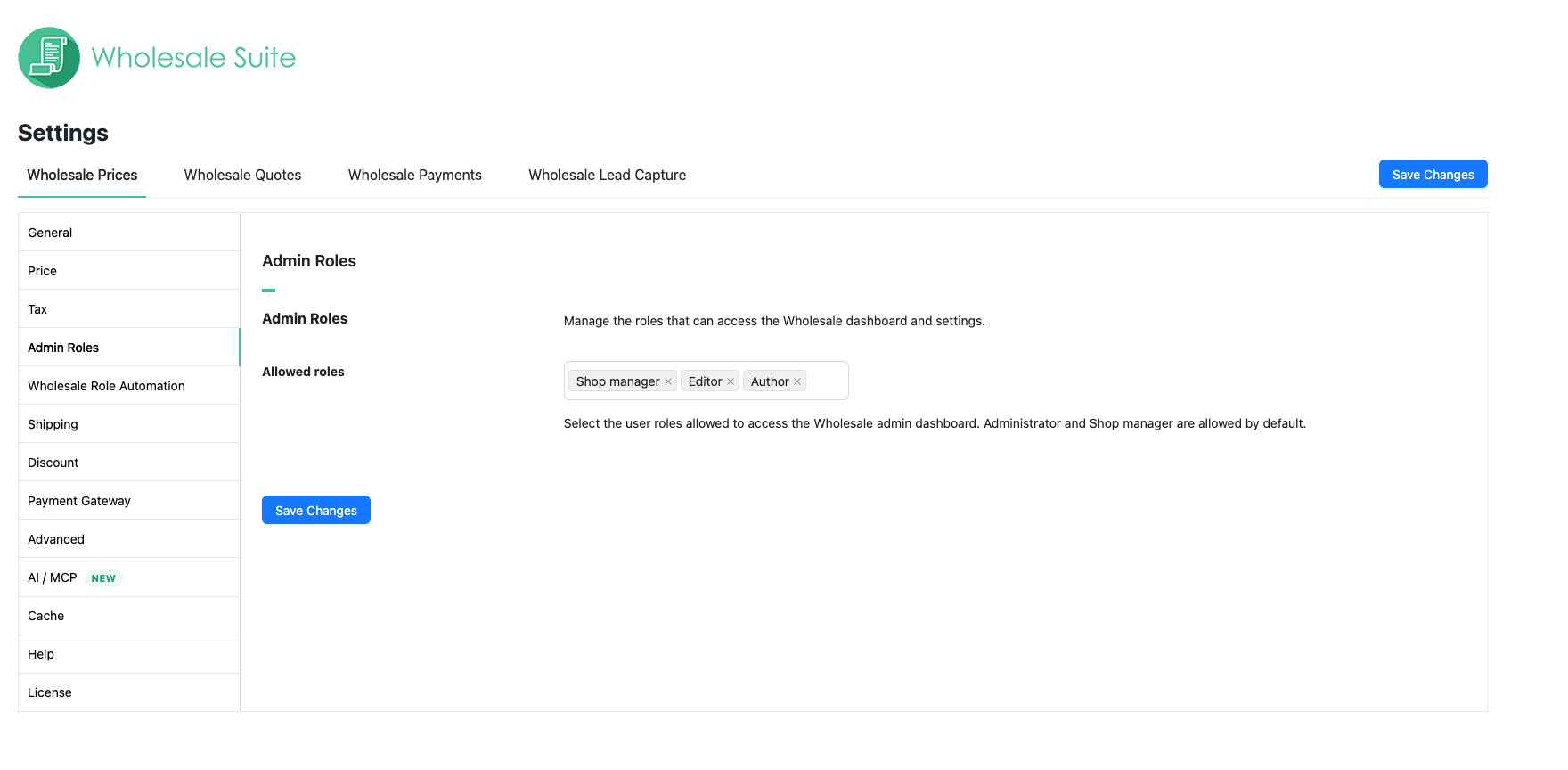
The Admin Roles tab comes from the free plugin and has the setting Allowed roles. Administrator and Shop manager have access by default. WooCommerce Wholesale Prices free plugin settings lists it in full.
Wholesale role automation
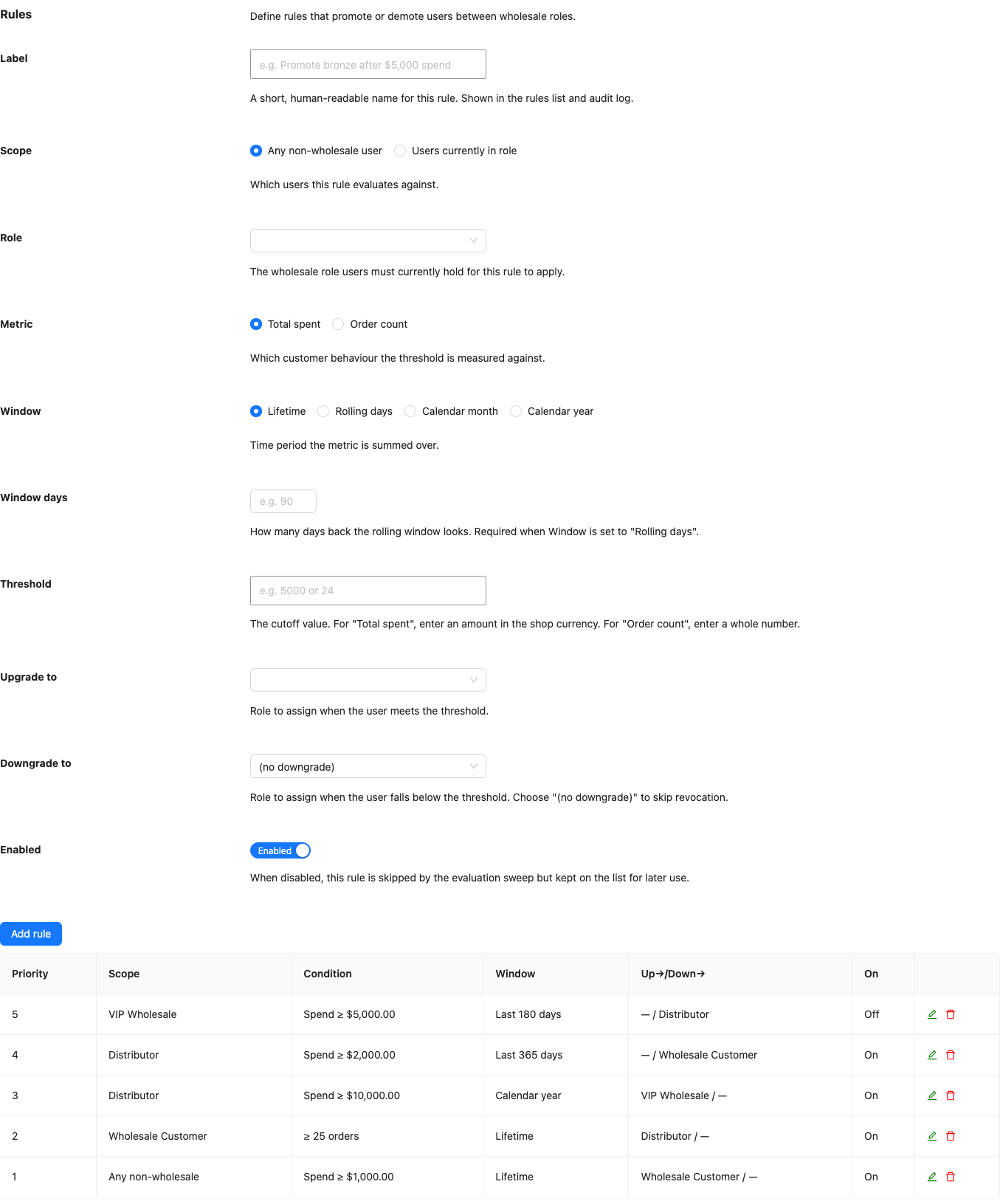
The Wholesale Role Automation tab moves customers between wholesale roles based on what they spend or how many orders they place. It needs WooCommerce Wholesale Prices Premium. The tab has no Save Changes button, and it has three sections. See How to auto-upgrade and downgrade wholesale roles.
| Section | What it does |
|---|---|
| Rules | Rules that promote or demote users between wholesale roles. Click Add rule to create one. |
| Audit log | A history of automated role changes that you can browse, filter and export. |
| Overrides | Locks specific users so the automation skips them. |
The rules list shows Priority, Scope, Condition, Window, Up/Down and On. Each rule has these fields.
| Field | Description |
|---|---|
| Label | The name shown in the rules list and the audit log. |
| Scope | Any non-wholesale user (default) or Users currently in role. |
| Role | Shows only when Scope is Users currently in role. |
| Metric | Total spent (default) or Order count. |
| Window | Lifetime (default), Rolling days, Calendar month or Calendar year. |
| Window days | Shows only when Window is Rolling days. |
| Threshold | An amount in the shop currency for Total spent, or a whole number for Order count. |
| Upgrade to | The role assigned when the user meets the threshold. |
| Downgrade to | The role assigned when the user falls below the threshold. The default is (no downgrade). |
| Enabled | On by default. A disabled rule stays on the list but is skipped. |
Shipping settings
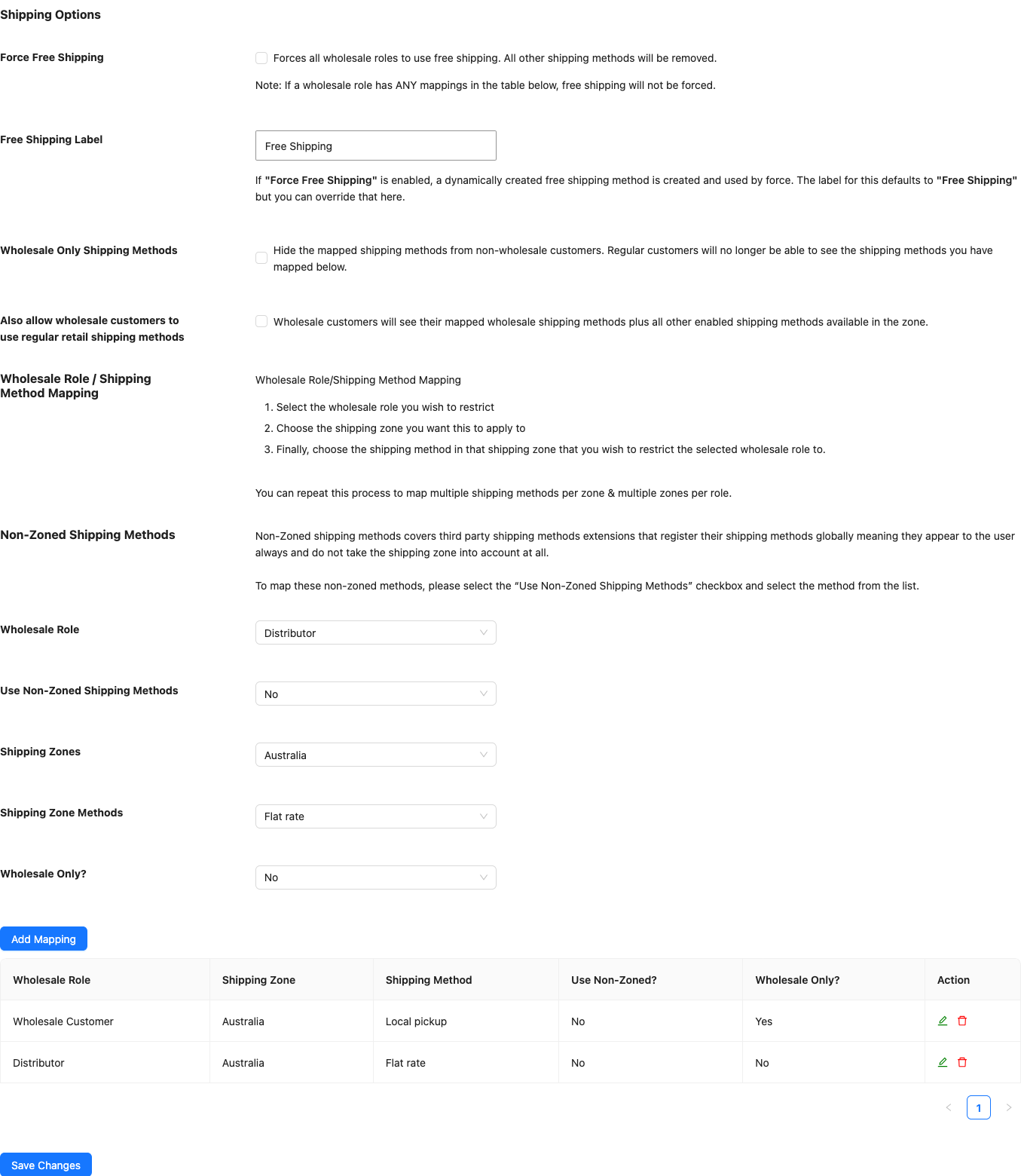
The Shipping tab controls which shipping methods wholesale customers see. It has three sections and needs WooCommerce Wholesale Prices Premium.
Shipping options
| Setting | Description | Default |
|---|---|---|
| Force Free Shipping | Forces all wholesale roles to use free shipping and removes every other shipping method. If a wholesale role has any mapping in the shipping method table, free shipping is not forced for that role. See How to Restrict Wholesale Customers to Using Particular Shipping Methods. | Off |
| Free Shipping Label | The name customers see for the free shipping method that Force Free Shipping creates. | Free Shipping |
| Wholesale Only Shipping Methods | Hides the mapped shipping methods from customers without a wholesale role. See How to override the Wholesale Only shipping setting for certain shipping methods. | Off |
| Also allow wholesale customers to use regular retail shipping methods | Shows wholesale customers their mapped wholesale methods plus all other enabled methods in the zone. | Off |
Wholesale role / shipping method mapping
This section explains how a mapping works. Select the wholesale role, choose the shipping zone, then choose the shipping method in that zone. Repeat the steps to map more methods per zone and more zones per role. The form itself appears under Non-Zoned Shipping Methods below.
Non-zoned shipping methods
This section holds the mapping form for zoned and non-zoned methods. A mapping limits a wholesale role to the shipping methods you pick. Click Add Mapping to add a row with these fields. See How To Map Multiple Shipping Methods Within The Same Region.
| Field | What it does | Default |
|---|---|---|
| Wholesale Role | The role the mapping applies to. | Not set |
| Use Non-Zoned Shipping Methods | Choose Yes for shipping methods from third party plugins that apply everywhere and ignore shipping zones. | No |
| Shipping Zones | The shipping zone the mapping applies to. It shows when the field above is No. | Not set |
| Shipping Zone Methods | The method in that zone that the role can use. | Not set |
| Non-Zoned Shipping Zone Methods | The non-zoned method the role can use. It shows when Use Non-Zoned Shipping Methods is Yes. | Not set |
| Wholesale Only? | Choose Yes to hide this method from retail and guest customers. Wholesale customers still see it. | No |
Discount settings
The Discount tab sets discounts by wholesale role. It has three sections and needs WooCommerce Wholesale Prices Premium.
General discount options
The general discount applies to a wholesale role when a product has no wholesale price and no category discount. Click Add Mapping to add a row with a Wholesale Role and a Percent Discount. Enter 30 for 30 percent and 0.3 for 0.3 percent. See Wholesale Pricing Guide – How Wholesale Pricing Works in Wholesale Suite.
General quantity based discounts
| Setting | Description | Default |
|---|---|---|
| Enable General Quantity Based Discounts | Turns the general quantity based discount system on or off. The mappings below are ignored while it is off. | Off |
| Apply Discounts Based On Individual Product Quantities? | By default the system uses the total quantity of all items in the cart. This option uses the quantity of each product instead. | Off |
Below these settings, click Add Mapping to add a row with a Wholesale Role, Starting Qty, Ending Qty and a Percent Discount. Leave Ending Qty blank for no maximum.
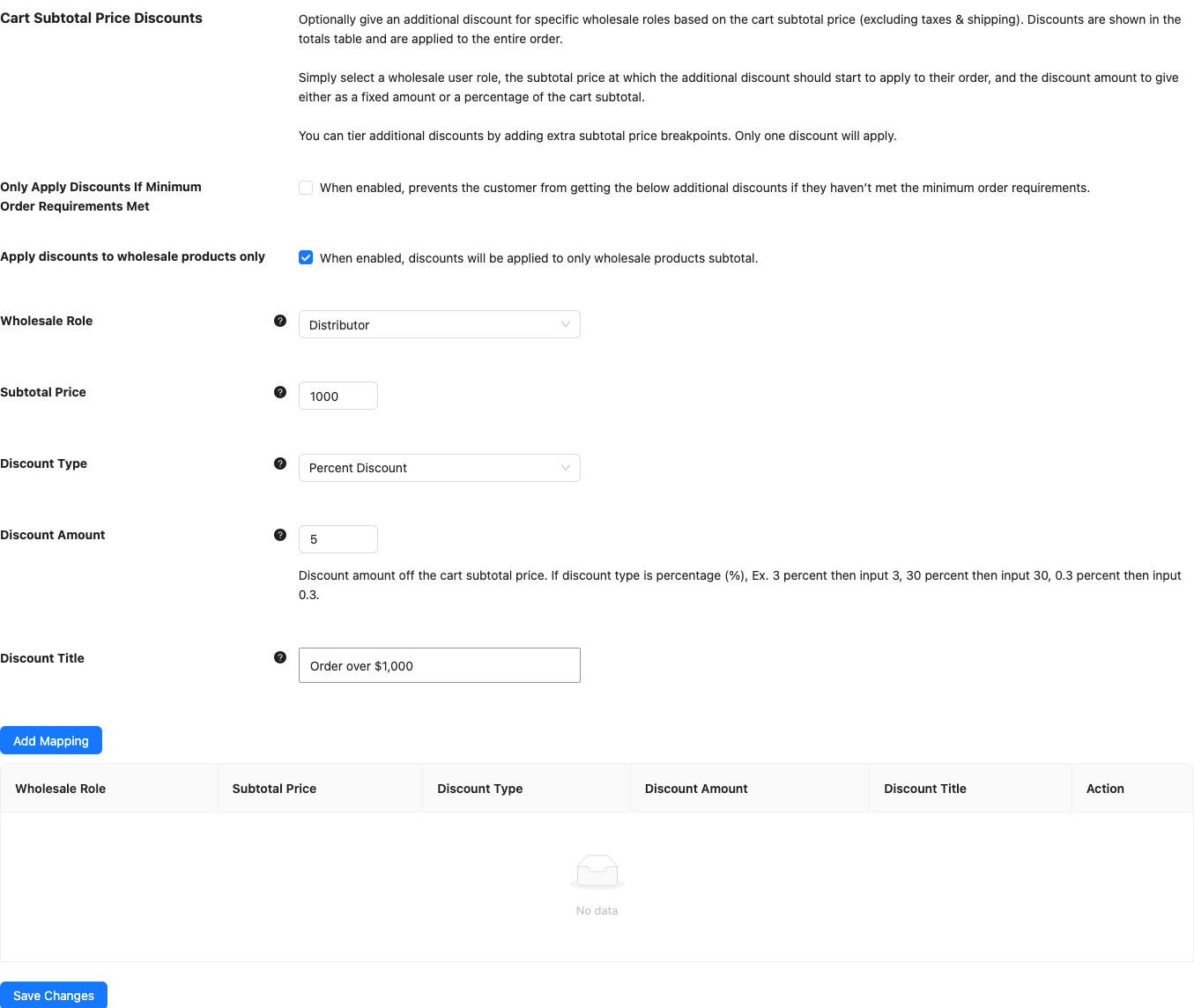
Cart subtotal price discounts
| Setting | Description | Default |
|---|---|---|
| Only Apply Discounts If Minimum Order Requirements Met | Stops customers from getting the cart discounts below until they meet the minimum order requirements. | Off |
| Apply discounts to wholesale products only | Applies the cart discounts only to the subtotal of wholesale products. | Off |
Below these settings, click Add Mapping to add a row with a Wholesale Role, Subtotal Price (the subtotal where the discount starts, excluding tax and shipping), Discount Type (Percent Discount or Fixed Discount), Discount Amount and Discount Title. Only one discount applies. See How To Set Cart Subtotal Based Discounts.
Payment gateway settings
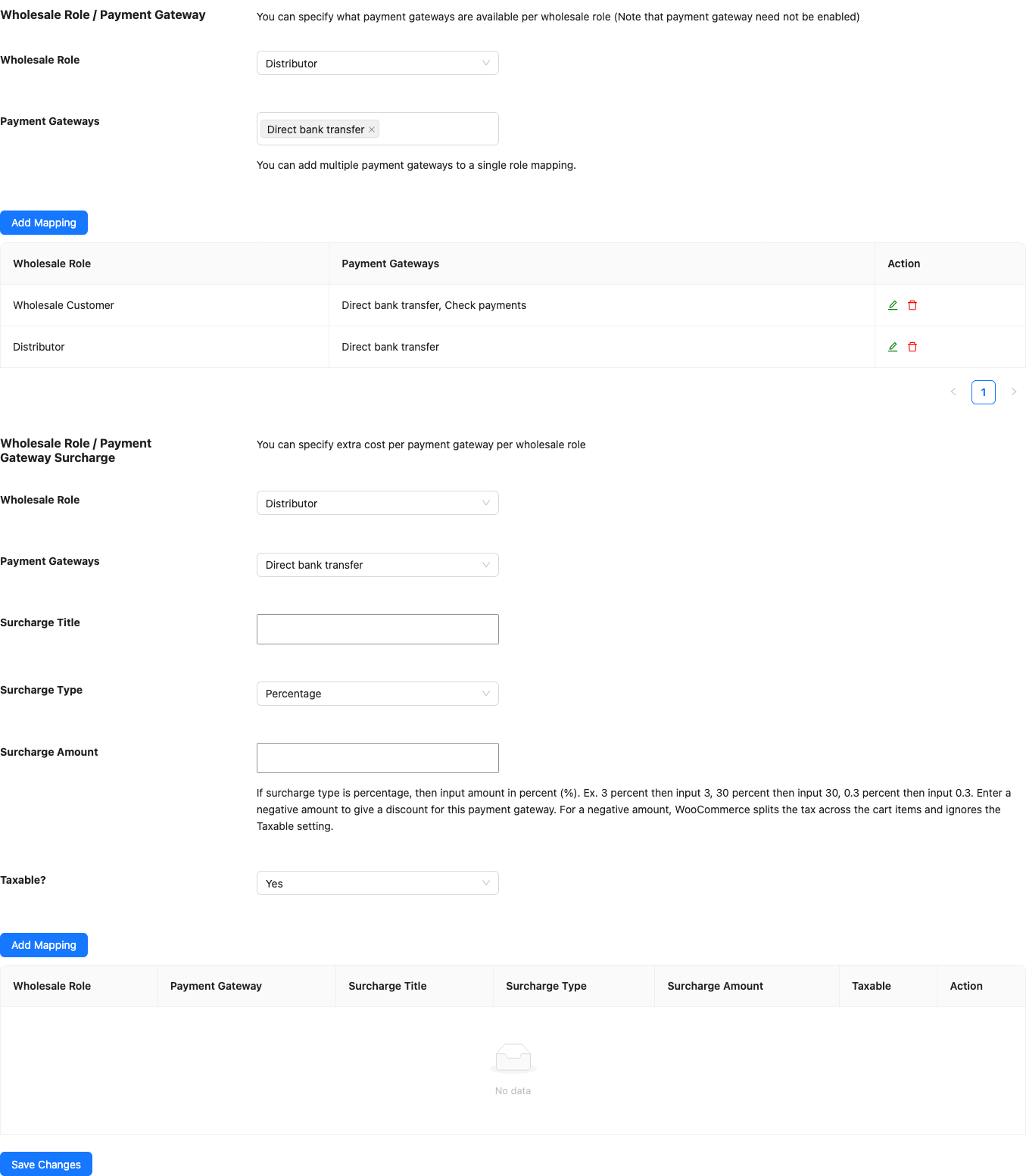
The Payment Gateway tab controls which payment gateways wholesale customers can use, and adds surcharges per gateway. It needs WooCommerce Wholesale Prices Premium.
Wholesale role / payment gateway
Click Add Mapping to add a row with a Wholesale Role and one or more Payment Gateways. A wholesale role with a mapping sees only those gateways at checkout. Administrators are not affected. See How to restrict wholesale customers to specific payment gateways.
Wholesale role / payment gateway surcharge
Click Add Mapping to add a row with a Wholesale Role, Payment Gateways, Surcharge Title, Surcharge Type (Fixed Price or Percentage), Surcharge Amount and Taxable? (Yes or No). For a percentage, enter 3 for 3 percent. See How to apply surcharge fees per payment gateway.
Advanced settings
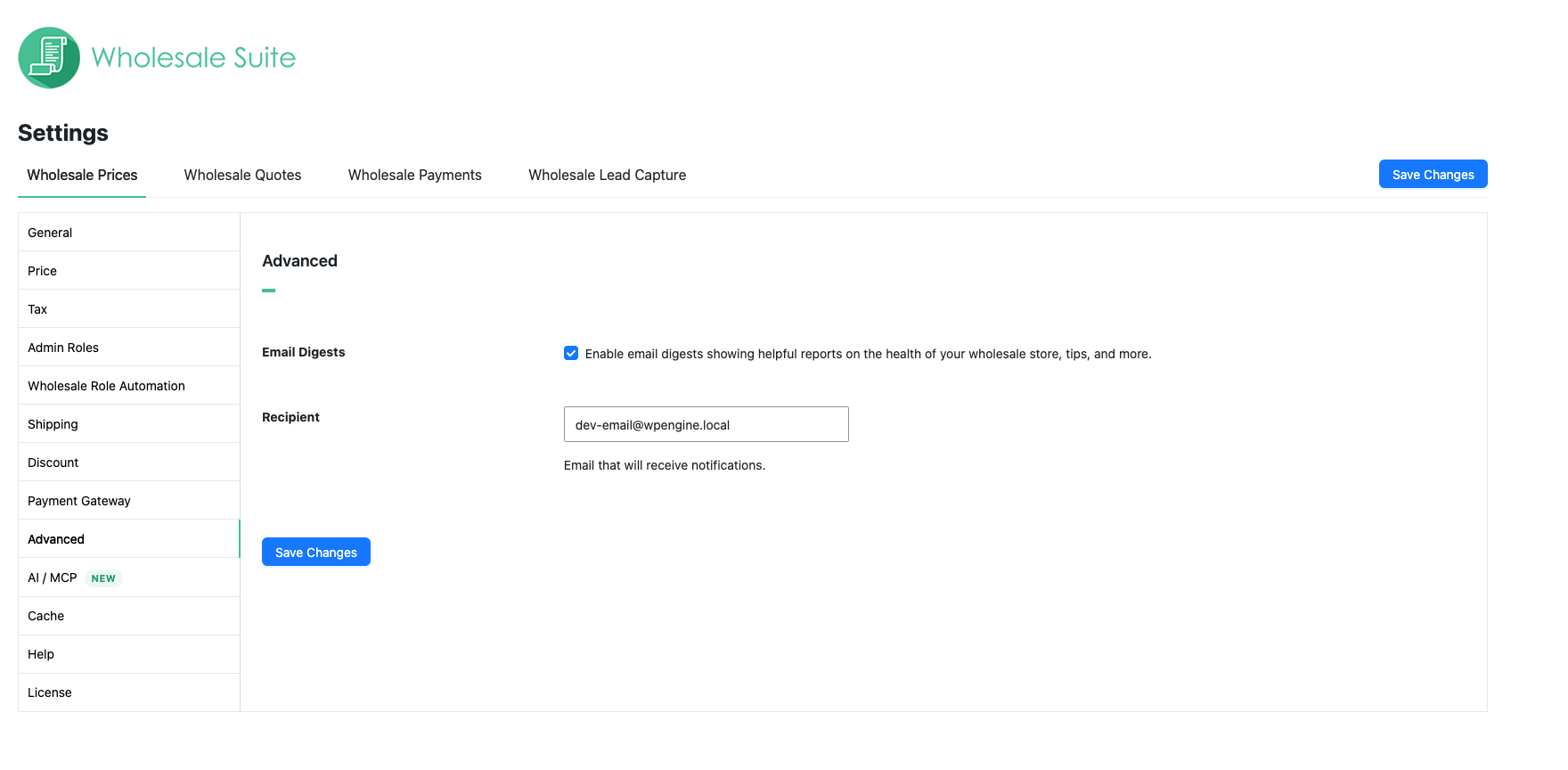
The Advanced tab controls digest emails about your wholesale store. It needs WooCommerce Wholesale Prices Premium.
| Setting | Description | Default |
|---|---|---|
| Email Digests | Sends email digests with reports on the health of your wholesale store, tips and more. | On |
| Recipient | The email address that receives the digests. | The admin email address of your site |
AI / MCP
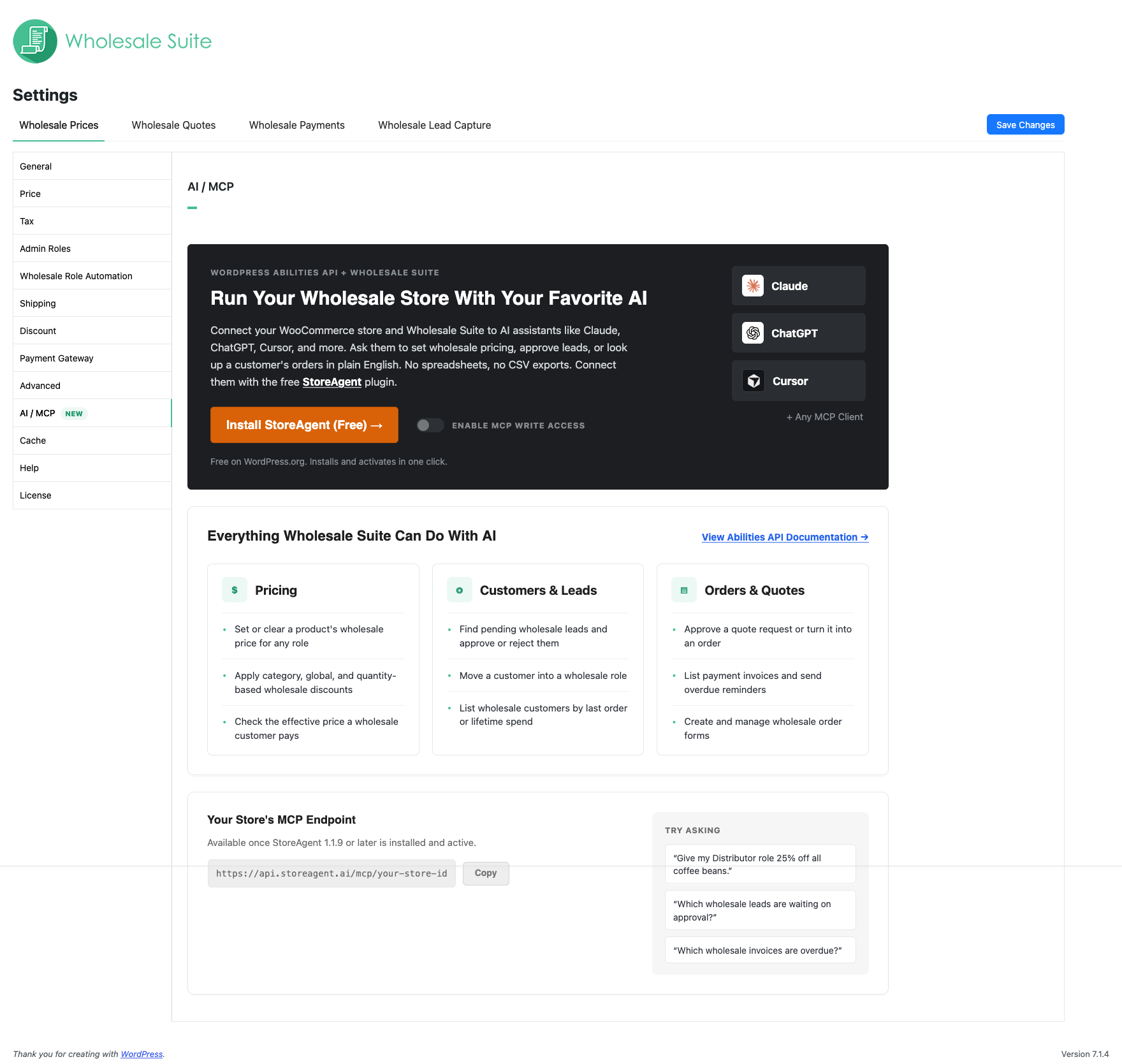
The AI / MCP tab comes from the free plugin. It connects your store to AI assistants. WooCommerce Wholesale Prices free plugin settings covers its settings and How to use AI abilities in Wholesale Suite covers what an assistant can do.
The tab needs the free StoreAgent plugin. Until StoreAgent 1.1.9 or later is installed and active, Your Store’s MCP Endpoint shows no usable address. The Enable MCP write access switch stays greyed out until you also connect your StoreAgent account.
Cache settings
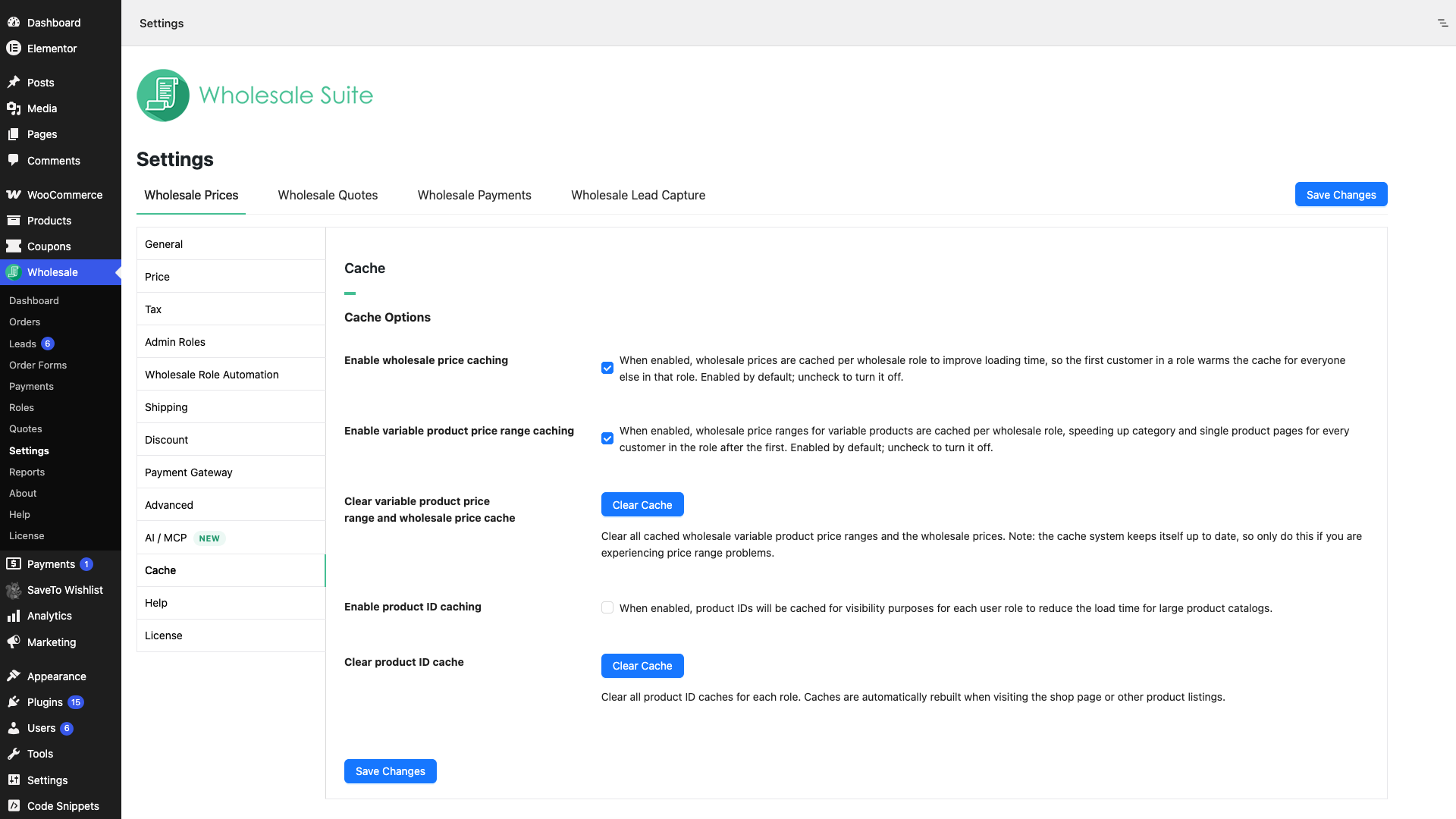
The Cache tab speeds up wholesale pages on larger stores. It has one section, Cache Options, and needs WooCommerce Wholesale Prices Premium. The caches keep themselves up to date, so clear them only when prices or product lists look wrong.
| Setting | Description | Default |
|---|---|---|
| Enable wholesale price caching | Stores wholesale prices for each wholesale role, so the first customer in a role speeds up pages for everyone else in that role. | On |
| Enable variable product price range caching | Stores wholesale price ranges for variable products for each wholesale role, which speeds up category and single product pages. | On |
| Clear variable product price range and wholesale price cache | Click Clear Cache to delete all stored price ranges and wholesale prices. | Button |
| Enable product ID caching | Stores product IDs for each user role, so visibility checks run faster on large catalogs. | Off |
| Clear product ID cache | Click Clear Cache to delete the stored product IDs for every role. The plugin rebuilds them when someone visits the shop page or another product list. | Button |
WC Vendors settings
The WC Vendors tab appears only when WC Vendors Pro is active. It needs WooCommerce Wholesale Prices Premium. The vendor wording in the labels follows the name your marketplace uses for vendors. See Wholesale Suite Integration with WC Vendors.
| Setting | Description | Default |
|---|---|---|
| Enable wholesale for vendors | Lets vendors sell wholesale products. When it is off, wholesale features are not available to vendors. | Off |
| Allow vendors to restrict product visibility | Lets vendors limit product visibility to certain wholesale roles. It shows when the setting above is on. | Off |
| Vendor Wholesale Roles | The wholesale roles vendors can pick from. It shows when the first setting is on. | All registered wholesale roles |
Help and debug tools
The Help tab has a link to the Knowledge Base under Help Options. It also has Debug Tools, which need WooCommerce Wholesale Prices Premium. When WooCommerce Wholesale Order Form is active, Help Options adds the three settings below.
| Setting | Description | Default |
|---|---|---|
| Database Optimization | Click Optimize Database to schedule database indexes that speed up order form queries. The button shows Optimization Running… while it runs and Optimization Complete when done, and is disabled in both states. | Button |
| Enable Variations Response Cache | Caches the order form’s wholesale variation responses for faster loading. Turn it off only on shared hosting with no persistent object cache (Redis or Memcached), where the cache is stored in the options table and can grow large. | On |
| Refetch Order Form Update Data | Fetches the Wholesale Order Form update data again. Use it to debug a failed plugin update. | Button |
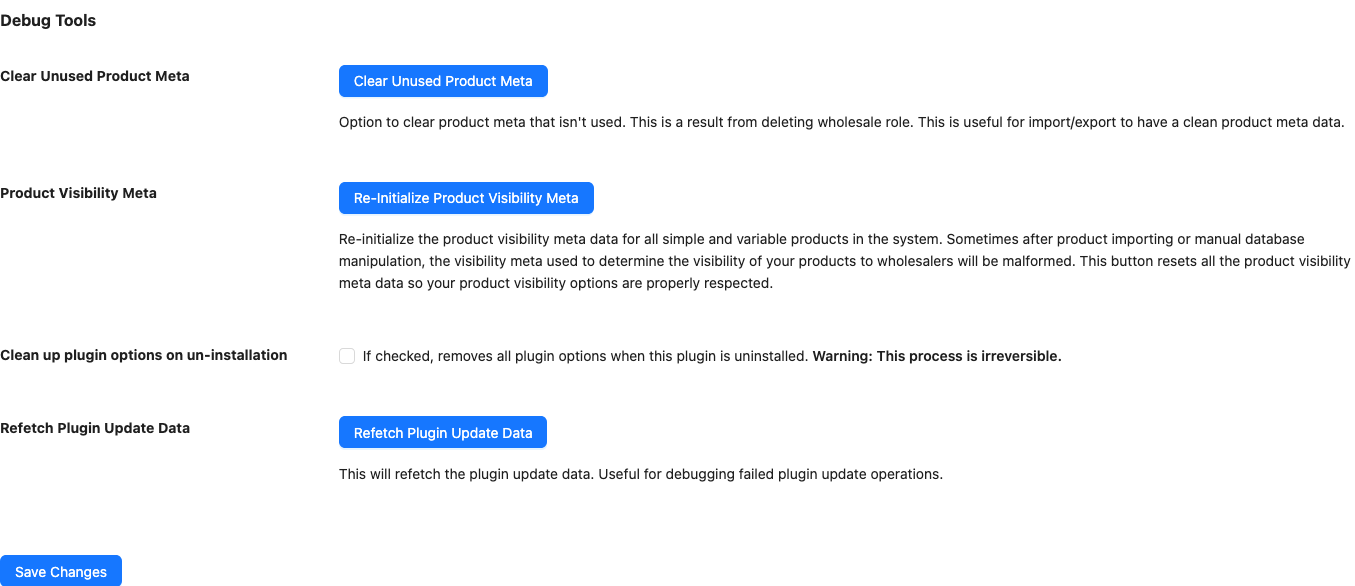
The Debug Tools section has these settings.
| Setting | Description | Default |
|---|---|---|
| Clear Unused Product Meta | Deletes product data left behind after you delete a wholesale role. It also gives import and export files cleaner data. See How to conduct a basic debug for Wholesale Suite. | Button |
| Product Visibility Meta | The Re-Initialize Product Visibility Meta button rebuilds the visibility data of all simple and variable products. Use it after an import or a manual database change if products show or hide wrongly. See How To Fix Broken Product Visibility After Product Importing. | Button |
| Clean up plugin options on un-installation | Deletes all plugin options when you uninstall the plugin. You cannot undo this. | Off |
| Refetch Plugin Update Data | Fetches the plugin update data again. Use it to debug a failed plugin update. The button asks you to confirm. | Button |
License
The License tab is a link to the license settings page, where you enter your license key. See How to retrieve and activate your Wholesale Suite license keys.
Upgrade
The Upgrade tab compares plans and has no settings. It disappears when WooCommerce Wholesale Prices Premium, WooCommerce Wholesale Order Form and WooCommerce Wholesale Lead Capture are all active.
Saving your changes
Click Save Changes after you edit a tab. The Wholesale Role Automation and Upgrade tabs have no save button.
Frequently asked questions
Why does my settings screen not show every tab listed here?
The WC Vendors tab needs WC Vendors Pro, and the Upgrade tab hides when all three Wholesale Suite premium plugins are active. Without WooCommerce Wholesale Prices Premium, only the free tabs appear.
Do these settings apply to every wholesale role?
Most settings apply to all wholesale roles. The mapping tables let you set values for one role. You can also override some settings for a single customer. See How to Override Wholesale Settings for Individual Wholesale Users.
Need help?
If you have a question or run into any issues, we’re here to help.
- Premium users: Open a support ticket
- Free users: Visit our community forum